
SharePoint is a powerful platform within the Microsoft 365 ecosystem that enables collaboration, information sharing, and content management across organizations. As organizations increasingly rely on digital solutions for teamwork and communication, understanding the difference between SharePoint Team Sites and Communication Sites is essential. Choosing the right site type ensures efficiency, employee engagement, and smooth business operations.
What Is a SharePoint Team Site?
A Team Site is designed with collaboration in mind. Think of it as a virtual workspace where members of a specific team, project group, or department come together to share documents, manage tasks, and communicate in real time.
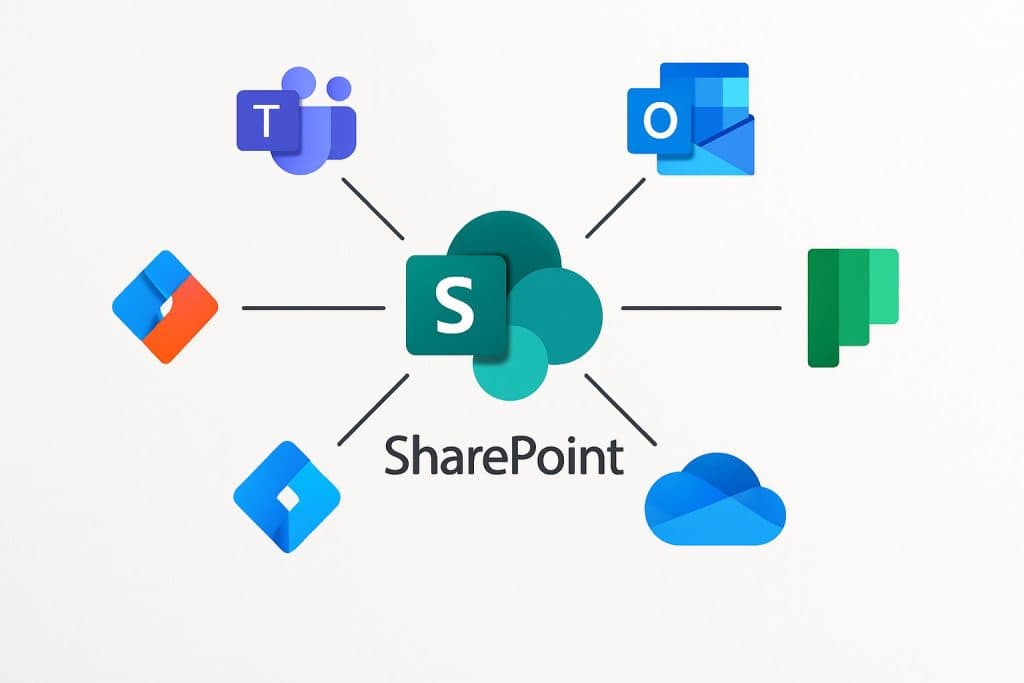
When you create a Team Site, it typically connects to a Microsoft 365 Group, which means you get access to shared resources such as a group mailbox, calendar, Planner for task management, and seamless integration with Microsoft Teams.
In a Team Site, all members are content authors. Anyone with the right permissions can upload files, edit documents, create lists, or add announcements. This collaborative environment is ideal for teams that need to work on deliverables together—whether it’s tracking project statuses, brainstorming ideas, or reviewing documents before a submission deadline.
Access is usually limited to the team or group members, making the workspace private and focused on productivity and confidential work.
What Is a SharePoint Communication Site?
In contrast, a Communication Site is designed primarily for broadcasting information to a larger audience. These sites are often used for company-wide announcements, internal news portals, HR resources, or departmental updates that need to be shared broadly.
Unlike Team Sites, where every member can contribute content, Communication Sites usually restrict authoring rights to a few content creators, with the majority of users having read-only access. This setup ensures information stays consistent and well-curated.
Communication Sites stand out for their visually engaging design. Their layouts are optimized for content presentation, featuring web parts like news stories, hero images, events, and resource links.
Navigation is streamlined—usually with prominent top navigation and visually rich sections—which helps guide employees to the content they need.
These sites don’t connect to a Microsoft 365 Group, and their security model relies on SharePoint groups for managing owners, members, and visitors.
Check out SharePoint Online vs. SharePoint On-Premise
Key Differences: Team Site vs Communication Site
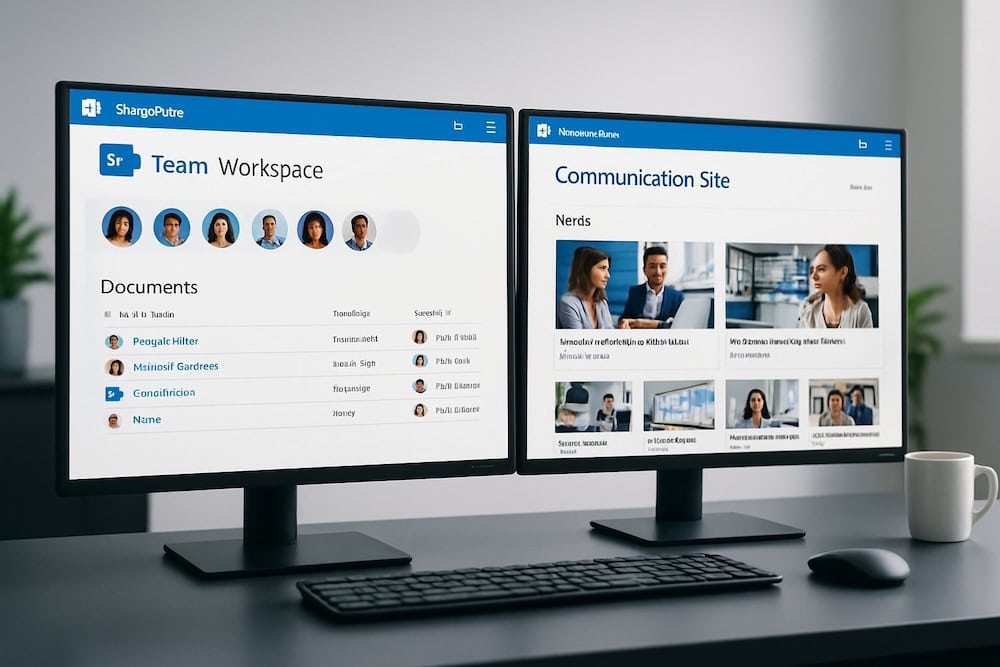
While both Team Sites and Communication Sites appear similar at first glance, their purposes, features, and management are distinctly different. Here’s how they compare in core areas:
Collaboration vs. Broadcasting
Team Sites are built for collective productivity. Everyone can contribute, edit, and co-author content. They shine when your focus is on document management, task tracking, and ongoing collaboration within a closed group.
Integration with Microsoft Teams turns a Team Site into a hub for discussions, document sharing, scheduling meetings, and tracking progress.
On the other hand, Communication Sites excel at one-to-many communication. When your aim is to publish curated information, celebrate organization-wide achievements, or roll out HR policies, a Communication Site provides an elegant, controlled presentation. Regular employees typically receive information rather than contribute content.
Permissions and Security
A key distinction lies in how permissions are managed. Team Sites use Microsoft 365 Groups, so managing access is as simple as adding or removing group members. This integration extends collaborative tools like Outlook, Planner, and Teams to every group member automatically.
Communication Sites rely on SharePoint groups, meaning permissions are managed separately for owners, members, and visitors. This approach allows for greater control over who can author content and who can only view it across a broad audience.
Layout and Customization
Team Sites emphasize a functional, efficient layout, showcasing document libraries, task lists, and quick links that matter most to working teams. Navigation is typically on the left, making it easy to jump between lists and frequently updated resources.
Communication Sites, in contrast, showcase visually appealing layouts—often with banners, hero images, and feature tiles on the top. The goal is to engage readers, making important news or announcements highly visible.
Navigation is streamlined along the top, focusing on guiding visitors through various polished content sections without overwhelming them with work-centric widgets.
Integration with Other Microsoft 365 Services
When you create a Team Site, you unlock deep integration with Microsoft 365 tools like Teams (for chat and meetings), Planner (for tasks), OneNote (for collaborative notes), and group mailboxes. These tools are automatically set up, streamlining collaboration.
A Communication Site doesn’t connect automatically to these collaboration tools. Its integration is focused on content and publishing—for example, providing news feeds, events, and links to other company resources.
If you need communication rather than project management, this separation keeps information clear and well-organized.
Practical Use Cases
Imagine you’re leading a marketing project to launch a new product. Your small team of designers, copywriters, and managers needs a space to draft marketing plans, comment on deliverables, assign tasks, and track schedules.
Creating a Team Site means all these materials remain in one place: everyone can update the latest version of a brochure, create milestone checklists, and use Teams for daily stand-ups.
Now consider your HR department rolling out new benefits plans. The information needs to reach all employees, but you want to ensure the messaging is uniform, visually attractive, and easy to find.
Here, a Communication Site excels: HR publishes the details, adds engaging visuals, shares upcoming enrollment deadlines, and employees view the content but don’t alter it.
Check out How to Restrict User Access to Specific Document Libraries in SharePoint
Choosing the Right SharePoint Site for Your Needs
When deciding which site to create, the choice boils down to your primary goal. If you need a private workspace for day-to-day teamwork and collective document creation, go with a Team Site.
If you want to broadcast information across your department or the whole company in a visually appealing format, a Communication Site will serve you better.
Here are a few questions to help you decide:
- Is your audience a defined group working together or the whole organization?
- Do you want everyone to contribute, or do you need control over who creates the content?
- Are you more concerned about collaboration and ongoing task management or about delivering a polished communication experience?
Technical and Governance Differences
Site provisioning in SharePoint is flexible. Team Sites are often self-service, allowing users or group owners to create them as needed for new projects or departments.
Communication Sites are typically more curated—rolled out by IT or communications teams—because they serve as pillars of internal communications or portals.
Storage and management practices also differ. Team Sites may proliferate quickly, catering to many projects and teams, while Communication Sites are fewer but more central, often forming the backbone of a SharePoint-based intranet.
Search results and discoverability are influenced by site type. Team Site content is often only discoverable by members, maintaining confidentiality. Communication Sites are designed for broader visibility, ensuring essential company information is easy to find.

Conclusion
SharePoint Team Sites and Communication Sites are foundational tools for modern work in US businesses. By understanding the unique strengths of each, you can design your SharePoint environment to optimize collaboration, streamline communication, and support the needs of both project teams and the entire workforce. Choosing the right site type—based on your goals, audience, and content strategy—ensures smoother workflows and more engaged, informed employees.
Frequently Asked Questions
What is the main difference between SharePoint Team Sites and Communication Sites?
Team Sites are designed for collaborative work among a defined group of team members, providing tools for co-authoring, project management, and private discussions. Communication Sites focus on broadcasting information from few content creators to many readers, emphasizing visual presentation and one-way information sharing.
Can I convert a Team Site to a Communication Site or vice versa?
No, you cannot directly convert between these site types as they have fundamentally different architectures and purposes. Team Sites are connected to Microsoft 365 Groups while Communication Sites are standalone. You would need to create a new site of the desired type and migrate content manually.
Which site type should I choose for my department’s intranet page?
Choose a Communication Site for department intranet pages. These sites are optimized for publishing departmental news, policies, resources, and announcements to a broad audience. They offer better visual design options and content management features for public-facing information sharing.
Do Communication Sites integrate with Microsoft Teams like Team Sites do?
No, Communication Sites do not automatically integrate with Microsoft Teams since they’re not connected to Microsoft 365 Groups. However, you can manually add Communication Sites as tabs in Teams channels or share links to specific pages and content within Teams conversations.
How do permissions work differently between Team Sites and Communication Sites?
Team Sites use Microsoft 365 Group membership with three main roles: Owners (full control), Members (contribute), and Visitors (read-only). Communication Sites use traditional SharePoint permissions where you manually assign users to permission groups, typically having few content creators with edit rights and many users with read access.
You may also like:
- How to Manage Site Storage Limits in SharePoint in Microsoft 365?
- Create Site Retention Policies in SharePoint
- Create SharePoint Files With REST API in Power Automate

Hey! I’m Bijay Kumar, founder of SPGuides.com and a Microsoft Business Applications MVP (Power Automate, Power Apps). I launched this site in 2020 because I truly enjoy working with SharePoint, Power Platform, and SharePoint Framework (SPFx), and wanted to share that passion through step-by-step tutorials, guides, and training videos. My mission is to help you learn these technologies so you can utilize SharePoint, enhance productivity, and potentially build business solutions along the way.


Content was great and made a lot of sense, although I had to stumble over the grammar a few times. 😉 I never understood the difference between team vs communication sites, Thanks for explaining it.
Quick & Simple content thanks.