
In Power Automate, we usually work with the default approval buttons Approve and Reject. But not every process needs only these two options. Sometimes the requirement is totally different.
For example:
Instead of Approve/Reject, you may need Review Again, Need More Info, Send Back, Forward to Manager, or Mark as Completed. Or maybe you want multiple decision paths in a single approval flow.
This is where Power Automate provides two approval type options: Custom Responses – Wait for all responses and Custom Responses – Wait for one response.
They let us create our own buttons based on our business needs, and the flow runs different actions depending on which button the user selects.
In this tutorial, I will show you how to create custom responses in Power Automate approvals.
Custom Responses in Power Automate Approvals
Let’s take a simple business example.
Suppose your company uses a SharePoint list called Task Requests, where employees submit small work requests such as data updates, document changes, or minor fixes. Whenever a new item is created, it must be reviewed by a team lead.
However, the team lead does not want only Approve and Reject options. Depending on the situation, they want more choices.
Requirement:
Whenever a new item is created in the Task Requests list, the system should send an approval request to the team lead with three custom response buttons:
- Needs More Info: The task requires additional details from the employee.
- Review Again: The task is incomplete or unclear and should be revised.
- Mark as Completed: The task is correct and can be closed without further steps.
Based on the button the team lead selects, the flow must perform different actions. However, I will only update the item here.
For this example, I created the Task Requests SharePoint list. Check the screenshot below:

Now follow the steps below:
- Open Power Automate, create an automated cloud flow with a trigger (When an item is created). Select your SharePoint site and document library.

- Now, add the Start and wait for an approval action. Provide parameters below:
- Approval type: Custom Responses – Wait for one response
- Response options:
- Needs More Info
- Review Again
- Mark as Completed
- Title: Select the Title column from the SharePoint item.
- Assigned to: provide the team lead’s email address.
- Details:
A new task has been created in the Task Requests list.
**Task Title**: @{triggerBody()?['Title']}
**Requested By**: @{triggerBody()?['Author/DisplayName']}
**Request Details**: @{triggerBody()?['RequestDetails']}
**Priority**: @{triggerBody()?['Priority/Value']}
Please review the task and choose an action based on the requirement.
In this case, we have three buttons in the approval, so I will use a Switch action to update the item. If I had only two buttons, I would use a Condition action.
- Next, add a Switch action to handle each approval outcome separately. In the On field, select Outcome from the Start and wait for an approval action.

- Inside the Switch action, click Add a case. Rename the case to: Needs More Info In the Equals field, type exactly: Needs More Info.
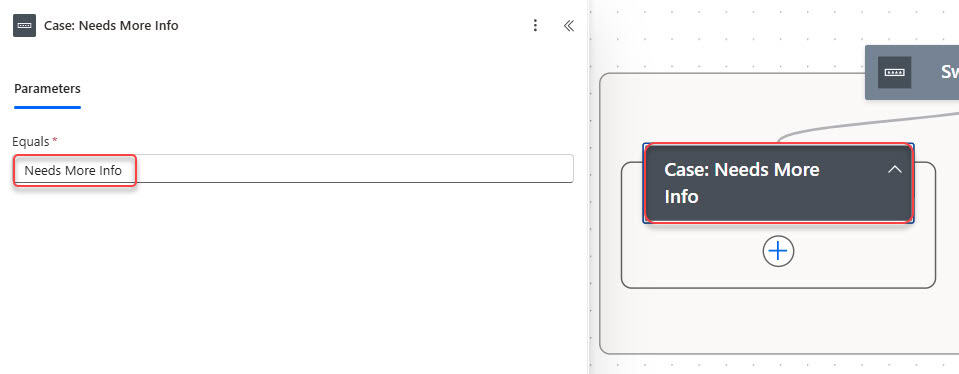
- Now, under the ‘Needs More Info’ case, add the ‘Update item‘ action. Provide the parameters below:
- Site Address: Select your SharePoint site
- List Name: Task Requests
- Id: ID (from the trigger)
- Status Value: Needs More Info
- Response Notes:
ℹ️ The reviewer has requested additional information.
Requested By: @{body('Start_and_wait_for_an_approval')?['responses'][0]?['responder']?['displayName']}
Comments: "@{body('Start_and_wait_for_an_approval')?['responses'][0]?['comments']}"
Requested On: @{formatDateTime(body('Start_and_wait_for_an_approval')?['responses'][0]?['responseDate'], 'dd/MM/yyyy hh:mm:ss tt')}
- After updating the SharePoint item, add a Send an email action to notify the requester. Provide the parameters below:
- To: @{triggerBody()?[‘Author/Email’]}
- Subject: More Information Required for Your Task Request – @{triggerBody()?[‘Title’]}
- Body:
Hello @{triggerBody()?['Author/DisplayName']},

Your task request titled **@{triggerBody()?['Title']}** requires additional information.

Reviewer: @{body('Start_and_wait_for_an_approval')?['responses'][0]?['responder']?['displayName']}
Comments: "@{body('Start_and_wait_for_an_approval')?['responses'][0]?['comments']}"
Requested On: @{formatDateTime(body('Start_and_wait_for_an_approval')?['responses'][0]?['responseDate'], 'dd-MMM-yyyy hh:mm tt')}

Please update the task with the required details so the review process can continue.

Thank you,
Task Review System
- Inside the Switch, click Add a case. Case Name: Review Again Equals: Review Again. Now add an Update item action.
- Site Address: Your SharePoint site
- List Name: Task Requests
- Id: ID (from trigger)
- Status Value: Review Again
- Response Notes:
🔁 The reviewer has requested a revision.

Reviewed By: @{body('Start_and_wait_for_an_approval')?['responses'][0]?['responder']?['displayName']}
Comment: "@{body('Start_and_wait_for_an_approval')?['responses'][0]?['comments']}"
Reviewed On: @{formatDateTime(body('Start_and_wait_for_an_approval')?['responses'][0]?['responseDate'],'dd/MM/yyyy hh:mm:ss tt')}- Add a Send an email action and provide the information below:
- To: @{triggerBody()?[‘Author/Email’]}
- Subject: Task Requires Revision – @{triggerBody()?[‘Title’]}
- Body:
Hello @{triggerBody()?['Author/DisplayName']},

Your task request **@{triggerBody()?['Title']}** needs to be reviewed again.

Reviewer: @{body('Start_and_wait_for_an_approval')?['responses'][0]?['responder']?['displayName']}
Comment: "@{body('Start_and_wait_for_an_approval')?['responses'][0]?['comments']}"
Reviewed On: @{formatDateTime(body('Start_and_wait_for_an_approval')?['responses'][0]?['responseDate'],'dd-MMM-yyyy hh:mm tt')}

Please make the required changes and submit it again.

Thank you,
Task Review System
- Inside the Switch, click Add a case. Case Name: Mark as Completed Equals: Mark as Completed. Add an Update item action.
- Site Address: Your SharePoint site
- List Name: Task Requests
- Id: ID (from trigger)
- Status Value: Review Again
- Response Notes:
✔️ The task has been marked as completed.

Completed By: @{body('Start_and_wait_for_an_approval')?['responses'][0]?['responder']?['displayName']}
Comment: "@{body('Start_and_wait_for_an_approval')?['responses'][0]?['comments']}"
Completed On: @{formatDateTime(body('Start_and_wait_for_an_approval')?['responses'][0]?['responseDate'],'dd/MM/yyyy hh:mm:ss tt')}- Add a Send an email action and provide the information below:
- To: @{triggerBody()?[‘Author/Email’]}
- Subject: Your Task Has Been Completed – @{triggerBody()?[‘Title’]}
- Body:
Hello @{triggerBody()?['Author/DisplayName']},

Good news! Your task request **@{triggerBody()?['Title']}** has been marked as completed.

Completed By: @{body('Start_and_wait_for_an_approval')?['responses'][0]?['responder']?['displayName']}
Comment: "@{body('Start_and_wait_for_an_approval')?['responses'][0]?['comments']}"
Completed On: @{formatDateTime(body('Start_and_wait_for_an_approval')?['responses'][0]?['responseDate'],'dd-MMM-yyyy hh:mm tt')}

No further action is needed from your side.

Thank you,
Task Review System

Test the Custom Response Approval Flow
After creating the flow, follow the steps below to test whether all three custom response paths are working correctly.
Go to your Task Requests SharePoint list. Add a Request:
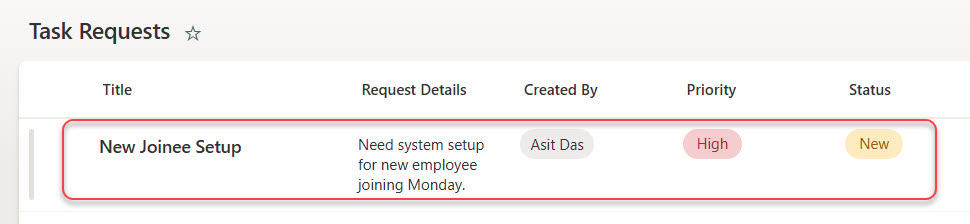
The Team Lead (assigned in the approval action) will receive an approval email with the three custom buttons:
- Needs More Info
- Review Again
- Mark as Completed

Click Mark as Completed, then you can see the Status updates to Mark as Completed. The Requester receives a Task Completed email.

Instead of only Approve and Reject, you can create your own buttons and run different actions based on what the reviewer selects.
In this tutorial, we created a real scenario using a Task Requests list and added three custom responses:
- Needs More Info
- Review Again
- Mark as Completed
Each option triggered a different update and email notification.
You may also like:
- Power Automate save email attachment to SharePoint
- Delete all files in a SharePoint folder using Power Automate
- Copy List Items To Another List In SharePoint Using Power Automate

Hey! I’m Bijay Kumar, founder of SPGuides.com and a Microsoft Business Applications MVP (Power Automate, Power Apps). I launched this site in 2020 because I truly enjoy working with SharePoint, Power Platform, and SharePoint Framework (SPFx), and wanted to share that passion through step-by-step tutorials, guides, and training videos. My mission is to help you learn these technologies so you can utilize SharePoint, enhance productivity, and potentially build business solutions along the way.