
While creating different Power Automate flows, I noticed that running tasks one by one often slowed down the process. So, I started using Parallel Branches to handle multiple actions simultaneously, such as sending emails, creating tickets, and sending notifications. It made my flows much faster.
In this tutorial, I will tell you how to automate employee onboarding by running multiple actions at the same time, how to handle business travel requests with parallel approvals, and how to join branches to continue the flow only after all actions are complete.
What Is a Parallel Branch in Power Automate?
In Power Automate, a Parallel Branch allows you to run multiple actions at the same time instead of one after the other. Usually, actions in a flow run in sequence, one finishes, then the next begins. But sometimes, you may want to do multiple things simultaneously to save time or perform independent tasks.
For example, while one branch sends an email, another can update a SharePoint list, and yet another can create a task in Planner, all running in parallel.

Add a Parallel Branch to Power Automate
When a new employee is added to your SharePoint list, you can use a Parallel Branch in Power Automate to trigger multiple onboarding tasks at the same time, such as:
- Sending a welcome email to the employee
- Creating an IT helpdesk ticket for device and account setup
- Notifying the HR team in Microsoft Teams
For this example, I am using two SharePoint lists:
New Employee Onboarding
| Column Name | Type |
|---|---|
| Employee ID | Title (Single line of text) |
| Employee Name | Single line of text |
| Employee Email | Single line of text |
| Job Title | Single line of text |
| Start Date | Date and Time |
| Manager Name | Person or Group |

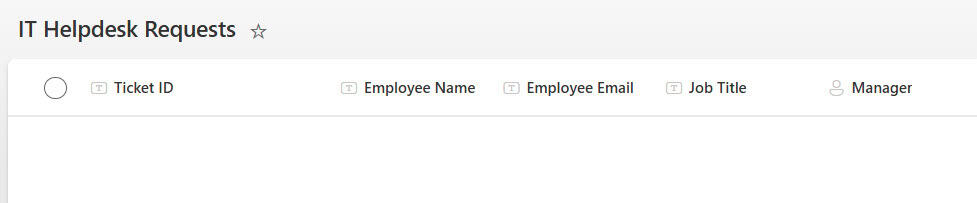
IT Helpdesk Requests
| Column Name | Type |
|---|---|
| Ticket ID | Title (Single line of text) |
| Employee Name | Single line of text |
| Employee Email | Single line of text |
| Job Title | Single line of text |
| Manager Name | Person or Group |
Now follow the steps below:
- Go to Power Automate. Create a new Automated cloud flow. Set the trigger as: When an item is created (SharePoint). Choose your SharePoint site and the New Employee Onboarding list.

- Add a Send an email (V2) action and provide the below parameters:
- To: Provide Employee Email from dynamic content.
- Subject: Welcome to Tsinfo Technologies, @{triggerBody()?[‘EmployeeName’]}
- Body:
Dear @{triggerBody()?['EmployeeName']},

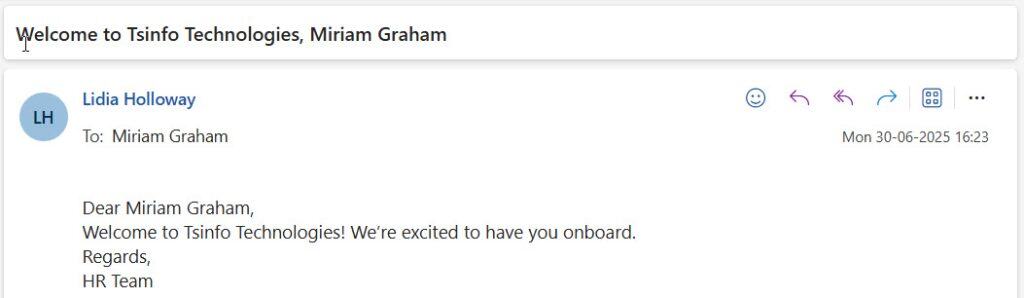
Welcome to Tsinfo Technologies! We’re excited to have you onboard.

Regards,
HR Team
- Right-click the “Add an action” icon
 at the top of “Send an email (V2)”. Then click Add a parallel branch.

- Add a Create item action from SharePoint and provide the following parameters:
- Site Address: Provide the SharePoint site address.
- List Name: IT Helpdesk Requests
Field Mappings:
| Field in IT Helpdesk Requests | Value |
|---|---|
| Employee Name | @{triggerBody()?[‘EmployeeName’]} |
| Employee Email | @{triggerBody()?[‘EmployeeEmail’]} |
| Job Title | @{triggerBody()?[‘JobTitle’]} |
| Manager Claims | @{triggerBody()?[‘ManagerName/DisplayName’]} |

- Right-click the top of either your existing “Send an email (V2)” or “Create item” action. Click “Add a parallel branch.” In the new parallel branch, search for and choose “Post a message in a chat or channel” (Microsoft Teams) action.:
- Post as: Flow bot
- Post in: Channel
- Team: Human Resources Department
- Channel: General
- Message:
📢 New Employee Onboarded – Action Required
A new employee has been added to the system:
👤 Name: @{triggerBody()?['EmployeeName']}
✉️ Email: @{triggerBody()?['EmployeeEmail']}
🏢 Job Title: @{triggerBody()?['JobTitle']}
👨💼 Manager: @{triggerBody()?['ManagerName/DisplayName']}
Please initiate the onboarding steps.
- After adding all the actions (email, SharePoint item, Teams message), click Save (top right corner). Open your SharePoint list. Then add a New Employee Item.

After adding the item:
The employee receives a welcome email.
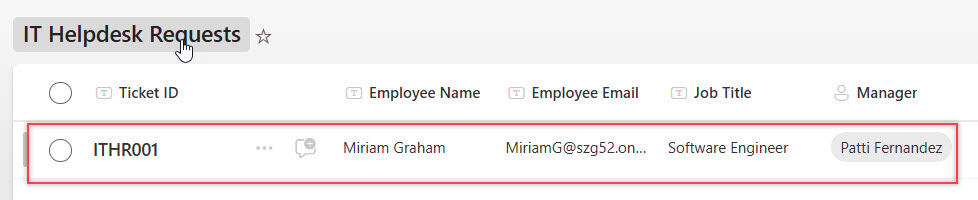
A new IT Helpdesk ticket is created in the IT Helpdesk Requests SharePoint list.
A Teams message is posted in the specified channel (Human Resources Department).

This way, you can add the parallel branch in Power Automate.
Join Parallel Branch in Power Automate
Let’s consider an employee who submits a business travel request. It must be approved by:
- The Line Manager
- The Finance Department
Both approvals should happen in parallel. If both approve, send a travel confirmation email. If either one rejects, notify the employee about the rejection.
For this example, I created a SharePoint List (Travel Requests) with the following columns:
| Column Name | Type |
|---|---|
| Travel ID | Title (Single line of text) |
| Employee Name | Person or Group |
| Travel Start Date | Date and Time |
| Travel End Date | Date and Time |
| Destination | Single line of text |
| Line Manager | Person or Group |
| Purpose of Travel | Multiple lines of text |

Now, check out the steps below:
- Create a new Automated cloud flow with a trigger ‘When a new item is created’ (from a SharePoint list: Travel Requests).

- Add a Start and wait for an approval action to send approval to the Line Manager.
Provide the following details:- Approval type: Approve/Reject – First to respond
- Title: Travel Approval – Line Manager
- Assigned to: Use Line Manager Email from dynamic content
- Details:
Dear @{triggerBody()?['LineManager/DisplayName']},

Please review the travel request submitted by @{triggerBody()?['EmployeeName/DisplayName']}
Destination: @{triggerBody()?['Destination']}
Travel Dates: @{triggerBody()?['TravelStartDate']} to @{triggerBody()?['TravelEndDate']}
Purpose of Travel: @{triggerBody()?['PurposeofTravel']}

Thank You
- Right-click the top of ‘Start and wait for an approval‘ action. Click “Add a parallel branch.” In the new parallel branch, search for and choose ‘Start and wait for an approval‘ action:
- Approval type: Approve/Reject – First to respond
- Title: Travel Approval – Finance
- Assigned to: Enter the finance approver’s email.
- Details:
Dear Finance Team,
Please approve the budget and finance clearance for the following travel request:

Employee: @{triggerBody()?['EmployeeName/DisplayName']}
Destination: @{triggerBody()?['Destination']}
Dates: @{triggerBody()?['TravelStartDate']} to @{triggerBody()?['TravelEndDate']}

Thank You
- Next, add a Condition action to check whether both approvals are approved. In the parameter, provide the following Condition expression:
@{outputs('Start_and_wait_for_an_approval')?['body/outcome']} is equal to Approve
- Select the Condition action under the Settings, click ‘+ Select actions’, and click ‘Start and wait for an approval 1’.

- Again, click the Condition action in the parameter tab, click + New item, and provide the following Condition expression:
@{outputs('Start_and_wait_for_an_approval_1')?['body/outcome']} is equal to Approve
- In the True section, add a Send an email (V2) action:
- To: Employee Email
- Subject: Travel Request Approved
- Body:
Congratulations @{triggerBody()?['EmployeeName/DisplayName']},

Your business travel request has been approved by both your Line Manager and the Finance team.

Safe travels!

Regards,
HR Department- In the True section, add a Send an email (V2) action:
- To: Employee Email
- Subject: Travel Request Approved
- Body:
Hello @{triggerBody()?['EmployeeName/DisplayName']},

Unfortunately, your business travel request has not been approved by all required approvers.

Please contact your manager or finance team for more details.

Regards,
HR Department
- In Power Automate, click Save (top-right corner). Open your SharePoint list named Travel Requests, and add a new item.

After saving the item, two parallel approvals will be sent:
One to the Line Manager

One to the Finance Department

Once both approvals are approved, the flow will send an approval confirmation.

Parallel Branch Limit
Power Automate allows up to 50 parallel branches within a single flow. This includes the main path and up to 49 additional branches that can execute simultaneously.
Using Parallel Branches in Power Automate can save you time and make your flows more efficient. In this tutorial, we explored how to run multiple actions simultaneously, combine them, and utilize parallel approvals.
You may like the following Power Automate tutorials:
- Copy Files in Power Automate
- Check If The Person Field is Empty in Power Automate
- IF Expression in Power Automate
- Create a PDF File using Power Automate
- Append Multiple Values to An Array in Power Automate

Hey! I’m Bijay Kumar, founder of SPGuides.com and a Microsoft Business Applications MVP (Power Automate, Power Apps). I launched this site in 2020 because I truly enjoy working with SharePoint, Power Platform, and SharePoint Framework (SPFx), and wanted to share that passion through step-by-step tutorials, guides, and training videos. My mission is to help you learn these technologies so you can utilize SharePoint, enhance productivity, and potentially build business solutions along the way.

