
When working with SharePoint lists in Power Automate, a common task is to check whether a Person or Group field is empty. Maybe you have an approval process that shouldn’t start until someone is assigned to the task, or you’re sending an email only if a specific person is assigned.
Whatever the case, Power Automate gives you flexible ways to check if the Person field is blank and even combine this check with other conditions.
In this post, I will show you how to check if the Person field is empty in Power Automate, and even show you how to combine it with multiple conditions.
Power Automate Check if the Person Field is Empty
Suppose you have a SharePoint list called Task Tracker that includes the following columns:
- Title: (Single line of text)
- Description: (Multiple lines of text)
- Assigned To: (Person or Group)
- Due Date: (Date and time)
- Priority: (Choice – High, Low, Medium)
- Status: (Choice – Not Started, In Progress, Done)
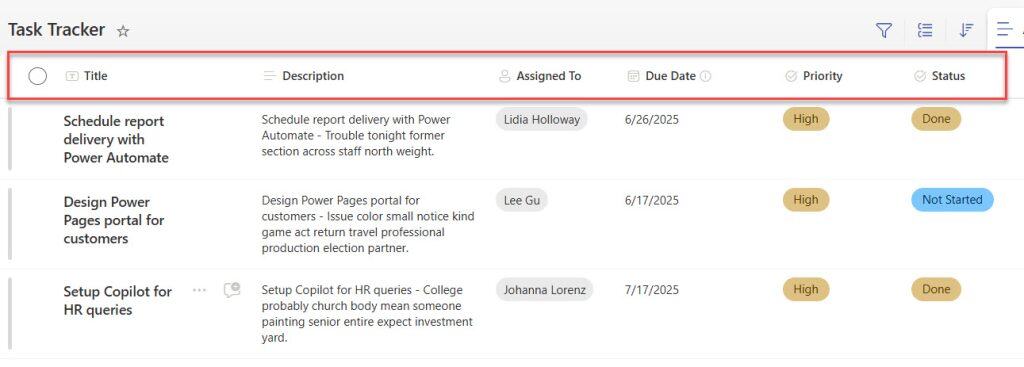
You want to send an email to the Assigned To when a new item is created, but if the Assigned To field (Person or Group) is empty, then send an email to the ‘create by’ to fill in the Assigned To field.
- Create an automated cloud flow. Give the flow a name and select the trigger When an item is created or modified. Also, provide the Site Address and List Name.
- Here, I add a trigger condition: if the status value is ‘In Progress’, do not trigger the flow.
@not(equals(triggerOutputs()?['body/Status/Value'], 'In Progress'))
- Then add a condition action to check if the Assigned To field is empty. To do this, add the below expression in the condition action.
@{triggerBody()?['AssignedTo']} is equal to @{null}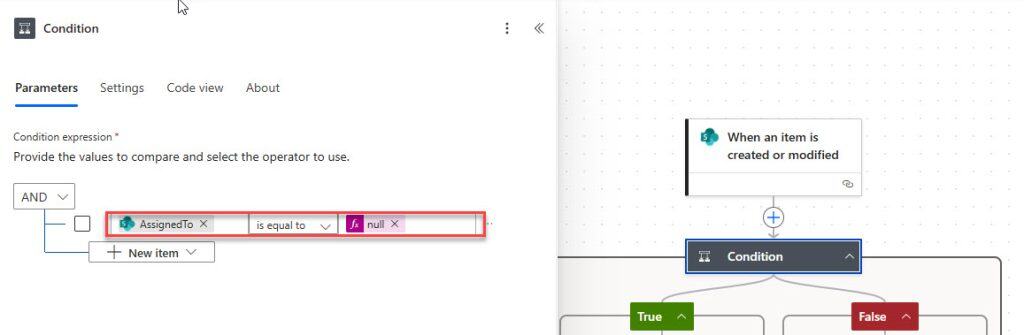
- In the condition action in the True section, add a Send an email (V2) action and provide the following parameters:
- To: Created by email address
- Subject: “Task Needs Assignment”
- Body:
Hello @{triggerBody()?['Author/DisplayName']},

A new task titled @{triggerBody()?['Title']} has been created without an assignee. Please update the Assigned To field.

Thanks- Add another Send an email (V2) action in the False section and provide the below parameters:
- To: Assigned To email address
- Subject: “You have been assigned a new task”
- Body:
Dear @{triggerBody()?['AssignedTo/DisplayName']},

You’ve been assigned a new task titled @{triggerBody()?['Title']}. Please check the Task Tracker list for details.

Thanks.
- Now, click Save (located in the top right corner). Open your SharePoint list. Then add a New Item. Where Assigned To is blank.
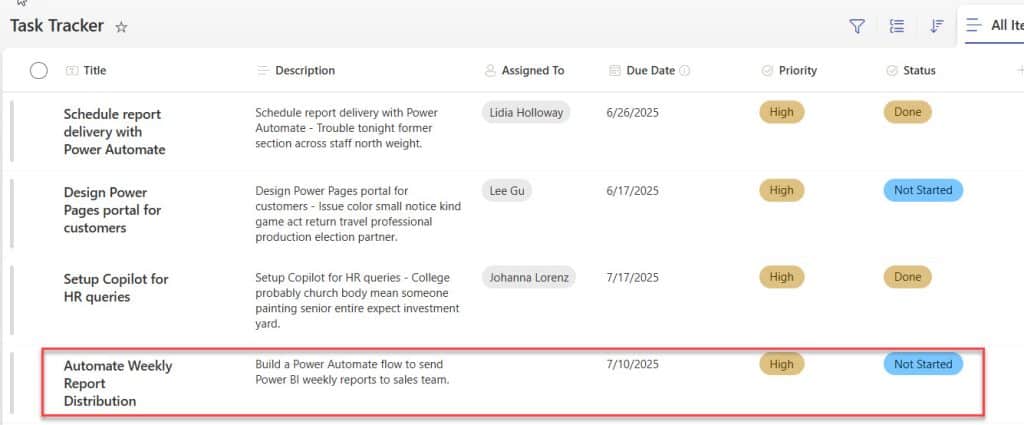
After the flow runs successfully, the person who created it receives an email like the one below:

Multiple Conditions in Person Field Using Power Automate
Let’s say your organization uses a SharePoint list called Expense Claims, where employees submit their reimbursement requests.

In the List, the employee must provide at least one of the following:
- Manager (Person or Group)
- Team Leader (Person or Group)
The business rule is that I want in my flow:
- If both Manager and Team Leader are empty, send an email back to the submitter saying they must assign at least one approver.
- If only one of them is filled, send an approval to that one person.
- If both are filled, send an approval to both. If either one approves, the request is marked as approved.
To do this, follow the steps below:
- Create an automated cloud flow. Give the flow a name and select the trigger: When an item is created or modified. Also, provide the Site Address and List Name.

- Add a Condition action to check if the Manager and Team Leader fields are empty. To do this, add the below expression in the condition action.
@{triggerBody()?['Manager/Claims']} is equal to @{null}@{triggerBody()?['TeamLeader/Claims']} is equal to @{null}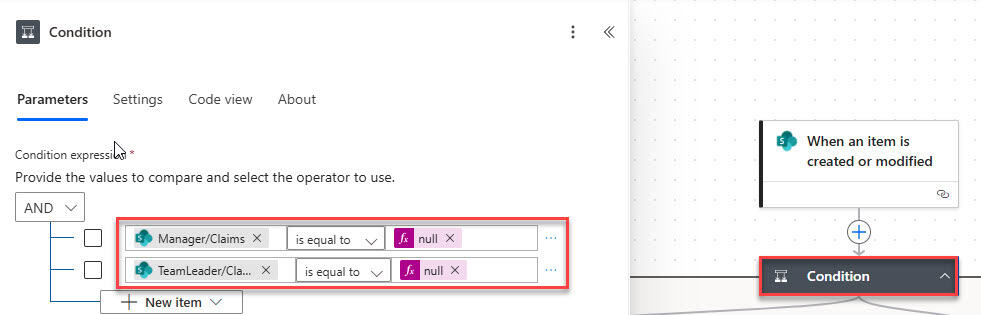
- In the True section, condition action, add a Send an email (V2) action and provide the following parameters:
- To: Employee email address
- Subject: “Action Required: Please assign at least one approver”
- Body:
Dear @{triggerBody()?['EmployeeName/DisplayName']},

Your expense Claim ID '@{triggerBody()?['ClaimID']}' was submitted without selecting a Manager or Team Leader.
Please update the form and provide at least one approver to proceed.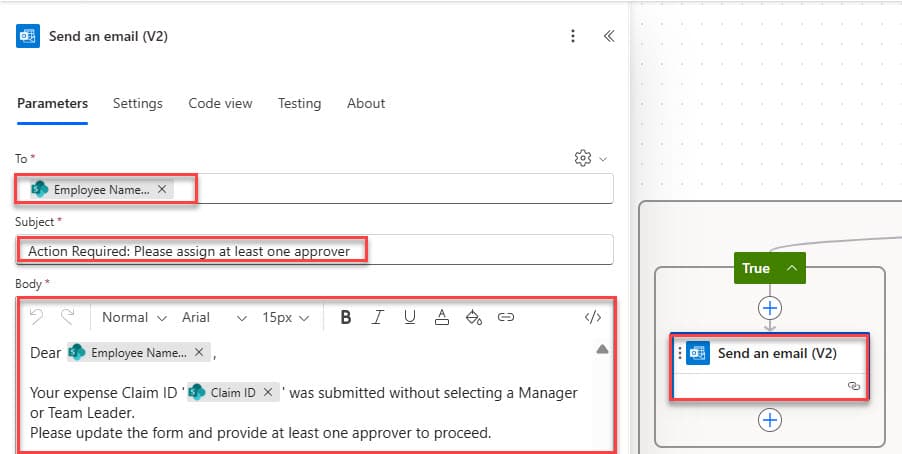
- In the false section, add Start and wait for an approval action, and provide the below parameters:
- Approval type: Approve/Reject – First to respond
- Title: Expense Claim Approval Request – @{triggerBody()?[‘ClaimID’]}
- Assigned to:
if(equals(triggerBody()?['Manager/Email'],null),triggerBody()?['TeamLeader/Email'],concat(triggerBody()?['Manager/Email'],';',triggerBody()?['TeamLeader/Email']))Body:
Hello,

An expense claim has been submitted and requires your approval.

Details:
**Claim ID**: @{triggerBody()?['ClaimID']}
**Name**: @{triggerBody()?['EmployeeName/DisplayName']}
**Amount**: @{triggerBody()?['TotalAmount']}

Thank you.
- Now, we will add the Condition action to check whether the request is approved or rejected. In this Condition action, select the Outcome (from Start and wait for an approval action) value equal to Approve.

- In the True section, condition action, add a Send an email (V2) action and provide the following parameters:
- To: Employee email address
- Subject: Your Expense Claim Has Been Approved – @{triggerBody()?[‘ClaimID’]}
- Body:
Hello @{triggerBody()?['EmployeeName/DisplayName']},

Good news! Your expense Claim ID "@{triggerBody()?['ClaimID']}" has been approved.

Details:
- Amount: $ @{triggerBody()?['TotalAmount']}
- Approved By: @{items('For_each')?['responder/displayName']}
- Comment: @{items('For_each')?['comments']}

Regards,
Finance Automation Bot
When you add the approver’s name, it will automatically add a for each loop.
- In the False section, condition action, add a Send an email (V2) action and provide the following parameters:
- To: Employee email address
- Subject: Your Expense Claim Was Rejected– @{triggerBody()?[‘ClaimID’]}
- Body:
Hello @{triggerBody()?['EmployeeName/DisplayName']},

We regret to inform you that your expense Claim ID "@{triggerBody()?['ClaimID']}" has been rejected.

Details:
- Amount: $ @{triggerBody()?['TotalAmount']}
- Rejected By: @{items('For_each_1')?['responder/displayName']}
- Comment: @{items('For_each_1')?['comments']}

If you need more information, please contact the approver or update your claim and resubmit.

Regards,
Finance Automation Bot
Now save the flow and go to the SharePoint list, add an item to manage, and a team leader.

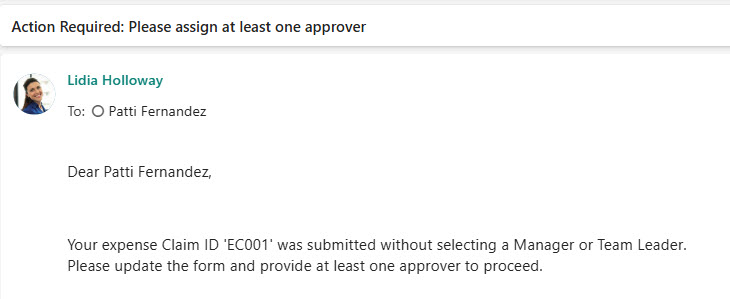
After the flow runs successfully, the employee will receive an email from the fil-up manager or the Team leader.
In this post, we covered two practical examples:
- How to check if the Assigned To field is blank before sending a task notification.
- How to use multiple conditions to verify if either a Manager or Team Leader is present before triggering an approval flow.
You may also like:
- Add Copilot Studio Knowledge Files Using Power Automate
- Check IF Attachment Exists Using Power Automate
- Power Automate Trigger Conditions
- Check If the Filename Contains in Power Automate
- Check IF SharePoint List is Empty in Power Automate
- Check if SharePoint List Already Exists in Power Automate

Hey! I’m Bijay Kumar, founder of SPGuides.com and a Microsoft Business Applications MVP (Power Automate, Power Apps). I launched this site in 2020 because I truly enjoy working with SharePoint, Power Platform, and SharePoint Framework (SPFx), and wanted to share that passion through step-by-step tutorials, guides, and training videos. My mission is to help you learn these technologies so you can utilize SharePoint, enhance productivity, and potentially build business solutions along the way.

