
It is easy to send an email in Power Automate using the “send an email V2” action. But we can also send the email using SharePoint REST API.
This is especially useful in workflows where you want to send an email without displaying the sender’s email address.
In this tutorial, I will tell you how to send an email using SharePoint Rest API in Power Automate.
Send Email in Power Automate Using REST API
There is a method called “sendMail” in SP.Utilities.Utility which can be used to send emails to users.
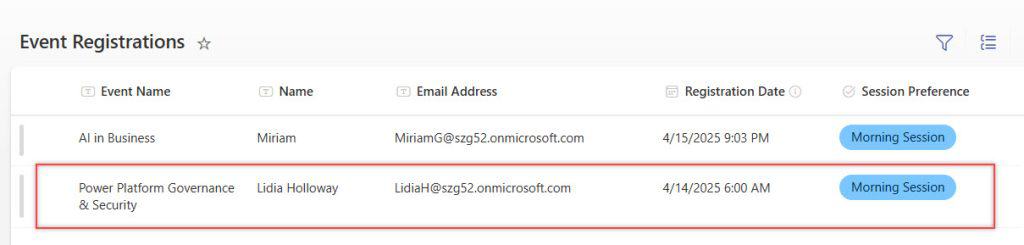
Let’s say you have a SharePoint list called “Event Registrations”, where employees register for internal events.

When a new registration is submitted, I want to send an email to the user who registered to confirm their registration.
To do this using REST API, follow the below steps:
- Go to the Power Automate site. Click on “+ Create” in the left pane, then select “Automated cloud flow.” Name your flow “Send Email Using REST API” and choose the trigger When an item is created (SharePoint connector). Then, provide your SharePoint site and the “Sales Tracker” list.

- Add a Send an HTTP request to SharePoint action under the trigger and provide the below parameters:
- Site Address: Select the SharePoint site address from the dynamic content.
- Method: Select POST as the method.
- URI: Provide the below URI:
_api/SP.Utilities.Utility.SendEmail- Click on the Show all button to display all the Advanced parameters.
- Switch to text mode and enter Headers:
{
  "Accept": "application/json;odata=verbose",
  "Content-Type": "application/json;odata=verbose"
}- Body:
{
  "properties": {
    "__metadata": { "type": "SP.Utilities.EmailProperties" },
    "To": {
      "results": ["@{triggerBody()?['EmailAddress']}"]
    },
    "Subject": "You're registered for the event!",
    "Body": "Hello @{triggerBody()?['Name']},

Thank you for registering for our upcoming event. We'll share more details soon.

<b>Date:</b> @{triggerBody()?['RegistrationDate']}
<b>Event Name:</b> @{triggerBody()?['EventName']}

Best,
Event Team"
  }
}
- Now save the flow and run it manually.
- Then, go to the SharePoint list and add an item.
- After the flow runs successfully, the employee will receive the email below:

This is how to send an email using Rest API in Power Automate.
Limitations When Sending Emails via SharePoint REST API
Now, let me show you some limitations of sending emails via Rest API in Power Automate.
- Recipients must be authenticated SharePoint users – This means you can’t send emails to external or anonymous users.
- Attachments are not supported – The REST API does not support file attachments. However, you can include inline images, but only if they’re hosted within the same SharePoint domain.
- Emails to distribution groups or Microsoft 365 groups will not be delivered – The API only supports individual user email addresses.
Tip: If you need to include attachments or send to external/distribution groups, consider using the “Send an email (V2)” action from the Outlook connector instead.
If you don’t have the option to use a service account to send emails with the standard Outlook 365 connector, you can use the Rest API to send emails in Power Automate. As I have explained above, the main advantage is that the sender’s email address is not shown.
I hope this information is helpful to you to send emails in Power Automate using Rest API.
Related Power Automate tutorials:
- Check IF Date is Today Using Power Automate
- Check If the Column is Changed in Power Automate
- Get SharePoint List Column Details Using Power Automate
- Check If SharePoint List Column Equals in Power Automate

Hey! I’m Bijay Kumar, founder of SPGuides.com and a Microsoft Business Applications MVP (Power Automate, Power Apps). I launched this site in 2020 because I truly enjoy working with SharePoint, Power Platform, and SharePoint Framework (SPFx), and wanted to share that passion through step-by-step tutorials, guides, and training videos. My mission is to help you learn these technologies so you can utilize SharePoint, enhance productivity, and potentially build business solutions along the way.

