
Recently, I was working on an IT Help Desk project where we had a column called ‘Support Comments‘ in a SharePoint list. The idea was simple: every time someone from the support team had an update, they would add a new comment. But here’s the tricky part: I didn’t want to overwrite or delete the old comments.
At first, I wasn’t sure how to manage this dynamically. After some research, I discovered the “Append to array variable” action in Power Automate. It turned out to be the perfect solution for collecting and storing multiple entries over time without overwriting any existing data.
In this tutorial, I will show you exactly how to use this action to append multiple values to an array in Power Automate.
Append to array variable Action
The “Append to array variable” action in Power Automate is used to add (append) a new item to an existing array variable. It doesn’t replace the old values; it simply adds the new item to the end of the array, making it very useful for building collections dynamically during a flow run.
It accepts two parameters:
- Name: The name of the array variable you want to append to (must be initialized earlier using “Initialize variable“).
- Value: The item you want to add (append) to the array can be a string, number, object, or even another array.

Example 1: Append New Training Topics to an Existing Task Array
Imagine you have initialized an array variable with a predefined task: “Leadership training”. As new training needs come in (for example, “Security training”), you want to dynamically add them to the array without overwriting existing values.
- Open Power Automate, click Create, and select Instant cloud flow. Choose ‘Manually trigger a flow’ as the trigger.

- Add an ‘Initialize Variable‘ action and provide the name of the variable varTasks, set the type as Array, and in the value parameter, provide below the array variable:
[
  "Leadership training"
]
- Search for Append to array variable and add it, then give the below parameter:
- Name: varTasks
- Value: Provide the below string:
Security training
- Add a Compose action and provide the varTasks in the input parameter using dynamic content to display the array variable.

Now save the flow and run it manually. After the flow runs successfully, you can see that the “Security training” is appended to an array variable.

Example 2: Append Multiple Values to an Array from a SharePoint List
Let’s say you are collecting email addresses from a SharePoint list (User Registrations) of registered users:

Now you want to build an array of only the users who have opted in for notifications. You’ll use Append to array variable inside an “Apply to each” loop to add matching email addresses to the array dynamically.
Now, follow the steps below to do this:
- Open the Power Automate Home page and select Instant cloud flow with the trigger. Manually trigger a flow.
- Search for Initialize variable and add it. Then provide the following parameters:
- Name: varEmail
- Type: Array
- Value: Leave blank for now (I will append it later).

- Then add a Get items action and provide the below parameter:
- Site Address: Select the site address.
- List Name: Choose the Inventory list from the drop-down.
- Filter Query: Provide the below filter query:
OptedIn eq 1
- Add Apply to each (from the Get items output), then inside the Apply to each add Append to array variable and provide the below parameters:
- Name: varEmail
- Value: Provide the below expression:
@{items('Apply_to_each')?['Email']}
- Add a Compose action and provide the varTasks in the input parameter using dynamic content to display the array variable.

After the run, the flow in the compose action varEmail will contain only the email addresses of users who opted in, like:
[
    "john@gmail.com",
    "Jim@gmail.com"
]
Example 3: Append JSON to an Array variable
In the example, I am using the same sharepoint list (User Registrations). but here I want to build a JSON array that contains each person’s name and email as a JSON object and store it in a single array variable.
- Open the Power Automate Home page and select Instant cloud flow with the trigger. Manually trigger a flow.
- Add Initialize variable action and provide the below required parameter:
- Name: varUserRegistrations
- Type: Array
- Value: Leave blank for now
- Then add a Get items action and provide the below parameter:
- Site Address: Select the site address.
- List Name: Choose the Inventory list from the drop-down.

- Add Apply to each (from the Get items output), then inside the Apply to each add Append to array variable and provide the below parameters:
- Name: varUserRegistrations
- Value: Provide the below expression:
{
  "Name": "@{items('Apply_to_each')?['Name']}",
  "Email": "@{items('Apply_to_each')?['Email']}"
}
- Add a compose action to display the current contents of the array variable varUserRegistrations using a Compose action.
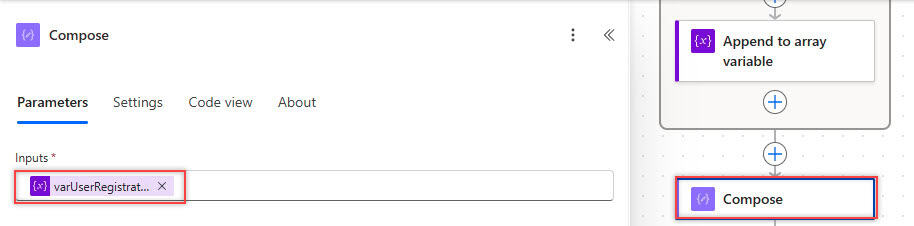
Click Save in the top-right of the flow editor. Click Test -> Choose Manually -> Click Run flow. Once it finishes successfully, scroll down to the Compose action.
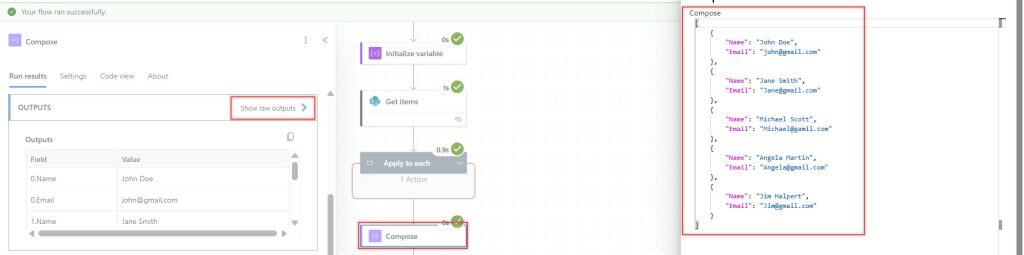
Example 4: Append an Array to an Array Variable
Let’s say you’re running a training registration flow, and each registrant selects multiple skills they are interested in. You want to collect all selected skills from each registrant and append them to a single master array variable to determine which skills are in demand.
For this example, I am using a SharePoint List called Training Registrations:

Now, follow the steps below:
- Go to Power Automate. Create an Instant cloud flow with a ‘Manually trigger a flow‘ trigger.
- Add an ‘Initialize Variable’ action and provide the name of the variable varAllSkills, set the type as Array, and leave the blank in the value section.
- Then add a Get items action and provide the below parameter:
- Site Address: Select the site address.
- List Name: Choose the Inventory list from the drop-down.

- Add Append to array variable and provide the below parameters:
- Name: varAllSkills
- Value: Provide the Selected Skills from the get items action.
It will automatically add two for each action.

- Add a compose action to display the current contents of the array variable varUserRegistrations using a Compose action.

Click Save in the top-right of the flow editor. Click Test -> Choose Manually -> Click Run flow. Once it finishes successfully, check the Compose action output section.

In this tutorial, we explored various ways to use the Append to array variable action in Power Automate. You learned how to:
- Add new items to an array without overwriting existing values.
- Collect multiple email addresses from a SharePoint list using a specified filter.
- Build a JSON array dynamically from SharePoint list items.
- Append an entire array (like selected skills) to a master array variable.
You may also like the following Power Automate tutorials:
- Check If a Field Is Blank in Power Automate
- Parallel Branch in Power Automate
- Send Email Using REST API in Power Automate
- Check If an Input String Is an Integer Using Power Automate
- Delete Files From SharePoint Document Library Using Rest API in Power Automate

Hey! I’m Bijay Kumar, founder of SPGuides.com and a Microsoft Business Applications MVP (Power Automate, Power Apps). I launched this site in 2020 because I truly enjoy working with SharePoint, Power Platform, and SharePoint Framework (SPFx), and wanted to share that passion through step-by-step tutorials, guides, and training videos. My mission is to help you learn these technologies so you can utilize SharePoint, enhance productivity, and potentially build business solutions along the way.

