
While working on a business app for a client, we needed to add data to a Dataverse table whenever a new item was created in a SharePoint list.
This is because the client wanted to build a Power Apps model-driven app, which only supports Dataverse as a data source.
In this tutorial, I will show you two examples. First, I will show how to add data to Dataverse using an instant cloud flow with a manual trigger.
In the second example, I will show how to add data to the Dataverse table using an automated cloud flow. In this case, when an item is created in the SharePoint list, it will also be created in the Dataverse table.
Add Data to Dataverse Table Using Power Automate [Add a new row Action]
For example, a Dataverse table called Client Requests below has the following columns, data types, and formats.
| Colums Name | Data Type | Format |
|---|---|---|
| Request ID | Single line of text | Text |
| Client Name | Single line of text | Text |
| Request Date | Date and time | Date only |
| Request Type | Choice | |
| Amount | Currency | |
| Is Urgent? | Yes/No | |
| Client Email | Single line of text | |
| Client Phone Number | Single line of text | Phone number |
| Description | Single line of text | Text area |
| Request Year | Calculated Column (Year from Request Date) |

Now I will show you how to manually trigger a flow to add data into the Dataverse table.
- Go to the Power Automate site and create a new Instant cloud flow with Manually trigger a flow trigger.
- Click + Add an input and configure the following parameters:
| Name | Data Type |
|---|---|
| Request ID | Number |
| Client Name | Text |
| Client Email | Text |
| Client Phone Number | Text |
| Request Type | Text (Add a drop-down list odf option) |
| Is Urgent? | Yes/No |
| Description | Text |
| Amount | Number |
| Request Date | Date |

Note:
Now i will add the variable, Switch, and Set variable actions to convert the selected Request Type label into its corresponding numeric value, because Dataverse stores both the label and value for choice columns and when using Power Automate, we need to provide the value, not the label.
If your Dataverse table does not have a choice column, you can skip these steps and proceed to the Add a new row action.
- Then add an Initialize variable action and provide the following parameters:
- Name: varRequestType
- Type: Integer
- Value: Leave it blank

- Add a Switch control and use the Request Type (from the trigger) as the value to switch on.

- Add the first case, Equals New Service Request, you can change it as your first choice value.

- Add a Set variable action. Set the value of varRequestType based on the internal value of the choice field in Dataverse.

- Repeat for each choice value. For example, if you have five choices, add five cases accordingly.

- Then add the Add a new row (Dataverse) action and provide the below parameters:
- Table name: Select the Client Requests from the drop-down.
- Amount: Provide the Amount from the dynamic content trigger action.
- Client Email: Provide the Email from the dynamic content trigger action.
- Client Name: Provide the Name from the dynamic content trigger action.
- Client Phone Number: Provide the Phone Number from the dynamic content trigger action.
- Description: Provide the Description from the dynamic content trigger action.
- Is Urgent?: Select Enter custom value from the dropdown, then provide the Is Urgent value from the dynamic content of the trigger action.
- Request Date: Provide the Request Date from the dynamic content trigger action.
- Request ID: Provide the Request ID from the dynamic content trigger action.
- Request Type: Provide the varRequestType variable from the dynamic content.

- Click Save, then click Test -> choose Manually, enter the required values for all inputs, and run the flow.

After the flow runs successfully, navigate to the Dataverse table and view all the added data.

In this example, we are working with a Request Type choice column in Dataverse, which expects a numeric value rather than the label. If you try to pass only the label (e.g., “New Service Request”), you will encounter the OpenApiOperationParameterTypeConversionFailed error.

To solve this, we used the variable, Switch, and Set variable actions in Power Automate to convert the selected label into its corresponding numeric value. This ensures that the correct value is passed to Dataverse, allowing the flow to run successfully.
Power Automate: Add a New Row to Dataverse Table
In this example, I will show you how to use Power Automate to automatically create a new row in a Dataverse table whenever a new item is created in a SharePoint list.
For this example, I am using the Service Requests SharePoint list with the following columns and data types:
| Column Name | Data Type |
|---|---|
| Request Title | Single line of text |
| Submitted By | Single line of text |
| Email Address | Single line of text |
| Request Date | Date and Time |
| Details | Multiple lines of text |

I created a Dataverse table with the same name, Service Requests, and added the exact same columns to match the SharePoint list:

Now, follow the steps below:
- Go to Power Automate and click on Create. Select Automated cloud flow.
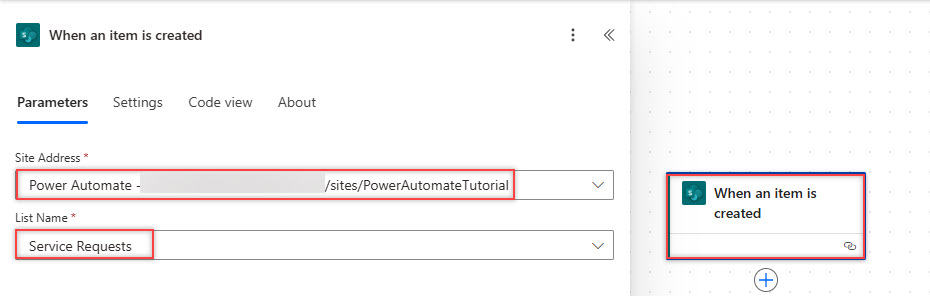
- Name your flow, such as ‘Sync Service Requests to Dataverse’. Select the trigger: When an item is created in SharePoint. Provide the following parameters:
- Site Address: Select your SharePoint site.
- List Name: Select Service Requests.
- Add a new action: Add a new row (Dataverse) and provide the below parameters:
- Table name:
Service Requests - Request Title: Request Title from dynamic content
- Submitted By: Submitted By from dynamic content
- Email Address: Email Address from dynamic content
- Request Date: Request Date from dynamic content
- Details: Details from dynamic content
- Table name:

- Then, save the flow. Test the flow by creating a new item in the SharePoint list.
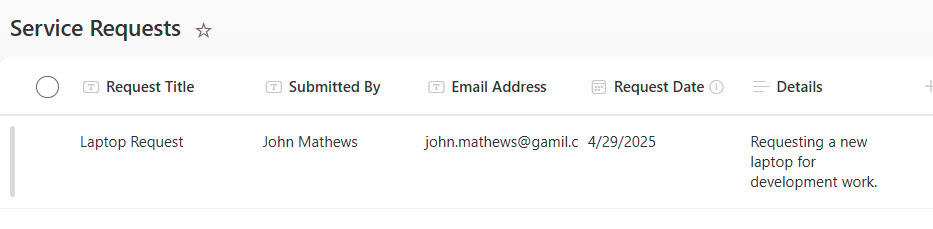
- After the flow runs successfully, the same data will appear in the Dataverse table.

As you can see, the data from the SharePoint list has been successfully added to the Dataverse table.
In this tutorial, we learned how to manually and automatically add data to a Dataverse table using Power Automate. By using instant and automated cloud flows.
Other Dataverse articles you may also like:
- Power Automate Dataverse Add New Row
- Count Rows From Dataverse Table Using Power Automate
- Get Dataverse Created by in Power Automate
- Remove Commas From Dataverse Number Field
- Update a Row in Dataverse Using Power Automate

Hey! I’m Bijay Kumar, founder of SPGuides.com and a Microsoft Business Applications MVP (Power Automate, Power Apps). I launched this site in 2020 because I truly enjoy working with SharePoint, Power Platform, and SharePoint Framework (SPFx), and wanted to share that passion through step-by-step tutorials, guides, and training videos. My mission is to help you learn these technologies so you can utilize SharePoint, enhance productivity, and potentially build business solutions along the way.

