
Sometimes your team needs quick approval, for example, for urgent travel plans. If the request is sent only through email, the manager might miss it while in meetings. But if the approval is sent directly to Microsoft Teams, the manager gets an instant notification and can approve it within seconds.
In this tutorial, I will tell you how to Send Approvals in Microsoft Teams using Power Automate.
Send Approvals in Microsoft Teams Using Power Automate
Here, I will show you two methods to send approval notifications in Microsoft Teams.
You will receive the approval request in two places:
- In the Approvals app inside Microsoft Teams

- Inside the workflow chat in Microsoft Teams.

This gives approvers more visibility and ensures faster responses.
Method 1: Send an Approval to the Microsoft Teams Approvals App
This method sends the approval directly to the Approvals app inside Teams. Approvers will receive a notification and can take action from Teams or Outlook.
For this example, I will create an instant cloud flow. When we manually trigger it, it will send an approval to Lidia’s account. Lidia will receive the approval in both Outlook and Teams. Once the lidia approves/rejects the other account, Patti will receive an email.
Follow the steps below:
- Go to Power Automate and create an Instant Cloud Flow. Choose Manually trigger a flow.
- Add the Start and wait for an approval action. Provide parameters below:
- Approval type: Approve/Reject – First to respond
- Title: Travel Request from Patti Fernandez.
- Assigned to: Lidia Eolloway email.
- Details:
A new travel request has been submitted.

**Employee**: Patti Fernandez
**Travel Date**: 25-Jan-2025
**Destination**: Mumbai
**Reason**: Client escalation meeting

Please take action at the earliest.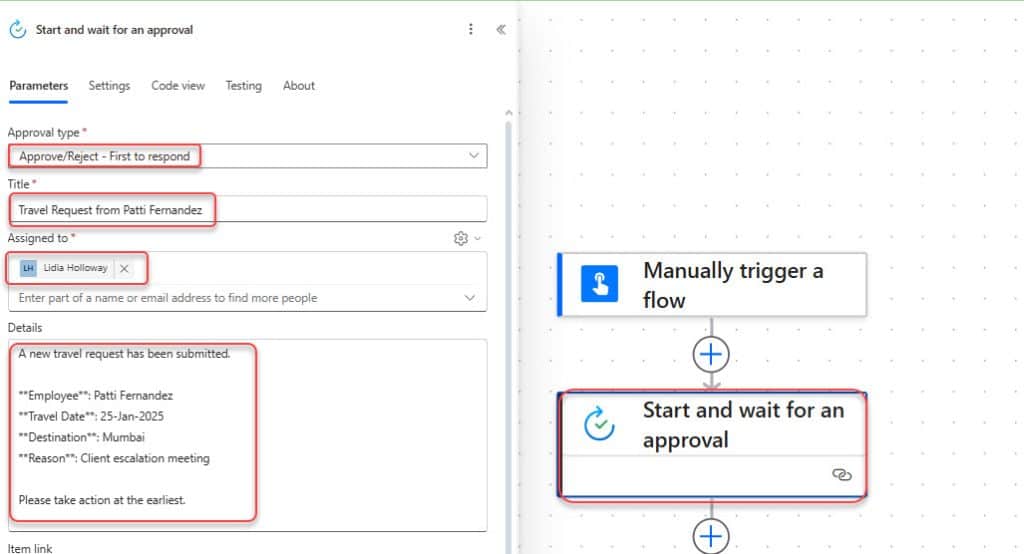
- Then, add a Condition action to check the outcome of the approval.
outputs('Start_and_wait_for_an_approval')?['body/outcome'] is equal to Approve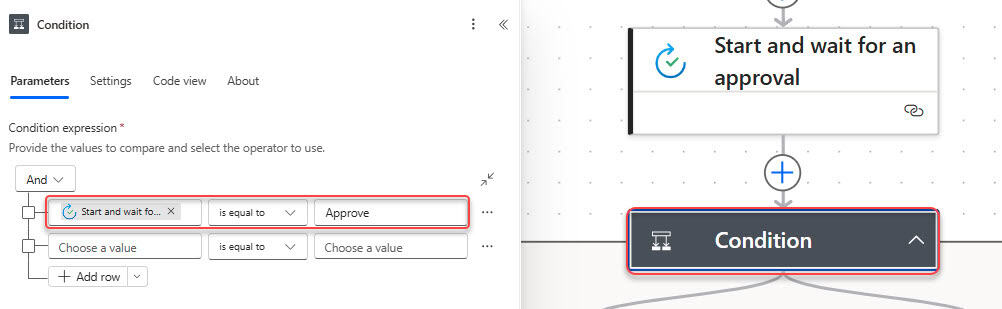
- In the True section, add the ‘Send an email (V2)‘ action and provide the parameters below:
- To: Patti Fernandez Email
- Subject: Your travel request has been approved.
- Body:
Your travel request for Mumbai is approved.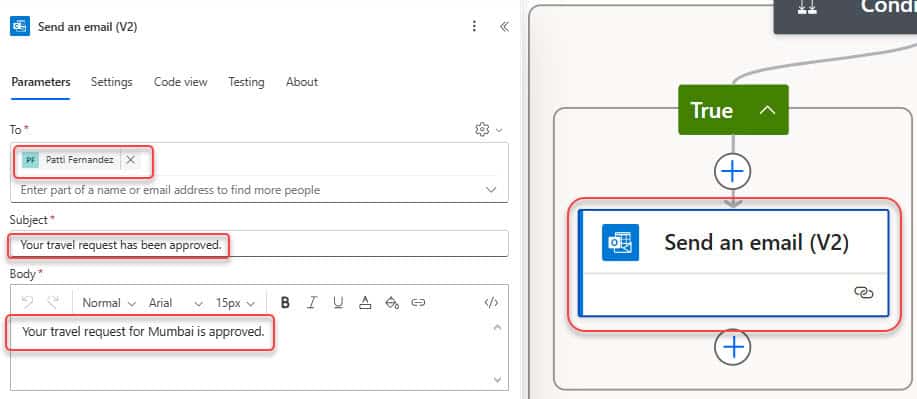
- In the False section, add the ‘Send an email (V2)’ action and provide the parameters below:
- To: Patti Fernandez Email
- Subject: Your travel request has been rejected.
- Body:
Your travel request for Mumbai is rejected.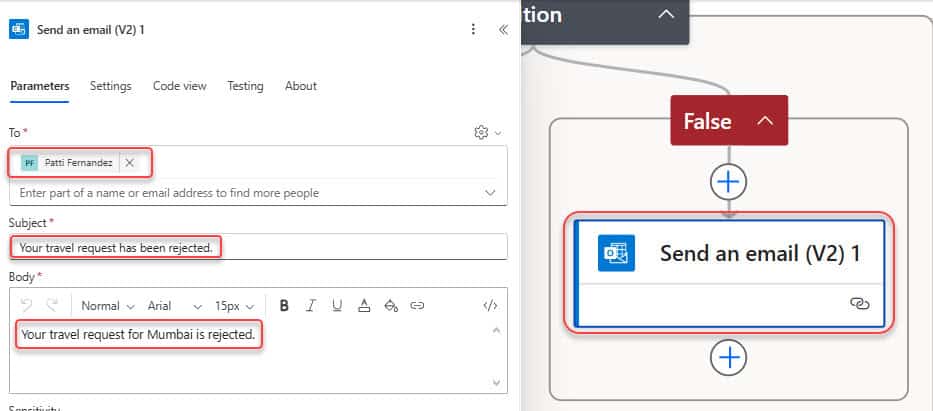
Now that our flow is complete, we should test it to ensure everything is working correctly. Follow the steps below:
- Click on Save -> Test -> Manually -> Test.
- Then ask Lidia (or the test account) to check Microsoft Teams:
- Click the three dots, then search for approvals.

- Then click on the approvals. Here, you can see all the approvals, select the first one, which is our approval.
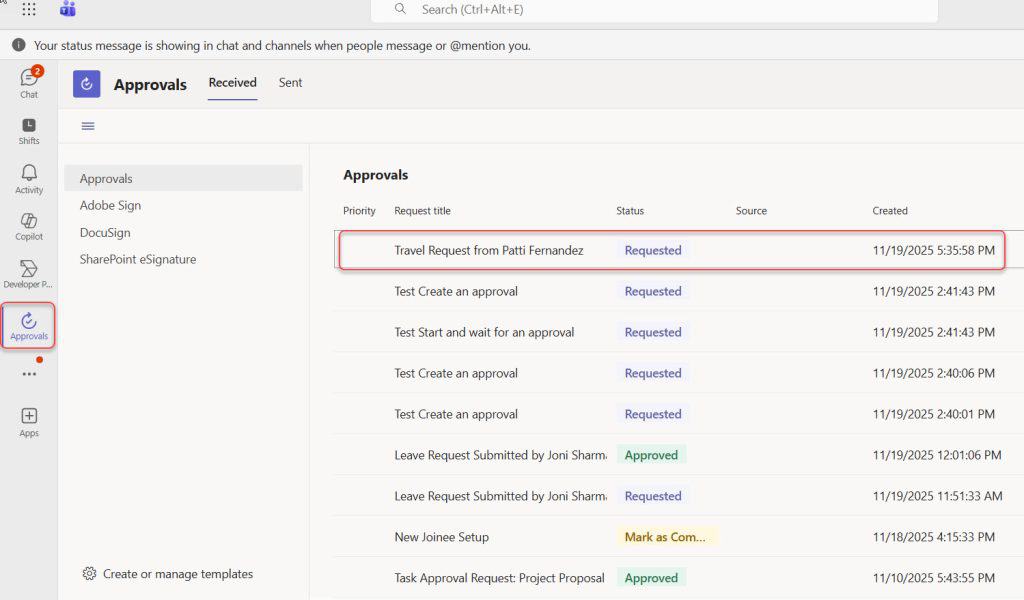
This approval also displays in the Teams activity on the left side.
- Next, provide the comment, then approve/ reject based on this approval.
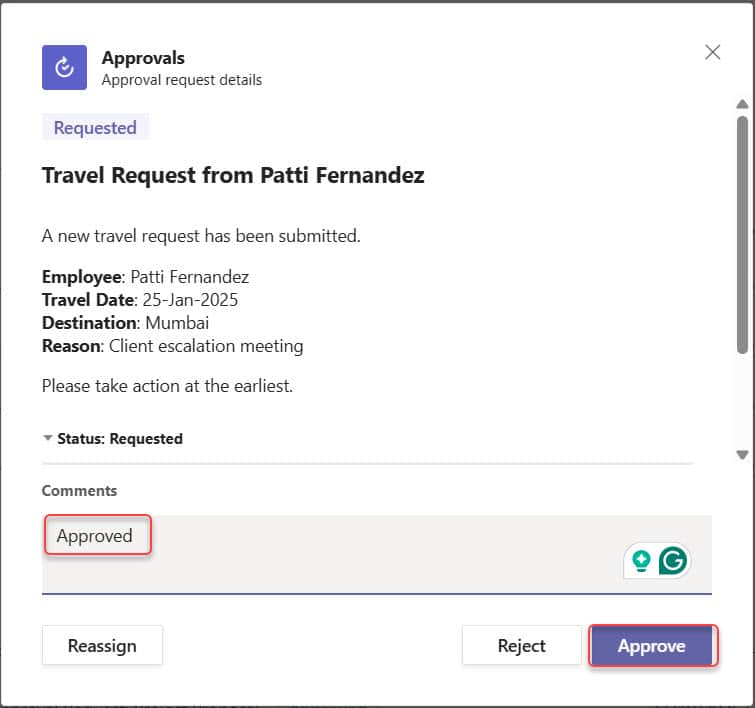
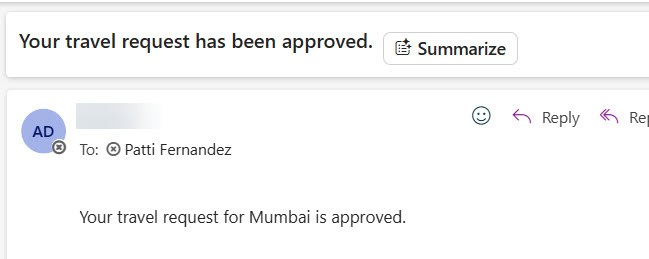
Once it is approved, when you open Outlook, you will see that it is automatically approved.
Then, Patti will receive an email. In this case, I approved the request.
Method 2: Send Approval Notifications Inside a Teams Workflow Chat
In this method, the approval request is delivered inside a dedicated workflow chat in Microsoft Teams. When the flow runs, the approver can see a new chat created automatically by Power Automate. The approval card appears right inside the chat, where the approver can instantly respond.
For this example, we will again use an Instant Cloud Flow and send the approval to Lidia. The approval will appear inside a Teams chat instead of the Approvals app.
Follow the steps below:
- Go to Power Automate. Click Create -> Instant Cloud Flow. Select Manually trigger a flow, then click Create.
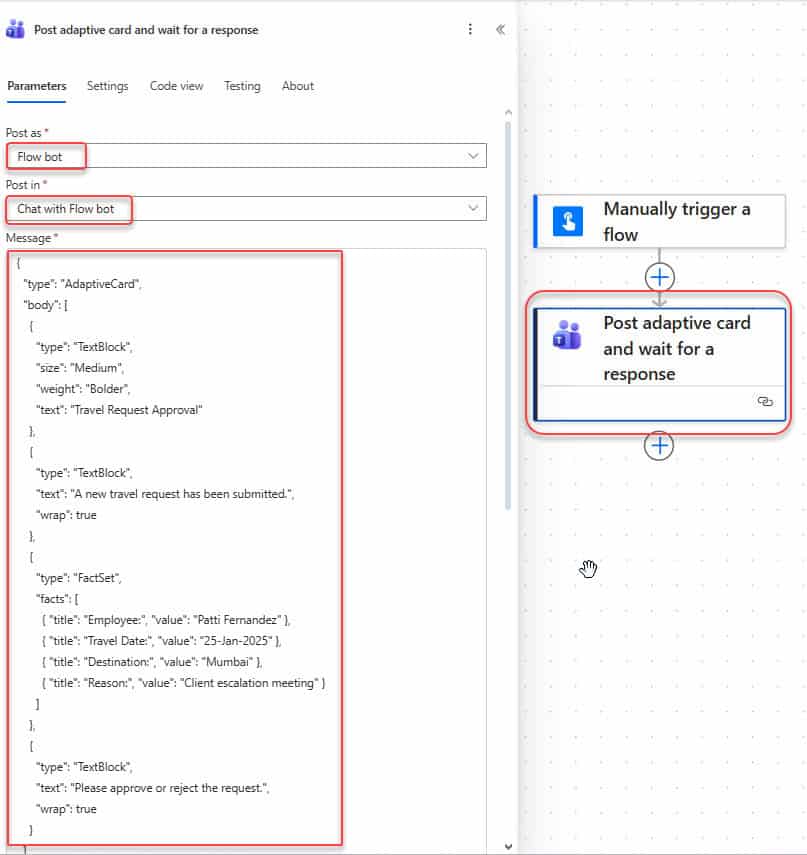
- Add the “Post an adaptive card and wait for a response” Action:
- Post as: Flow bot
- Post in: Chat with Flow bot
- Recipient: Lidia Hollaway’s email address
- Update message: Thanks for your response!
- Message:
{
  "type": "AdaptiveCard",
  "body": [
    {
      "type": "TextBlock",
      "size": "Medium",
      "weight": "Bolder",
      "text": "Travel Request Approval"
    },
    {
      "type": "TextBlock",
      "text": "A new travel request has been submitted.",
      "wrap": true
    },
    {
      "type": "FactSet",
      "facts": [
        { "title": "Employee:", "value": "Patti Fernandez" },
        { "title": "Travel Date:", "value": "25-Jan-2025" },
        { "title": "Destination:", "value": "Mumbai" },
        { "title": "Reason:", "value": "Client escalation meeting" }
      ]
    },
    {
      "type": "TextBlock",
      "text": "Please approve or reject the request.",
      "wrap": true
    }
  ],
  "actions": [
    {
      "type": "Action.Submit",
      "title": "Approve",
      "data": { "action": "Approve" }
    },
    {
      "type": "Action.Submit",
      "title": "Reject",
      "data": { "action": "Reject" }
    }
  ],
  "version": "1.4"
}
- Then, add a Condition action to check the outcome of the approval.
outputs('Post_adaptive_card_and_wait_for_a_response')?['body/data/action'] is equal to Approve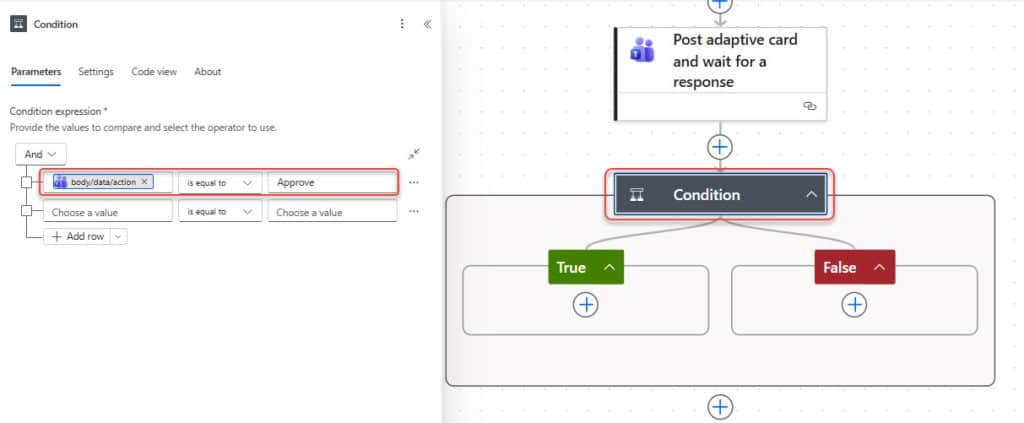
- In the same way, in the True and False section, add “Send an email (V2)” action.
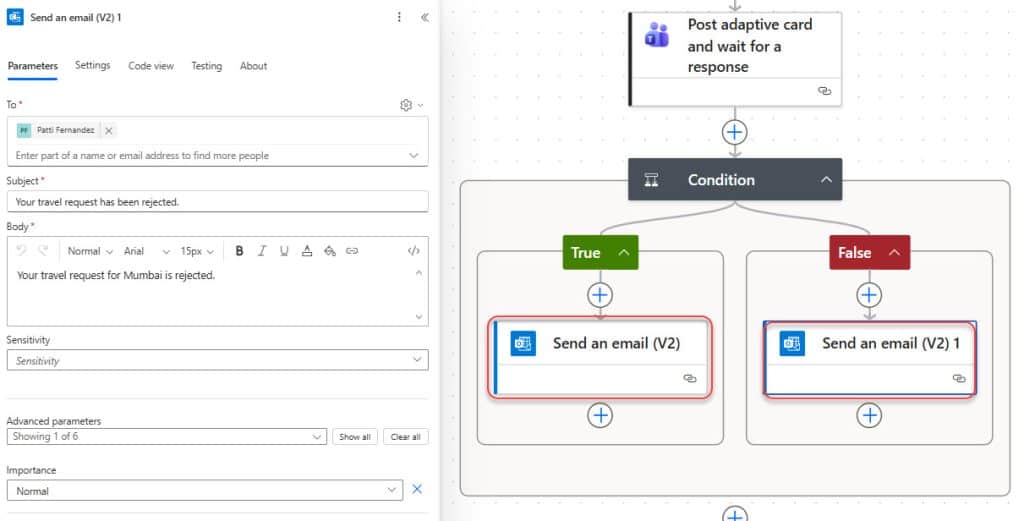
Click on Save -> Test -> Manually -> Test. Now ask Lidia to check Microsoft Teams:
- A new chat will appear automatically from the Flow bot.
- The adaptive card will be visible with Approve and Reject buttons.
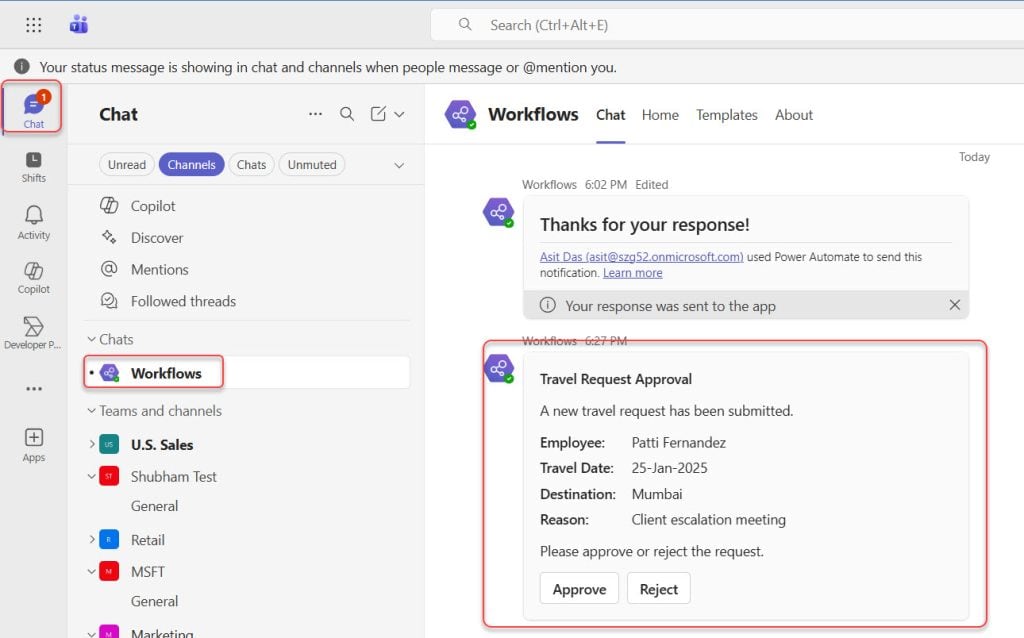
Here, we cannot add any comments. Once she responds, Patti receives an email based on the outcome.
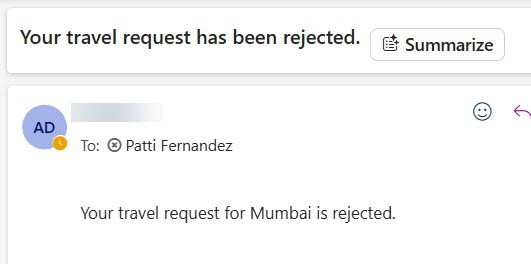
In this case, only the recipient can receive the message to the team.
If you want to get email and message 3, you can use Create an approval action with a Postcard in a chat or channel action. If you follow this example, comment below, I will give an example.
You may also like:
- Create Custom Responses in Power Automate Approvals
- Disable Notifications During a Meeting in Microsoft Teams
- Power Automate save email attachment to SharePoint
- User Does Not Have ReadAccess for Connection Reference in Power Automate
- Delete all files in a SharePoint folder using Power Automate
- Copy List Items To Another List In SharePoint Using Power Automate

Hey! I’m Bijay Kumar, founder of SPGuides.com and a Microsoft Business Applications MVP (Power Automate, Power Apps). I launched this site in 2020 because I truly enjoy working with SharePoint, Power Platform, and SharePoint Framework (SPFx), and wanted to share that passion through step-by-step tutorials, guides, and training videos. My mission is to help you learn these technologies so you can utilize SharePoint, enhance productivity, and potentially build business solutions along the way.

