
Last week, I was working on a Document Management Site for a client, and they had a very specific requirement: only selected users should be allowed to upload documents, then the approval workflow should run automatically, and once the document is approved, it should be moved to a separate library where visitors can view it.
However, Visitors were able to see all the libraries and lists on the site, which was not allowed. To restrict this, I give the library label permission to all the visitors; in this case, the visitor can not see the home page.
To solve this, the visitor was added to the site’s default Visitors group, and then unique permissions were applied only to the required document libraries. This way, the visitor could still access the Home page while being restricted to only the specific library they were allowed to view.
In this tutorial, I will show you exactly how to restrict user access to specific document libraries in SharePoint while still allowing them to view the Home page.
Restrict User Access to Specific Document Libraries in SharePoint
For this example, I’m using a simple SharePoint site structure so you can easily understand how the permissions work. The site contains:
- Home Page – This is the main landing page of the site. All people should be able to view this page without any restrictions.

- Document Libraries:
- Internal Documents Library – This library is only for internal team members. Visitors should not be able to see or access anything inside this library.
- Published Documents Library – This library will store all approved documents. Visitors should be able to view documents here after the approval workflow is completed.
- SharePoint List:
- Document Approval Tracker – This list is used to support the approval workflow. Only internal users should have access to this list, not visitors.
On this site, two people have access: Lidia Holloway (Owner) and Patti Fernandez (visitor). That means lidia can access all the lists and library, and Patti can see the home page and the Published Documents Library.
Now follow the steps below:
- From the Lidia account, open the SharePoint site and navigate to the Internal Documents Library. Once you’re inside the library, open the Library Settings, and then select Permissions for this document library.

This is where the access for this library will be managed separately from the rest of the site.
- On the Permissions page, select Stop Inheriting Permissions.
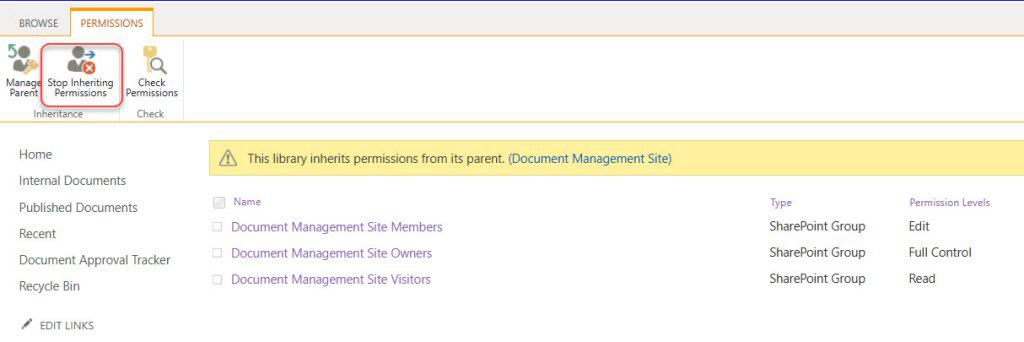
This will break the default permission inheritance from the site, allowing this library to have its own unique access settings.
- After that, scroll down to find the Visitors group. Select the checkbox next to it, and then click Remove User Permissions.
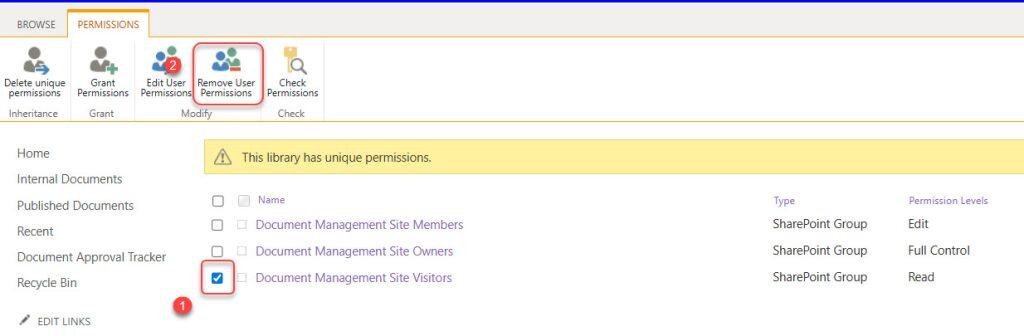
This will ensure that visitors no longer have access to the Internal Documents library.
Note:
If you ever want to give Visitors access again in the future, simply click Delete unique permissions under the Permissions section. This will restore the library’s original inherited permissions.
Restrict User Access to Specific SharePoint List
Just like document libraries, SharePoint lists also inherit permissions from the site by default. Therefore, if a visitor has access to the site, they can also view all lists unless we manually restrict their access.
In this example, the Document Approval Tracker list should only be visible to internal team members, not visitors. Since Patti Fernandez is a visitor, she should not have access to this list.
To restrict access to the list, follow the same steps as the document library:
- Open the Document Approval Tracker list while logged in as Lidia Holloway (Owner). Go to List Settings. Select Permissions for this list.
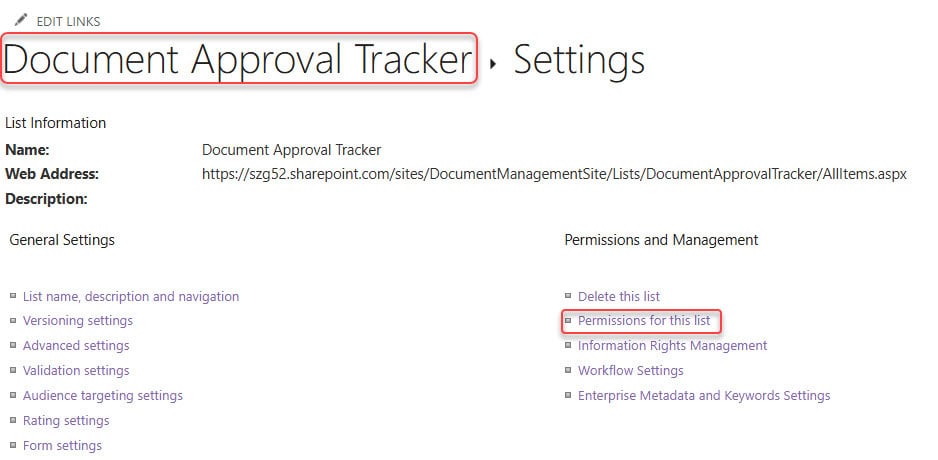
- Click Stop Inheriting Permissions to break permission inheritance from the site. Select the checkbox next to it and click Remove User Permissions.

Once permissions are updated, visitors will no longer see this list in the site navigation or access it directly.
Now that the permissions are updated for both the Internal Documents Library and the Document Approval Tracker list, let’s check the experience from the visitor’s side.
When Patti Fernandez (Visitor) logs in and opens the SharePoint site:
- She can see the Home page without any issues.
- She can access the Published Documents Library, where approved documents are stored.

She cannot access the Internal Documents Library; it does not appear in the navigation or site content.

If she attempts to open it directly, she will receive an “Access Denied” message.

This confirms that the visitor is restricted only to the content they are allowed to view, while still having access to the main site.
Moreover, you may like some more SharePoint tutorials:
- Set Alert Policies in Microsoft Defender Portal
- Save Multiple Users From a Power Apps Combo Box to a SharePoint Person Field
- Set Column Default Value in SharePoint Library
- Give SharePoint Library Upload Access to External Users

Hey! I’m Bijay Kumar, founder of SPGuides.com and a Microsoft Business Applications MVP (Power Automate, Power Apps). I launched this site in 2020 because I truly enjoy working with SharePoint, Power Platform, and SharePoint Framework (SPFx), and wanted to share that passion through step-by-step tutorials, guides, and training videos. My mission is to help you learn these technologies so you can utilize SharePoint, enhance productivity, and potentially build business solutions along the way.