
Last week, I wrote a detailed blog post about sending an approval to a Microsoft 365 Group in Power Automate. After publishing it, one of my subscribers reached out and asked, “Is it possible to send approval emails to SharePoint Group members as well?”
It’s quite similar, we need to get the members’ email from the SharePoint Group first, and then send the approval request to them.
In this tutorial, I will tell you how to send approval requests to SharePoint Group members using Power Automate.
Send Approval to SharePoint Group Members using Power Automate
For this example, I have a SharePoint list named Project Tasks. Whenever a new item is created, an approval request should be sent to all members of a specific SharePoint Group.

Now follow the steps below:
- Open Power Automate, create an automated cloud flow with a trigger (When an item is created). Select your SharePoint site and document library.
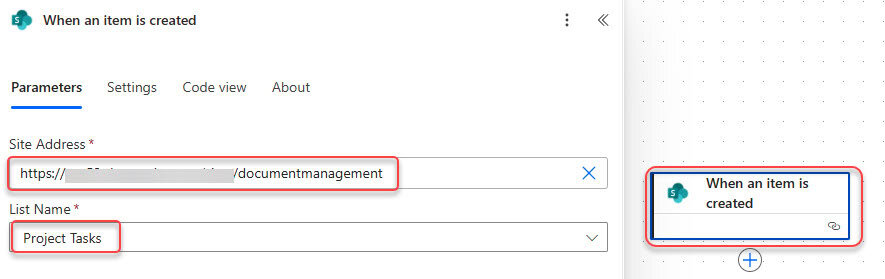
- Then, add the Send an HTTP request to SharePoint action form from the Office 365 Groups connector, and provide the following parameters:
- Method: GET
- URI:
_api/web/siteGroups/getByName('DMS Members')/users(Replace “DMS Members” with your SharePoint group name.)

- Next, add a Select action to extract all the member email addresses from the response.
- From: body(‘Send_an_HTTP_request_V2’)?[‘value’]
- Map: item()?[‘mail’]

This step will create a clean array containing only the members’ email addresses.
- Now, add the Start and wait for an approval action. Provide parameters below:
- Approval type: Approve/Reject – First to respond
- Title: Task Approval Request: @{triggerOutputs()?[‘body/Title’]}
- Assigned to: @{join(body(‘Select’), ‘;’)}
- Details:
A new task has been created in the Project Tasks list.

Task Title: @{triggerBody()?['Title']}
Created By: @{triggerBody()?['Author/DisplayName']}
Created On: @{formatDateTime(triggerOutputs()?['body/Created'], 'dd-MMM-yyyy hh:mm tt')}

Please review and take appropriate action.
- Add a Condition action. In the Condition, set:
outputs('Start_and_wait_for_an_approval')?['body/outcome'] is equal to Approve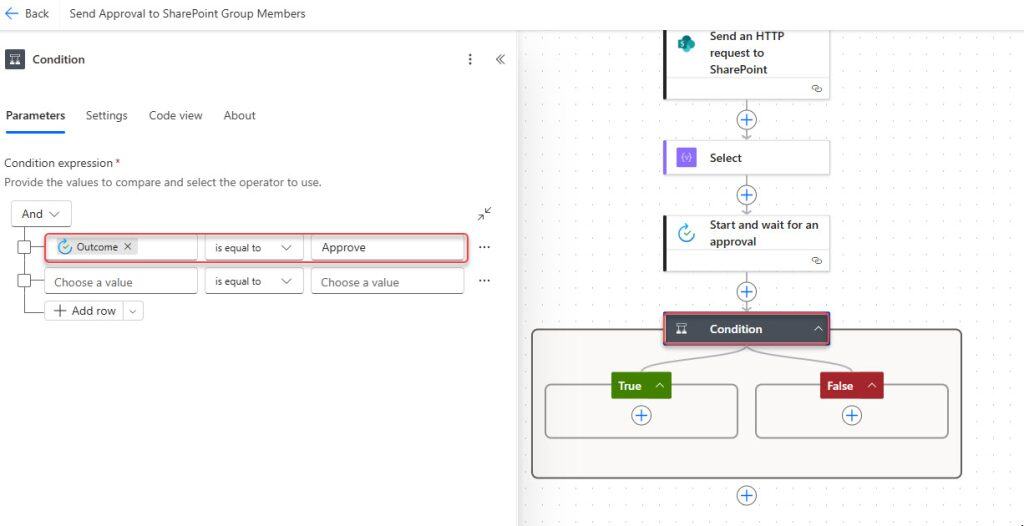
- In the True section, add the Update item action and provide the parameters below:
- Site Address: Your SharePoint site
- List Name: Project Tasks
- Id: Use the ID from the trigger
- Status: Approved
- Comments:
✔️ Approved by @{body('Start_and_wait_for_an_approval')?['responses'][0]?['responder']?['displayName']}
with @{body('Start_and_wait_for_an_approval')?['responses'][0]?['comments']}
(@{formatDateTime(body('Start_and_wait_for_an_approval')?['responses'][0]?['responseDate'],'dd/MM/yyyy hh:mm:ss tt')})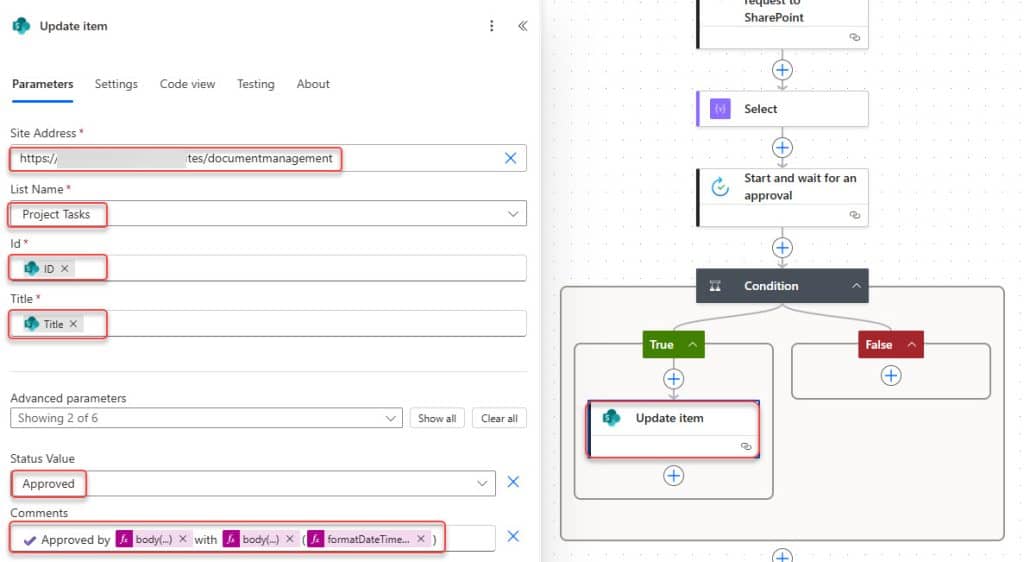
- In the False branch of the condition, add Update item action:
- Site Address: Your SharePoint site
- List Name: Project Tasks
- Id: Use the ID from the trigger
- Status: Rejected
- Comments:
❌ Rejected by @{body('Start_and_wait_for_an_approval')?['responses'][0]?['responder']?['displayName']}
with @{body('Start_and_wait_for_an_approval')?['responses'][0]?['comments']}
(@{formatDateTime(body('Start_and_wait_for_an_approval')?['responses'][0]?['responseDate'],'dd/MM/yyyy hh:mm:ss tt')})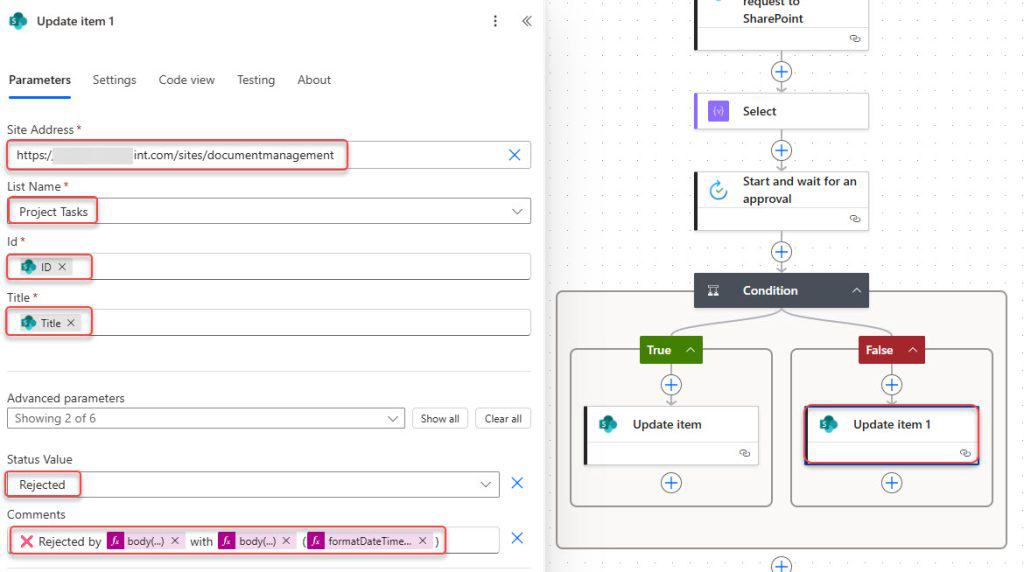
Test the Flow to Send Approval to SharePoint Group Members
Go to your Project Tasks SharePoint list. Create a new item.

Wait a few seconds for Power Automate to trigger. All members of the DMS member group will receive the approval request directly in their inboxes.

Once any one member responds, the approval result will be updated in the list automatically.

That’s how you can send an approval to SharePoint Group members using Power Automate by fetching all group member emails and assigning the approval dynamically.
You may also like:
- Power Automate save email attachment to SharePoint
- Create a Monthly Timesheet in Power Apps
- Delete all files in a SharePoint folder using Power Automate
- Copy List Items To Another List In SharePoint Using Power Automate
- When an item is created in a SharePoint list send approval

Hey! I’m Bijay Kumar, founder of SPGuides.com and a Microsoft Business Applications MVP (Power Automate, Power Apps). I launched this site in 2020 because I truly enjoy working with SharePoint, Power Platform, and SharePoint Framework (SPFx), and wanted to share that passion through step-by-step tutorials, guides, and training videos. My mission is to help you learn these technologies so you can utilize SharePoint, enhance productivity, and potentially build business solutions along the way.