
In this article, we will learn how to use the Fluent UI React choicegroup control and also the checkbox control in the SPFx webpart. Normally, we use these controls when creating forms in SPFx webpart or form customizer extensions to display the choice field values.
For single selection, we can use the choice group control, and for multiple selection or boolean fields, we can use the checkbox control.
By the end of this article, we’ll cover how to display SharePoint list choice values dynamically in these controls, including default values, and save the selected items back to the list. Additionally, we will display options along with icons.
Save Fluent UI ChoiceGroup and Checkbox Values to SharePoint Using SPFx
In this section, we’ll first start with using the Fluent UI React choice group and checkbox control with sample values, saving the selected values to a SharePoint list, and so on.
Below, you can see there is a SharePoint list named “TravelRequests” which I created to show you a demo.

This list has the following fields:
| Column Name | Data Type |
|---|---|
| Title | Single line of text default field |
| NeedHotelBooking | Yes/No |
| ApprovalStatus | Choice(“Pending”, “Approved”, “Rejected”) |
| RequestedEmail | Single line of text |
Now, look at the example below. I created an SPFx web part that displays the approval status in a choice group control and the “Need Hotel Booking’ field with a checkbox control, and I disabled the “Rejected” value in the choice group control. Also, I im displaying the selected option down to that control.
Once I click on the “Submit Request” button, a message note will be displayed below. In the SharePoint list for the Title field, the value will be stored as “Travel request submitted by” the current logged-in user’s display name. For the RequestorEmail field, the logged-in user’s email address will be saved.
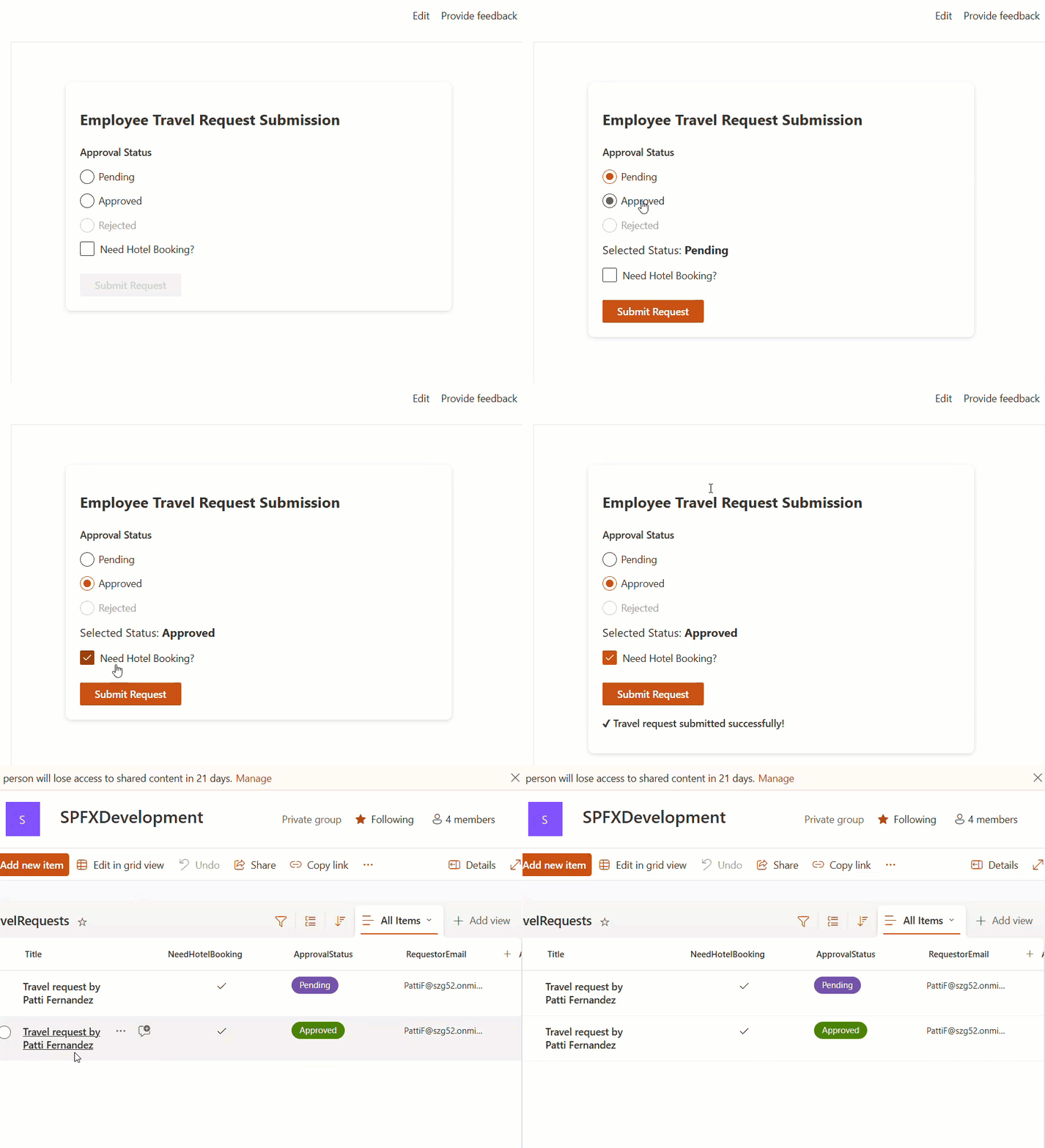
Follow the steps below to achieve the above example.
- Open Node.js command prompt in administrator mode. You can also use the Windows Command Prompt or PowerShell Command Prompt. Run the below command:
md SPFxFluentUIChoicegroupCheckbox

cd SPFxFluentUIChoicegroupCheckbox- Then, in the same directory, run the following command.
yo @microsoft/sharepointNow, it will ask you a few details, like below:
- What is your solution name? sp-fx-fluent-ui-choicegroup-checkbox
- Which type of client-side component to create? WebPart
- Add new Web part to solution sp-fx-fluent-ui-choicegroup-checkbox.
- What is your Web part name? FluentUIChoicegrpCheckbox
- Which template would you like to use? React
Note: To use Fluent UI React controls, we need to take the framework as React while creating SPFx webpart.
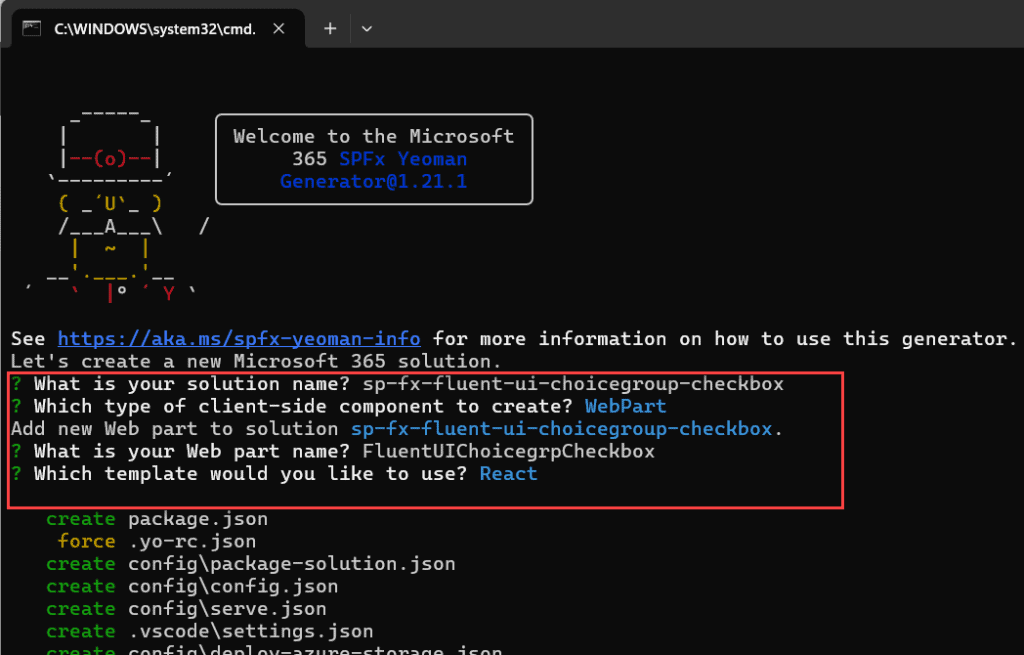
It will then take some time to create the solution. Once it is created, follow the steps below to install and set up the PnP JS and the Fluent UI React controls.
- Run the following command to install the PnP JS library into our solution.
npm install @pnp/sp --save- Also, run the below command to install Fluent UI into the solution.
npm install @fluentui/react- To import the PnP JS library into the solution, add the following statements in the “FluentUiChoicegrpCheckboxWebpart.ts” file.
import { spfi, SPFx } from "@pnp/sp";
import { SPFI } from "@pnp/sp";
import "@pnp/sp/webs";
import "@pnp/sp/lists";
import "@pnp/sp/items";
import "@pnp/sp/fields";- PnP needs to be initialized with the SharePoint context to connect properly to the SharePoint site. So, update your onInit() as below.
protected onInit(): Promise<void> {
    return this._getEnvironmentMessage().then(message => {
      this._environmentMessage = message;
      this._sp = spfi().using(SPFx(this.context));
    });
}- To hold the instance of the SPFI, create a private variable within the export default class in the “FluentUiChoicegrpCheckboxWebpart.ts” file.
private _sp: SPFI- Also, update the render() function within the “FluentUiChoicegrpCheckboxWebpart.ts ” file, which will take this._sp as a prop.
  public render(): void {
    const element: React.ReactElement<IFluentUiChoicegrpCheckboxProps> = React.createElement(
      FluentUiChoicegrpCheckbox,
      {
        description: this.properties.description,
        isDarkTheme: this._isDarkTheme,
        environmentMessage: this._environmentMessage,
        hasTeamsContext: !!this.context.sdks.microsoftTeams,
        userDisplayName: this.context.pageContext.user.displayName,
        sp:this._sp,
        context:this.context,
      }
    );

    ReactDom.render(element, this.domElement);
}- We also need to include the sp as a prop in the “FluentUiChoicegrpCheckbox Props.ts” file.
import { WebPartContext } from "@microsoft/sp-webpart-base";
import { SPFI } from "@pnp/sp";
export interface IFluentUiChoicegrpCheckboxProps {
  description: string;
  isDarkTheme: boolean;
  environmentMessage: string;
  hasTeamsContext: boolean;
  userDisplayName: string;
  sp:SPFI;
  context: WebPartContext
}- Now, open the “FluentUiChoicegrpCheckbox.tsx” and update its code with the one below.
import * as React from 'react';
import styles from './FluentUiChoicegrpCheckbox.module.scss';
import type { IFluentUiChoicegrpCheckboxProps } from './IFluentUiChoicegrpCheckboxProps';

import { ChoiceGroup, IChoiceGroupOption, Checkbox, PrimaryButton, Text } from "@fluentui/react";

export default class FluentUiChoicegrpCheckbox
  extends React.Component<IFluentUiChoicegrpCheckboxProps, any> {

  constructor(props: IFluentUiChoicegrpCheckboxProps) {
    super(props);

    this.state = {
      selectedStatus: "",
      needHotel: false,
      isSaving: false,
      saveMessage: ""
    };
  }

  private _approvalOptions: IChoiceGroupOption[] = [
    { key: "Pending", text: "Pending" },
    { key: "Approved", text: "Approved" },
    { key: "Rejected", text: "Rejected", disabled: true  }
  ];

  private onStatusChange = (_ev: any, option?: IChoiceGroupOption): void => {
    this.setState({ selectedStatus: option?.key });
  };

  private onHotelChange = (_ev: any, checked?: boolean): void => {
    this.setState({ needHotel: checked });
  };

  private saveToList = async (): Promise<void> => {
    try {
      this.setState({ isSaving: true, saveMessage: "" });

      await this.props.sp.web.lists.getByTitle("TravelRequests").items.add({
        Title: `Travel request by ${this.props.userDisplayName}`,
        ApprovalStatus: this.state.selectedStatus,
        NeedHotelBooking: this.state.needHotel,
        RequestorEmail: this.props.context.pageContext.user.email
      });

      this.setState({
        saveMessage: "✔ Travel request submitted successfully!",
        isSaving: false
      });

    } catch (error) {
      console.error(error);
      this.setState({
        saveMessage: "Error submitting request.",
        isSaving: false
      });
    }
  };

 public render(): React.ReactElement<IFluentUiChoicegrpCheckboxProps> {
  return (
    <section className={styles.fluentUiChoicegrpCheckbox}>

      <div className={styles.cardContainer}>

        <h2>Employee Travel Request Submission</h2>

        <ChoiceGroup
          label="Approval Status"
          options={this._approvalOptions}
          selectedKey={this.state.selectedStatus}
          onChange={this.onStatusChange}
        />

        {this.state.selectedStatus && (
          <Text
            variant="mediumPlus"
            className={styles.selectedText}
          >
            Selected Status: <b>{this.state.selectedStatus}</b>
          </Text>
        )}

        <Checkbox
          label="Need Hotel Booking?"
          checked={this.state.needHotel}
          onChange={this.onHotelChange}
          className={styles.checkboxSpacing}
        />


        <PrimaryButton
          text={this.state.isSaving ? "Submitting..." : "Submit Request"}
          disabled={!this.state.selectedStatus || this.state.isSaving}
          onClick={this.saveToList}
          className={styles.submitButtonSpacing}
        />

        {/* Save message */}
        {this.state.saveMessage && (
          <p className={styles.saveMessage}>{this.state.saveMessage}</p>
        )}

      </div>
    </section>
  );
}

}
Let’s understand the code now:
- To use the Fluent UI controls in the SPFx solution, we first need to import them, so I imported the following components from the “@fluentui/react” library.
- ChoiceGroup
- IChoiceGroupOption
- Checkbox
- PrimaryButton
- Text
- Within the constructor(){..} I initialized the following states with empty values.
- selectedStatus = To store the selected choice group value.
- needHotel = a Boolean data type that stores the value of the check box control.
- isSaving = a Boolean data type, used to change the submit request button text, while saving the input data to a list.
- saveMessage = Used to display a message while saving data to the list.
- _approvalOptions = This array has the data type as IChoiceGroupOption and contains an array of objects in it. Each object has the following properties:
- key = For a unique value purpose.
- text = For display purposes.
- disabled = To make the option disabled.
- To disable any of the options, add the above property.
- render() = Here, we display the choice group and checkbox controls. Let’s understand its properties:
- <ChoiceGroup>
| Property Name | Description |
|---|---|
| label | This text appears above the choice buttons. It tells the user what they are selecting. |
| options | This is the list of choices (Pending, Approved, Rejected). Each option includes a key and a display text, disabled. |
| selectedKey | This decides which option is currently selected. It reads the value chosen from the component state. |
| onChange | This runs whenever the user picks a different option. It updates the state with the new selected value. |
- <Checkbox/>
| Property Name | Discription |
|---|---|
| label | This is the text shown next to the checkbox. |
| checked | This controls whether the checkbox is ticked or not. It reads the value from the component state needHotel. |
| onChange | This runs when the user clicks the checkbox. It updates the state with the new checked/unchecked value. |
| className | Applies custom styling from your SCSS file. |
- onStatusChange() = This method triggers when the selection of status values in the choice group control changes, and then updates the selectedStatus state with the new value.
- onHotelChange() = Like the method above, this method also triggers when checking or unchecking the checkbox control and updates the needHotel state.
- saveToList() = This method uses PnPJs API’s to save the selected values to the SharePoint list. And this method will trigger when we click the button control.
- To apply styles for this webpart, add the below styles to the .scss file.
@import '~@fluentui/react/dist/sass/References.scss';

.fluentUiChoicegrpCheckbox {
  overflow: hidden;
  padding: 1em;
  color: "[theme:bodyText, default: #323130]";
  color: var(--bodyText);
  &.teams {
    font-family: $ms-font-family-fallbacks;
  }
}

.cardContainer {
  background: #ffffff;
  padding: 20px;
  border-radius: 8px;
  box-shadow: 0 2px 6px rgba(0,0,0,0.15);
  max-width: 500px;
}

.selectedText {
  margin-top: 10px;
  margin-bottom: 15px;
  display: block;
}

.checkboxSpacing {
  margin-top: 10px;
  margin-bottom: 15px;
}

.submitButtonSpacing {
  margin-top: 10px;
}

.saveMessage {
  margin-top: 15px;
  font-weight: 600;
}
Now, save the changes, and you can test it locally by running the “gulp serve” command. Let’s see another example in the section below.
Fetch SharePoint Choice Fields and Default Values in SPFx Using Fluent UI Controls
In this example, I will explain how to dynamically fetch SharePoint list choice field values and default values into the Fluent UI React choice group control and checkbox control.
Here, I have a SharePoint list named “ITServiceRequests” with the following fields.
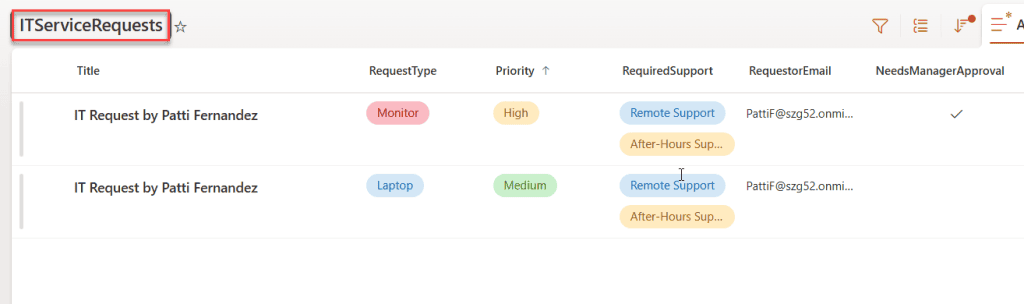
Below are the column details for the list above.
| Column Name | Data Type |
|---|---|
| Title | Default field |
| RequestType | Choice(Laptop, Software Install, Access Permission, Monitor) |
| Priority | Choice(Low, Medium(default), High, Critical) |
| RequiredSupport | Choice (Multiple values)[Remote Support, On-Site Support, After-Hours Support, Admin Approval] |
| RequestorEmail | Single line of text |
| NeedsManagerApproval | Yes/No |
Now, look at the example below, where I created a web part that dynamically fetches the SharePoint list choice field values into the choice group controls and check box.
The RequestType choice field values are displayed with icons in the choice group control, and then dynamically display the default value of the Priority field. Then display RequiredSupport multi-choice values as checkboxes and save all values back to SharePoint. Additionally, when we select the Priority value as High or Critical, the NeedsManagerApproval field contains a boolean value of true.
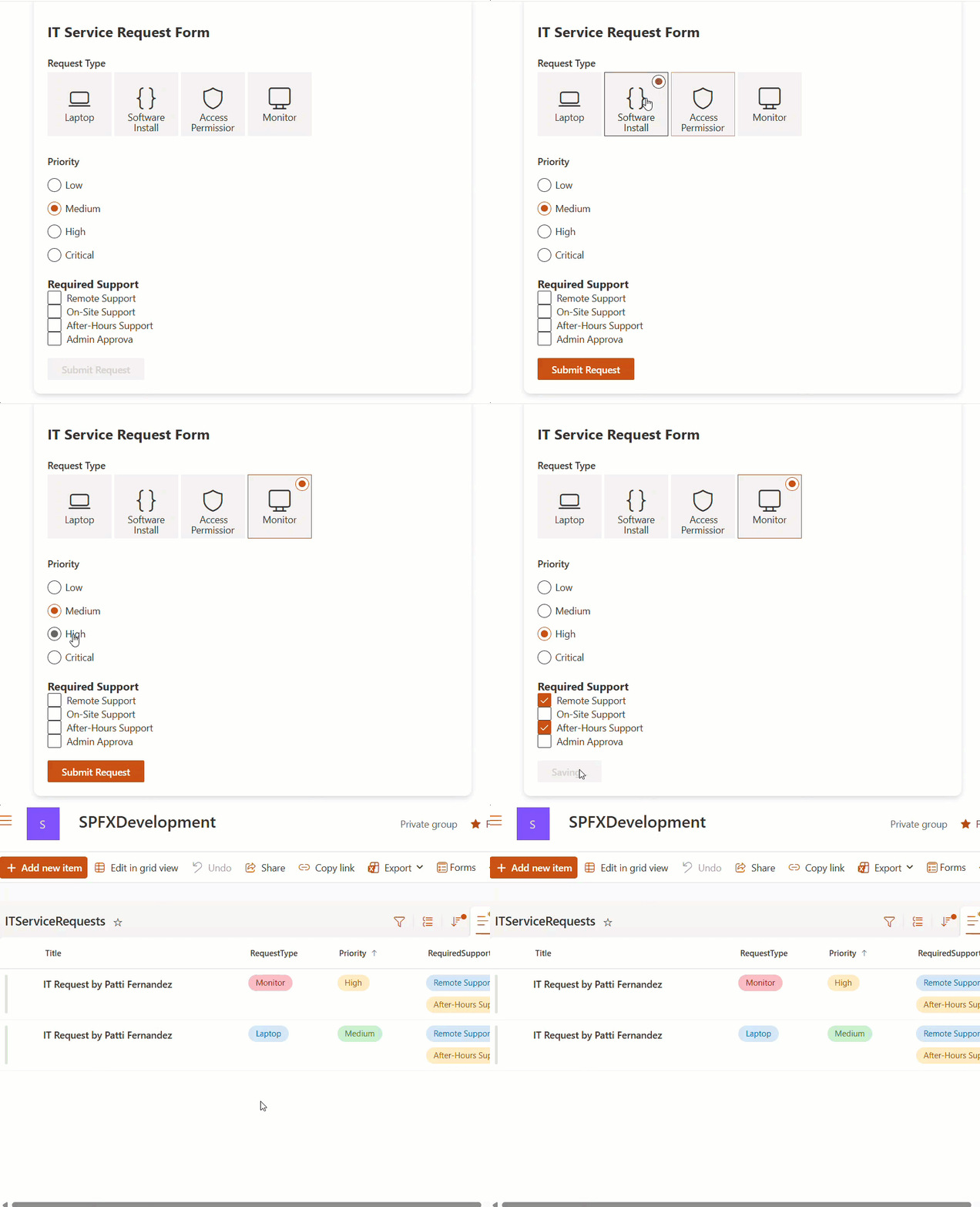
To achieve this again, I used PnPJs library for interacting with SharePoint. For the setup, follow the above example. Im now providing the .tsx file code.
import * as React from 'react';
import styles from './ChoicegrpCheckboxDemo.module.scss';
import type { IChoicegrpCheckboxDemoProps } from './IChoicegrpCheckboxDemoProps';

import {
  ChoiceGroup,
  IChoiceGroupOption,
  Checkbox,
  PrimaryButton,
  Text,
  Spinner,
  SpinnerSize
} from "@fluentui/react";

export interface IChoicegrpCheckboxDemoState {
  loading: boolean;

  requestTypeChoices: IChoiceGroupOption[];
  priorityChoices: IChoiceGroupOption[];
  supportChoices: string[];

  selectedRequestType: string;
  selectedPriority: string;
  selectedSupportOptions: string[];

  saving: boolean;
  saveMessage: string;
}

export default class ChoicegrpCheckboxDemo
  extends React.Component<IChoicegrpCheckboxDemoProps, IChoicegrpCheckboxDemoState> {

  constructor(props: IChoicegrpCheckboxDemoProps) {
    super(props);

    this.state = {
      loading: true,

      requestTypeChoices: [],
      priorityChoices: [],
      supportChoices: [],

      selectedRequestType: "",
      selectedPriority: "",
      selectedSupportOptions: [],

      saving: false,
      saveMessage: ""
    };
  }

  public async componentDidMount(): Promise<void> {
    try {
      const sp = this.props.sp;
      const fields = await sp.web.lists.getByTitle("ITServiceRequests").fields();

      let requestTypeField: any = null;
      let priorityField: any = null;
      let supportField: any = null;

      for (let i = 0; i < fields.length; i++) {
        if (fields[i].InternalName === "RequestType") {
          requestTypeField = fields[i];
        }
        if (fields[i].InternalName === "Priority") {
          priorityField = fields[i];
        }
        if (fields[i].InternalName === "RequiredSupport") {
          supportField = fields[i];
        }
      }
      // REQUEST TYPE (WITH ICONS)
      const requestTypeChoices: IChoiceGroupOption[] = [];
      if (requestTypeField && requestTypeField.Choices) {
        for (let i = 0; i < requestTypeField.Choices.length; i++) {
          const choice = requestTypeField.Choices[i];
          requestTypeChoices.push({
            key: choice,
            text: choice,
            iconProps: this._getIconForRequestType(choice)
          });
        }
      }
      // PRIORITY (WITH DEFAULT)
      const priorityChoices: IChoiceGroupOption[] = [];
      let defaultPriority = "";

      if (priorityField && priorityField.Choices) {
        for (let i = 0; i < priorityField.Choices.length; i++) {
          const choice = priorityField.Choices[i];
          priorityChoices.push({ key: choice, text: choice });
        }
        if (priorityField.DefaultValue) {
          defaultPriority = priorityField.DefaultValue;
        }
      }
      // SUPPORT (MULTI-CHOICE)
      let supportChoices: string[] = [];
      if (supportField && supportField.Choices) {
        supportChoices = supportField.Choices;
      }

      this.setState({
        requestTypeChoices,
        priorityChoices,
        supportChoices,
        selectedPriority: defaultPriority,
        loading: false
      });

    } catch (err) {
      console.error("Error loading field metadata", err);
      this.setState({ loading: false });
    }
  }

  //Assign icons for request types

  private _getIconForRequestType(option: string) {
    if (option === "Laptop") return { iconName: "System" };
    if (option === "Software Install") return { iconName: "Code" };
    if (option === "Access Permission") return { iconName: "Shield" };
    if (option === "Monitor") return { iconName: "TVMonitor" };
    return undefined;
  }

  private onRequestTypeChange = (_ev: any, option?: IChoiceGroupOption): void => {
    this.setState({ selectedRequestType: option ? option.key : "" });
  };

  private onPriorityChange = (_ev: any, option?: IChoiceGroupOption): void => {
    this.setState({ selectedPriority: option ? option.key : "" });
  };
  //Multi-check support selections (no includes)
  private onSupportChange = (value: string, checked: boolean): void => {
    const arr = this.state.selectedSupportOptions.slice(0);

    if (checked) {
      arr.push(value);
    } else {
      const idx = arr.indexOf(value);
      if (idx > -1) arr.splice(idx, 1);
    }

    this.setState({ selectedSupportOptions: arr });
  };

  // Save to SharePoint list

  private saveToList = async (): Promise<void> => {
    try {
      this.setState({ saving: true, saveMessage: "" });

      const sp = this.props.sp;

      await sp.web.lists.getByTitle("ITServiceRequests").items.add({
        Title: `IT Request by ${this.props.context.pageContext.user.displayName}`,
        RequestType: this.state.selectedRequestType,
        Priority: this.state.selectedPriority,
        RequiredSupport:  this.state.selectedSupportOptions ,
        RequestorEmail: this.props.context.pageContext.user.email,
        NeedsManagerApproval:
          this.state.selectedPriority === "High" ||
          this.state.selectedPriority === "Critical"
      });

      this.setState({
        saveMessage: "✔ Request submitted successfully!",
        saving: false
      });

    } catch (err) {
      console.error("Save error", err);
      this.setState({
        saveMessage: "Error saving request.",
        saving: false
      });
    }
  };

  public render(): React.ReactElement<IChoicegrpCheckboxDemoProps> {
    if (this.state.loading) {
      return <Spinner size={SpinnerSize.large} label="Loading options..." />;
    }

    return (
      <section className={styles.choicegrpCheckboxDemo}>

        <div className={styles.cardContainer}>
          <h2>IT Service Request Form</h2>

          {/* Request Type */}
          <ChoiceGroup
            label="Request Type"
            options={this.state.requestTypeChoices}
            selectedKey={this.state.selectedRequestType}
            onChange={this.onRequestTypeChange}
          />

          <br />

          {/* Priority */}
          <ChoiceGroup
            label="Priority"
            options={this.state.priorityChoices}
            selectedKey={this.state.selectedPriority}
            onChange={this.onPriorityChange}
          />

          <br />

          {/* Multi-checkbox support */}
          <Text variant="mediumPlus"><b>Required Support</b></Text>

          {this.state.supportChoices.map((choice, i) => (
            <Checkbox
              key={i}
              label={choice}
              checked={this.state.selectedSupportOptions.indexOf(choice) > -1}
              onChange={(_e, checked) => this.onSupportChange(choice, checked!)}
            />
          ))}

          <br />

          <PrimaryButton
            text={this.state.saving ? "Saving..." : "Submit Request"}
            disabled={this.state.saving || this.state.selectedRequestType === ""}
            onClick={this.saveToList}
          />

          {this.state.saveMessage && (
            <p style={{ marginTop: 12 }}>{this.state.saveMessage}</p>
          )}

        </div>
      </section>
    );
  }
}
Here:
- IChoicegrpCheckboxDemoState stores the following data:
- loading = Used to track whether SharePoint field data is still loading.
- requestTypeChoices = Created to hold all “RequestType” options fetched from the list.
- priorityChoices = Stores all Priority values.
- supportChoices = Keeps the list of available support options for the checkboxes.
- selectedRequestType = Stores the user’s currently selected request type.
- selectedPriority = Stores the priority the user selected.
- selectedSupportOptions = Holds multiple support options that the user checked.
- saving = Used to check whether the form is currently being saved to SharePoint.
- saveMessage = Shows a friendly confirmation or error message after saving.
- constructor() = Within this, we initialized the above states with empty values.
- componentDidMount() = This is a React life cycle method, triggered when the webpart is loaded, so using the PnPJS library API, fetching all the fields. Then, from that, fetch only the choice fields and update their values in the states.
- _getIconForRequestType() = This method is used to define the icons for the choice values.
- onRequestTypeChange(), onPriorityChange(), onSupportChange(). These three methods are triggered when we change the selection in the choice group or in the check box control, and update the states with the current selected values.
- saveToList() = This method is triggered when the button control is clicked, and saves the selected data to the SharePoint list.
- render() = In this method, at the start, we are using the Spinner control until the webpart loads the choice values. Then, display the ChoiceGroup and Checkbox controls for the choice fields.
Then, apply the styles below to the webpart.
.choicegrpCheckboxDemo {
  overflow: hidden;
  padding: 1em;
  color: "[theme:bodyText, default: #323130]";
  color: var(--bodyText);
  &.teams {
    font-family: $ms-font-family-fallbacks;
  }
}

.cardContainer {
  background: #fff;
  padding: 20px;
  border-radius: 10px;
  max-width: 600px;
  box-shadow: 0 3px 8px rgba(0,0,0,0.15);
}

.choicegrpCheckboxDemo {
  margin-top: 20px;
}
This way, you can easily use the Fluent UI React choice group and check box controls in the SharePoint framework web part.
In this tutorial, I explained how to use Fluent UI React choicegroup, checkbox controls in the SPFx webpart, by covering how to use sample data for these controls, as well as SharePoint list choice fields data, and save those inputs to the SharePoint list.
Follow this if you are also looking to display your SharePoint list choice field values in these Fluent UI React controls.
Also, you may like:
- Fluent UI DocumentCard in SPFx Web Part
- SPFx CRUD Operations using No JavaScript Framework
- SPFx SwatchColorPicker Office UI Fabric React Control example
- SPFX SwatchColorPicker Fluent UI React Control

Hey! I’m Bijay Kumar, founder of SPGuides.com and a Microsoft Business Applications MVP (Power Automate, Power Apps). I launched this site in 2020 because I truly enjoy working with SharePoint, Power Platform, and SharePoint Framework (SPFx), and wanted to share that passion through step-by-step tutorials, guides, and training videos. My mission is to help you learn these technologies so you can utilize SharePoint, enhance productivity, and potentially build business solutions along the way.

