
One of my clients wanted to keep track of what was happening with their files and folders in Microsoft 365. They wanted to monitor who was sharing files internally and externally, when someone downloaded important files, and whenever a new sharing link was created for a document or folder. This helps them make sure sensitive information isn’t shared outside the company by mistake.
For all these activities, Microsoft Defender Alert Policies provide a better solution. With these built-in policies, you can automatically receive alerts whenever important actions, such as sharing, downloading, or link creation, occur in your organisation.
In this tutorial, I’ll show you how to create alert policies in the Microsoft Defender Portal.
Set Alert Policies in Microsoft Defender Portal
In this example, I will show when we will share a file with an external user; this alert will trigger and send an email.
Follow the steps below to create an alert policy:
- Go to Microsoft Defender. Sign in with your Microsoft 365 admin credentials. From the left navigation menu, expand Email & Collaboration, then click Policies & Rules, and click Alert Policies.

- Then you will see a list of all existing alert policies in your tenant.
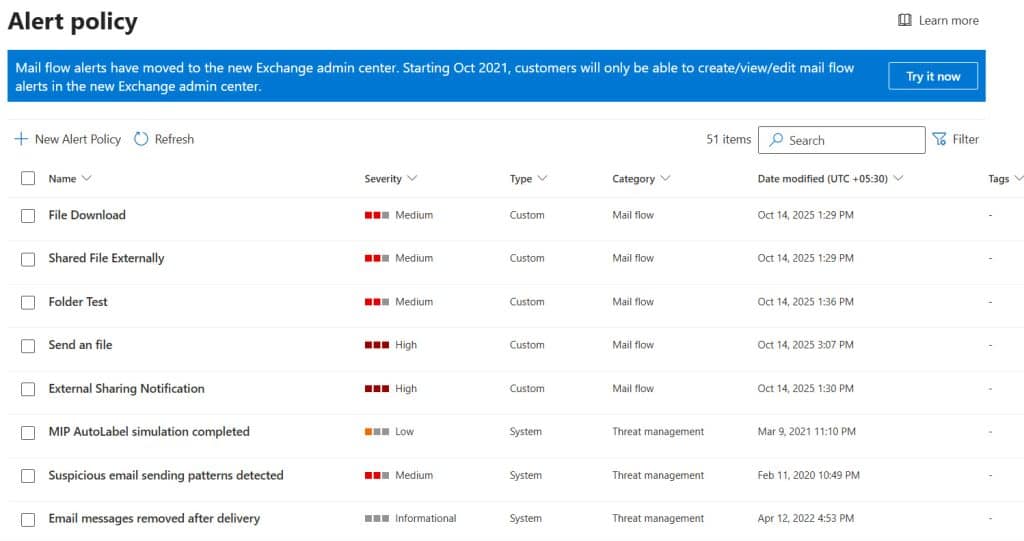
- Click + New Alert Policy to open the Create Alert Policy wizard, where you can define your monitoring rules.
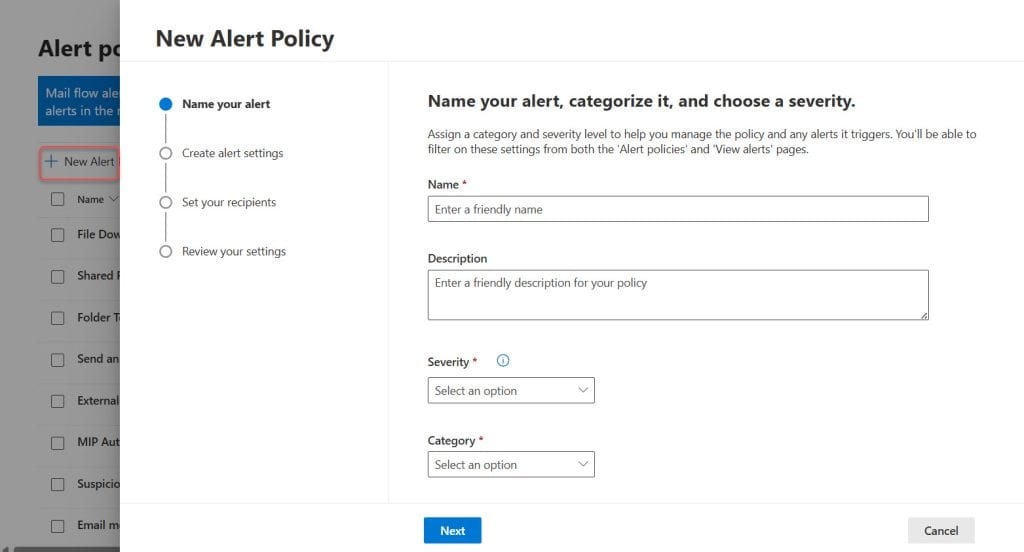
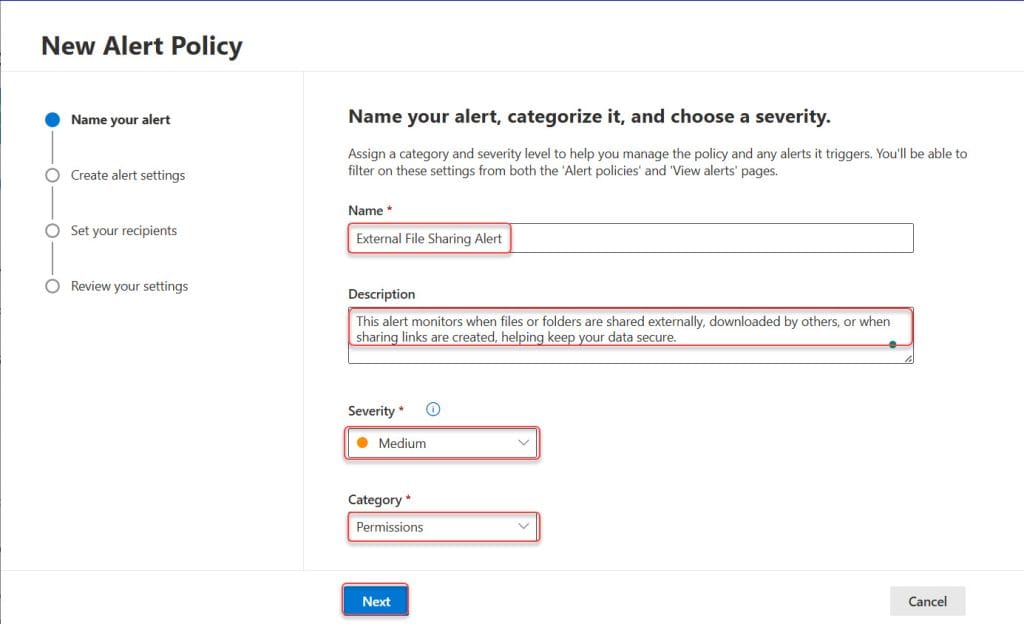
- Here, we need to give our policy a Name (External File Sharing Alert) and add a short description to explain what this policy will track. Next, set the Severity level based on the alert’s importance. Then select a Category based on the type of activity you want to monitor. Finally, click Next.
After setting the name, description, severity, and category, the next step is to choose what actions you want to track. This is important because it tells Microsoft Defender what events should trigger an alert.
You can monitor activities like:
- Shared file externally – triggers an alert when someone shares a file with an external user.
- Downloaded file – triggers an alert when someone downloads files from SharePoint or OneDrive.
- Created or modified sharing link – triggers an alert whenever a new sharing link is created or changed.
You can also apply filters to the alert:
- Monitor only specific users or groups.
- Track certain file types (like PDFs or sensitive documents).
- Limit the alert to specific sites, folders, or document libraries.
- For this example, I selected the activity Shared file externally and did not apply any additional conditions. However, if you want, you can limit it to a specific site by adding the site collection URL in the conditions section.
- In my case, I want to be notified every time someone shares a file with an external user, so I selected the option “Every time an activity matches the rule”.

- Then check the Opt-in for email notifications, enter the email recipients, and, if you want, set the Daily notification limit. Click Next.

- Finally, you can review the settings and enable the alert policy immediately by clicking Finish.

- Now you can see the policy created, and it will be part of a table where the other alert policies are stored.

Now, whenever someone shares a file with an external user, the specified recipients will receive an email notification.

I hope you found this article helpful. With Microsoft Defender Alert Policies, you can easily monitor critical activities in your organisation, such as when a file is shared with an external user. By setting up these alerts, you can stay informed in real time and ensure sensitive information remains secure.
Also, you may like some more SharePoint tutorials:
- Change Browser Tab Title in SharePoint
- Set Column Default Value in SharePoint Library
- Set SharePoint Pages Read-Only for Members
- Create a New SharePoint List By Creating a Form
- Set Up Expiration Guest Access to SharePoint Site

Hey! I’m Bijay Kumar, founder of SPGuides.com and a Microsoft Business Applications MVP (Power Automate, Power Apps). I launched this site in 2020 because I truly enjoy working with SharePoint, Power Platform, and SharePoint Framework (SPFx), and wanted to share that passion through step-by-step tutorials, guides, and training videos. My mission is to help you learn these technologies so you can utilize SharePoint, enhance productivity, and potentially build business solutions along the way.

