
When I was working with a client who wanted to share certain documents with external users, I created a separate SharePoint site dedicated solely to external users. Once the site was ready, the client asked me a great question: “How do we set up expiration for external access so that guest users don’t keep access forever?”
This is an important topic because, when sharing files with external users, many people overlook the fact that access can become a security risk. The good news is that SharePoint and OneDrive give us two ways to control expiration for guest access:
- Option 1: Tenant-Level Setting
- Option 2: Site-Level Setting
Set Up Tenant-Level Expiration Guest Access to SharePoint Site
This is the global policy that we set up at the tenant (organisation) scope. It sets a default expiration period for guest access across all SharePoint sites and OneDrive accounts, unless overridden at the site level.
Now follow the steps below:
- In the SharePoint Admin Centre, go to Policies -> Sharing.

- On the Sharing page, expand More external sharing settings to see hidden options.

- Check the box where “Guest access to a site or OneDrive will expire automatically after this many days”
- Enter the number of days (between 30 and 730) that guests should have access.

- Also set “People who use a verification code must reauthenticate after this many days” This applies when sharing with external users who don’t use Microsoft accounts.

- Save the changes.

After this is enabled, any new guest users (or sharing links created after this setting) will have their access expire after the set period.
Note: Guests added before the policy was enabled will not automatically expire. If a guest has access to multiple sites, each site’s policy is considered separately. If a site has an expiration policy at the site level, that will override the tenant policy for that site. The guest expiration policy does not affect Microsoft 365 group or Teams membership.
Set Up Site-Level Expiration Guest Access to SharePoint Site
Once the tenant-level setting is set, you can override it for specific sites for a period. This is useful for your “external users only” site, for example.
Some sites (HR, legal) may require stricter controls, while other sites may need longer access. It may be flexible on a site-by-site basis.
Now follow the steps below:
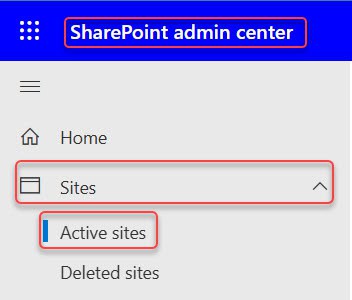
- In the SharePoint admin centre, go to Sites -> Active sites.
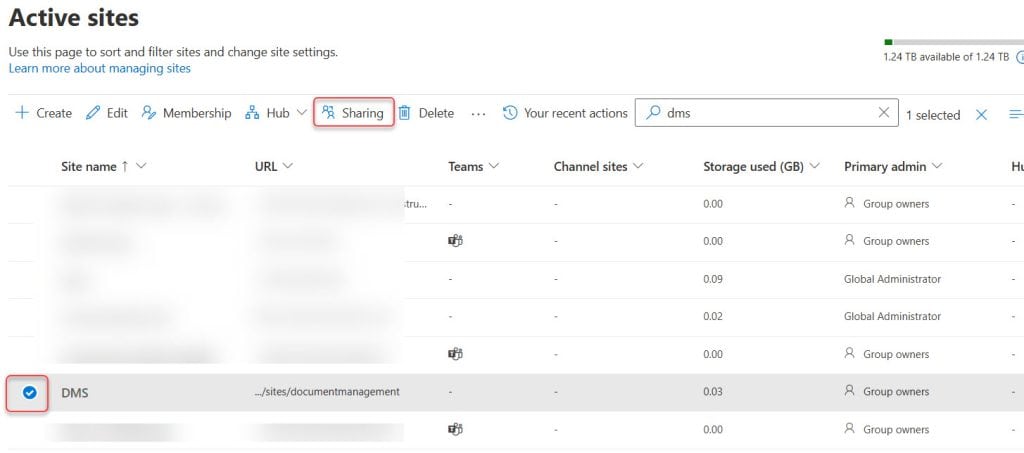
- Select the site that you want to set the expiration for guest access. In the site’s settings pane, click Sharing.
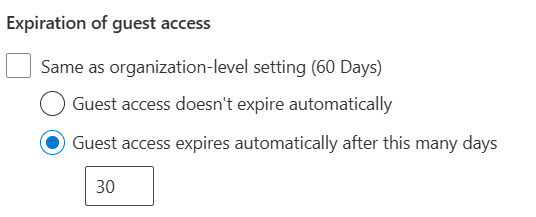
- Scroll to the Expiration of guest access section. You will see a checkbox labelled “Same as organization-level setting” checked by default.

- Uncheck the “Same as organization-level setting” box. Enter the number of days (or set to “never expire” if allowed) for guest access at that site.
- Save. The site will now use this custom expiration policy.
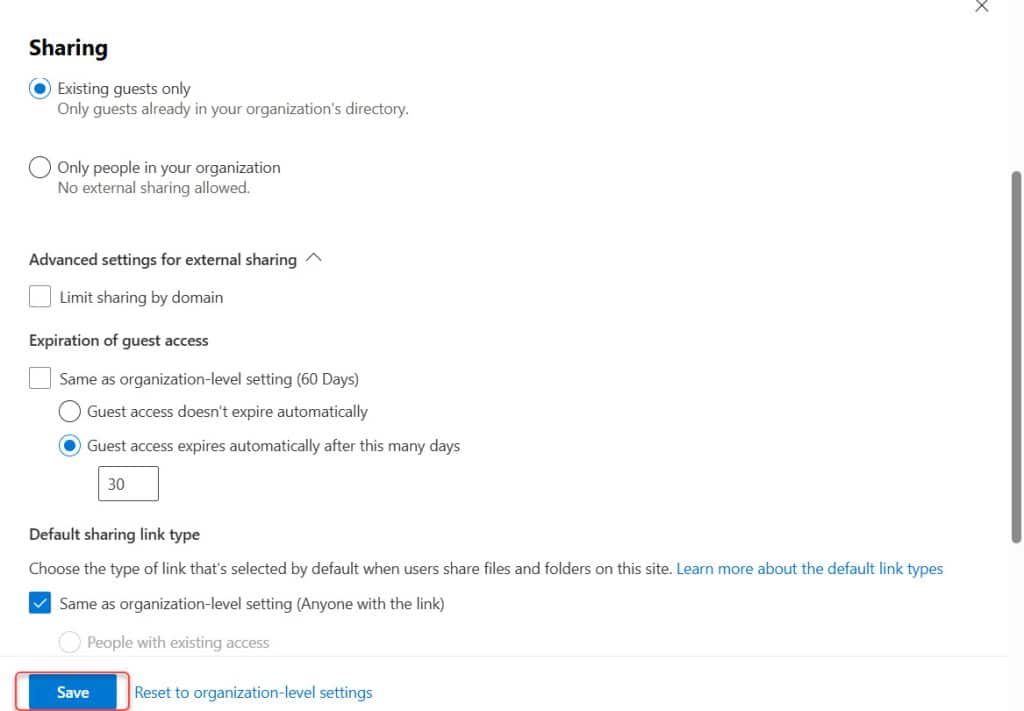
Now this site will use its own rule, even if the organisation has a different rule.
This way, we can set up guest access expiration at the tenant level and the site level.
Additionally, you may find the following interesting tutorials:
- Create Site Retention Policies in SharePoint
- Create a Subsite in SharePoint
- Import Terms into the Term Store in SharePoint
- Create a Custom Site Template In SharePoint Online
- Add Synonyms to SharePoint Term Store Metadata Terms

Hey! I’m Bijay Kumar, founder of SPGuides.com and a Microsoft Business Applications MVP (Power Automate, Power Apps). I launched this site in 2020 because I truly enjoy working with SharePoint, Power Platform, and SharePoint Framework (SPFx), and wanted to share that passion through step-by-step tutorials, guides, and training videos. My mission is to help you learn these technologies so you can utilize SharePoint, enhance productivity, and potentially build business solutions along the way.

