
While working on an approval workflow for one of my client projects, I ran into an unexpected issue. The requirement was simple: the approver needed to enter a custom text response instead of just choosing Approve or Reject. But when I tried using the regular Start and wait for an approval action, I realized it didn’t support capturing text input at all.
After some research, I found the solution: Start and wait for an approval of text. Unlike the standard approval action, this one allows approvers to type in a detailed response, making it perfect for scenarios where feedback or justification is required.
In this article, I will explain what the Start and wait for an approval of text action is, describe all the key parameters it provides, and also provide an example.
Start and wait for an approval of text in Power Automate
The Start and wait for an approval of text action in Power Automate is a special approval action that allows the approver to type a custom text response instead of selecting predefined options like Approve or Reject.
This is useful when you need detailed feedback, justification, comments, or notes directly from the approver. When this action is triggered, the approver receives an approval request with a textbox where they can enter any required information, and the flow waits until the approver submits their written response.
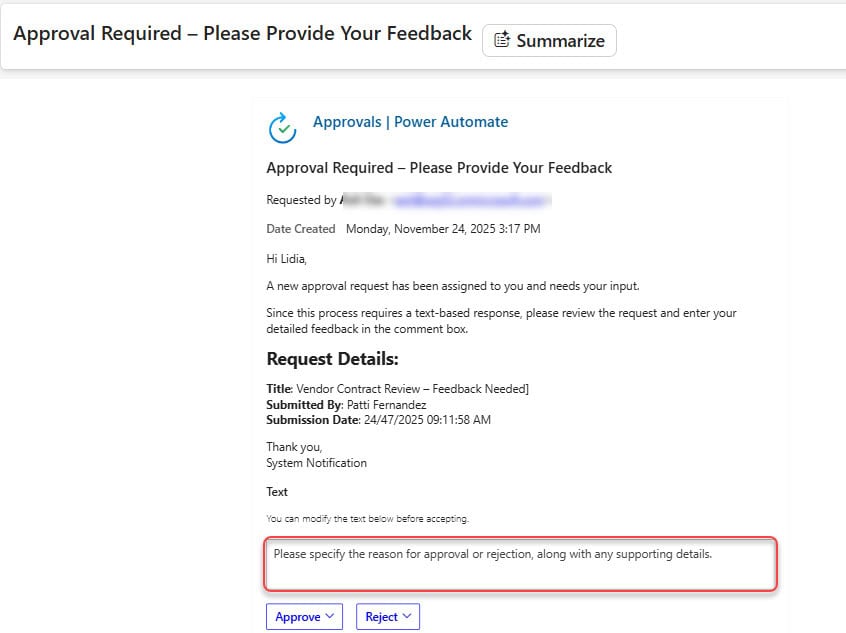
Parameters For Start and wait for an approval of text Action
When you add the Start and wait for an approval of text action to your flow, it provides several parameters that help you customize how the approval behaves. Here’s a breakdown of what each option does:
- Title: The subject or heading of the approval request. Helps the approver quickly understand the request.
- Suggested text: Predefined text that appears in the approval response box for the approver.
- Assigned to: The email address of the approver(s). Can be a single person or multiple people, depending on your workflow.
- Details: Full description or context of the request.
- Item link: A URL to the relevant SharePoint item, record, or document.
- Item link description: Short label for the item link.
- Requestor: The person sending the approval request. Defaults to the flow creator but can be changed if needed.
- Enable notifications: Determines if the approver receives email and push notifications. Enabled by default.
- Enable reassignment: Allows the approver to reassign the approval to someone else. Set to No to restrict reassignment.
- Attachments: Let you attach files or links to provide additional context for the approver.

Example: Expense Reimbursement Approval Flow in Power Automate
Suppose an employee submits a business travel expense claim for reimbursement. The claim includes receipts and details of expenses like hotel, food, and travel. Before Finance can process the reimbursement, the employee’s manager needs to review the claim, provide comments if needed, and approve or reject it.
For this example, I created an Expense Claims SharePoint list with the following columns:

Follow the steps below:
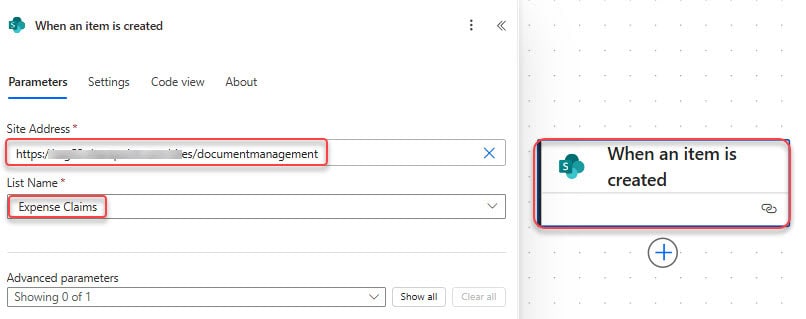
- Add the When an item is created trigger to your automated cloud flow in Power Automate, and configure it by selecting the appropriate Site Address and List Name.
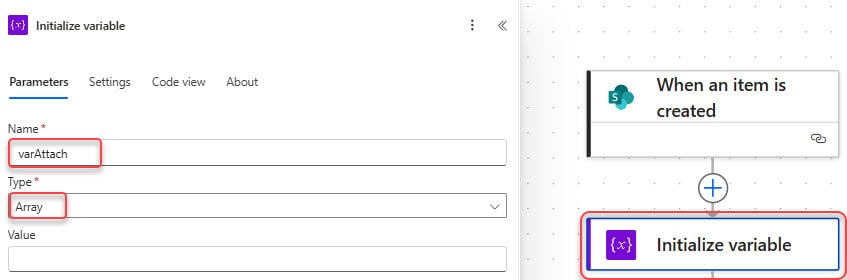
- Add an Initialize variables, provide the below parameter to store the attachments:
- Name: varAttach
- Type: Array
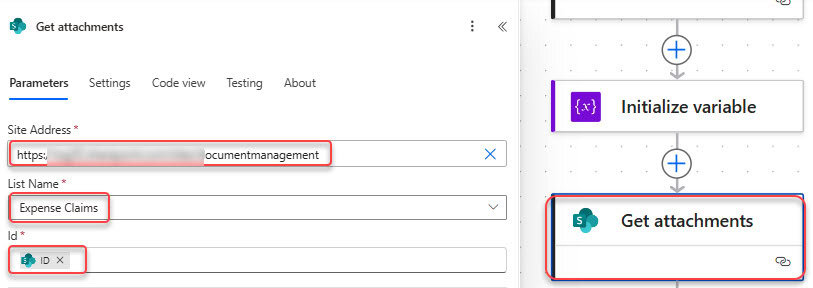
- Next, add the ‘Get attachments‘ action and provide the parameters below:
- Site Address: Select your SharePoint site
- List Name: Expense Claims
- Id: ID from the trigger
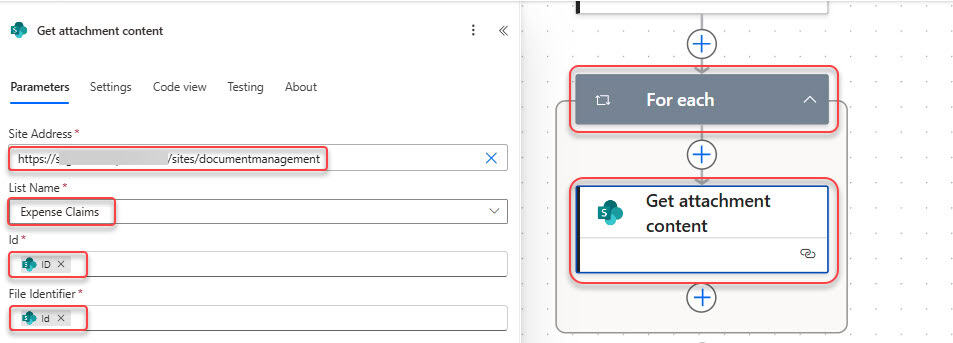
- Next, add Get attachment content and provide the parameters:
- Site Address: Select your SharePoint site
- List Name: Expense Claims
- Id: ID from the trigger
- File Identifier: Id from the Get attachments action. It will add a For each loop.
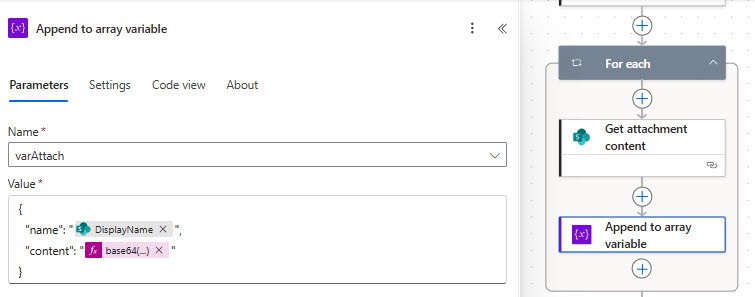
- Inside the For each, add append to the array variable and provide the parameters below:
- Name: varAttach
- Value:
{
  "name": "@{items('For_each')?['DisplayName']}",
  "content": "@{base64(body('Get_attachment_content'))}"
}
- Now, add the Start and wait for an approval of text action. Provide parameters below:
- Title: Expense Reimbursement Approval Request by @{triggerBody()?[‘EmployeeName/DisplayName’]}
- Suggested text: Please review the attached expense details and provide your comments or approval.
- Assigned To: Provide the manager’s email.
- Details: Add expense information such as:
A new Expense has been created in the Expense Claim list.

**Requested By**: @{triggerBody()?['EmployeeName/DisplayName']}
**Expense Amount**: @{triggerBody()?['ExpenseAmount']}
**Expense Purpose**: @{triggerBody()?['ExpensePurpose']}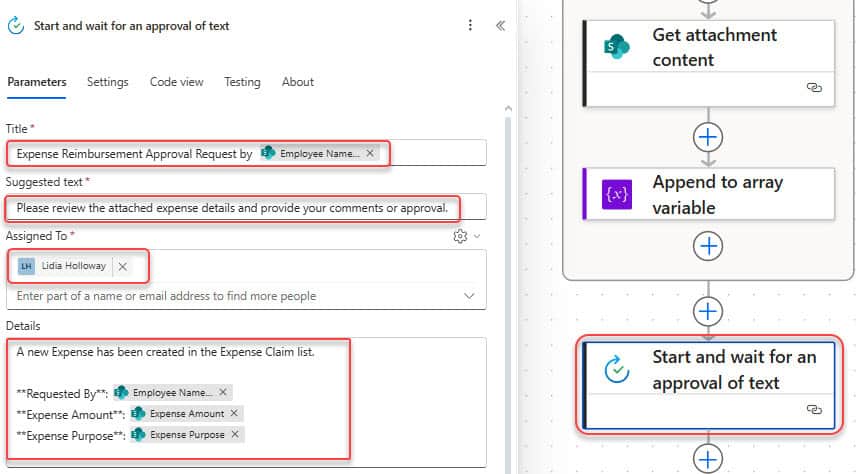
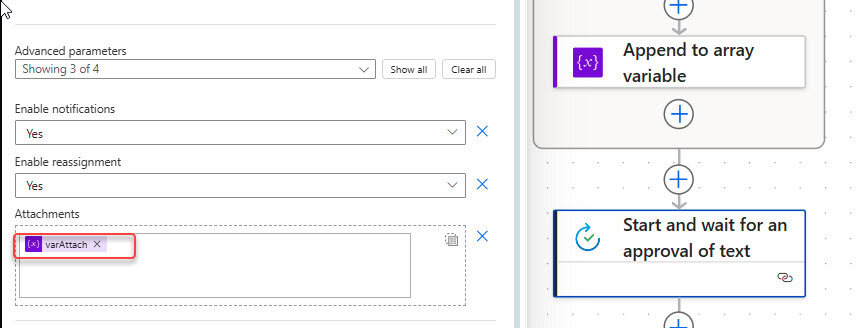
- Now scroll down and select the Attachments section. Then click ‘switch to input entire array’ and provide the array variable.
- Next, add a Condition action to check the outcome of the approval.
outputs('Start_and_wait_for_an_approval_of_text')?['body/outcome'] is equal to Approve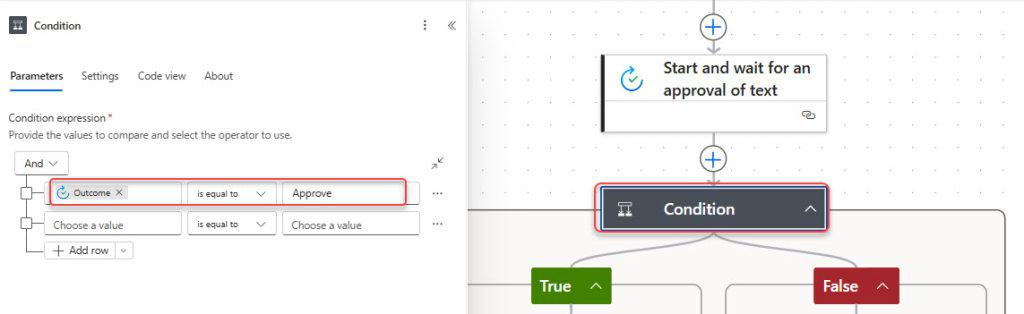
- In the True section, add the Update item action and provide the parameters below:
- Site Address: Provide the site address.
- Library Name: library name.
- Id: Use the ID from the create item action.
- Status Value: Approve
- Manager Comments: body(‘Start_and_wait_for_an_approval_of_text’)?[‘responses’][0]?[‘comments’]
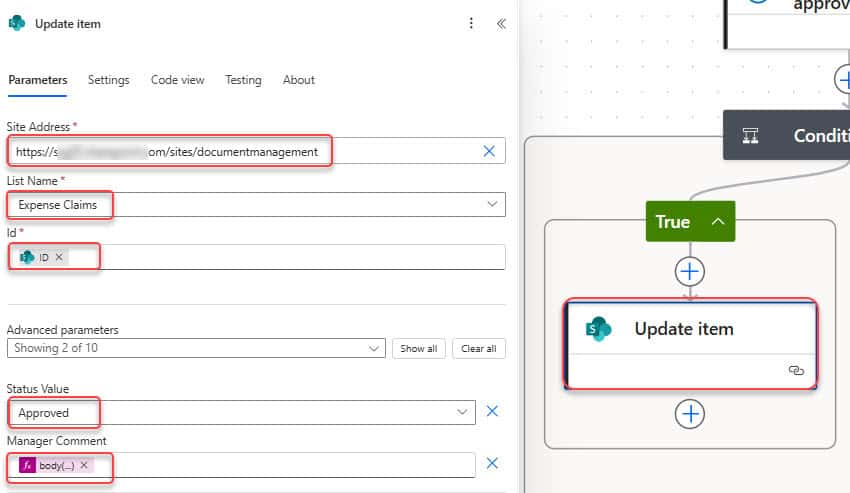
- In the False branch of the condition (when the outcome is not Approve): Add Update item action:
- Site Address: Provide the site address.
- Library Name: library name.
- Id: Use the ID from the create item action.
- Status Value: Reject
- Manager Comments: body(‘Start_and_wait_for_an_approval_of_text’)?[‘responses’][0]?[‘comments’]
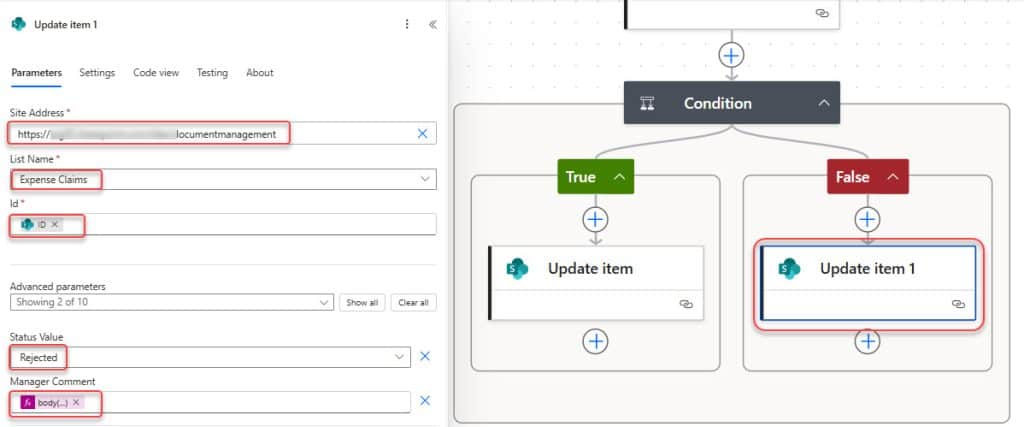
Now that our approval flow is completed, we need to test and check that everything is working fine.
Test the Start and wait for an approval of text Action in Power Automate
Go to your Expense Claims SharePoint list and add a new expense request.

The manager will receive the approval email with a textbox to enter comments.

Once the manager submits their response, the flow updates the item with the approval outcome and comments.

I hope you find this article helpful. In this article, we covered what the Start and wait for an approval of text action is, its key parameters, and also demonstrated its use with a real-time example.
You may also like:
- Create Custom Responses in Power Automate Approvals
- Power Automate save email attachment to SharePoint
- User Does Not Have ReadAccess for Connection Reference in Power Automate
- Delete all files in a SharePoint folder using Power Automate

Hey! I’m Bijay Kumar, founder of SPGuides.com and a Microsoft Business Applications MVP (Power Automate, Power Apps). I launched this site in 2020 because I truly enjoy working with SharePoint, Power Platform, and SharePoint Framework (SPFx), and wanted to share that passion through step-by-step tutorials, guides, and training videos. My mission is to help you learn these technologies so you can utilize SharePoint, enhance productivity, and potentially build business solutions along the way.