
Recently, while creating an HR dashboard in Power BI, I encountered a situation in which one table had an important column I also needed to use in another table. Instead of manually copying data, I explored different ways to bring that column into the second table.
In this tutorial, I will show you how to add a column from another table in Power BI, covering three practical methods:
- Add a column from another table using DAX
- Add a column from another table using Power Query
- Add a column from another table using Lookup methods in Power BI
Add Column From Another Table in Power BI DAX
Now I will show you how to do this with a relationship between tables and also without a relationship because both scenarios are common in real projects.
You can download from the table here.
For this example, I’m using a simple vehicle dataset, which includes two tables:
Table 1: (Bikes Table)
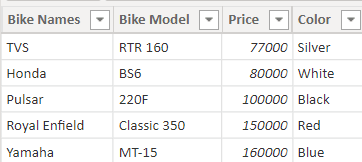
Table 2: (Cars Table)

Add a Column From Another Table With a Relationship in Power BI
Now, let’s look at how to add a column from another table when a relationship already exists (or when you can create one) between the tables in Power BI.
Here, I will use the RELATED function in Power BI, which works only when there is an existing relationship between the two tables.
Syntax:
RELATED(<column>)
To create a relationship, both tables must contain at least one common column. This shared column allows Power BI to link the tables together.
Follow the steps below to create a relationship between two tables:
- Open Power BI Desktop and load both tables. Go to the Model view.
- Click the vertical ellipsis (⋮) and select Manage relationships, as shown below.

- In the Manage Relationships window, choose the two tables and select the matching columns that create the relationship. Once selected, click OK to confirm the relationship.

- The screenshot below shows the cardinality relationship that has been created between the two tables.

- Now, go to the Table view, and under Table tools, click on New column as shown below:

- In the formula bar, enter the following DAX formula and click the check icon:
Column from another table = RELATED(Cars[Car Names])
Where:
- Column from another table: The name of the new column we are creating
- Cars: The other table from which we want to pull the data
- Car Names: The specific column in that table we want to reference
In the screenshot below, you can see that the new column has been successfully added. It now displays the corresponding data values pulled from the other table.

This is how we can add a column from another table when there is a relationship between the two tables in Power BI.
You can use this method when there is a relationship between the two tables, with the help of the RELATED function in Power BI.
Add a Column From Another Table With No Relationship Between Tables in Power BI
Now, I will show you how to add a column from another table even when there is no relationship between the two tables in Power BI.
Here, I will use the CALCULATE function in Power BI, which helps retrieve values from another table even when there is no relationship between the two tables.
Syntax:
CALCULATE(<expression>[, <filter1> [, <filter2> [, …]]])
- First, open Power BI Desktop and load both tables. Go to the Model view and check that there is no relationship (no cardinality connection) between them, as shown below.

- In the Table view, go to Table tools and click New column. Then, in the formula bar, enter the formula below and click the check icon to apply it:
Column data from another table =
VAR Color = Bikes[Color]
VAR CarModel = CALCULATE(
MAX(Cars[Car Model]),
Cars[Color] = Color
)
RETURN CarModel
Where:
- Column data from another table: The new column name we are creating
- Color, CarModel: Variable names used inside the formula
- Bikes: The current table where the new column is being added
- Car Model, Color: Column names from the other table (Cars)
- In the screenshot below, you can see that the new column has been successfully added and now displays the corresponding values from the other table.

This is how we can add a column from another table in Power BI, even when there is no relationship between the tables.
Add Column From Another Table in Power Query
Let us see how to add a column from another table using the Power Query Editor in Power BI.
- Open Power BI Desktop and load your table data. In the ribbon, under the Home tab, click on Transform data.

- In the Power Query Editor, select the table to which you want to add a new column. In the ribbon, go to the Home tab and click on Merge Queries.

- Choose the second table (the table from which you want to bring the column). Select the matching column from both tables. Choose the Join Kind (usually Left Outer to add a column).

- Click OK, and a new column with a table icon will appear.
Note:
If there is no relationship, Power Query will still allow you to merge based on matching column values.
- Expand this column and select the field(s) you want to bring from the other table.

- Click OK, and the selected column from the other table will be added to the first table.

Finally, click Close & Apply to load the changes back into Power BI. This is how to add a column from another table using Power Query in Power BI.
Add a Column From Another Table using LOOKUPVALUE() in Power BI
Let us see how to add a column from another table using the LOOKUPVALUE function in Power BI.
Syntax:
LOOKUPVALUE (
<result_columnName>,
<search_columnName>,
<search_value>
[, <search2_columnName>, <search2_value>]…
[, <alternateResult>]
)
- Open the Power BI Desktop and load both tables’ data into it. In the Modeling tab select the New column option.

- In the formula bar, put the below-mentioned formula and click on the check icon:
Column data from another table= LOOKUPVALUE(Bikes[Bike Names],Bikes[Color],Cars[Color])
Where:
- Column data from another table: New column name,
- Bikes: Another Table name
- Bike Names,Color: Column names
- Then go to the Table view, and you will see that the new column has been added and is now displaying the data values retrieved from the other table.

This is how to add a column from another table using the LOOKUPVALUE function in Power BI.
In this tutorial, I explained three practical ways to add a column from another table in Power BI, where we learned:
- Use DAX with a relationship between tables using the RELATED() function
- Use DAX without a relationship using CALCULATE() with filters
- Add a column in Power Query by merging tables
- Use the LOOKUPVALUE() function to fetch a matching value from another table
You may like the following Power BI tutorials:
- Add an Empty Column in Power BI
- Add Conditional Column in Power BI
- Power BI Measure Subtract Two Columns
- Add Column with a Fixed Value in Power BI

Hey! I’m Bijay Kumar, founder of SPGuides.com and a Microsoft Business Applications MVP (Power Automate, Power Apps). I launched this site in 2020 because I truly enjoy working with SharePoint, Power Platform, and SharePoint Framework (SPFx), and wanted to share that passion through step-by-step tutorials, guides, and training videos. My mission is to help you learn these technologies so you can utilize SharePoint, enhance productivity, and potentially build business solutions along the way.