
Recently, while working on an approval workflow for our Power Platform Course, I had to attach supporting documents, images, PDFs, Excel files, and other documents to the Start and wait for an approval text action in Power Automate. Everything worked smoothly until I reached the step where the flow needed to send attachments.
However, none of the attachments were accepted, regardless of the file type. Whether I used PDF, JPG, PNG, or even TXT files, Power Automate threw the same error:
AttachmentContentNotValidBase64String
At first, I thought the problem might be related to the file format, but after testing multiple attachment types, it became clear that the real issue was not the file; it was how the attachment content was being passed into the approval process.
In this tutorial, I will explain why this error occurs across all attachments and how you can fix it with a simple Base64 conversion using the exact working expression.
[Error] AttachmentContentNotValidBase64String in Power Automate
This error occurs because the approval action in Power Automate expects a valid Base64-encoded string, but the attachment content being passed is in binary format, not Base64.
When working with attachments, actions like Get attachment content or Get file content return raw binary data, not Base64. If this binary output is sent directly to the approval action, Power Automate cannot process it.
That’s when the error occurs:
AttachmentContentNotValidBase64StringThe error happens only when the attachment content is not properly encoded. Whether the attachment is a PDF, image, Excel file, or text document, the approval action will fail if the content is not Base64.
Most of the time, this issue occurs when the attachment object is built like this:
{
  "name": "@{items('For_each')?['DisplayName']}",
  "content": "@{body('Get_attachment_content')}"
}
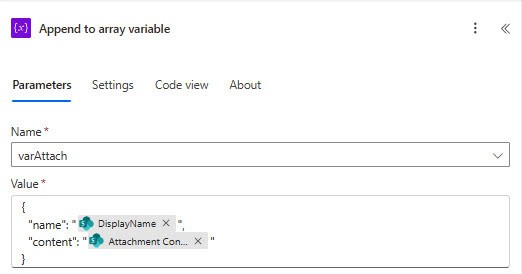
Since this passes binary data, the approval step rejects it immediately.
How to Fix: AttachmentContentNotValidBase64String
To fix this issue, you must ensure that the file content is always Base64 encoded before sending it to the approval action.
{
  "name": "@{items('For_each')?['DisplayName']}",
  "content": "@{base64(body('Get_attachment_content'))}"
}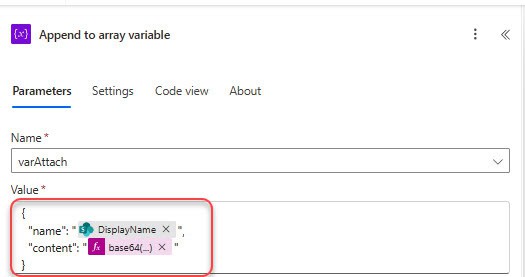
This converts binary into a valid Base64 and makes the approval action accept the attachment.
Now, when you run the flow, it will work without any errors. I hope you find this article helpful. If you run into any issues, feel free to comment below.
Also, you may like the following tutorials:
- Invalid Connection. Please Choose a Connection Power Automate
- [Solved] You do not have permission to view the membership of the group in SharePoint
- The execution of template action ‘Switch’ failed – Error in Power Automate
- The DateTime String must match ISO 8601 format error in Power Automate

Hey! I’m Bijay Kumar, founder of SPGuides.com and a Microsoft Business Applications MVP (Power Automate, Power Apps). I launched this site in 2020 because I truly enjoy working with SharePoint, Power Platform, and SharePoint Framework (SPFx), and wanted to share that passion through step-by-step tutorials, guides, and training videos. My mission is to help you learn these technologies so you can utilize SharePoint, enhance productivity, and potentially build business solutions along the way.