
Microsoft Lists helps you track information and organize work. It’s different from Excel, offering a simpler way to structure and manage data for all kinds of projects.
You can create lists to track issues, assets, routines, contacts, inventory, and any other items you need to keep track of. Creating a list takes just a few minutes, and you can add names, descriptions, priorities, statuses, due dates, and assign items to people.
The interface feels approachable, so you’ll find it easy to use whether you’re a student, a manager, or just someone who likes things organized.
Microsoft Lists works across the Microsoft 365 suite. You’ll find it in SharePoint, the Lists app itself, and even right inside Microsoft Teams.
This tight integration means if you’re already using Microsoft products, Lists fits right in with your workflow.
What is Microsoft Lists?
Microsoft Lists is a Microsoft 365 app for tracking information and organizing work. It lets you create, share, and manage lists for issues, assets, routines, contacts, and inventory.
Key Features
Microsoft Lists offers a range of features to explore. You can start a list from scratch or pick a template—there are options for issue tracking, events, asset management, and more.
You get lots of column types: text, numbers, dates, people, and choices. Conditional formatting lets you highlight what matters most, so important stuff really stands out.
Sorting and filtering are quick and painless, so you won’t waste time hunting for data. You can also set up custom views and save them for different team members, depending on what they need to see.
Collaboration is built in. Share lists, set permissions, and work together in real time. You can even comment and use @mentions right inside list items for smoother communication.
Benefits for Business
Businesses can really benefit from Microsoft Lists. It keeps information in one place and makes updates easy, so teams don’t get bogged down or miss things.
Lists reduce the errors and headaches that pop up when people use spreadsheets for tracking. Validation rules keep data clean and consistent.
With Power Automate, you can automate notifications, approvals, or actions when list items change. That’s a big time-saver for busy teams.
Since Lists connects with other Microsoft 365 apps, your data flows across the platform. It helps keep everything together and avoids those dreaded data silos.
Microsoft Lists vs. SharePoint Lists
Microsoft Lists uses SharePoint tech but feels more user-friendly. SharePoint Lists live inside SharePoint sites, while Microsoft Lists has its own app and direct access from Microsoft 365.
You’ll see the same lists in both apps, so you can choose whichever works for you. SharePoint Lists typically focus on team or site-specific needs, while Microsoft Lists leans into personal productivity and collaboration across teams.
The Lists app looks modern and clean, making it easier to navigate. You can even get it on your phone—there are mobile apps for iOS and Android, so updating lists on the go isn’t a hassle.

Getting Started with Microsoft Lists
Microsoft Lists is designed to make organizing information and tracking data easier. The interface is straightforward, allowing you to create, manage, and share lists.
Accessing Microsoft Lists
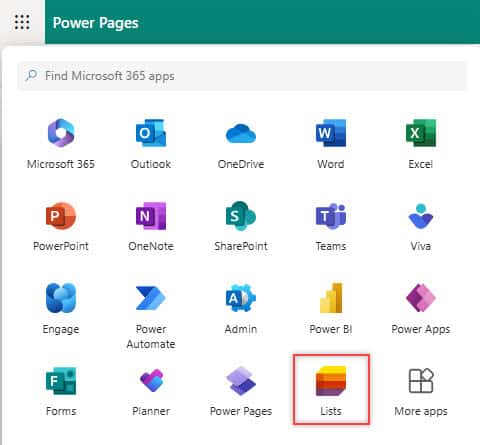
There are several ways to access Microsoft Lists. The simplest is through the Microsoft 365 app launcher, just sign in and look for the Lists icon.
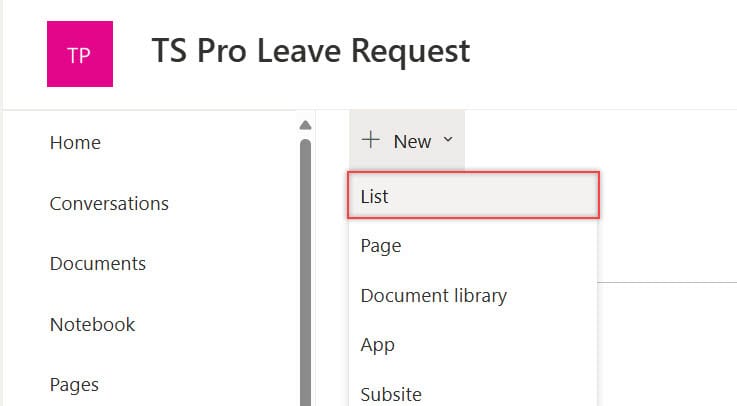
You can also access it from SharePoint. Head to a SharePoint site, click “Site contents,” and then select the + New, and you’ll see options for lists there. This works well if you want lists tied to a specific team site.
Lists also work in Microsoft Teams. Add them as tabs in any Teams channel, and you can collaborate on list data without leaving the Microsoft Teams interface.
If your organization frequently uses Microsoft 365, the dedicated Lists app provides a comprehensive experience and all its features in one place.
Supported Platforms
Microsoft Lists is compatible with various platforms, allowing you to use it anywhere. The web version works in any modern browser—just go to lists.microsoft.com when you’re signed in.
There’s a mobile app for iOS, so you can view and edit lists on your phone. Handy for quick updates when you’re away from your computer.
Lists also integrates with Teams and SharePoint, so you can move between devices and apps without missing a beat. Start a list on your desktop, finish it on your phone, no problem.
Navigating the Interface
At the very top of the Microsoft Lists page, you’ll find the navigation bar, which is your starting point for just about everything. This is where you go to create a new list, whether from scratch, a ready-made template, or even by importing data from an Excel file. It’s a quick and flexible way to get your lists up and running.
You’ll also see the Favorites section here. This helps you easily access the lists you use most often by pinning them for faster access. Just click the little star icon on any list to favorite it.
Next, there’s the Recent Lists area, which shows the lists you’ve worked on recently. It’s handy when you’re jumping between different projects or teams.

Create a New List in Microsoft Lists
You’ve got options when it comes to building a new list in Microsoft Lists. Start from a template, build from scratch, import existing data, or tweak columns to fit your needs.
Using List Templates
Templates make it easy to get started. Here’s how to use one:
- Open the Lists app in Microsoft 365
- Click “+ Create new”
- Then, scroll down to see the Templates.
- Select a template like Issue tracker, Event itinerary, or Asset manager.

Templates come with columns and views already set up for specific scenarios. They save time and give you a solid starting point.
If you’re new to Microsoft Lists, templates are a great way to avoid overthinking your setup. You can always customize them later.
Starting from a Blank List
Want total control? Build a list from scratch. Here’s the process:
- Open the Lists app
- Click “+ Create new”
- From the Create from blank section, select the list.

- Add a name and choose where to save it.

- The blank list starts with just a Title column. This gives you a clean slate.

- Click + Add column to insert the fields you need. You can choose from:
- Single line of text – for names, titles, etc.
- Multiple lines of text – for descriptions or notes
- Choice – to create dropdown menus (Status: Not Started, In Progress, Done)
- Date and time – for deadlines, events, or milestones
- Number – for quantities, budgets, or scores
- Yes/No – for checkboxes
- Person – to assign tasks or show responsibility
- Lookup, Currency, Location, etc.

You’ll need to add columns based on the kind of data you want to track.
Importing Data
Already have your data in Excel? Import it straight into Microsoft Lists:
- In the Lists app, hit “+ Create new”
- Choose “Excel”
- Upload your Excel file or pick from recent files
- Check the data preview and adjust the mapping if needed

Lists will convert your Excel columns into list columns, preserving your data intact. Ensure your Excel file has clear headers and consistent data for optimal results.
This is a great way to transition existing tracking systems into Microsoft Lists without starting from scratch.
Customizing List Columns
Once your list exists, you can adjust columns to keep things organized:
- Open your list
- Click “Add column” or go to “List settings.”
- Pick a column type: Text, Number, Date, Choice, or Person
- Set up properties, defaults, and validation rules
Different column types do different things. For example, Choice columns give you dropdown menus, and Person columns connect to your org’s directory.
You can also create calculated columns or use conditional formatting to highlight key info. A good column setup makes data entry smoother and reports more useful.
List Views and Customization
Microsoft Lists gives you several ways to view and organize your data. These views let you sort, filter, and display info however you want, so you can focus on what matters.
Standard View and List View
The Standard View lays out your data in rows and columns. You get a familiar, table-like setup, and sorting is as easy as clicking a column header.
List View builds on that with more formatting options. Drag and drop columns, resize them, and decide which ones to show or hide.
To make a new List View:
- In the top-right corner, click the “+ Add view”.
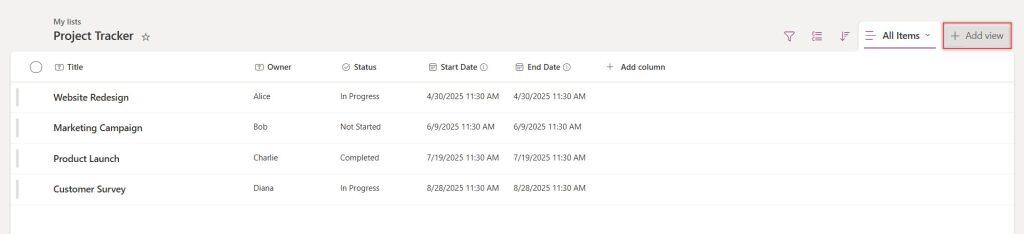
- Then give the View name.
- Select “List” as the type.

- Pick and arrange your columns.
List Views work well for most data types, especially when you need to view multiple fields simultaneously.
Grid View and Datasheet View
Grid View gives you a card-style look, which is more visual than the standard table. Each item becomes a card, highlighting key info. It works well for lists with images or when you want something less dense.
Datasheet View turns your list into an Excel-like grid. You can edit multiple items at once, copy and paste between cells, and use keyboard shortcuts for speed.
- Edit several items in one go
- Copy and paste easily
- Navigate quickly with shortcuts
Datasheet View is a lifesaver if you’ve got a lot of data to update. Just pick it from the view selector or create a custom view with the datasheet format.
Calendar View and Gantt View
Calendar View displays your list items on a calendar, available in monthly, weekly, or daily views. It’s perfect for events, deadlines, or any task with a specific date. You’ll need to specify which column contains the date information when setting this up.
Some benefits of Calendar View:
- See time-based data at a glance
- Spot scheduling conflicts fast
- Switch between daily, weekly, or monthly modes
Gantt View lays out tasks on a timeline, which is great for project management. Tasks show up as bars, and you can see dependencies with lines connecting them.

To get the most out of Gantt View, make sure your list includes start dates, end dates, and completion percentages.
Custom Views and Conditional Formatting
You can build totally custom views to focus on what’s important. Filter, sort, or group items as you see fit. Perhaps you want a view that displays only high-priority tasks for specific team members quickly.
To create a Custom View:
- Open your list
- In the top-right, click the + Add view
- Give the Name of the view.
- Choose a view type:
- List – Standard table layout
- Gallery – Cards with visual elements
- Board – Organize by status or category
- Calendar – Great for date-based views
- Use the side pane to:
- Rename the view
- Choose Visible columns
- Apply filters, sort order, or grouping
- Set audience visibility (private or public)
- Click Save View
Conditional formatting lets you add color or icons based on rules you set. Overdue tasks could turn red, completed items green—whatever helps you spot what matters.
This makes lists more visual and helps you catch important things without reading every single line.
Advanced List Management
Microsoft Lists offers several useful features for organizing your data. With the right features, you can manage large amounts of information without losing track of anything important.
Grouping and Sorting Data
The “Group by” feature organizes your list items into collapsible sections based on the fields you select. Simply navigate to the list view settings and select the column you want to group by.
You can even stack groups—for example, group tasks by status first, then by priority inside each status group. That hierarchical view makes things a lot easier to scan.
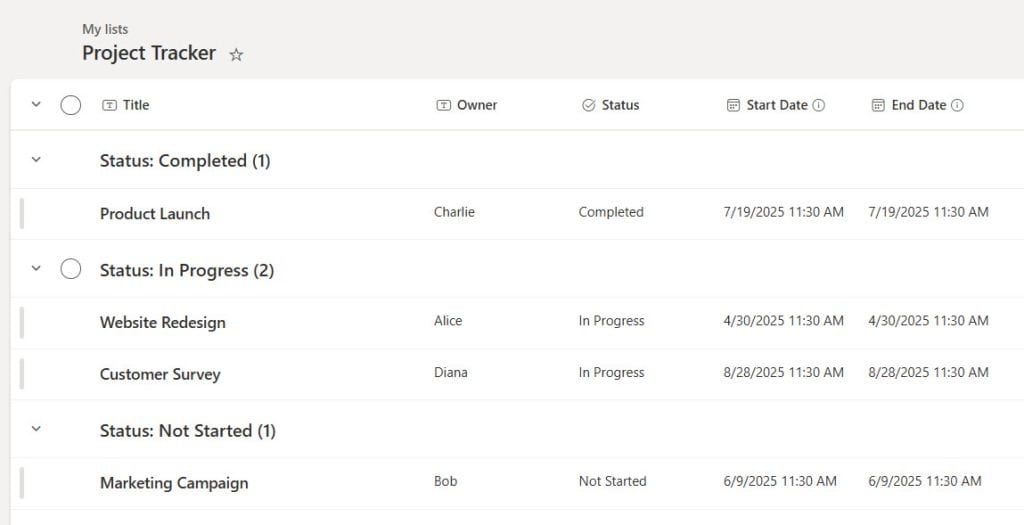
Sorting works hand in hand with grouping. Sort by one or more columns by clicking headers or using view settings for more advanced sorting.
Honestly, it’s worth saving different views with unique grouping and sorting setups. That way, you can flip between perspectives without redoing everything each time.
Managing Item Limits
Large datasets can get overwhelming fast. Microsoft Lists allows you to control the number of items displayed in your views, helping to keep things manageable.
To set item limits, open list settings and pick the view you want to change. Scroll to the “Item Limit” section and enter your max number.
- Break big lists into pages with pagination
- Use filtered views for just the stuff you care about
- Set higher limits for admins, lower ones for everyone else
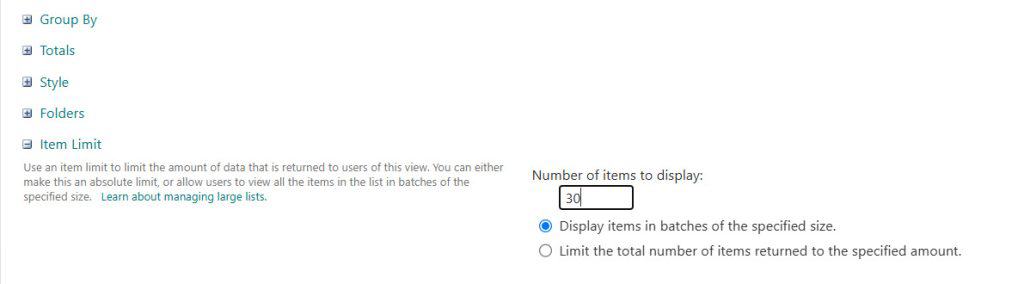
If you hit SharePoint’s 5,000-item threshold, performance can take a hit. Indexed columns make a significant difference and help queries run more smoothly.
Filtering and Data Validation
Filters let you zero in on just the info you want by date, text, numbers, or whatever else matters. Build dynamic filters for flexible views.
Data validation keeps your info clean by enforcing rules on what gets entered. To set it up:
- Open list settings
- Pick the column you want to validate
- Add your validation rules and error messages
Content types bundle columns together for different item categories. Create those for your main types and apply them as needed.
Stick with choice fields when you can. Predefined options beat free text every time, especially for avoiding weird typos or inconsistent entries.
Collaboration and Sharing
Microsoft Lists excels at teamwork. It’s built for sharing, keeping everyone in the loop, and enabling people to work together in real-time.
Sharing and Permissions
Sharing in Microsoft Lists is pretty flexible. You can share entire lists or just specific items, depending on your needs.
Select a list, hit the “Share” button up top, and enter the names or groups you want to share with.
There are a few permission levels:
- Can view: People can only view items
- Can edit items: They can view and change items
- Can edit list: They can tweak the structure of the list
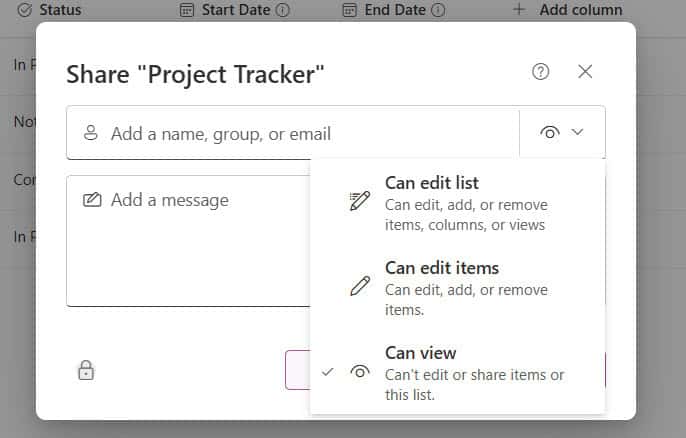
If you’ve got sensitive info, restrict access to specific items instead of the whole list. That way, you keep things secure but still let folks collaborate.
Admins can set default sharing rules that match company policies. External sharing? You can turn that on or off as needed for security.
Notifications and Reminders
With built-in notifications, nobody misses changes. Team members get alerts when items are added, changed, or deleted.
To set up notifications:
- Open your list
- Click “Alert me” on the command bar
- Pick how often you want updates
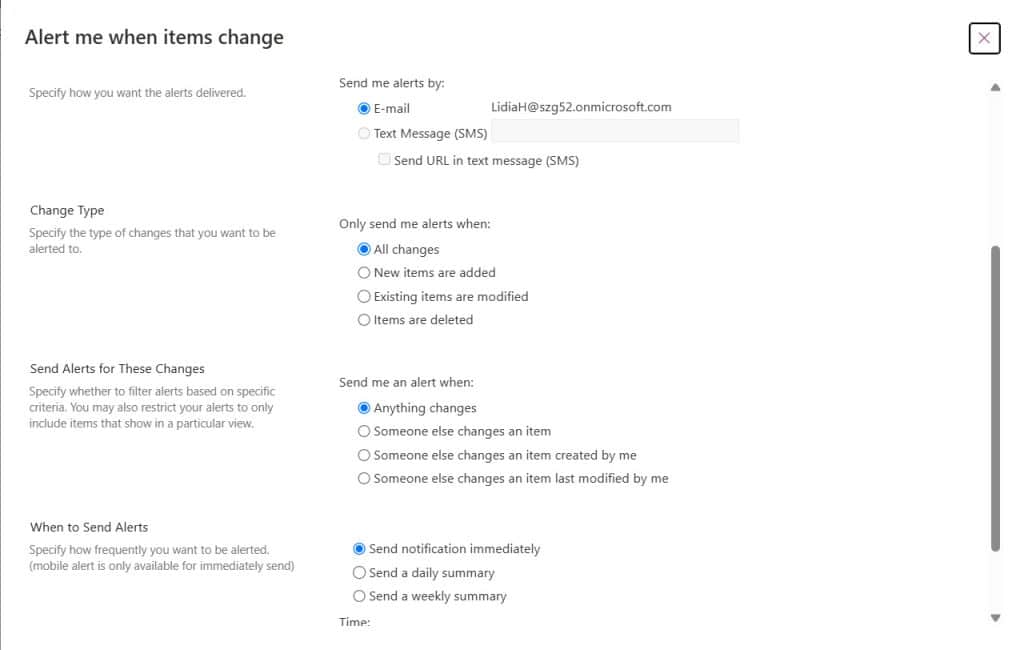
Automated reminders are a lifesaver for time-sensitive stuff. Set up rules to trigger alerts when:
- Due dates are coming up
- Items haven’t changed for a while
- New items match certain filters
Reminders can show up in your inbox or as Teams messages. It’s a good way to keep projects from stalling out.
Real-Time Collaboration
Multiple people can work on a list simultaneously. Changes show up instantly—there is no need to refresh or worry about overwriting someone else’s work.
You can see who else is viewing or editing the list. This helps with coordination and reduces duplicate effort.
Add comments directly to list items to hash out details. No need to switch apps—your discussions stay tied to the data.
Lists also plug right into Teams. During a call, you can pull up a list and update it together while you discuss project details.
Integrating with Other Microsoft 365 Apps
Microsoft Lists hooks into other Microsoft 365 apps, making it easier to manage and share your lists wherever you need them. There is no double entry and no extra hassle.
Using Lists with SharePoint
Lists and SharePoint are tightly connected. Lists reside in SharePoint document libraries, allowing you to access them from either location.
Create a list in SharePoint, and it will automatically appear in Microsoft Lists. The reverse works too.
Embed a list right on a SharePoint page with the Lists web part. That way, your team can see and update it without leaving SharePoint.
SharePoint permissions apply to your lists, so you’re always in control of who sees or edits what.
Want more automation? Connect Lists to SharePoint workflows to handle things like sending notifications or moving data between lists.
Power Apps Integration
Power Apps lets you turn a list into a custom app—no heavy coding required. Just select your list, hit “Integrate → Power Apps → Create an app,” and you’re off.
Power Apps builds a basic app for you, including screens for viewing, editing, and adding items. The app picks up your list’s columns and data types, so there’s less setup.
Customize with extras like:
- Custom buttons
- Conditional formatting
- Filtered data views
- Business rules
You can also link lists to other services using Power Automate for workflows or Power BI for analytics.
Exporting to Excel
Sometimes you just need your data in Excel. Hit “Export to Excel” and get a spreadsheet with all your list info, formatted and ready to use.
The exported file keeps your columns and formatting, so it’s quick to make charts or pivot tables.
To keep things in sync, create a connected Excel file. Changes in Excel can be reflected in your list, ensuring both stay updated.
- Analyze complex data
- Work offline
- Build charts
- Share with folks outside your org
Just keep in mind: exporting gives you a snapshot. The original list is still the master copy.
Automation and Workflows
Microsoft Lists takes the pain out of repetitive tasks with automation. Power Automate integration means you can build custom workflows that react to changes in your lists.
Workflow Automation
Connect Microsoft Lists to Power Automate and set up workflows that run when items are added, changed, or deleted. For example, when a new customer inquiry arrives, the system can automatically notify the right person.
To get started, select “Automate” from the top menu of your list. Use a template or build your own flow from scratch.
Conditional logic lets you branch workflows based on item values, like sending different alerts for high-priority versus low-priority tasks.
Task Management and Scheduling
Lists make task management easier with automation. You can set up deadline-driven workflows that send reminders as due dates get close.
Assign tasks automatically based on who has the lightest workload or the right expertise. No more manual juggling.
Recurring tasks? Automate new task creation on a schedule—daily, weekly, monthly, whatever fits your workflow.
Status changes can trigger follow-up actions. When a task is marked as “Complete,” the system updates timelines and notifies everyone who needs to be informed.
Project and Issue Tracking
With the right automation, Microsoft Lists becomes a solid tool for tracking projects and issues. Set up workflows to escalate problems based on severity or time limits.
Automate status reports that pull list data into summaries and send them out on a schedule. No more manual compiling.
Manage dependencies by triggering tasks when prerequisites wrap up. The system can activate and assign the next steps for you.
Lists also connect with other project tools through Power Automate, so your data stays synced across platforms.
Data Governance and Security
Data security and governance are built into Microsoft Lists. You can control who sees what, track changes, and make sure your info stays accurate and protected.
Versioning and Version Control
Versioning tracks every change to list items. Each edit creates a new version, but older versions stick around for reference or recovery.
To turn on versioning:
- Open list settings
- Choose “Versioning settings”
- Pick your version limit (up to 50,000)
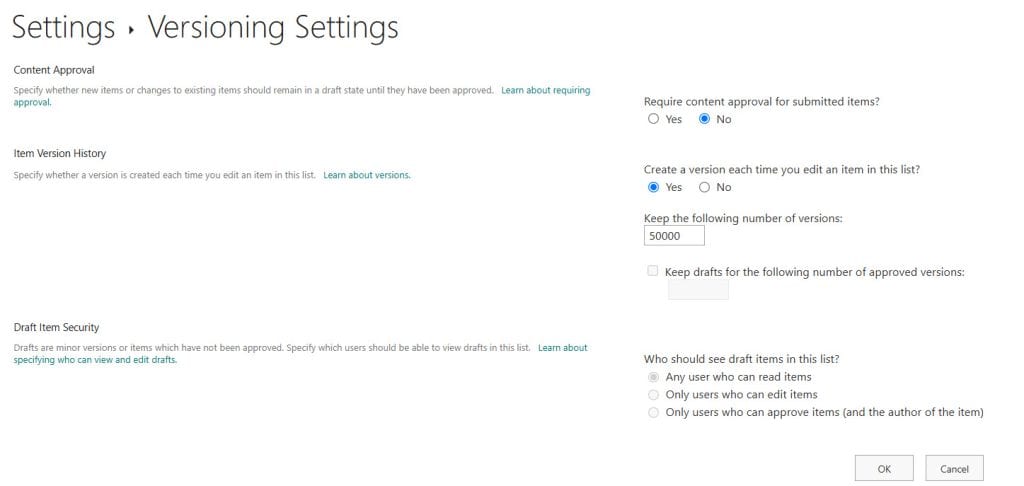
- See who changed what and when
- Restore a previous version if needed
- Keep a historical record as your data evolves
Admins can tweak version limits for storage needs. For sensitive data, combine versioning with regular audits for extra peace of mind.
Content Approval and Metadata Management
Content approval ensures that only reviewed information is seen by everyone. You can set it up to require supervisor review, create pending states, and send notifications when something needs approval.
- Supervisor reviews before items go live
- Pending state for items under review
- Notifications for items waiting on approval
Metadata management is about organizing your information with custom columns and properties. Good metadata makes it easier to search, classify, and filter items.
- Better search results
- Clear classification
- Powerful filtering
Set up required metadata fields and validation rules to keep your data consistent and complete across the board.
Best Practices for Using Microsoft Lists
Want your lists to stay efficient and easy to use? A few best practices go a long way.
Ensuring Data Quality
Start with a clear goal for each list. Know exactly what you’re tracking and why—otherwise, you’ll end up with clutter.
Stick to consistent naming for lists and columns. For example, always use “Date_Created” instead of mixing in “Created On” or “Start Date.”
Pick the right column types: choice fields for limited options, date fields for calendars, and number fields for, well, numbers.
Set up validation rules to block bad entries. That might mean minimum/maximum values or specific formats for things like phone numbers.
Use form views for data entry. Clear instructions and required fields help people get it right the first time.
Maintaining Data Integrity
Back up your lists regularly, especially before making big changes. Microsoft Lists lets you export to Excel, which is a quick and easy backup.
Turn on version history so you can track changes over time. You’ll see who changed what and when, and you can roll back if something goes wrong.
Set clear permissions for your lists. Decide who can edit and who should only view, so you avoid accidental or unwanted changes.
Use comments and notifications to discuss list items instead of quietly modifying data. That way, there’s a record of decisions and conversations.
Create views that filter for incomplete or questionable data entries. These filtered views help you identify and resolve issues before they escalate.
Optimizing for Performance
Keep your lists focused. Don’t try to cram everything into a single giant list—having several purpose-specific lists usually works out better.
Stick to only the columns you really need. Too many columns slow things down and make lists tough to use.
Set up custom views for different users or tasks. You can hide columns and filter data so folks see just what’s relevant to them.
Go easy on calculated columns, especially in big lists. If calculations become complicated, consider handling them elsewhere.
Index the columns you sort or filter by most often. This makes a huge difference in speed, especially with thousands of items.
Microsoft Lists Practical Use Cases
Microsoft Lists gives you a bunch of ways to organize information and streamline work. It’s flexible enough to track details and manage processes in one place, which I find pretty handy.
Employee Onboarding
Microsoft Lists makes onboarding smoother by giving you a structured way to track new hire requirements. You can create custom onboarding lists that include equipment assignments, training steps, and paperwork tasks.
HR teams often set up status columns to keep tabs on progress through each onboarding phase. For example:
- New: Initial hiring phase
- In Progress: Completing paperwork and training
- Complete: Fully onboarded
The platform sends automatic notifications when something needs attention or a deadline is coming up. Managers can identify which onboarding tasks are still open for each employee, which significantly reduces missed steps.
Teams can link document libraries right to the onboarding materials. That way, new hires can easily access what they need without having to search. Centralizing everything helps keep onboarding consistent across the board.
Document Management
Microsoft Lists is great for document management. You can track document status, versions, and approvals in a structured way.
Some key features for managing documents include:
- Status tracking – Watch documents move from draft to final approval
- Version history – See changes and keep old versions if needed
- Due date reminders – Get notified about upcoming deadlines
Set up approval workflows so that reviewers receive notifications when documents require their input. Add metadata fields for categories, tags, or other details to keep things organized.
Filter and sort your document lists to find files quickly, no endless folder digging required. This works exceptionally well for contracts, policy docs, or other files that need regular reviews.
Tracking Business Processes
Microsoft Lists offers a straightforward way to monitor ongoing business processes with custom tracking systems. Sales teams might track leads, opportunities, and client interactions, all with status updates the whole team can see.
Project managers use lists to follow task completion across different projects. Custom views let you filter by:
- Project name
- Deadline
- Assigned team member
- Priority level
Conditional formatting helps highlight urgent or overdue items yellow for things coming due, red for late stuff. It’s simple but effective.
Lists also connect with other Microsoft tools. You can link list items to SharePoint files or Teams conversations, creating a comprehensive information hub.
Conclusion
Microsoft Lists helps to organize information and keep tabs on your work. It feels more structured than a spreadsheet, but it doesn’t overwhelm you with complexity.
Since it’s tied into Microsoft 365, you can pull up Lists in Teams, SharePoint, or just the standalone app. That means you can stick to whatever spot you’re already comfortable working in.
With custom views, templates, and automation, teams can save time and maintain consistency. Sharing and collaborating on lists just makes teamwork smoother—plus, it’s easier to stay on the same page.
If you’re new, those pre-built templates are honestly the best place to start. As you get the hang of it, you might want to try out custom forms, rules, or even play around with Power Automate.
Microsoft continues to roll out new features for Lists, making it even more useful for managing information. I’d say if you put in a bit of time to learn it, you’ll probably end up wondering how you managed without it.
One last thing, good lists really start with a bit of planning. Think about what information you actually need to track and how you want it organized. Spending a few extra minutes setting things up can save you a ton of headaches down the road.

Hey! I’m Bijay Kumar, founder of SPGuides.com and a Microsoft Business Applications MVP (Power Automate, Power Apps). I launched this site in 2020 because I truly enjoy working with SharePoint, Power Platform, and SharePoint Framework (SPFx), and wanted to share that passion through step-by-step tutorials, guides, and training videos. My mission is to help you learn these technologies so you can utilize SharePoint, enhance productivity, and potentially build business solutions along the way.

