
A few weeks ago, I created an SPFx web part for a USA Citizenship form that requires users to upload their identification documents along with personal details. Everything needs to be stored in one place and in a structured way, so I decided to use a SharePoint document library to hold both the files and the metadata.
While implementing this solution, I followed a clean approach where the SPFx form uploads the file and updates the document metadata in a single step.
In this tutorial, I will explain how to upload files to a SharePoint document library and update metadata using SPFx.
Upload File to SharePoint Document Library With Metadata in SPF Client Side WebPart
In the image below, you can see the SharePoint document library named “USA Citizenship,” which stores the files and their metadata.
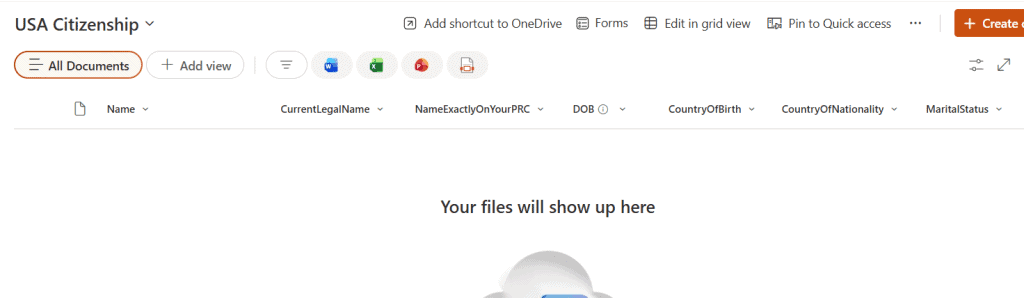
This library has the following fields:
| Column Name | Data Type |
|---|---|
| Name | Default field |
| CurrentLegalName | Single line of text |
| NameExactlyOnYourPRC | Single line of text |
| DOB | Date and Time |
| CountryOfBirth | Single line of text |
| CountryOfNationality | Single line of text |
| MaritalStatus | Choice |
| Email id | Single line of text |
| Contact | Number |
| Gender | Choice |
| Disability | Choice (enable multiple selections) |
Here is the SPFx web part that renders the complete citizenship form. It includes all required metadata fields, a file upload control for attaching identity documents, and Submit/Reset buttons to submit the form and clear the data.
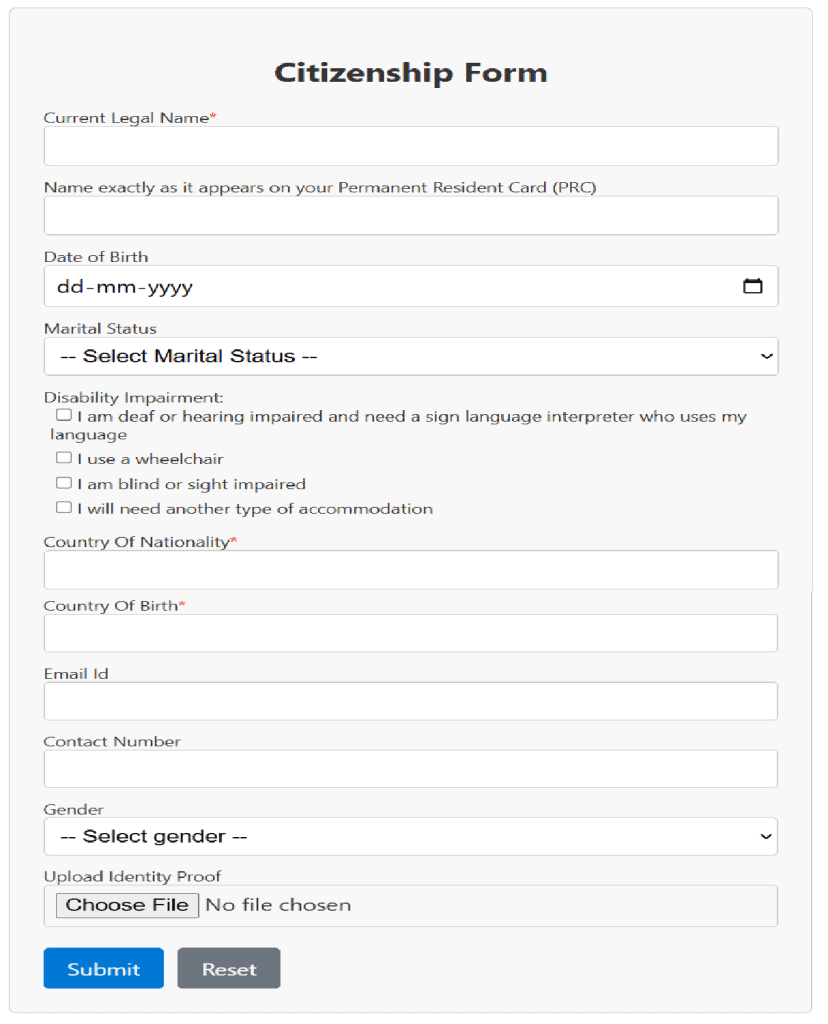
Now, we’ll see how to create this form in the SPFx web part and submit the input data to the SharePoint document library. We will use the PnPJS library to interact with SharePoint.
I hope by this time, you know how to create SPFx web part using React, and in case you’re new to SPFx, you can check how to set up an SPFx development environment.
- Run the command below to install the PnPJS library into our solution.
npm install @pnp/sp --save- Open the .ts file and add the following imports and PnPJS setup into the existing code.
import { spfi, SPFx } from "@pnp/sp";
import { SPFI } from "@pnp/sp";
import "@pnp/sp/webs";
import "@pnp/sp/lists";
import "@pnp/sp/items";
import "@pnp/sp/fields";
import "@pnp/sp/folders";
import "@pnp/sp/files";
import "@pnp/sp/files/web";
export interface IUsaCitizenshipFormWebPartProps {
  description: string;
}

export default class UsaCitizenshipFormWebPart extends BaseClientSideWebPart<IUsaCitizenshipFormWebPartProps> {

  private _isDarkTheme: boolean = false;
  private _environmentMessage: string = '';
  private _sp: SPFI

  public render(): void {
    const element: React.ReactElement<IUsaCitizenshipFormProps> = React.createElement(
      UsaCitizenshipForm,
      {
        description: this.properties.description,
        isDarkTheme: this._isDarkTheme,
        environmentMessage: this._environmentMessage,
        hasTeamsContext: !!this.context.sdks.microsoftTeams,
        userDisplayName: this.context.pageContext.user.displayName,
        sp:this._sp,
        context:this.context,
      }
    );

    ReactDom.render(element, this.domElement);
  }

  protected onInit(): Promise<void> {
    return this._getEnvironmentMessage().then(message => {
      this._environmentMessage = message;
      this._sp = spfi().using(SPFx(this.context));
    });
  }
Here:
- We imported the PnPJS library statements required to interact with SharePoint.
- Initialized a variable _sp to hold the PnPJs instance.
- In the onInit() method, I created the PnPJs instance, and in the render() method, I assigned that instance to the prop sp.
- Also, update the Props.ts file code with the code below.
import { WebPartContext } from "@microsoft/sp-webpart-base";
import { SPFI } from "@pnp/sp";
export interface IUsaCitizenshipFormProps {
  description: string;
  isDarkTheme: boolean;
  environmentMessage: string;
  hasTeamsContext: boolean;
  userDisplayName: string;
  sp:SPFI;
  context: WebPartContext
}
Here, we also added the sp and context props to the existing props.
- Now open the .tsx file and replace your default code with the code below.
import * as React from "react";
import type { IUsaCitizenshipFormProps } from "./IUsaCitizenshipFormProps";
import styles from "./UsaCitizenshipForm.module.scss";

export interface IUsaCitizenshipFormState {
  CurrentLegalName: string;
  NameExactlyOnYourPRC: string;
  DOB: string;
  MaritalStatus: string;
  Disability: string[];
  CountryOfNationality: string;
  CountryOfBirth: string;
  Emailid: string;
  Contact: string;
  Gender: string;
  file: File | null;
  statusMessage: string;
  errors: string[];
  isSubmitting: boolean;
  statusType: "success" | "error" | "";
}

export default class UsaCitizenshipForm extends React.Component<
  IUsaCitizenshipFormProps,
  IUsaCitizenshipFormState
> {
  constructor(props: IUsaCitizenshipFormProps) {
    super(props);


    this.state = {
      CurrentLegalName: "",
      NameExactlyOnYourPRC: "",
      DOB: "",
      MaritalStatus: "",
      Disability: [],
      CountryOfNationality: "",
      CountryOfBirth: "",
      Emailid: "",
      Contact: "",
      Gender: "",
      file: null,
      statusMessage: "",
      errors: [],
      isSubmitting: false,
      statusType:""
    };
  }


  private handleInputChange = (
    e: React.ChangeEvent<HTMLInputElement | HTMLSelectElement>
  ) => {
    this.setState({ [e.target.name]: e.target.value } as any);
  };

  private handleMultiSelect = (e: React.ChangeEvent<HTMLInputElement>) => {
    const { value, checked } = e.target;
    let selected = [...this.state.Disability];

    if (checked) {
      if (!selected.includes(value)) selected.push(value);
    } else {
      selected = selected.filter((v) => v !== value);
    }

    this.setState({ Disability: selected });
  };

  private handleFileSelect = (e: React.ChangeEvent<HTMLInputElement>) => {
    this.setState({ file: e.target.files ? e.target.files[0] : null });
  };

  private validateForm = (): boolean => {
    let errors: string[] = [];

    if (!this.state.CurrentLegalName.trim())
      errors.push("Current Legal Name is required.");

    if (!this.state.CountryOfNationality.trim())
      errors.push("Country of Nationality is required.");

    if (!this.state.CountryOfBirth.trim())
      errors.push("Country of Birth is required.");

    if (!this.state.Gender.trim())
      errors.push("Gender is required.");

    if (!this.state.file)
      errors.push("Identity Proof file must be uploaded.");

    this.setState({ errors });
    return errors.length === 0;
  };
private uploadFormData = async () => {
  if (!this.validateForm()) {
    this.setState({
      statusMessage: "Please fill the mandatory fields",
      statusType: "error"
    });
    return;
  }

  this.setState({ statusMessage: "Submitting...", isSubmitting: true, statusType: "" });

  try {
    const sp = this.props.sp;
    const libraryPath = "/sites/SPFXDevelopment/USACitizenship";
    const file = this.state.file;

    if (!file) {
      this.setState({ statusMessage: "Please select a file.", statusType: "error", isSubmitting: false });
      return;
    }

    const folder = sp.web.getFolderByServerRelativePath(libraryPath);
    await folder.files.addUsingPath(file.name, file, { Overwrite: true });

    const filePath = `${libraryPath}/${file.name}`;
    const spFile = sp.web.getFileByServerRelativePath(filePath);
    const item = await spFile.getItem();

    await item.update({
      Title: this.state.CurrentLegalName,
      CurrentLegalName: this.state.CurrentLegalName,
      NameExactlyOnYourPRC: this.state.NameExactlyOnYourPRC,
      DOB: this.state.DOB,
      MaritalStatus: this.state.MaritalStatus,
      Disability: this.state.Disability,
      CountryOfNationality: this.state.CountryOfNationality,
      CountryOfBirth: this.state.CountryOfBirth,
      Emailid: this.state.Emailid,
      Contact: this.state.Contact,
      Gender: this.state.Gender
    });

    this.setState({ statusMessage: "Form submitted successfully!", statusType: "success", isSubmitting: false });
  } catch (err: any) {
    this.setState({ statusMessage: "Error: " + err.message, statusType: "error", isSubmitting: false });
  }
};
private resetForm = () => {
  this.setState({
    CurrentLegalName: "",
    NameExactlyOnYourPRC: "",
    DOB: "",
    MaritalStatus: "",
    Disability: [],
    CountryOfNationality: "",
    CountryOfBirth: "",
    Emailid: "",
    Contact: "",
    Gender: "",
    file: null,
    statusMessage: "",
    errors: [],
    isSubmitting: false,
    statusType: ""
  });
};

  public render() {
    return (
      <div className={styles.formContainer}>

        <h2 className={styles.formTitle}>Citizenship Form</h2>


        <label>Current Legal Name<span style={{ color: "red" }}>*</span></label>
        <input
          type="text"
          name="CurrentLegalName"
          className={styles.input}
          value={this.state.CurrentLegalName}
          onChange={this.handleInputChange}
        />


        <label>Name exactly as it appears on your Permanent Resident Card (PRC)</label>
        <input
          type="text"
          name="NameExactlyOnYourPRC"
          className={styles.input}
          value={this.state.NameExactlyOnYourPRC}
          onChange={this.handleInputChange}
        />
        <label>Date of Birth</label>
        <input
          type="date"
          name="DOB"
          className={styles.input}
          value={this.state.DOB}
          onChange={this.handleInputChange}
        />

        <label>Marital Status</label>
        <select
          name="MaritalStatus"
          className={styles.input}
          value={this.state.MaritalStatus}
          onChange={this.handleInputChange}
        >
          <option value="">-- Select Marital Status --</option>
          <option value="Married">Married</option>
          <option value="Single">Single</option>
          <option value="Divorced">Divorced</option>
          <option value="Widowed">Widowed</option>
        </select>


        <label>Disability Impairment:</label>

        <div className={styles.checkboxGroup}>
          <label>
            <input
              type="checkbox"
              value="I am deaf or hearing impaired and need a sign language interpreter who uses my language"
              onChange={this.handleMultiSelect}
              checked={this.state.Disability.includes(
        "I am deaf or hearing impaired and need a sign language interpreter who uses my language"
      )}
            />
            I am deaf or hearing impaired and need a sign language interpreter who uses my language
          </label>

          <label>
            <input type="checkbox" value="I use a wheelchair" onChange={this.handleMultiSelect} checked={this.state.Disability.includes("I use a wheelchair")} />
            I use a wheelchair
          </label>

          <label>
            <input
              type="checkbox"
              value="I am blind or sight impaired"
              onChange={this.handleMultiSelect}
              checked={this.state.Disability.includes("I am blind or sight impaired")}
            />
            I am blind or sight impaired
          </label>

          <label>
            <input
              type="checkbox"
              value="I will need another type of accommodation"
              onChange={this.handleMultiSelect}
              checked={this.state.Disability.includes("I will need another type of accommodation")}
            />
            I will need another type of accommodation
          </label>
        </div>

        <label>Country Of Nationality<span style={{ color: "red" }}>*</span></label>
        <input
          type="text"
          name="CountryOfNationality"
          className={styles.input}
          value={this.state.CountryOfNationality}
          onChange={this.handleInputChange}
        />


        <label>Country Of Birth<span style={{ color: "red" }}>*</span></label>
        <input
          type="text"
          name="CountryOfBirth"
          className={styles.input}
          value={this.state.CountryOfBirth}
          onChange={this.handleInputChange}
        />

        <label>Email Id</label>
        <input
          type="text"
          name="Emailid"
          className={styles.input}
          value={this.state.Emailid}
          onChange={this.handleInputChange}
        />

        <label>Contact Number</label>
        <input
          type="text"
          name="Contact"
          className={styles.input}
          value={this.state.Contact}
          onChange={this.handleInputChange}
        />

        <label>Gender</label>
        <select
          name="Gender"
          className={styles.input}
          value={this.state.Gender}
          onChange={this.handleInputChange}
        >
          <option value="">-- Select gender --</option>
          <option value="Male">Male</option>
          <option value="Female">Female</option>
          <option value="Other">Other</option>
        </select>
        <label>Upload Identity Proof</label>
        <input type="file" className={styles.input} onChange={this.handleFileSelect} />
<div style={{ marginTop: '10px' }}>
        <button
        className={styles.submitBtn}
        onClick={this.uploadFormData}
        disabled={this.state.isSubmitting}
      >
        {this.state.isSubmitting ? "Submitting..." : "Submit"}
      </button>
  <button
    className={styles.submitBtn}
    style={{ background: "#6c757d", marginLeft: "10px" }}
    onClick={this.resetForm}
    disabled={this.state.isSubmitting}
  >
    Reset
  </button>
  </div>

      {this.state.statusMessage && (
        <div
          className={styles.status}
          style={{ color: this.state.statusType === "success" ? "green" : this.state.statusType === "error" ? "red" : "black" }}
        >
          {this.state.statusMessage}
        </div>
      )}
      {this.state.errors.length > 0 && (
        <div className={styles.errorBox}>
          {this.state.errors.map((err, index) => (
            <div key={index}>• {err}</div>
          ))}
        </div>
      )}

      </div>
    );
  }
}
Here:
- IUsaCitizenshipFormState = Created this state to hold the form input data for saving to the library. It contains all the SharePoint library fields, along with states to handle errors and change the button title.
- Within the constructor(), we initialized these states with empty values.
- Created handleInputChange() and handleMultiSelect() helper methods to update the state values when the user enters data in the form input controls.
- This handleFileSelect() method stores the selected file in the file state.
- The validateForm() method checks whether we have provided data for the mandatory fields. If not, it adds the validation messages to the state errors array.
- In the resetForm() method, we set the state values to empty, so when we click the Reset button, the form fields are cleared.
- The uploadFormData() will be triggered when we click the Submit button.
- It first calls the validateForm() method to check whether any fields are missing data, then updates the statusMessage state so the submit button text changes to “Submitting…”
- In the try{} block, we check whether the file exists. If yes, then we are uploading it into the “USACitizenship” document library using PnPJs. And then we retrieve that item and update its metadata.
- In the render() method, it displays the form with various input controls for the metadata, along with buttons. Down to the buttons, showing the error block so the user knows.
- Also, add the styles to this web part by updating the CSS styles in the .scss file.
.formContainer {
  width: 70%;
  margin: auto;
  background: #f8f8f8;
  padding: 25px;
  border-radius: 6px;
  border: 1px solid #ccc;
}

.formTitle {
  text-align: center;
  margin-bottom: 20px;
  font-size: 26px;
  font-weight: bold;
}

.input {
  width: 100%;
  padding: 8px;
  margin-bottom: 12px;
  border: 1px solid #ccc;
  border-radius: 4px;
  box-sizing: border-box;
}

.checkboxGroup {
  margin-left: 5px;
  margin-bottom: 15px;
}

.checkboxGroup label {
  display: block;
  margin-bottom: 6px;
}

.submitBtn {
  background: #0078d4;
  color: white;
  padding: 10px 18px;
  border: none;
  border-radius: 4px;
  cursor: pointer;
}

.submitBtn:hover {
  background: #005a9e;
}

.status {
  margin-top: 15px;
  font-weight: bold;
}
.errorInput {
  border: 2px solid red !important;
}

.errorBox {
  margin-top: 15px;
  padding: 12px;
  background: #ffe5e5;
  color: #b40000;
  border-left: 4px solid red;
  border-radius: 4px;
  font-size: 14px;
}- Once the implementation is done, run the gulp serve command to test this web part locally. The web part will be displayed as shown in the image below.
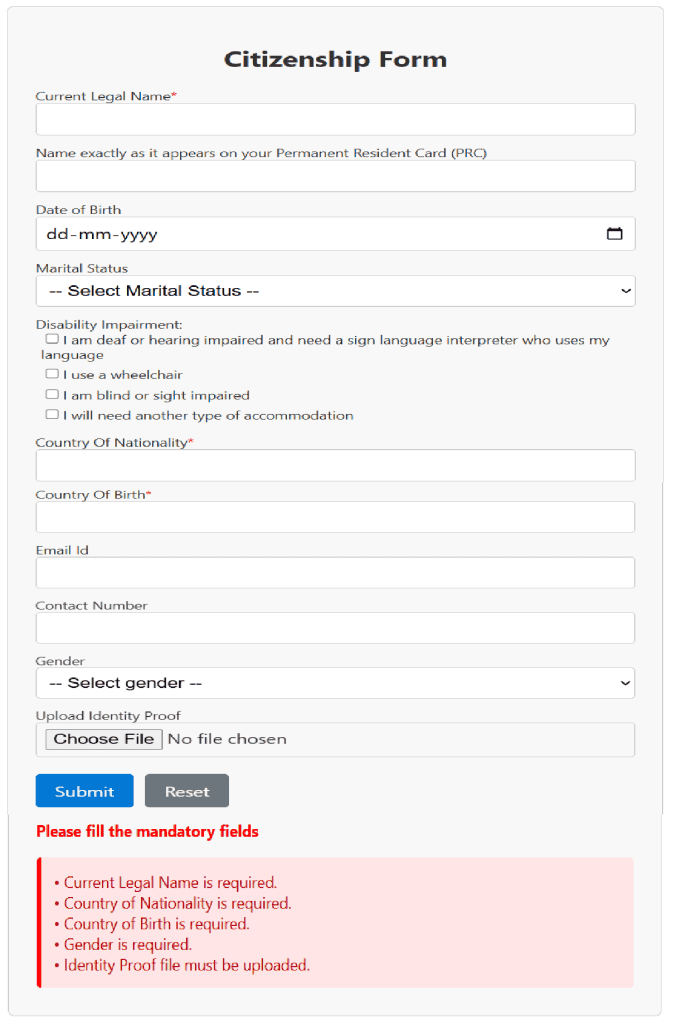
- When we click the Submit button without entering any input in the form fields, custom error messages will be displayed below it, as shown in the image below. After filling out the form with the correct data and clicking the submit button, the file and metadata will be uploaded to the SharePoint library.
This way, you can upload files to a document library along with metadata using SPFx.
Conclusion
I hope you found this tutorial helpful. Here, I explained how to upload files to the SharePoint document library along with metadata using the PnPJS library in the SPFx web part. Also, I covered adding validations to the form before submitting to collect the required metadata fields.
You can download this solution and test it. If you face any issues with this, you can post your doubts in the comments below. Follow the steps mentioned in this article if you are also looking to upload files to the document library with metadata using SPFx.
You may also like the following related tutorials:
- Fluent UI DocumentCard in SPFx Web Part
- Create Folders and Subfolders in SharePoint document library using SPFx
- SPFx Field Customizer Example
- Get Current SharePoint Site Information in SPFx using MS Graph API
- Build a Custom Slides Manager in SPFx Web Part Property Pane (Drag & Drop, Reorder, Hide Slides)

Hey! I’m Bijay Kumar, founder of SPGuides.com and a Microsoft Business Applications MVP (Power Automate, Power Apps). I launched this site in 2020 because I truly enjoy working with SharePoint, Power Platform, and SharePoint Framework (SPFx), and wanted to share that passion through step-by-step tutorials, guides, and training videos. My mission is to help you learn these technologies so you can utilize SharePoint, enhance productivity, and potentially build business solutions along the way.

