
A few weeks ago, they had a specific requirement while working on a Project Status Tracker for a client. Whenever the Status column changed in a SharePoint list, they wanted to send an email notification. But they needed to know the previous status before the change.
After researching, we could achieve this using the Get changes for an item or a file (properties only) action in Power Automate. This action helps us detect if a column value has changed. Additionally, with the help of an HTTP request, we can retrieve the previous value of the column.
In this tutorial, I will show you how to check if a column has changed in Power Automate and how to retrieve its previous value.
Check If the column is Changed in Power Automate
Suppose you have a SharePoint list named ‘Project Tracker’ where you track project progress. There’s a column called ‘Status’ (Choice column). When the status changes, you want to send an email to the project manager with the previous status value and the correct status value.

Before I tell you how to do it, make sure your list Item Version History is enabled.
Now follow the below steps:
1. Go to Power Automate, create an Automated Cloud Flow, and set the trigger for When an item is created or modified from the SharePoint connector.
- Site Address: Select your SharePoint site containing the Project Tracker list.
- List Name: Choose Project Tracker.

2. Add Get changes for an item or a file (properties only) action and provide the following parameters:
- Site Address: Select your SharePoint site containing the Project Tracker list.
- List or Library Name: Choose Project Tracker.
- Id: Select Id from dynamic content when an item is created or a modified action is taken.
- Since: Provide the Trigger Window Start Token dynamic property.

3. Then add a Send an HTTP request to SharePoint action from sharePoint Connector with the below parameter:
- Site Address: Select the SharePoint Site Address.
- Method: Select “GET” as the method.
- URI: Provide the below URI:
_api/web/lists/getByTitle('Project Tracker')/items(@{triggerBody()?['ID']})/versions(@{outputs('Get_changes_for_an_item_or_a_file_(properties_only)')?['body/SinceVersionId']})Note:
Maybe outputs(‘Get_changes_for_an_item_or_a_file_(properties_only)’)?[‘body/SinceVersionId’] is not visible in the dynamic content you can write.

This is what we have to use to get the previous value. We will use the version history to look up a specific version of an item.
4. Add a Condition action to check if the Status value has changed. If it has, send an email. Follow the steps below to do this:
@{outputs('Get_changes_for_an_item_or_a_file_(properties_only)')?['body/ColumnHasChanged/Status']} is equal to ture
5. Now, add a Compose action and use the following expression to get the previous status value from the SharePoint list:
body('Send_an_HTTP_request_to_SharePoint')['d']['Status']
6. Then, add a ‘Send an email (V2)‘ action to send an email to the project manager and provide the following parameters:
- To: Enter your Project Manager email address from the dynamic content.
- Subject: Enter a subject line for Mail.
- Body: Enter the body of the email.
Hello @{triggerBody()?['ProjectManager/DisplayName']},

The status of the project @{triggerBody()?['ProjectName']} has been updated.

Previous Status: @{outputs('Compose')}
Current Status: @{triggerBody()?['Status/Value']}
Please review the changes and take any necessary actions.

Best regards,
TSINFO TECHNOLOGIES PVT LTD
Now, click Save and run the flow manually. Then go to the SharePoint list, update the status column:
In my case, I update the status In Progress to Completed from the Project Power Platform Integration.

After the flow runs successfully, the project manager will receive an email like the screenshot below.
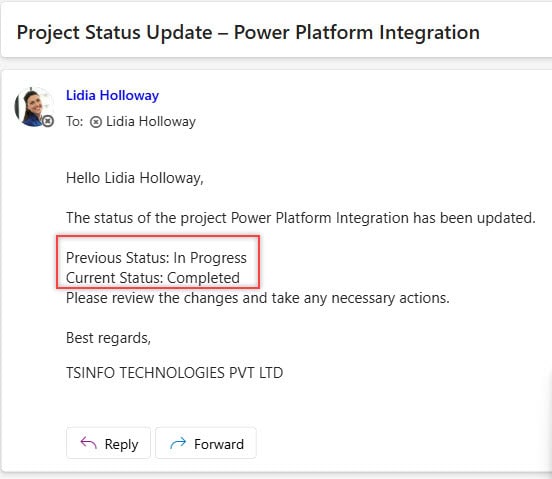
You can see the previous Status value displayed in the email. Not only the Status, but you can also retrieve any value present in the SharePoint list.
Check Which SharePoint item Columns Were Updated in Power Automate
In the above example, we checked if the Status changed before sending an email. However, we did not check other column changes. In this example, I will show you how to identify which SharePoint column value was modified.
Here I am using the same Project Tracker sharepoint list. Now follow the below steps:
1. Create an Automated cloud flow using the trigger ‘When an item is created or modified,’ and provide the Site Address and List Name. Then, add a ‘Get changes for an item or a file (properties only)‘ action and provide the following parameters:
- Site Address: Select your SharePoint site containing the Project Tracker list.
- List or Library Name: Choose Project Tracker.
- Id: Select Id from dynamic content when an item is created or a modified action is taken.
- Since: Provide the Trigger Window Start Token dynamic property

2. Add a Filter Array action to filter the updated item in the Sharepoint list:
- From: Provide the below expression:
split(string(outputs('Get_changes_for_an_item_or_a_file_(properties_only)')?['body/ColumnHasChanged']),',')- Condition:
- Left Value: item()
- Operator: contains
- Right Value: string(‘:true’)

3. Then add Select action and provide the below parameters:
- From: Provide the body of the filter array using dynamic content.
- Map: Provide below expression:
json(item())
Now, click Save and run the flow manually. Then go to the SharePoint list, update the some value column:
In my case, I updated the ‘Project Name,’ ‘End Date,’ and ‘Priority’ columns where the Requester ID is ‘PP2024-002’.

After the flow runs successfully, check the output of the selected action. Then, you can see the list of the items you changed.

You can see the result in the output section per the requirement.
Conclusion
This tutorial explored how to track changes in a SharePoint list using Power Automate. We first checked if a specific column (Status) was modified and retrieved its previous value using the Get changes for an item or a file (properties only) action and an HTTP request.
Then, we used a condition to verify if the Status column had changed and sent an email notification with the previous and updated values. Additionally, we learned how to identify which specific columns were modified by filtering the changed properties.
You may also like:
- Check If the Filename Contains in Power Automate
- Check If the Body is Empty in Power Automate
- Check IF SharePoint List is Empty in Power Automate
- Check if SharePoint List Already Exists in Power Automate
- Send Email Reminders From a SharePoint List Using Power Automate
- Check if a file exists in the SharePoint document library in Power Automate
- Generate New Guid in Power Automate

Hey! I’m Bijay Kumar, founder of SPGuides.com and a Microsoft Business Applications MVP (Power Automate, Power Apps). I launched this site in 2020 because I truly enjoy working with SharePoint, Power Platform, and SharePoint Framework (SPFx), and wanted to share that passion through step-by-step tutorials, guides, and training videos. My mission is to help you learn these technologies so you can utilize SharePoint, enhance productivity, and potentially build business solutions along the way.

