
Yesterday, I was working with a Power Apps survey application where I needed to display some user images in a Power Apps gallery. And those user images were retrieved from a Power Apps Collection. At first, I was unaware of this and thought about whether we could add an image to a Power Apps collection. But when I searched, I got a tricky way to add single or multiple photos to a collection in Power Apps.
In this article, I will tell you how to add image to a Power Apps Collection. Also, we will display the collection values (including images) in a Power Apps Gallery Control.
Add Image to a Power Apps Collection
The screenshot below represents a Power Apps Gallery that displays all the items from a collection (including images).

Let’s discuss how to add images in a Power Apps Collection step by step.
- In the Power Apps application, go to Media (from the left navigation) -> Click on Upload -> Select images from your local system or OneDrive from wherever you want -> Click on Open. Then, the image(s) will be stored inside the Images section, as shown below.

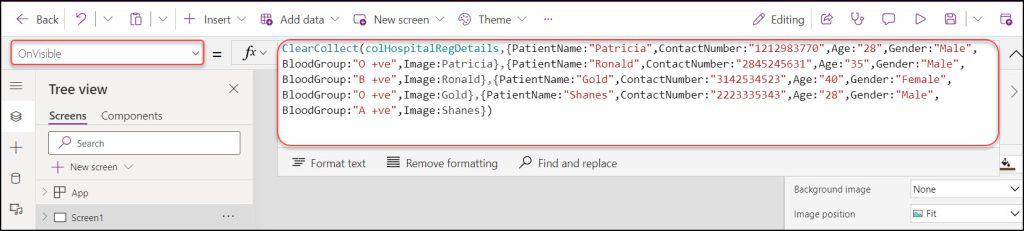
- Next, we will create a Power Apps Collection (including images) on Screen’s OnVisible property. (Also, we can apply the code below on the App’s OnStart property)
OnVisible = ClearCollect(
    colHospitalRegDetails,
    {
        PatientName: "Patricia",
        ContactNumber: "1212983770",
        Age: "28",
        Gender: "Male",
        BloodGroup: "O +ve",
        Image: Patricia
    },
    {
        PatientName: "Ronald",
        ContactNumber: "2845245631",
        Age: "35",
        Gender: "Male",
        BloodGroup: "B +ve",
        Image: Ronald
    },
    {
        PatientName: "Gold",
        ContactNumber: "3142534523",
        Age: "40",
        Gender: "Female",
        BloodGroup: "O +ve",
        Image: Gold
    },
    {
        PatientName: "Shanes",
        ContactNumber: "2223335343",
        Age: "28",
        Gender: "Male",
        BloodGroup: "A +ve",
        Image: Shanes
    }
)
Where,
- colHospitalRegDetails = Provide a Collection name
- PatientName, ContactNumber, Age, Gender, BloodGroup, Image = These are the headers of the collection.
- “Patricia“, “1212983770“, “28“, and so on = Provide the values to the collection
- Patricia, Ronald, Gold, Shanes = These are the image names stored under the Media sectio.n
- To display all these collection values, we will add a gallery control and set the collection items.
- Insert a Vertical gallery control (+ Insert -> Vertical gallery) and set its Layout property to Image, title, subtitle, and body.

- Select the Gallery control and set its Items property to the collection below:
Items = colHospitalRegDetailsWhere,
colHospitalRegDetails = Collection name that you have created before

- Also, set the below code to all the Gallery Label’s Image and Text properties:
Image = ThisItem.Image                                                                                   //For Image
Text = ThisItem.PatientName                                                                       //For Patient Name
Text = "Contact Number: " & ThisItem.ContactNumber                 //For Contact Number
Text = "Age: "&ThisItem.Age                                                                     //For Age
Text = "Blood Group: " & ThisItem.BloodGroup                               //For Blood Group
Refer to the screenshot below:
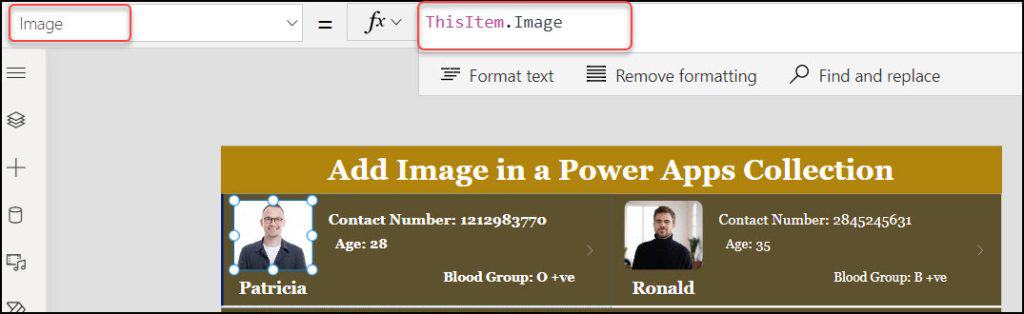
- Finally, Save and Close the app. Play the app again. All the collection images are displayed in the Power Apps Gallery Control.
Moreover, you may like some more Power Apps tutorials:
- Add Gallery Data to a Collection in Power Apps
- Power Apps Gallery Conditional Formatting
- get Collection Column Names in Power Apps [From 3 Different Datasources]
- Set Gallery First Item in Power Apps Display Form
- Add Comments in Power Apps Canvas App
In this Power Apps tutorial, We learned How to Add Images to a Power Apps Collection. Also, we saw how to display the collection values (including images) in a Power Apps Gallery Control.

Hey! I’m Bijay Kumar, founder of SPGuides.com and a Microsoft Business Applications MVP (Power Automate, Power Apps). I launched this site in 2020 because I truly enjoy working with SharePoint, Power Platform, and SharePoint Framework (SPFx), and wanted to share that passion through step-by-step tutorials, guides, and training videos. My mission is to help you learn these technologies so you can utilize SharePoint, enhance productivity, and potentially build business solutions along the way.

