
In one of my apps, I was loading data from several SharePoint lists into one collection. Since each list had different columns, the final collection didn’t always have the same structure. Before I could filter or use the data, I needed a quick way to see which column names were actually inside the collection.
In this article, I will tell you how to get collection column names in Power Apps with various examples.
Get Collection Column Names in Power Apps
We can get the collection column names in Power Apps with three different data sources, such as:
- Get Power Apps Collection Column Names from a Collection
- Get Collection Column Names from a SharePoint List in Power Apps
- Get Collection Column Names from a Dataverse Table in Power Apps
Let’s check one by one.
Get Power Apps Collection Column Names from a Collection
Here, we will see how to retrieve the column names (headers) from a Power Apps collection.
I have a Power Apps collection called colBlogDetails. It contains several records with five columns: Assigned To, Blog Title, Blog Website, Publication Date, and Status.
Refer to the image below:

Now I would like to fetch all these collection column names and display them in a Power Apps Dropdown control, shown below:

To achieve it, follow the steps below:
- Go to the Button’s OnSelect property and apply the code below: (In the same button, I have created the collection)
Set(
    varCollectionColumnNames,
    Distinct(
        Ungroup(
            MatchAll(
                JSON(
                    colBlogDetails,
                    JSONFormat.IgnoreBinaryData
                ),
                "([^""]+?)""\s*:"
            ).SubMatches,
            'SubMatches'
        ),
        Value
    )
)
Where,
- varCollectionColumnNames = Variable Name
- colBlogDetails = Collection Name
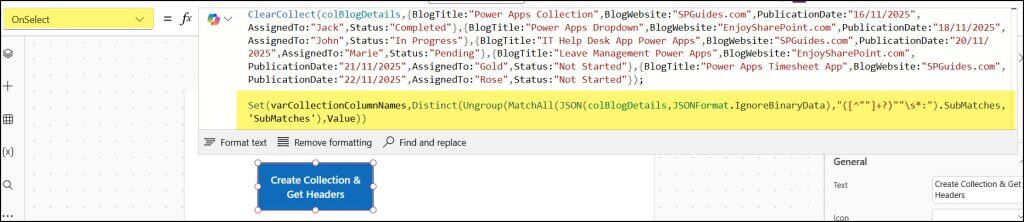
- Next, insert a Dropdown control and set its Items property to the variable:
varCollectionColumnNamesThen go to the Edit property -> + Add field -> Select Value.

- Save, publish, and preview the app. Click the Button (Create Collection & Get Headers) and then expand the dropdown. You can view all the column names in it.
Get Collection Column Names from a SharePoint List in Power Apps
Next, we will see how to get Power Apps collection column names from a SharePoint list.
- There is a SharePoint list named Employee Onboarding. This list has various columns with different data types, such as: ID, Employee Name, Employee Last Name, Employee ID, Department, Location, etc. Also, this SharePoint list includes some default columns, such as Created, Created By, Modified, etc.

- Next, I’ll create a Power Apps collection and store all these column names in it. After that, I’ll retrieve each column name from the collection. To load the SharePoint list column names into a collection, set the Button’s OnSelect property to the code below:
ClearCollect(
    colEmpOnboardingDetails,
    'Employee Onboarding'
);
Where,
- colEmpOnboardingDetails = Collection Name
- ‘Employee Onboarding’ = SharePoint List Name
NOTE:
Verify that the SharePoint List Datasource connector is required before implementing the above code. If not, you can face some connection issues.

- Now, using the same Button’s OnSelect property, we will write the following code to retrieve all the collection names in Power Apps:
Set(
    varListColumnNames,
    Distinct(
        Ungroup(
            MatchAll(
                JSON(
                    colEmpOnboardingDetails,
                    JSONFormat.IgnoreBinaryData & JSONFormat.IgnoreUnsupportedTypes
                ),
                "([^""]+?)""\s*:"
            ).SubMatches,
            "SubMatches"
        ),
        Value
    )
)
Where,
- varListColumnNames = Variable name
- colEmpOnboardingDetails = Collection name that you have created to store all the SharePoint list column names
- & JSONFormat.IgnoreUnsupportedTypes = Unsupported data types are accepted, but they won’t be included in the final result.

IMPORTANT NOTE:
If we will not use this & operator and Power Apps JSONFormat.IgnoreUnsupportedTypes function, then we will get an attachment error that can not not serialized with Power Apps JSON Format.
You can refer this article for more details: The JSON function cannot serialize tables / objects with a nested property called ‘{Attachments}’ of type ‘Table(Attachment)’ Power Apps
- Next, click on the button (Tap to get SP List Columns) to create the collection and get SharePoint list columns.
- Insert a Power Apps Dropdown control and set its Items property to the following code to display all the SharePoint List column names:
varListColumnNamesWhere,
varListColumnNames = Created Variable name

- The result will appear in the Power Apps dropdown control, as shown below.

This way, we can retrieve the collection column names from a SharePoint list in Power Apps.
Get Collection Column Names from a Dataverse Table in Power Apps
Next, we’ll see how to get Power Apps collection column names from a Dataverse table. Let’s see one example.
- There is a Dataverse table called Car Booking Details. It includes several columns with different data types, such as Car Name, Booking Date, Buyer Name, Buyer Contact Number, and more. The table also provides default Dataverse fields, such as Created On, Modified On, and Version Number.

- Next, I’ll create a Power Apps collection and store all the column names from this table in it. After creating the collection, I can easily see all the column names for the Dataverse table. To collect the Dataverse table column names, use the following code in the button’s OnSelect property:
ClearCollect(
    colCarBookingInfo,
    'Car Booking Details'
);
Where,
- colCarBookingInfo = Collection Name
- ‘Car Booking Details‘ = Dataverse Table Name
NOTE:
Verify that the Dataverse connector is required before implementing the above code. If not, you can experience certain issues.

- Now, using the same Button’s OnSelect property, apply the code below:
// Get the column headers

Set(
    varColumnNames,
    Distinct(
        Ungroup(
            MatchAll(
                JSON(
                    colCarBookingInfo,
                    JSONFormat.IgnoreBinaryData & JSONFormat.IgnoreUnsupportedTypes
                ),
                "([^""]+?)""\s*:"
            ).SubMatches,
            "SubMatches"
        ),
        Value
    )
)
Where,
- varColumnNames = Variable name
- colCarBookingInfo = Collection name that you have created to store all the Dataverse table column names
- & JSONFormat.IgnoreUnsupportedTypes = Unsupported data types are accepted, but they won’t be included in the final result.

IMPORTANT NOTE:
If we will not use this & operator and Power Apps JSONFormat.IgnoreUnsupportedTypes function, then we will get an polymorphic error that can not not serialized with Power Apps JSON Format.
You can refer this article for more details: The JSON function cannot serialize tables / objects with a nested property called ‘_ownerid_value’ of type ‘Polymorphic’ Power Apps
- Next, click on the button (Tap to get Dataverse Table Columns) to create the collection and get all the Dataverse table columns.
- Add a Power Apps Dropdown control and set its Items property to the following code to display all the Dataverse table column names:
varColumnNamesWhere,
varColumnNames = Created Variable name

- As a result, the dropdown will show all the column names from the Dataverse table, as shown below. The custom columns will appear with their internal names, including the prefix (for example: crf9a_bookingdate).

I hope this tutorial helped you understand how to get collection column names in Power Apps using three different data sources. We looked at how to retrieve column names from:
- A Power Apps Collection
- A SharePoint List
- A Dataverse Table
Also, you may like some more Power Apps tutorials:
- Power Apps Vibe
- Create a Monthly Timesheet in Power Apps
- Create a SharePoint Site Using Power Apps & Power Automate
- Create Dataverse File Field

Hey! I’m Bijay Kumar, founder of SPGuides.com and a Microsoft Business Applications MVP (Power Automate, Power Apps). I launched this site in 2020 because I truly enjoy working with SharePoint, Power Platform, and SharePoint Framework (SPFx), and wanted to share that passion through step-by-step tutorials, guides, and training videos. My mission is to help you learn these technologies so you can utilize SharePoint, enhance productivity, and potentially build business solutions along the way.

