
When I was working on a document management approval process in Power Automate, I came across a requirement related to approval timeouts. You’re aware that by default, an approval can only remain pending for approximately 30 days, correct? However, in my case, the client requested that the approval remain active for an extended period.
So, I did some research and found a few different ways to handle this situation:
- Automatically approve the request after the timeout
- Add another approval when the first one times out
- Resubmit the same approval again
In this tutorial, I will explain all these methods so you can choose the one that best fits your own requirements.
Set Approval Timeout in Power Automate
By default, approvals in Power Automate expire after 30 days, but you can set your own timeout using the Timeout property.
Follow the steps below:
- Ensure you’ve already added the Start and waited for an approval action, and filled in all the required fields.
- Select Settings. Then, under the General section, find the Action timeout field.
- In the Timeout box, enter your preferred duration in ISO 8601 format.
For example:
- PT30S -> 30 seconds
- PT5M -> 5 minutes
- PT1H -> 1 hour
- P2D -> 2 days
- P29D -> 29 days
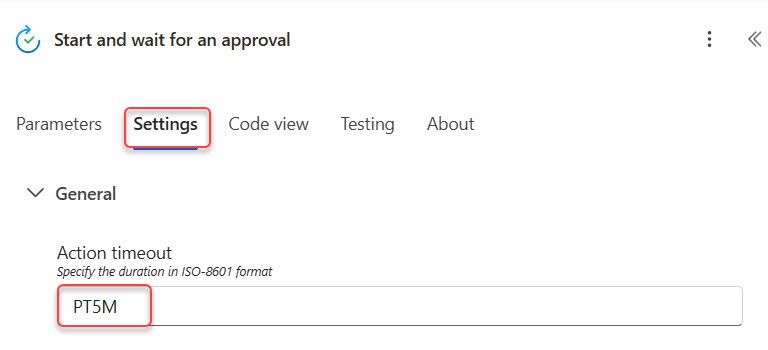
Note: When the timeout is reached, the approval action will automatically return a “TimedOut” status. You can handle this in your flow using a Condition to decide what happens next, for example, auto-approving, sending a reminder, or starting a new approval.
Set up The SharePoint Library
For this example, I’ve created a SharePoint document library named “Document Approvals” that stores information about each document that needs approval.
Here are the columns I’ve added:
- Status (Choice)
- Approval Date (Date and Time)
- Comments (Multiple lines of text)

Whenever a new document is uploaded/created in this library, the flow will automatically trigger and start the approval process.
Handle Approval Timeout in Power Automate
Before we learn how to handle the timeout, let’s first create a simple approval flow.
In this example, I’m adding one approval that triggers whenever a file is uploaded or created in the SharePoint document library. Once the approver responds, the flow will automatically update the file properties based on their decision.
Additionally, I’ll set the timeout to 1 minute. That means the approval will wait for only one minute for the approver’s response before it times out.
Follow the steps below:
- Open Power Automate, create an automated cloud flow with a trigger (When a file is created (properties only)). Select your SharePoint site and document library.

- Add the Start and wait for an approval action. Choose the Approve/Reject – First to respond option and provide the parameters below:
- Title: Document Approval Request: @{triggerOutputs()?[‘body/{FilenameWithExtension}’]}
- Assigned to: Give the approver’s email address.
- Details:
A new document has been submitted for approval in the Document Approval library.

Document Name: @{triggerBody()?['{FilenameWithExtension}']}
Submitted By: @{triggerBody()?['Author/DisplayName']}
Submitted On: @{formatDateTime(triggerOutputs()?['body/Created'], 'dd-MMM-yyyy hh:mm tt')}

You can review the document using the link below:
[Open Document] (@{triggerBody()?['{Link}']})

Kindly review and take appropriate action.

Thank you,
Power Automate Document Approval System
- After adding the Start and wait for an approval action, open Settings. In the Timeout field, enter your preferred duration (for example, PT1M for one minute).

- Add a Condition action to check the outcome of the approval.
outputs('Start_and_wait_for_an_approval')?['body/outcome'] is equal to Approve
- In the True section, add the Update file properties action and provide the parameters below:
- Site Address: Provide the site address.
- Library Name: library name.
- Id: Use the ID from the trigger.
- Status Value: Approved
- Approval Date: body(‘Start_and_wait_for_an_approval’)?[‘responses’][0]?[‘responseDate’]
- Comments:
✔️ Appproved By @{body('Start_and_wait_for_an_approval')?['responses'][0]?['responder']?['displayName']
} with @{body('Start_and_wait_for_an_approval')?['responses'][0]?['comments']
} (@{formatDateTime(body('Start_and_wait_for_an_approval')?['responses'][0]?['responseDate'],'dd/MM/yyyy hh:mm:ss tt')})
- In the False branch of the condition (when the outcome is not Approve): Add Update file properties action:
- Site Address: Provide the site address.
- Library Name: library name.
- Id: Use the ID from the trigger.
- Status Value: Rejected
- Approval Date: body(‘Start_and_wait_for_an_approval’)?[‘responses’][0]?[‘responseDate’]
- Comments:
❌ Rejected By @{body('Start_and_wait_for_an_approval')?['responses'][0]?['responder']?['displayName']
} with @{body('Start_and_wait_for_an_approval')?['responses'][0]?['comments']
} (@{formatDateTime(body('Start_and_wait_for_an_approval')?['responses'][0]?['responseDate'],'dd/MM/yyyy hh:mm:ss tt')})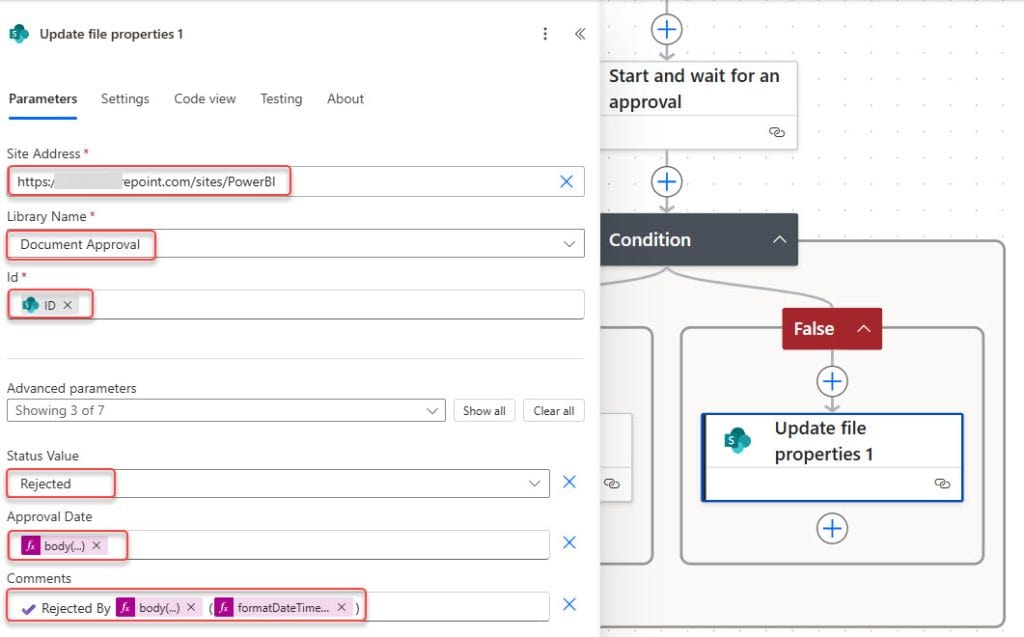
This has been normal until now, but now we need to handle what happens when the approval times out; it should auto-approve.
Handle Timeout and Automatically Approve the Request
Sometimes you may want the approval to automatically approve if no response is received within the timeout period. This helps avoid delays when an approver forgets to take action.
- Right below your Start and wait for an approval action, click on the + icon, then choose Add a parallel branch -> Add an action.

- Add the Update file properties action and provide the parameters below:
- Site Address: Your SharePoint site
- Library Name: Document Approvals
- Id: From trigger
- Status Value: Approved
- Approval Date: utcNow()
- Comments:
🤖 Automatically approved due to timeout (@{formatDateTime(utcNow(), 'dd/MM/yyyy hh:mm:ss tt')})
- After adding the Update file properties action, open its Settings. Under the Run after section, expand the Start and wait for an approval action. Then, check the option “Has timed out” and uncheck “is successful.“
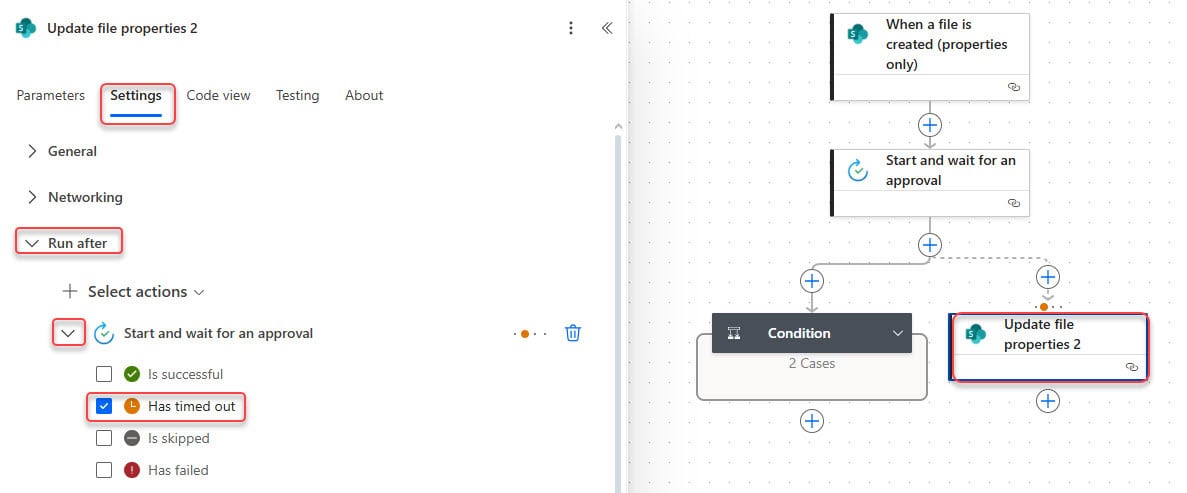
Now our flow is completed. To test the flow, upload a document to the library and wait for one minute.

After one minute, you’ll notice that the flow has timed out.

When you go back to the SharePoint document library, you’ll see that the document’s status has been automatically updated to Auto Approved, meaning the timeout worked perfectly.
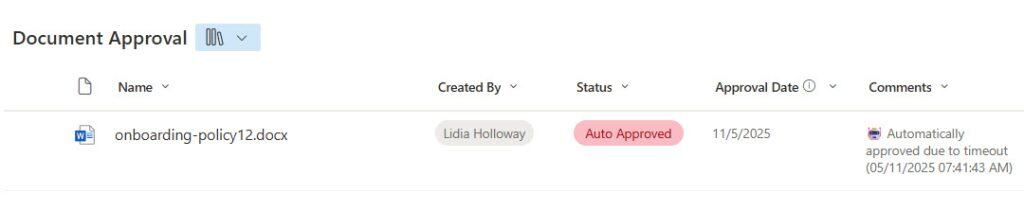
After the Update file properties action, you can add a Terminate action and set the Status to Succeeded.
This is helpful because, without it, the flow run history might incorrectly show the status as ‘Failed’ (since the approval timed out). By adding the Terminate action, you ensure that the flow ends cleanly and appears as Succeeded in the run history.
Add Another Approval When the First One Times Out
In some cases, instead of automatically approving, you might want to start a new approval when the first one times out.
This can be useful if you want to escalate pending requests to a different approver or give the same approver another chance to respond.
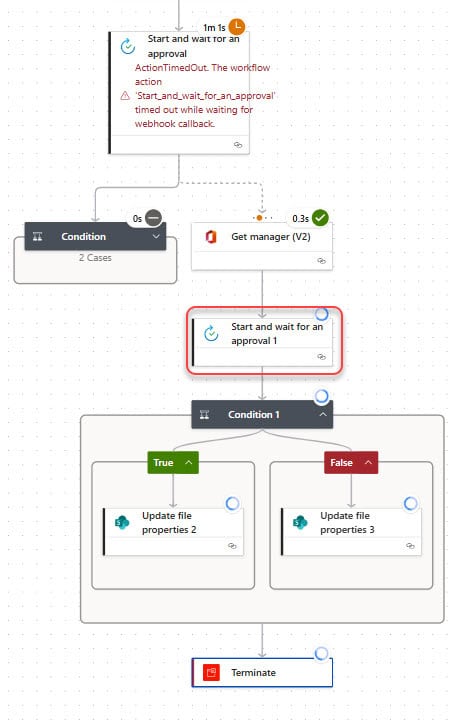
In this scenario, if the approver is not approved, I want to send the same approval to their manager.
To do this, follow the steps below:
- Follow the same steps as the normal approval steps. After the ‘Start and wait for an approval‘ action, click Add a parallel branch -> Add a Get manager (V2) action. Provide the approver’s email.

- Then, open its Settings. Under the Run after section, expand the Start and wait for an approval action. Then, check the option “Has timed out” and uncheck “is successful.“

- Add the Start and wait for an approval action. Choose the Approve/Reject – First to respond option and provide the parameters below:
- Title: Re-Approval Request: @{triggerOutputs()?[‘body/{FilenameWithExtension}’]}
- Assigned to: Provide mail from the get manager action. If you prefer, you can use a different approver’s email or the same approver if you plan to retry.
- Details:
The previous approval timed out and no action was taken.
Please review the document again and take the required action.

Document Name: @{triggerBody()?['{FilenameWithExtension}']}
Submitted By: @{triggerBody()?['Author/DisplayName']}
Submitted On: @{formatDateTime(triggerOutputs()?['body/Created'], 'dd-MMM-yyyy hh:mm tt')}- Add a Condition action to check the outcome of the approval.
outputs('Start_and_wait_for_an_approval_1')?['body/outcome'] is equal to Approve
- In the True section, add the Update file properties action and provide the parameters below:
- Site Address: Provide the site address.
- Library Name: library name.
- Id: Use the ID from the trigger.
- Status Value: Approved
- Approval Date: body(‘Start_and_wait_for_an_approval_1’)?[‘responses’][0]?[‘responseDate’]
- Comments:
✔️ Appproved By @{body('Start_and_wait_for_an_approval_1')?['responses'][0]?['responder']?['displayName']
} with @{body('Start_and_wait_for_an_approval_1')?['responses'][0]?['comments']
} (@{formatDateTime(body('Start_and_wait_for_an_approval_1')?['responses'][0]?['responseDate'],'dd/MM/yyyy hh:mm:ss tt')})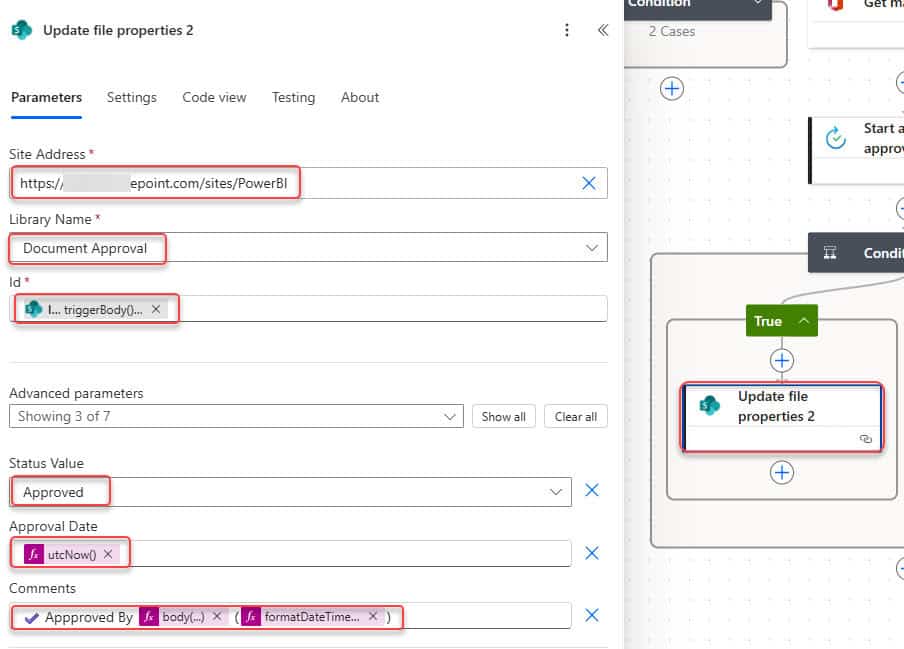
- In the False branch of the condition (when the outcome is not Approve): Add Update file properties action:
- Site Address: Provide the site address.
- Library Name: library name.
- Id: Use the ID from the trigger.
- Status Value: Rejected
- Approval Date: body(‘Start_and_wait_for_an_approval_1’)?[‘responses’][0]?[‘responseDate’]
- Comments:
❌ Rejected By @{body('Start_and_wait_for_an_approval_1')?['responses'][0]?['responder']?['displayName']
} with @{body('Start_and_wait_for_an_approval_1')?['responses'][0]?['comments']
} (@{formatDateTime(body('Start_and_wait_for_an_approval_1')?['responses'][0]?['responseDate'],'dd/MM/yyyy hh:mm:ss tt')})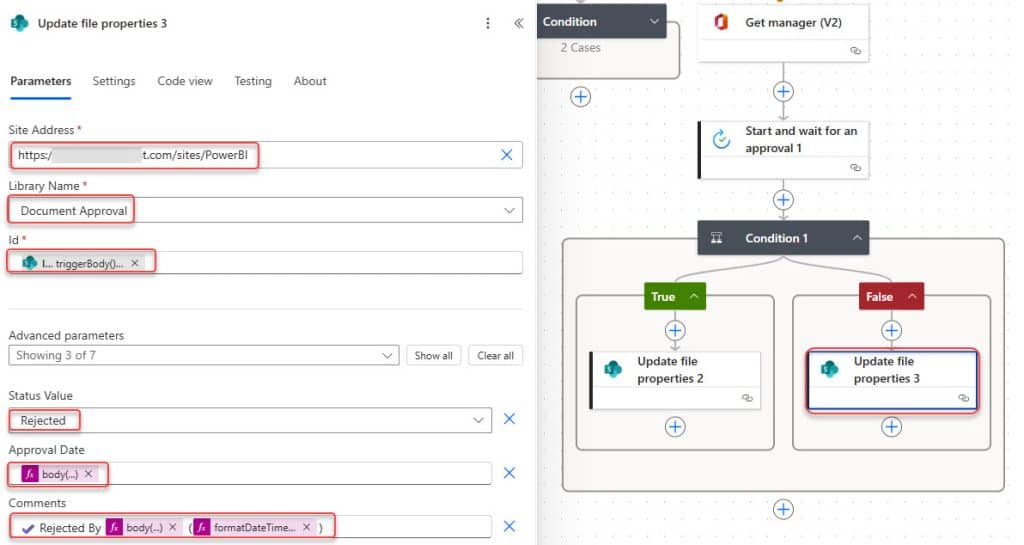
- After the Condition action, you can add a Terminate action and set the Status to Succeeded.
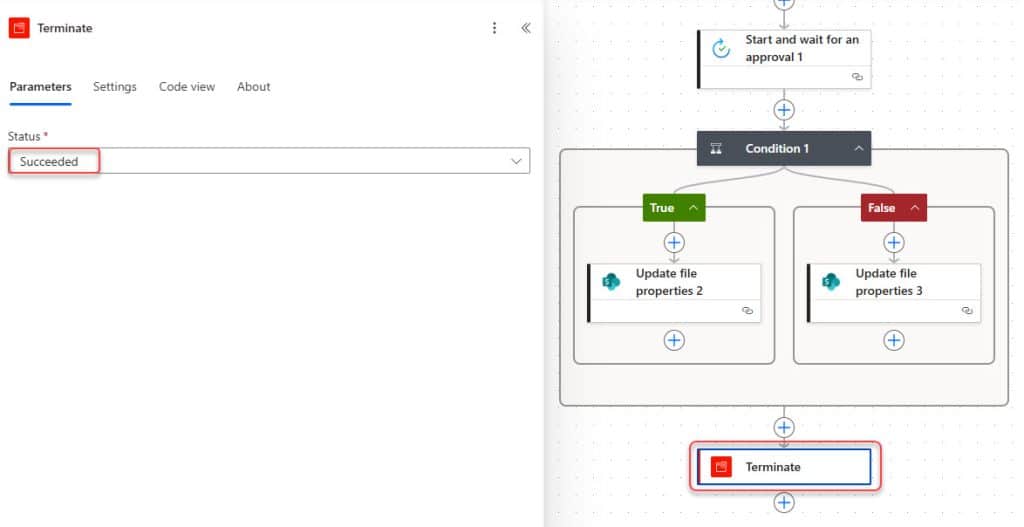
Now save the flow. To test the flow, upload a document to the library and wait for one minute.
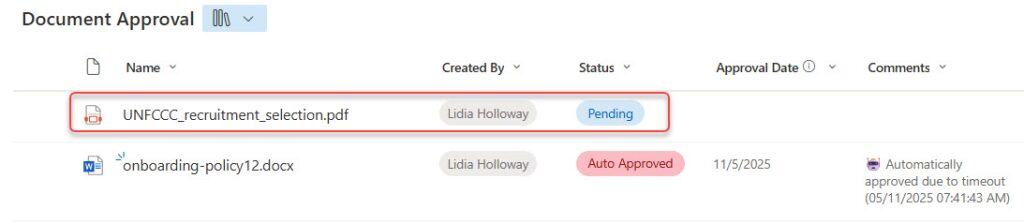
After one minute, you’ll notice that the flow has timed out. Then another approval goes to the approver manager.
Resubmit the Same Approval Again After Timeout (Using Resubmit Flow Action)
This approach is helpful if you want to give the same approver another chance to respond, rather than automatically approving or escalating the request.
Instead of manually sending a new approval, you can use the Resubmit Flow action in Power Automate to rerun the same flow when the first approval times out.
Follow the Steps Below:
- In our existing approval flow, click on the + icon right below the Start and wait for an approval action.
- Choose Add a parallel branch -> Add an action.
- Search for “Resubmit flow” and select the Resubmit Flow action.
- Then, provide the following parameters:
- Environment: Select the environment where your current flow is running (usually “Default” or your organization’s environment).
- Flow: Choose the same flow name (the approval flow that you want to resubmit).
- Trigger Name: Select the trigger of your current flow (for example, When a file is created (properties only)).
- Run ID:
workflow()?['run']['name']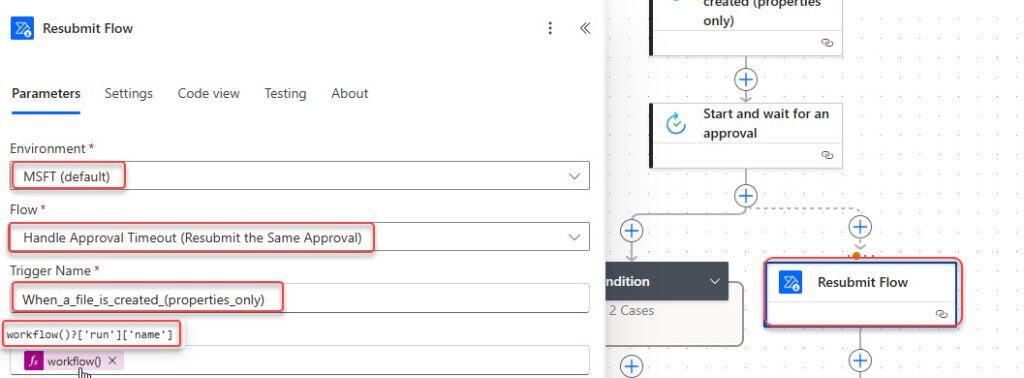
Note:
Provide Triggers Name using the internal naming style with underscores instead of spaces.
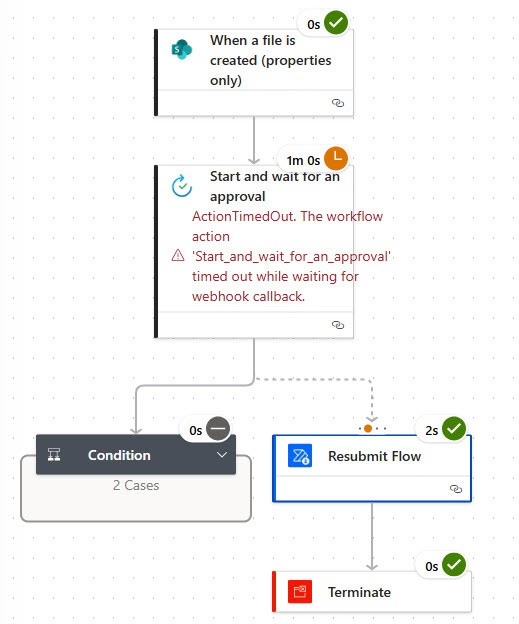
- Then, open its Settings. Under the Run after section, expand the Start and wait for an approval action. Then, check the option “Has timed out” and uncheck “is successful.“

- After the Resubmit flow action, you can add a Terminate action and set the Status to Succeeded.

Save the flow, then upload a document to your SharePoint Document Approvals library. When the approval notification is sent to the approver, don’t take any action.

After the timeout duration (for example, 1 minute), you’ll notice that the Resubmit Flow action automatically starts the same flow again.
Approval timeouts in Power Automate are important when you work with long-running approval processes. By default, Power Automate approvals expire after 30 days but with the methods explained above, you can control what happens when an approval times out.
You can automatically approve the request, send a new approval to another approver, or resubmit the same approval flow for another chance. Each method serves a different purpose, so choose the one that best fits your organization’s approval policy.
I personally find the resubmit method very useful when you want to give the approver another chance without any manual effort.
You may also like:
- Power Automate save email attachment to SharePoint
- Send Approval to SharePoint Group Members Using Power Automate
- Send an Approval to a Microsoft 365 Group in Power Automate
- Delete all files in a SharePoint folder using Power Automate
- Copy List Items To Another List In SharePoint Using Power Automate

Hey! I’m Bijay Kumar, founder of SPGuides.com and a Microsoft Business Applications MVP (Power Automate, Power Apps). I launched this site in 2020 because I truly enjoy working with SharePoint, Power Platform, and SharePoint Framework (SPFx), and wanted to share that passion through step-by-step tutorials, guides, and training videos. My mission is to help you learn these technologies so you can utilize SharePoint, enhance productivity, and potentially build business solutions along the way.