
Managing tasks across teams becomes difficult when users forget upcoming or overdue work. While Power Automate makes it easy to send reminder emails, most examples are limited to fixed reminder intervals such as 7 or 14 days before the due date.
In this article, I will demonstrate how to build a Smart Task Reminder System using SharePoint, Power Automate, and Microsoft 365 without using any Premium connectors.
Instead of hardcoding reminder intervals inside the flow, the solution uses SharePoint configuration lists so administrators can manage reminder schedules, email templates, branding, and escalation settings without modifying the Power Automate flow.
The solution also combines multiple tasks into a single email for each user, supports manager escalation for overdue tasks, provides branded HTML email templates, and logs every flow execution for monitoring and troubleshooting.
Features of the Smart Task Reminder System
This solution includes the following features:
- Configurable reminder intervals using SharePoint lists
- Send reminders Before, On, and After the due date
- Supports unlimited reminder schedules (3 days, 5 days, 7 days, 14 days, etc.)
- No Premium connectors required
- Daily scheduled execution
- Combines multiple tasks into a single email
- Includes direct links to SharePoint task items
- Optional manager escalation for overdue tasks
- Professional branded email templates
- Company logo and branding from SharePoint
- Custom email subjects
- Flow execution logging
- PowerShell provisioning script for automatic setup
- Fully configurable without editing the flow

How the Reminder System Works
Every day at the scheduled time, the Power Automate flow performs the following operations:
- Retrieves all incomplete tasks from the SharePoint task list.
- Reads reminder configurations from the Reminder Settings list.
- Determines which reminders should be sent based on today’s date.
- Groups tasks by assigned user.
- Creates a single HTML email containing all matching tasks.
- Optionally copies the user’s manager for overdue reminders.
- Sends the reminder email.
- Records the flow execution status in the Flow Run Logs list.
Because reminder intervals are stored in SharePoint, administrators can enable, disable, or add new reminder schedules without modifying the workflow.
SharePoint List For this Tool
The solution uses four SharePoint lists, all set up using a PowerShell script.
1. Task List
Stores all project tasks.
| Column | Type |
|---|---|
| Task Name | Single line of text |
| Assigned To | Person |
| Task Priority | Choice |
| Task Status | Choice |
| Due Date | Date |
2. Reminder Settings
Allows administrators to configure reminder schedules.
| Column | Type |
|---|---|
| Title | Single line of text |
| Days | Number |
| Reminder Type | Before, Today, After |
| CC Manager | Yes/No |
| Email Subject | Single line of text |
| Enabled | Yes/No |
3. Admin Settings
Controls company branding.
| Column | Type |
|---|---|
| Company Name | Text |
| Company Logo | Image |
| Support Email | Text |
| Default Reply To | Text |
| Email Theme Color | Text |
| Regards | Text |
The flow automatically reads these settings when generating reminder emails.
4. Flow Run Logs
Stores the status of each scheduled execution.
| Column | Type |
|---|---|
| Run Status | Choice |
| Details | Multiple lines |
| Run History | Hyperlink |
This makes it easy to monitor whether the reminder process completed successfully or encountered an error.
Create SharePoint lists using PowerShell Script
To simplify deployment, I created a PowerShell script that automatically creates all required SharePoint lists and columns.
Instead of manually creating lists and configuring columns, simply run the script, and the entire SharePoint structure will be provisioned in a few minutes.

This makes the solution portable and easy to deploy across different Microsoft 365 tenants.
Once you run the PowerShell script, the list will be successfully created on your SharePoint site. We are ready to move on to the next step: making the workflow in Power Automate.
Create Power Automate Send Email Reminder From SharePoint
I created a scheduled cloud flow in Power Automate that runs every day at 10:00 AM. The flow checks all active tasks from the SharePoint list, evaluates the reminder configuration, and sends reminder emails based on the configured schedule.
The flow is divided into a few logical steps, making it easy to understand and maintain.
Step 1: Create a Scheduled Cloud Flow
Start by creating a Scheduled cloud flow in Power Automate. Configure it to run once every day at your preferred time (10:00 AM in this example).

This flow will automatically process all pending tasks and determine whether reminder emails need to be sent.
Step 2: Retrieve SharePoint Data
Next, retrieve the required data from the SharePoint lists.
The flow reads:
- Task List – Retrieves all incomplete tasks.
- Reminder Settings – Reads the reminder configuration such as Before, Today, or After reminders.
- Admin Settings – Retrieves company branding, email settings, and other configuration values.
To fetch only active tasks, use the following OData filter in the Get items action:
TaskStatus ne 'Completed'
Step 3: Process Reminder Rules
The flow compares each task’s due date with the reminder configuration stored in the Reminder Settings list.
Instead of hardcoding reminder intervals such as 7 or 14 days, the flow dynamically determines which reminders should be sent based on the SharePoint configuration.
Tasks are then grouped by the assigned user so that each user receives one email containing all matching tasks instead of multiple emails.

Step 4: Generate and Send Reminder Emails
Finally, the flow generates a professional HTML email that includes:
- Company branding and logo
- Task details in an HTML table
- Due dates and priorities
- Direct links to the SharePoint task items
- Optional manager escalation for overdue tasks

After sending the email, the flow records the execution status in the Flow Run Logs list, making it easy to monitor whether the scheduled run completed successfully.
Run the flow to Send Task Due Reminder Emails
Once the Power Automate flow is configured, run it manually or wait for the scheduled trigger to execute. The flow evaluates all incomplete tasks, checks the reminder settings, and sends reminder emails based on the configured schedule. If multiple tasks match the same reminder criteria for a user, they will receive a single consolidated email containing all applicable tasks.
Below are some sample reminder emails generated by the flow for different reminder types:
| Overdue Reminder | 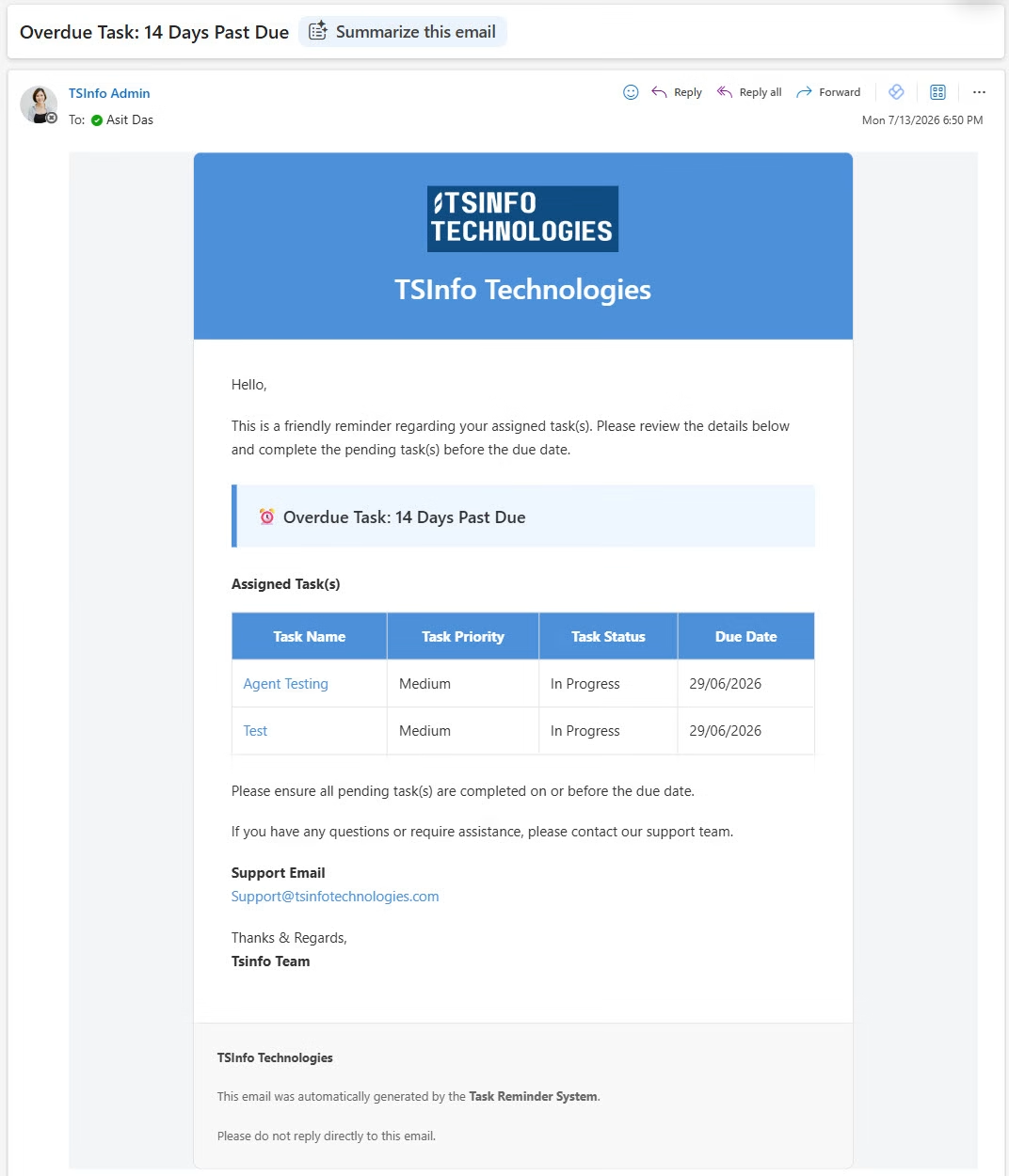 |
| Due Today |  |
| Before Due Date |  |
Conclusion
In this article, I show how to build a Smart Task Reminder System using SharePoint and Power Automate without using any Premium connectors. Instead of relying on hardcoded reminder intervals, this solution uses SharePoint configuration lists, allowing administrators to easily manage reminder schedules, email subjects, branding, and manager escalation without modifying the flow.
The solution also sends a single consolidated email when multiple tasks match the same reminder criteria, includes professional HTML email templates with company branding, and logs every flow execution for easy monitoring and troubleshooting. Whether you’re managing project tasks, compliance activities, document reviews, or internal business processes, this solution provides a flexible and reusable reminder framework that can be customized to meet your organization’s requirements.
Also, you may like some more Power Automate tutorials:
- Power Automate Multilevel Approvals
- Build a Power Apps IT Help Desk Ticketing System with Batch Record Retrieval
- Check IF SharePoint List is Empty in Power Automate
- Expense Reimbursement and Approval using Power Automate
- Create a PDF From SharePoint List Items Using Power Automate
- Create Multiple Sites in SharePoint Online using Power Automate from Excel
- Create SharePoint Online List and Columns from Excel Using Power Automate

Hey! I’m Bijay Kumar, founder of SPGuides.com and a Microsoft Business Applications MVP (Power Automate, Power Apps). I launched this site in 2020 because I truly enjoy working with SharePoint, Power Platform, and SharePoint Framework (SPFx), and wanted to share that passion through step-by-step tutorials, guides, and training videos. My mission is to help you learn these technologies so you can utilize SharePoint, enhance productivity, and potentially build business solutions along the way.