
Recently, when I was trying to log in to Microsoft Teams, I got an error message stating “Your organisation has disabled this device“, as shown in the screenshot below. The full error message comes as:
Your organisation has disabled this device. To fix this, contact your system administrator and provide the error code 135011.

Your organisation has disabled this device 135011
To fix the issue, please follow the following steps:
- Open the Microsoft Admin 365 center. Below the admin Centers, you will find the Identity admin center. Click on Identity.

- Then you will navigate to the Microsoft Entra admin center. Then, under Entra ID from the left navigation, click on Devices.

- It will navigate to the “Devices” page. Then click on All devices. There you will find all the devices as shown in the screenshot below. Then select the device (on which you are facing the error message). Then click on Enable.
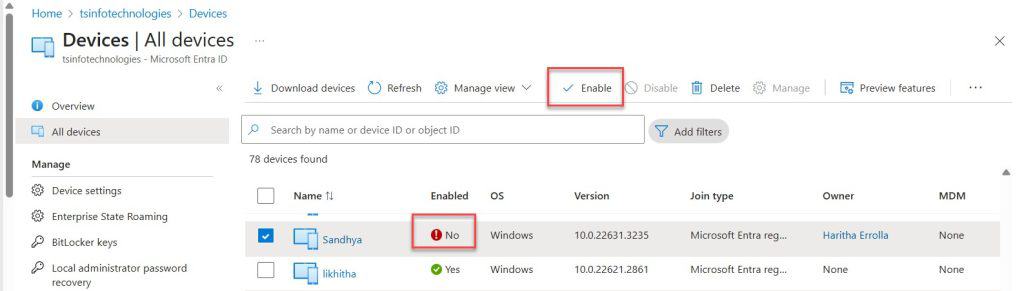
Once you click on “Enable“, your problem will be resolved. You will now be able to log in to your Microsoft Teams account.
I hope that now, this way, you can fix the error “Your organisation has disabled this device” that appears in Microsoft Teams. Do let me know in the comments below if it helps.
You may also like the following tutorials:
- How to Create a Private Channel in Teams?
- Microsoft Teams Language Settings
- How to Add External User to Teams?
- How to Create Group in Teams?

Hey! I’m Bijay Kumar, founder of SPGuides.com and a Microsoft Business Applications MVP (Power Automate, Power Apps). I launched this site in 2020 because I truly enjoy working with SharePoint, Power Platform, and SharePoint Framework (SPFx), and wanted to share that passion through step-by-step tutorials, guides, and training videos. My mission is to help you learn these technologies so you can utilize SharePoint, enhance productivity, and potentially build business solutions along the way.

