
Sometimes, when we work with forms, receipts, or scanned documents, we need to extract important text, such as invoice numbers, names, or amounts, and save that data in Dataverse for further processing.
Instead of typing everything manually, we can use AI Builder’s Text Recognition feature in Power Automate, which I explained in our Power Platform course. It automatically reads text from an image or file and provides the extracted data, which you can use anywhere in your flow.
For example, you can take a photo of an invoice, detect the invoice number using AI Builder, and then save it directly in a Dataverse table.
In this post, I’ll show you how to detect text in Dataverse using AI Builder using Power Automate.
Detect Text in Dataverse Using AI Builder
In this example, I have a Dataverse table and an associated Power Automate flow. The flow runs whenever a new text record is added to the table.
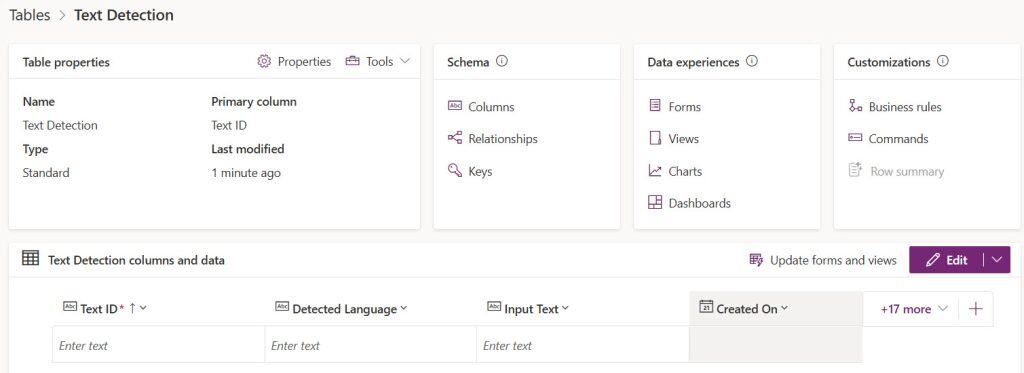
Now, after the text is added, I want to check the language of that text automatically.
To do this, I’m using the “Detect language” action from the Microsoft Dataverse connector in Power Automate. This action helps identify the language of the text and can be used to update the Dataverse record or trigger further actions based on the detected language.
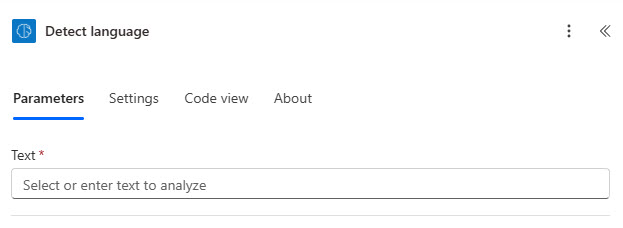
Now, follow the steps below to create a flow:
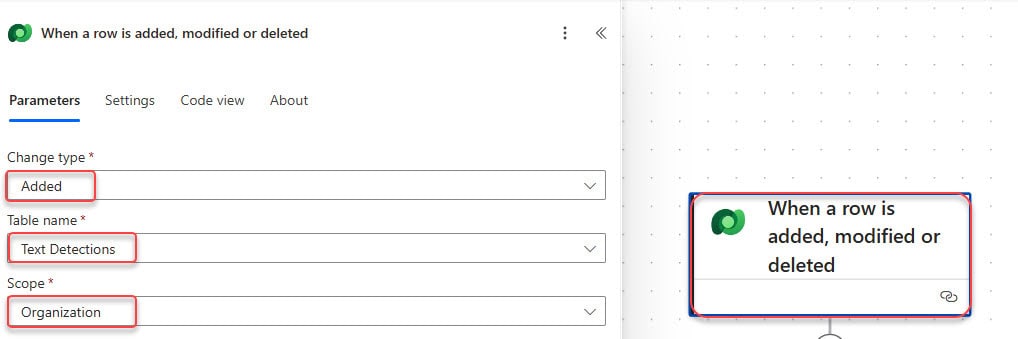
- Open Power Automate, create an automated cloud flow with a trigger (When a row is added, modified, or deleted). Then add the following parameter:
- Change type: Added
- Table name: Text Detections
- Scope: Organization
- Next, add a new action called Detect language from the Microsoft Dataverse connector. In the Text to detect language field, select the Input Text column from your Dataverse table.
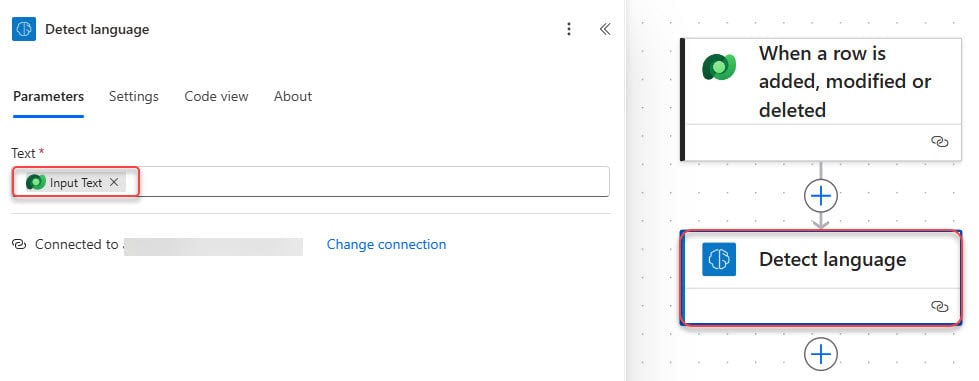
This action will automatically detect the language of the text entered in your Dataverse record.
- After the language is detected, add another action Update a row from the Microsoft Dataverse connector.
- Table name: Text Detections
- Row ID: Use the Row ID from the trigger
- Detected Language: Select Detected language from the previous action’s output. It will automatically add an apply to each action.

Now, whenever a new record is added to the Text Detections table, Power Automate will automatically identify the language and update the record with the detected result.
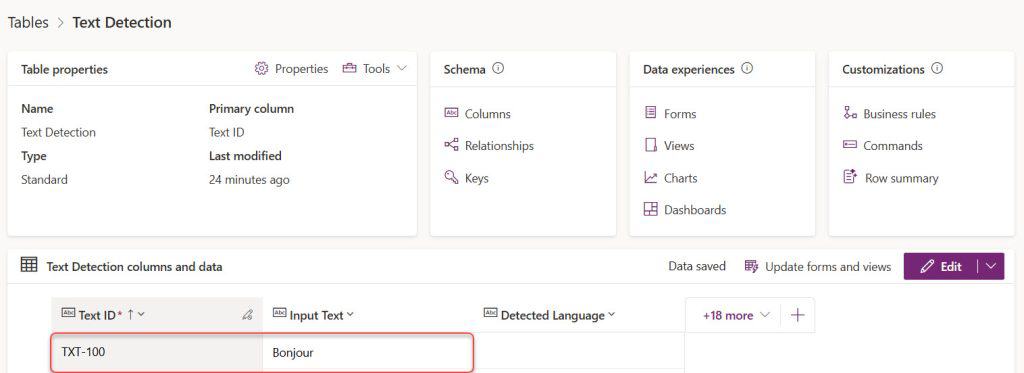
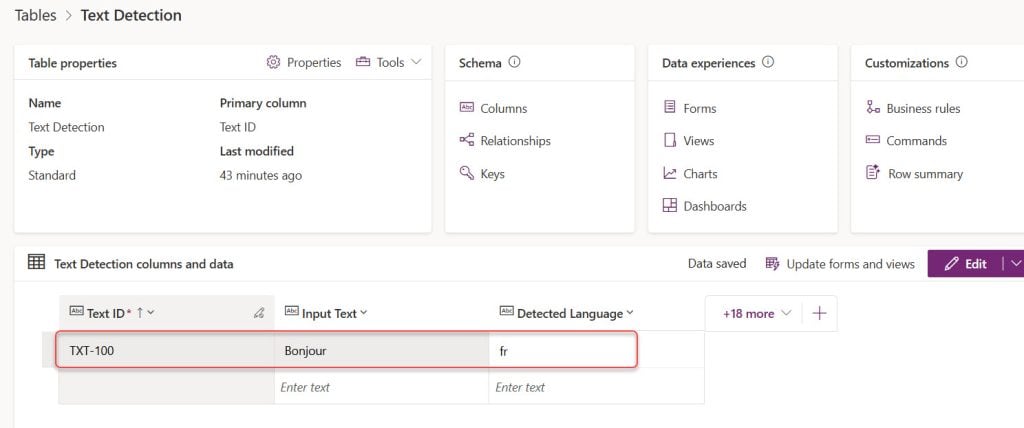
Save and test your flow by adding a new record in your Text Detections table. For example, if you add “Bonjour”, the detected language should be French.
You will see the updated language value in your Dataverse table after the flow runs successfully.
When you go to the flow history, you can see the result.
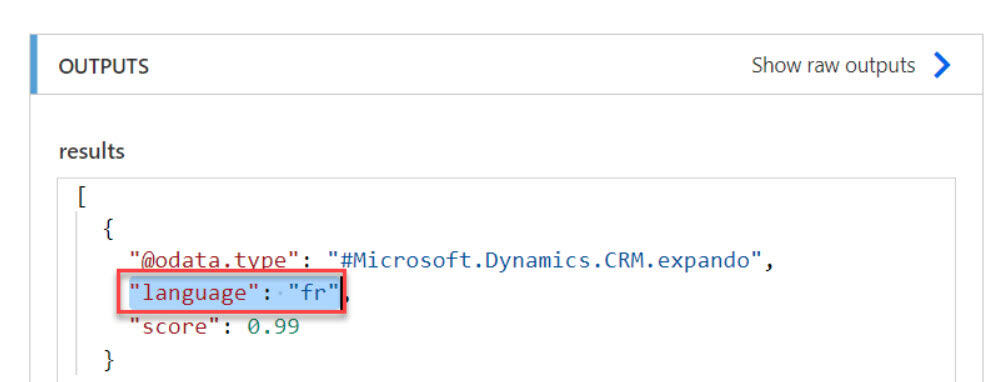
This is how you can easily detect text and automatically identify its language in Dataverse using AI Builder and Power Automate.
- Dataverse Power BI
- Create Dataverse View
- Get data from Dataverse in Power Apps
- Get Dataverse List Rows Count Using Power Automate

Hey! I’m Bijay Kumar, founder of SPGuides.com and a Microsoft Business Applications MVP (Power Automate, Power Apps). I launched this site in 2020 because I truly enjoy working with SharePoint, Power Platform, and SharePoint Framework (SPFx), and wanted to share that passion through step-by-step tutorials, guides, and training videos. My mission is to help you learn these technologies so you can utilize SharePoint, enhance productivity, and potentially build business solutions along the way.

