
Last month, I created a Power Automate flow for one of my projects. Recently, I needed to make a few modifications to it. However, when I opened the flow and tried to save it, I ran into an error:
Invalid connection. Please choose a connection.
If you’ve ever seen this message, don’t worry, it’s a common issue that many users face, especially when working with SharePoint, Outlook, or Excel connectors.
In this tutorial, I’ll explain why this issue occurs and how to quickly resolve the “Invalid Connection” error in Power Automate, allowing your flow to save and run smoothly again.
Why the Invalid Connection. Please Choose a Connection Error that Occurs
This error usually appears when one or more connections used in your flow become invalid or disconnected.
I’ve personally faced this issue several times, especially when revisiting old flows after a few weeks or months. Everything looks fine until I try to edit or save the flow, and suddenly, the “Invalid Connection. Please Choose a Connection” error pops up.
From my experience, I’ve seen this happen for three main reasons:
- Password Change: If your organization requires regular password updates, any flow that uses your credentials (such as Outlook, SharePoint, or Teams) will stop working once your password changes. The existing connection becomes invalid, and Power Automate requires you to sign in again.
- Deleted connection: Sometimes, connections are manually deleted or automatically cleaned up when accounts are deactivated. In such cases, the flow loses its authentication link, and you’ll see this error until a new connection is added.
- Environment change (flow export): When you export a flow from one environment and import it into another, the original connections don’t transfer over. You need to manually create or map new connections in the new environment before saving the flow.
Read: Set up Manual Authentication in Microsoft Copilot Studio
[Fix] Invalid Connection. Please Choose a Connection
Now that you understand why this error occurs, I’ll show you two simple solutions to resolve it. I suggest trying the first method, and if the issue persists, then try the second method.
Solution 1: Reconnect or Create a New Connection in Power Automate
- In Power Automate, go to the left pane and click Connections.

Note:
If you do not find the Click ‘More’ option, you can view the connections.
- Look for the specific connector type you’re using (e.g., SharePoint, Outlook) if the connection is listed and shows a ‘Reconnect’ status in the column.
- Re‐authenticate your account when prompted.
- If the connection still fails, click + New connection, select the same connector type, and sign in again.

- Open the flow, and for any action showing the “Invalid connection. Please choose a connection” warning, click the dropdown and select the newly re-authenticated connection.

Save the flow and test it. In most cases, after reconnecting or recreating the connection, the error will be resolved.

Learn: Create SharePoint List Item Using Copilot Studio
Solution 2: Open the Flow in Classic View and Reconnect in Power Automate
If the error persists even after reconnecting, you can try editing the flow in the classic view. Sometimes, modern designers fail to refresh connection references properly.
Follow the steps below:
We must go to the flow that gave this error and disable the New designer toggle button.
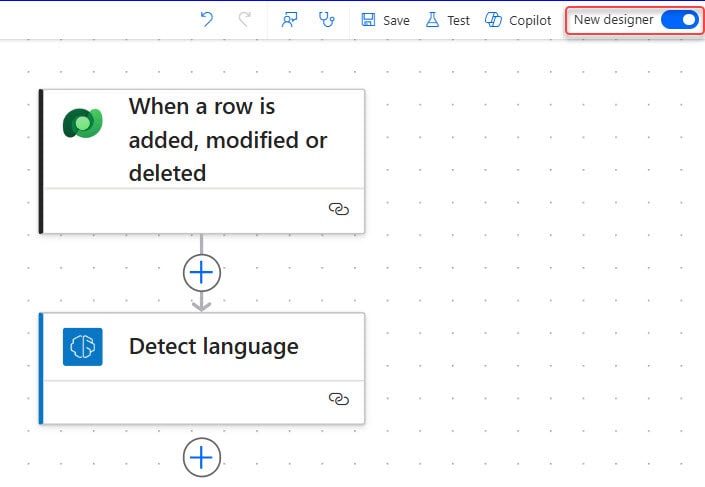
Click Save and then Test the flow.
This usually forces Power Automate to reload and bind all the connections correctly.
This is how I fixed the “Invalid connection. Please choose a connection” error in Power Automate. In most cases, simply reconnecting or recreating the connection resolves the issue; however, if that doesn’t work, switching to the classic view usually does the trick.
I hope this guide helps you resolve the issue quickly and get your flow running again.
You may also like:
- The user does not exist or is not unique error in Power Automate
- The execution of template action ‘Switch’ failed – Error in Power Automate
- The DateTime String must match ISO 8601 format error in Power Automate
- A file with the same name is currently being saved to this site error in Power Automate

Hey! I’m Bijay Kumar, founder of SPGuides.com and a Microsoft Business Applications MVP (Power Automate, Power Apps). I launched this site in 2020 because I truly enjoy working with SharePoint, Power Platform, and SharePoint Framework (SPFx), and wanted to share that passion through step-by-step tutorials, guides, and training videos. My mission is to help you learn these technologies so you can utilize SharePoint, enhance productivity, and potentially build business solutions along the way.

