While working on a Power Apps application, there was a screen where the admin wanted to search and filter the gallery based on Microsoft 365/Office 365 users.
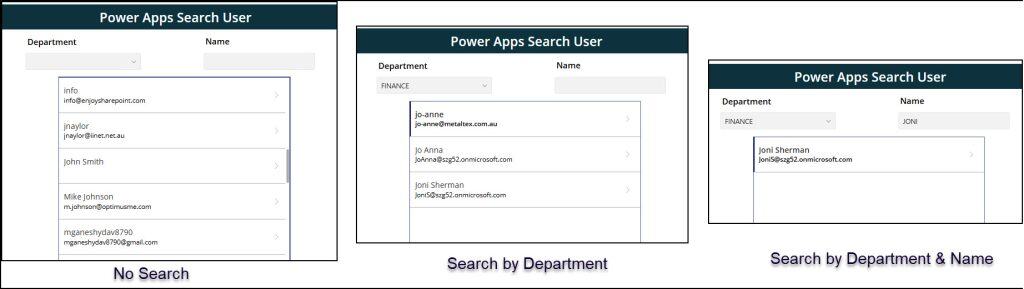
Let’s say there is a Dropdown control containing departments such as IT, HR, and FINANCE, and a Text input control. Admin will navigate to the screen and select any department, then search for any user/employee name in the text box. The gallery should filter by department and user name.
Refer to the screenshot below:
In this article, I will explain how to search user in Power Apps with the following examples:
Search user by display name in Power Apps (Single and multiple)
Search Office 365 users in Power Apps Combo box control
38d0ceb0-9414-4788-8dd6-51c61f5cb02c = Provide the UPN or email of the specific user
NOTE:
Before applying the code above, you must connect Office365Users connector to the app.
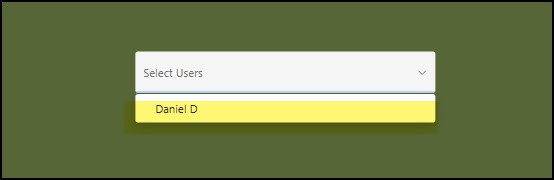
Preview the app and expand the Combo box; you can see the particular user name under it, as shown below.
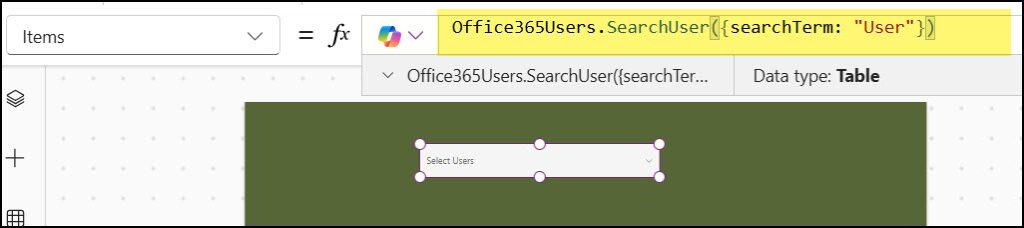
If you need to search for multiple users by first name, last name, or any field other than email or user ID, use the code below on the Combo box’s Items property:
Office365Users.SearchUser({searchTerm: "User"})
User = Provide the employee’s first name or last name
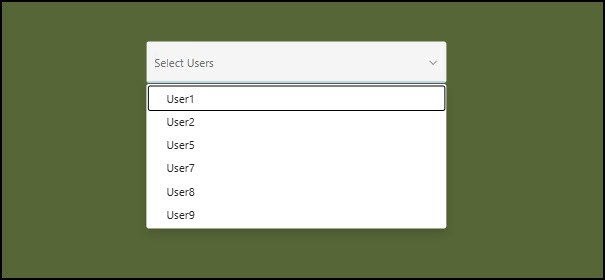
Preview the app and open the Combo Box. You’ll see all the users whose first name starts with “User,” as shown below.
Search Office 365 Users in Power Apps
Next, we will see how to search Microsoft 365 users (also known as Office 365 Users) in the search box and filter the Power Apps gallery accordingly.
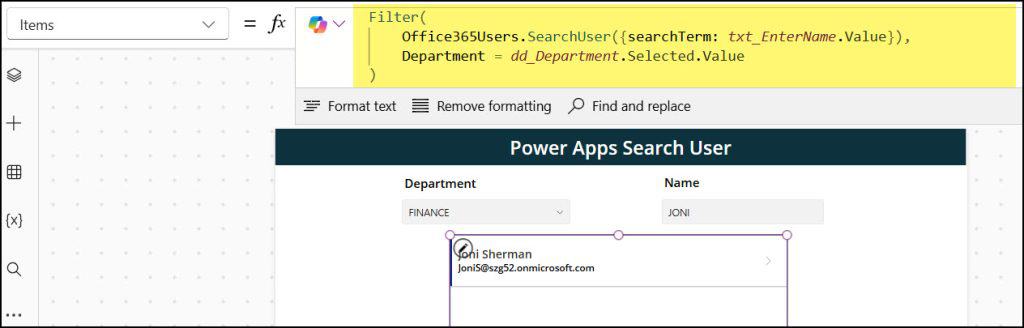
In the screenshot below, the Department dropdown lists departments such as IT, HR, FINANCE, SALES, etc. If the user doesn’t search for anything, then the gallery will show all the Office 365 users by default.
If the user searches only for the Department, then the gallery will filter accordingly. Meanwhile, if the user searches both the department and the name, the gallery will filter based on that, and the results will be displayed as shown below.
To achieve it, follow the formula below:
Select the gallery and set its Items property to:
Filter(
    Office365Users.SearchUser({searchTerm: txt_EnterName.Value}),
    Department = dd_Department.Selected.Value
)
Where,
txt_EnterName = Text input name where the user can search the employee name
dd_Department = Dropdown control name
Save, publish, and preview the app. Search for the name and department, and you can see the gallery will filter accordingly.
NOTE:
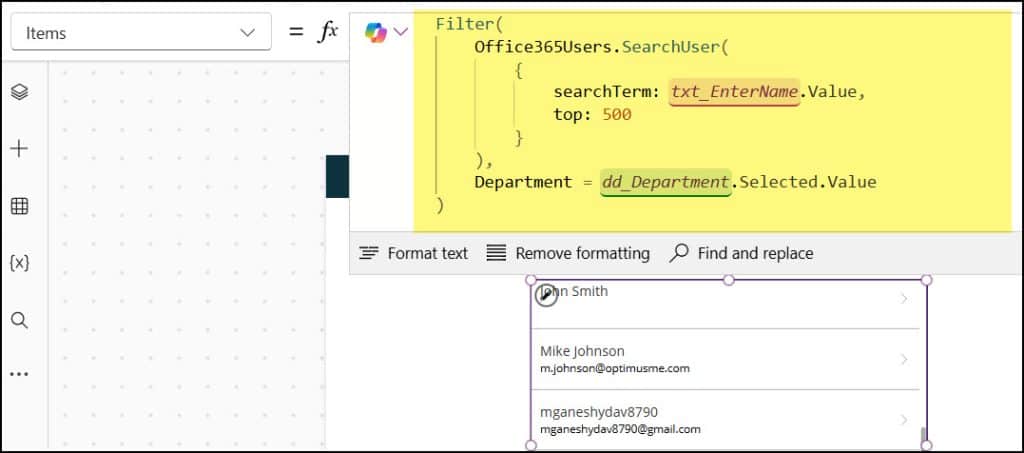
By default, the code above only returns 100 results. So if your organization has more than 100 people with the same name, for example, many employees named “Rose”, the function may not return all of them, even if only a few belong to the HR department.
To handle this, you can increase the number of users returned by SearchUser by using the expression below in the gallery’s Items property:
Moreover, in Power Apps, in case if you want to display only active users from Office 365, then follow this article: Display Only Office 365 Active Users
Search SharePoint Person Name in Power Apps
Next, we will discuss how to search a SharePoint person name in Power Apps using a Text box and a gallery.
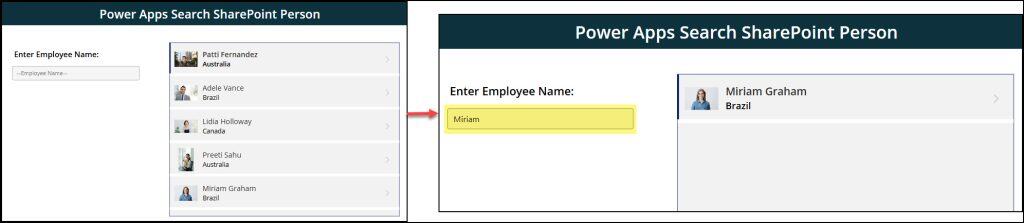
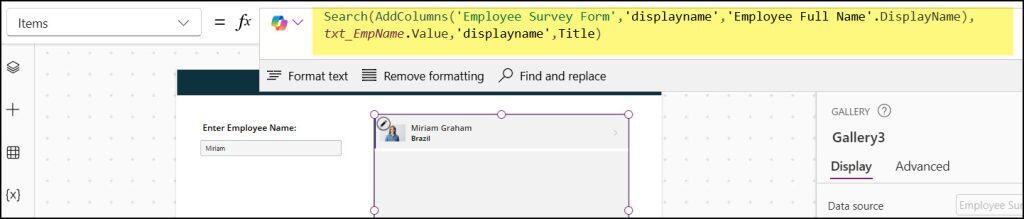
The screenshot below represents a Text/search box and a gallery control. This gallery contains all the records from a SharePoint list.
If the text box is empty, the gallery will show all the SharePoint records. But if you type a specific person’s display name, the gallery will filter the list and show only that person’s details.
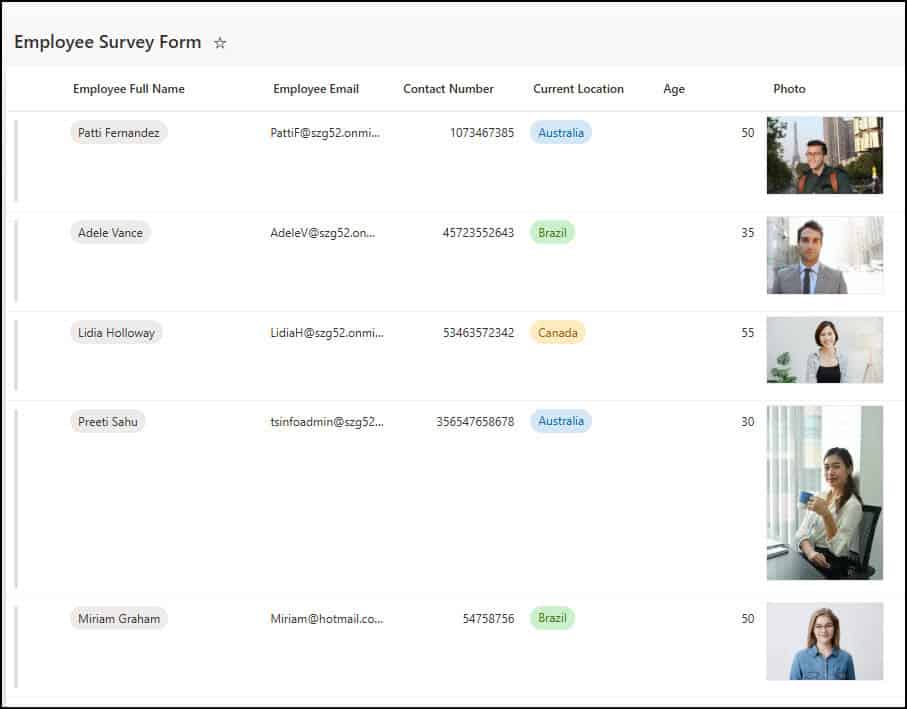
This is the SharePoint list (Employee Survey Form) below contains with these fields:
Column
Data type
Employee Full Name
Person
Employee Email
Single line of text
Contact Number
Number
Current Location
Choice
Age
Number
Photo
Image
To achieve the above scenario, select the gallery and set its Items property as:
Search(
    AddColumns(
        'Employee Survey Form',
        'displayname',
        'Employee Full Name'.DisplayName
    ),
    txt_EmpName.Value,
    'displayname',
    Title
)
Where,
“displayname” = Specify the new column name
txt_EmpName = Text input control name (Make this text input’s Trigger output property to KeyPress)
Save, publish, and preview the app. Whenever you will try to enter any employee name, the gallery will start filtering according to it.
Search User Email in Power Apps
Also, you can search user email based on their name in Power Apps.
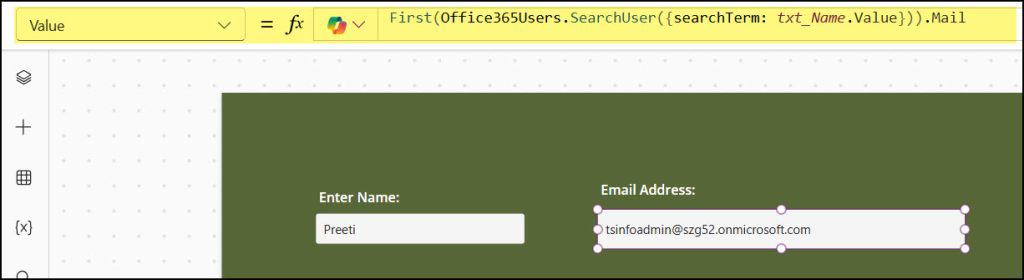
For example, imagine there are two text input boxes. When the search box is empty, the app will automatically show the first user’s email address from Office 365 in the second text box.
But if the user types a name in the search box, the second text box will update and display the email address of the person they searched for.
To workaround this, select the Email Address text box and set its Value property as:
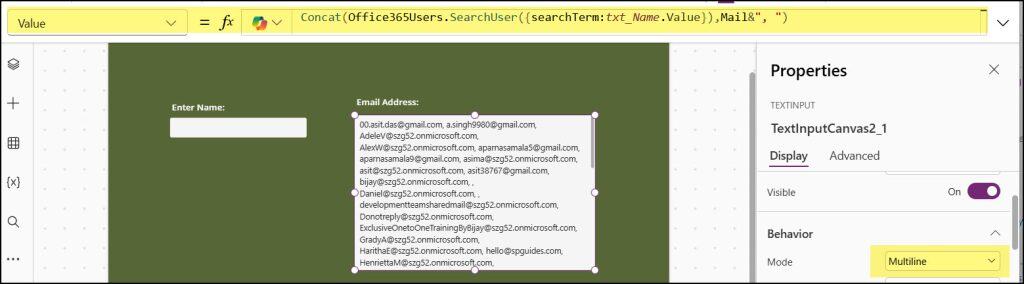
Likewise, if you want to show multiple email addresses separated by commas, you can use the Concat function in the Text input’s Value property like this:
Also, change the text input control’s Mode property to Multiline as like below.
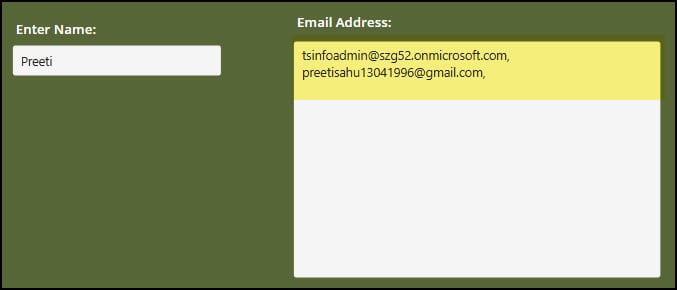
As a result, you will see all the Office 365 user emails. Also, when you will search a user name in the 1st search box, all the emails of that specific user will display in the second text box.
Search User By Job Title in Power Apps
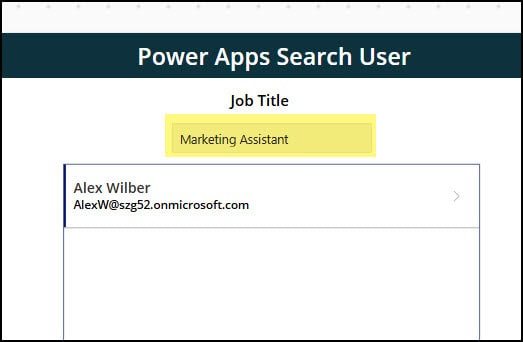
Let’s say you want to search users by their job title and filter the gallery based on that. For example, when I typed “Marketing Assistant,” the gallery showed only the users whose job title matched that search.
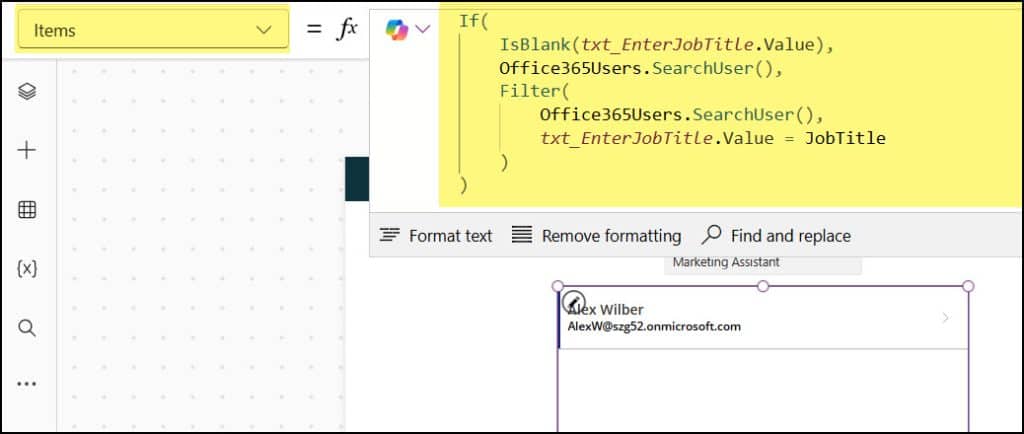
To do this, select the gallery and set its Items property as:
Preview the app. When the search box is empty, the gallery will show all users. But if you type a job title, the gallery will filter and show only the users who match that job title.
NOTE:
In the same way, we can search the Office 365 users by using their Display name, Department, Phone number, etc. in Power Apps.
Search User JobTitle Without Using Power Apps Text Box
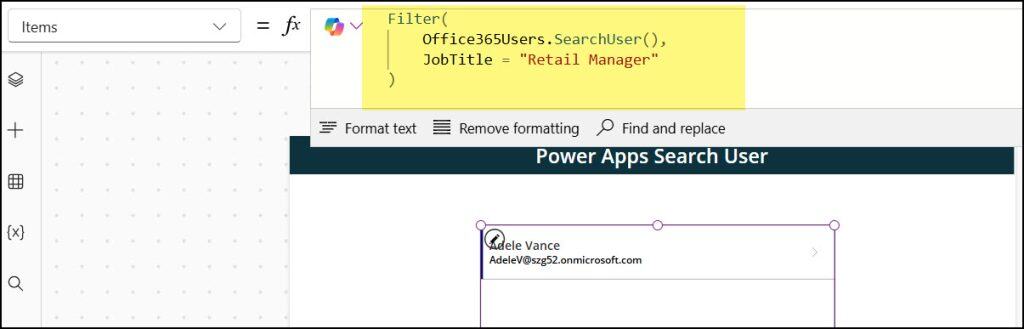
Here, we’ll look at how to search the user and filter the gallery without using a search box. Once you apply the formula, the gallery will automatically filter and show the correct results.
To do this, select the gallery and update its Items property with the following code:
“Retail Manager” = Specify the user job title that you want to filter
I hope this article helped you understand how to search for users in Power Apps using different methods, such as by display name, department, job title, and more with a few examples.
Also, you may like some more Power Apps tutorials:
Hey! I’m Bijay Kumar, founder of SPGuides.com and a Microsoft Business Applications MVP (Power Automate, Power Apps). I launched this site in 2020 because I truly enjoy working with SharePoint, Power Platform, and SharePoint Framework (SPFx), and wanted to share that passion through step-by-step tutorials, guides, and training videos. My mission is to help you learn these technologies so you can utilize SharePoint, enhance productivity, and potentially build business solutions along the way.