
A few days ago, I was working on a Power Apps project where users needed to upload images directly from the app. The requirement was simple: employees should be able to upload photos like profile pictures, site images, or document snapshots and view them later in the same app.
While building this, I realized that the Power Apps Image control is perfect for this requirement.
In this tutorial, I will explain the Power Apps image control and its key properties. Then, we will see how to add an Image control in Power Apps.
Also, we will cover the topics below:
- Add images to an image control
- Display SharePoint images in the Power Apps image control
- How to Display an image from a URL in Power Apps
- Reset Power Apps Image Control
Power Apps Image Control
Power Apps includes many built-in controls, including the Image control, which displays images from local files or a data source.
You can add one or more Image controls to display standalone images or images stored in records from data sources such as SharePoint or Excel.
If you are using external images, make sure they use HTTPS. The image links must be publicly accessible and should not require a login to view.
Power Apps Image Control Properties
Here, we will see the key properties of the Power Apps image control.
Refer to the table:
| Property | Description |
| DisplayMode | This feature enables the user to input data (Edit), view existing data (View), or disable the control for any changes (Disabled) |
| Fill | It is used to fill the background color of the image control |
| Height | The vertical distance between the top and bottom edges of a control |
| ImagePosition | When an image is not of the same size as the screen or control, its position can be adjusted using one of the following options: Fill, Fit, Stretch, Tile, or Center |
| OnSelect | The respective actions to be performed when a user clicks or taps a control |
| PressedFill | This property is used to change the background color when a user taps or clicks on it |
| OriginalHeight | The original height of an image when the CalculateOriginalDimensions property is enabled |
| Visible | The visibility of a control |
Add Power Apps Image Control
Now, we will see how to add an image control in Power Apps. To do so:
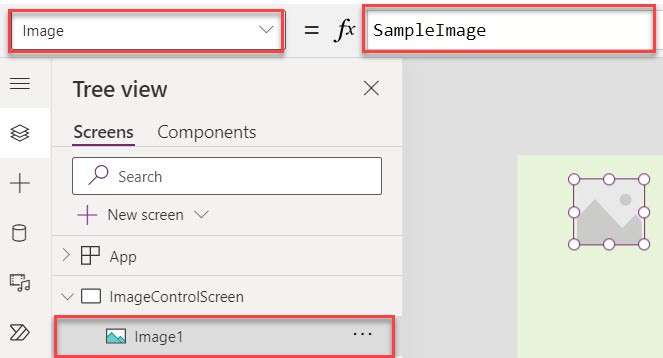
On the Power Apps Screen -> Insert an Image control -> By default, the Image property of the Image control is “SampleImage”, and the Image control name is “Image1”, as shown below.
Add Images to an Image Control in Power Apps
Next, we will see how to add images to the Power Apps image control in two ways. Such as:
- Using Add an Image file
- Using Media File
Add an Image File
On the Power Apps Screen -> Insert an Image control -> Select the Image property under the Properties pane -> Select + Add an image file and upload an image file from the local device, as shown below.
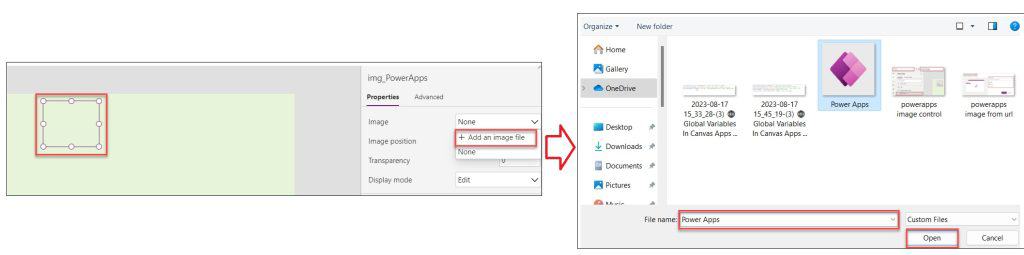
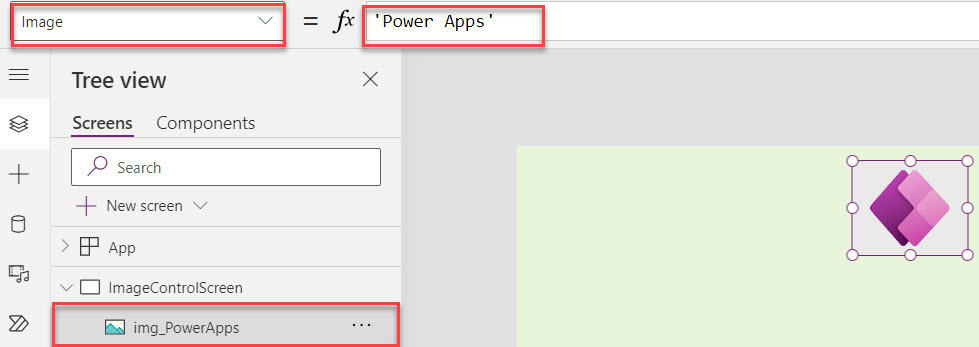
Once the image file is uploaded to the image control, it will be added as shown below.
Media File
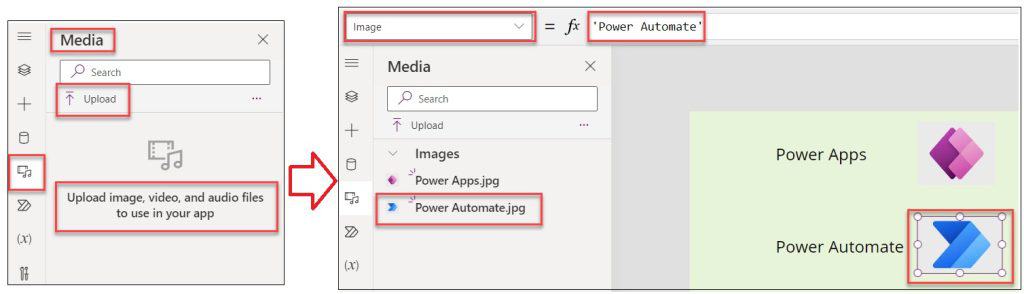
Alternatively, select the Media section -> Upload an image file from the local device -> Click the image file to add it to the image control, as shown in the screenshot below.
Display SharePoint Picture in Power Apps Image Control
Let’s see how to display SharePoint list photos in the Power Apps image control.
Scenario:
I have a SharePoint list named “Employee Onboarding,” and this list contains the following fields.
| Column Name | Data Type |
| Employee ID | It is a default single line of text |
| Employee Name | A single line of text |
| A single line of text | |
| Gender | Choice |
| Profile | Image |
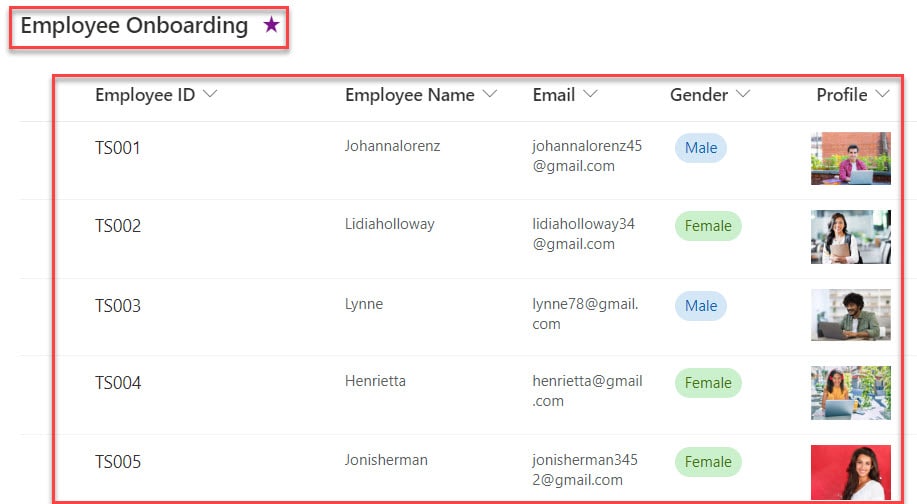
Now, I would like to display all SharePoint images in Power Apps using the Image control. For this, we can add a gallery, and within it, an image control.

To do so, follow the steps below.
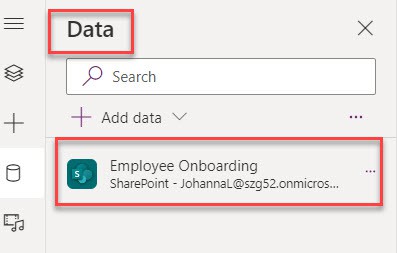
- In the Power Apps app, connect it to the respective SharePoint list [Employee Onboarding], as shown below.
- On the Power Apps Screen -> Insert a Gallery control and set its Items property as:
Items = 'Employee Onboarding'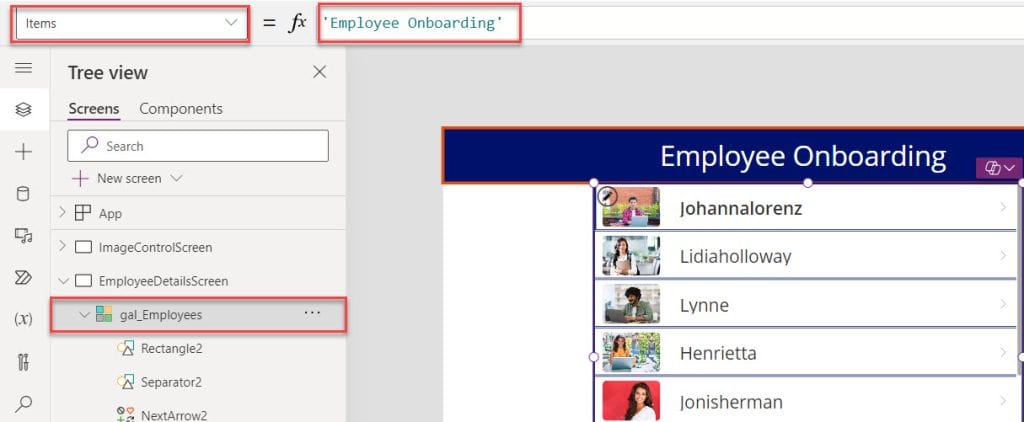
- Sometimes, when you add the data source directly to the gallery, the image cannot be displayed in the image control (within the gallery). For that, select the image control and set its Image property to the code below.
Once you save and preview the app, you can see all the employees’ profiles. Have a look at the screenshot below.
Image = ThisItem.Profile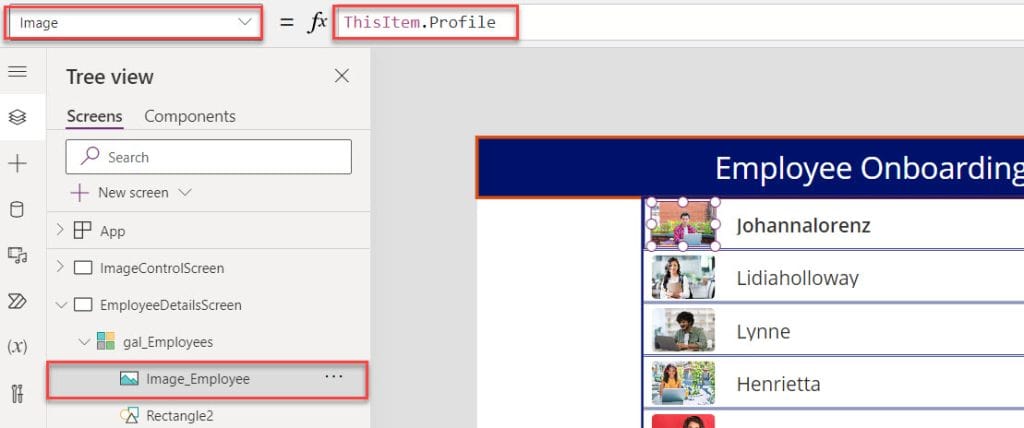
Display Image from URL in Power Apps
Now, we will discuss how to display an image from a URL in an image control.
Scenario:
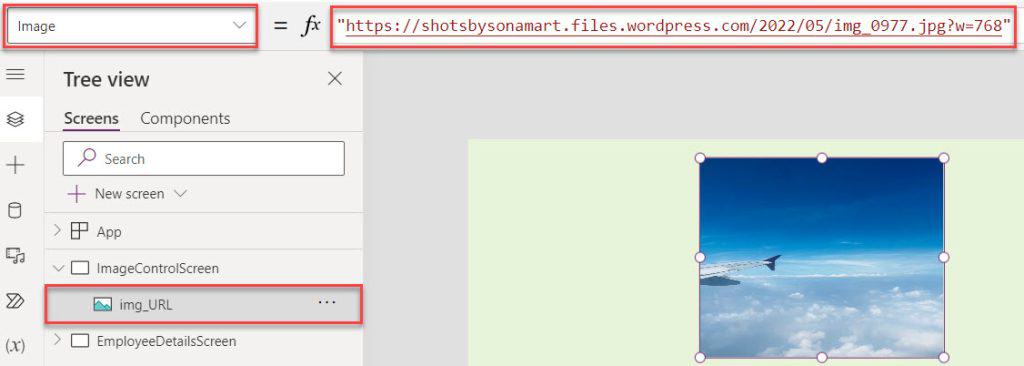
The Image property of the Image control supports any image URL, which makes it easy to display pictures in your app. Make sure to place the URL inside double quotes (” “) when adding it, as shown in the example below.
We just need to paste the image web URL into the Image control, and the image will show on the screen.
Reset Power Apps Image Control
Sometimes we may need to clear an image from the app before uploading a new one. In such cases, the Reset feature in Power Apps is helpful.
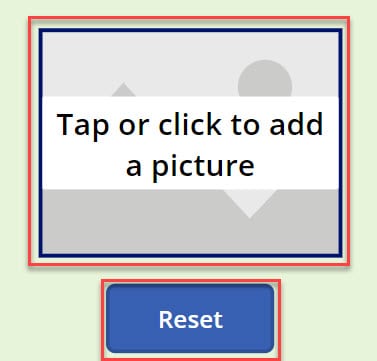
However, the Image control does not support the Reset property. To handle this, we can use the Add Picture control instead, which is available under Insert -> Media. This control allows the image to be cleared and uploaded again easily.
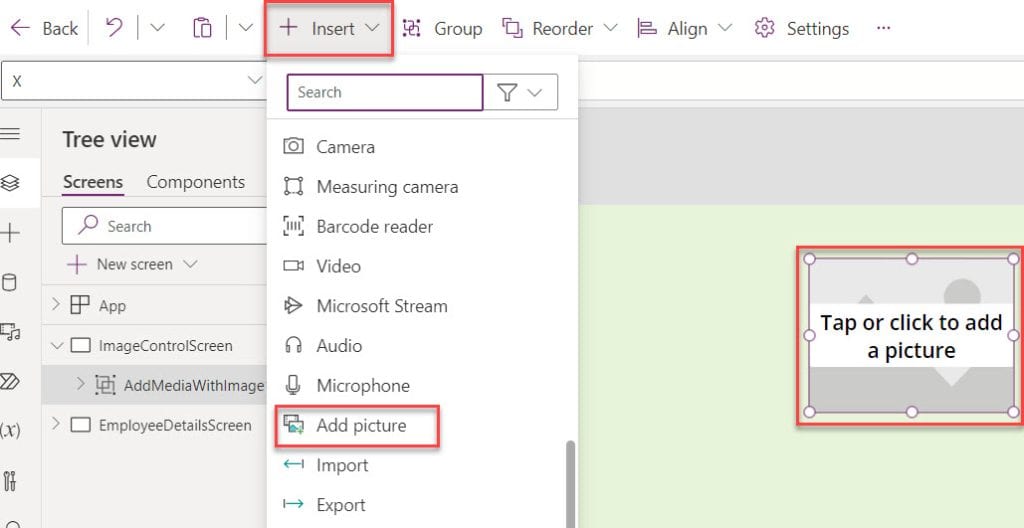
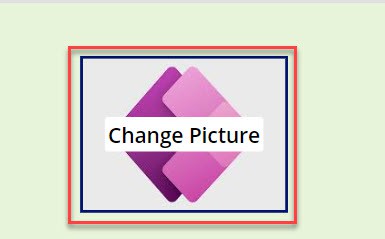
While holding down the Alt key and clicking the add picture control, you can now upload an image from the local drive, as shown in the screenshot below.
Now, add a button that lets users reset or clear the image above. This will enable users to initiate a fresh upload by clicking the button. To do so, set the Button OnSelect property to the code below.
OnSelect = Reset(AddMediaButton)Where,
- AddMediaButton = It is the name of the button control under the “Add Picture” control
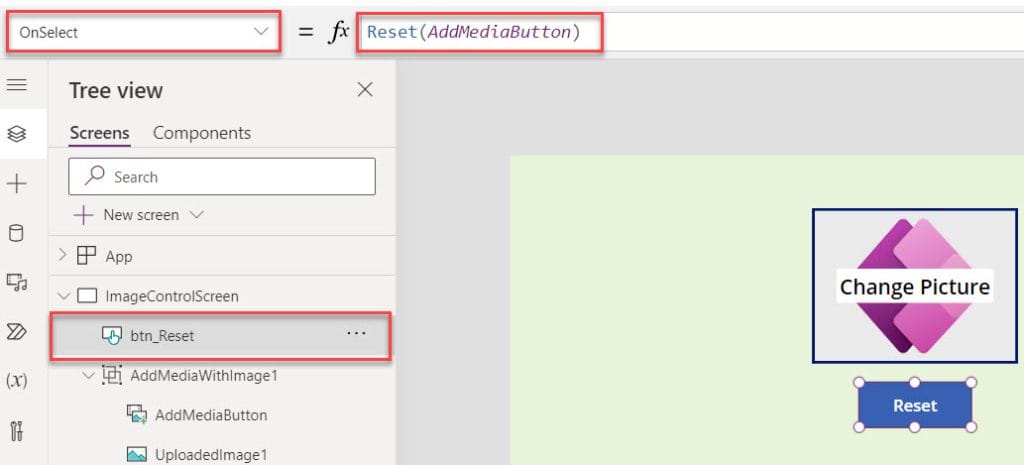
- Save, Publish, and Preview the app. When the button is clicked, the control resets the image and displays the sample image.
I hope this article is helpful; here, we learned in detail about the Power Apps Image control and its key properties. Also, we saw how to add images to an image control and display SharePoint images in a Power Apps image control with various examples.
Additionally, you may like some more Power Apps tutorials:
- Dataverse Image Column
- Power Apps Modern Card Control
- Upload Images to Dataverse From Power Apps
- Search User in Power Apps
- Get Tenant Name in Power Apps

Hey! I’m Bijay Kumar, founder of SPGuides.com and a Microsoft Business Applications MVP (Power Automate, Power Apps). I launched this site in 2020 because I truly enjoy working with SharePoint, Power Platform, and SharePoint Framework (SPFx), and wanted to share that passion through step-by-step tutorials, guides, and training videos. My mission is to help you learn these technologies so you can utilize SharePoint, enhance productivity, and potentially build business solutions along the way.

