While working on an internal app, a Power Apps gallery contains more than 100 records. Whenever I wanted to search for an item in the gallery, I kept scrolling to find the specific record, which took too long.
To make the search thing easier, I added a Text input box where users can type exactly what they want to search for, and then the gallery will filter accordingly.
In this article, I will explain how to search in a Power Apps gallery, so that the user can find details easily without scrolling through a large gallery.
Also, we will see the topics below:
Search in a Power Apps gallery with a single field
Search in a Power Apps Gallery with multiple fields
To search for any item from the Power Apps gallery, the best approach is to use a text/search box. Inside the search box, the user can enter a few letters, and the gallery will filter and display the items that match the search.
Let’s start with some examples.
Search Items/Records in Power Apps Gallery
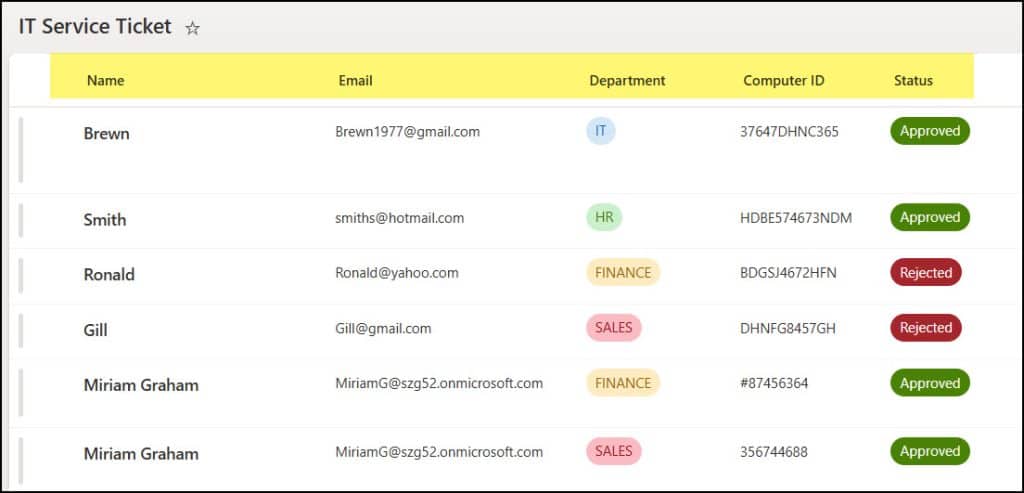
I have a SharePoint list named IT Service Ticket that contains various columns below:
Column
Data type
Name
Single line of text (Just renamed Title field)
Email
Single line of text
Department
Choice [IT, HR, FINANCE, SALES]
Computer ID
Single line of text
Status
Choice [Approved, Rejected]
We can search for an item using a single SharePoint field or multiple fields. That means we can use a single search box to search for both the Name and the Computer ID. Let’s do one by one.
Search Power Apps Gallery by Single Column
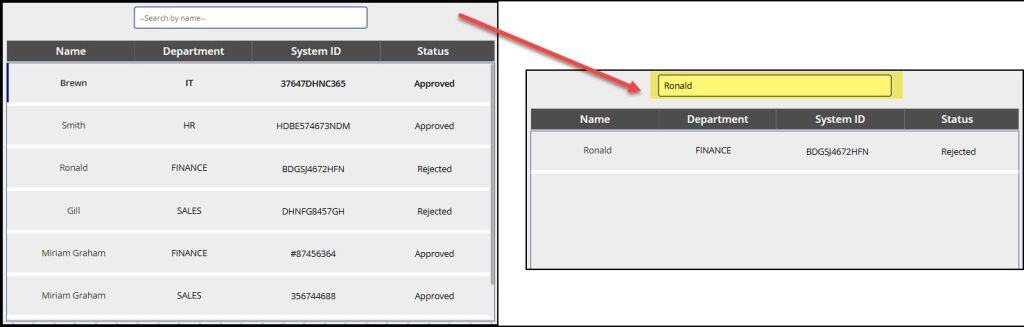
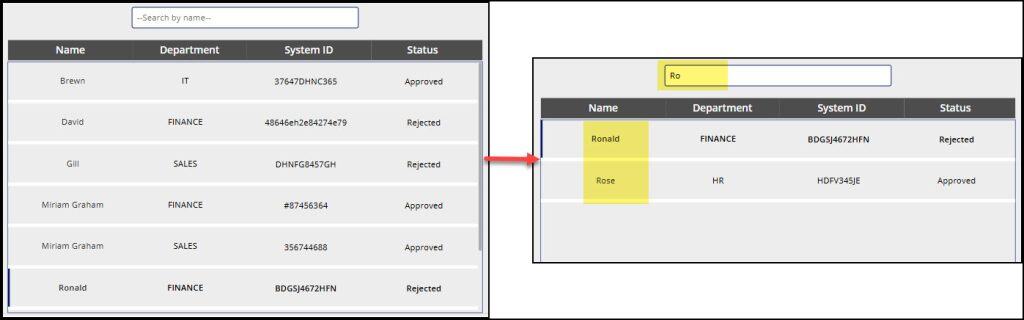
In Power Apps, there is a Text input (for searching items) and a Gallery control. Now, when a user searches for a name, the gallery filters the results by that name.
For example, when I searched for Ronald here, the gallery filtered the results and provided the details shown below.
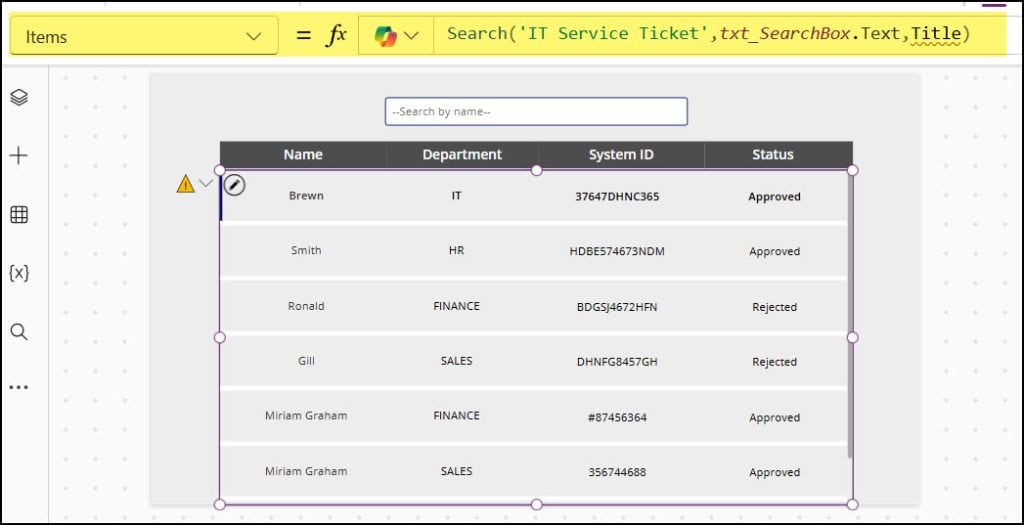
To achieve this, apply the code below to the Gallery’s Items property:
Search(
    'IT Service Ticket',
    txt_SearchBox.Text,
    Title
)
Where,
txt_SearchBox = Search input box name
Title = Provide the SharePoint column that you want to search
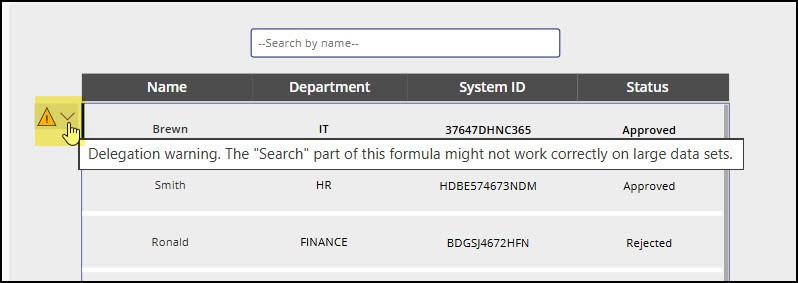
But as soon as you apply the code, you will see a Delegation warning message because the Power Apps Search() function is not delegable.
To avoid delegation issues, we can first load all the SharePoint list data into a Power Apps collection. Once the data is stored locally in the collection, we can safely use the Search function without any delegation warning.
Follow the steps below to do so:
Go to App’s OnStart property or Screen’s OnVisible property and set the code below:
ClearCollect(
    colServiceTicketData,
    'IT Service Ticket'
);
Where,
colServiceTicketData = Collection name
Next, run the App onstart (… -> Run OnStart).
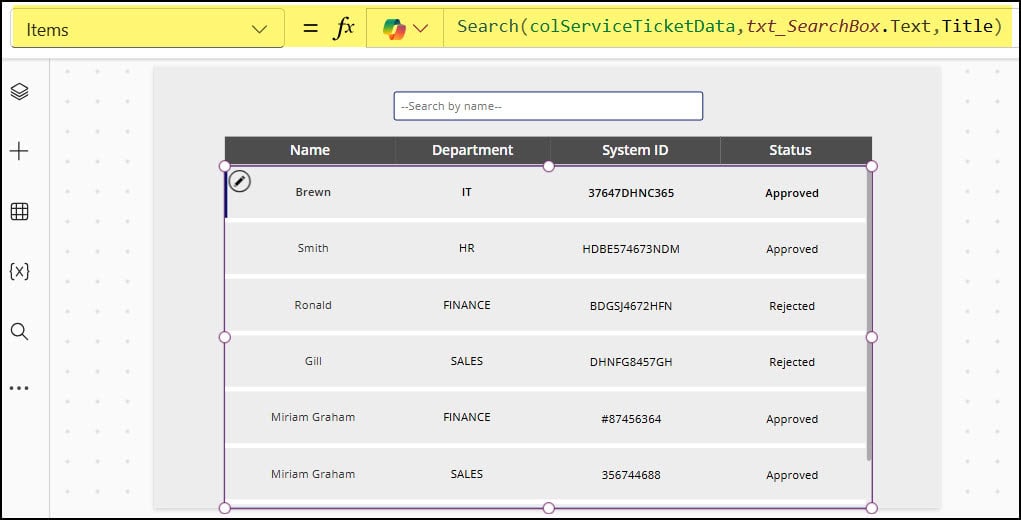
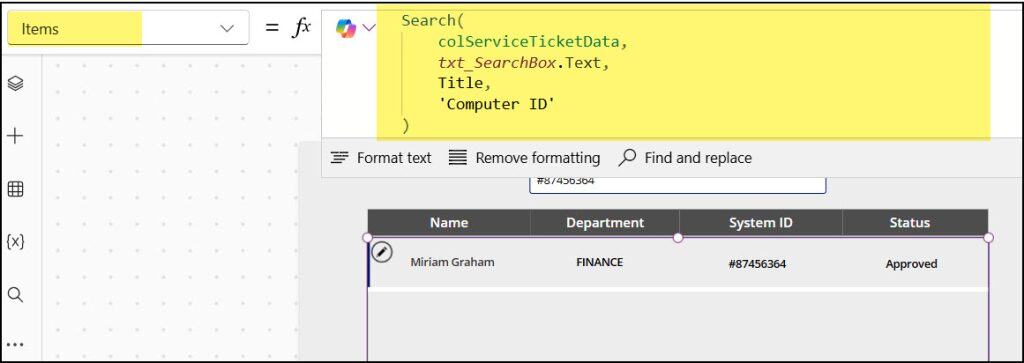
Select the Gallery’s Items property and apply this formula:
Search(
    colServiceTicketData,
    txt_SearchBox.Text,
    Title
)
We need to replace the collection name instead of the SharePoint list. Now you won’t see any delegation issue in the gallery.
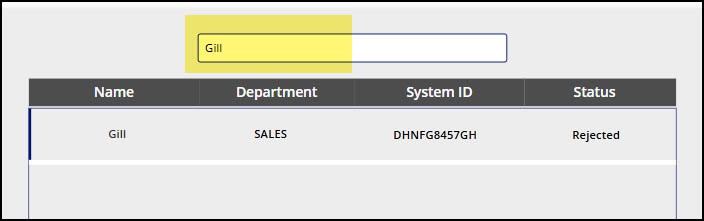
Save, Publish, and Preview the app. When you start searching for a name, the gallery will filter and display results accordingly.
Search Power Apps Gallery by Multiple Columns
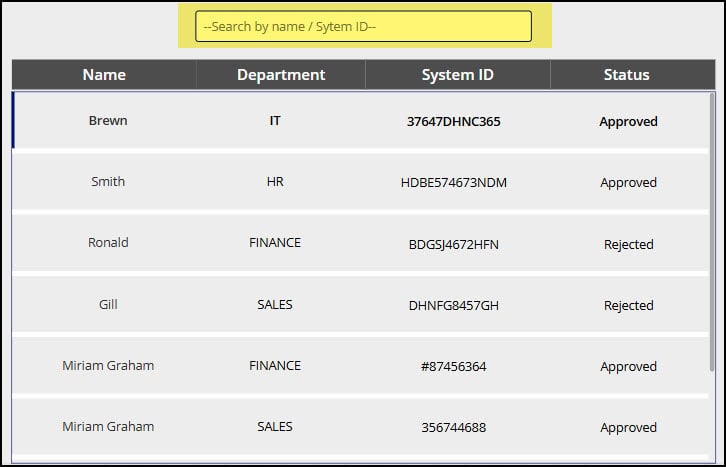
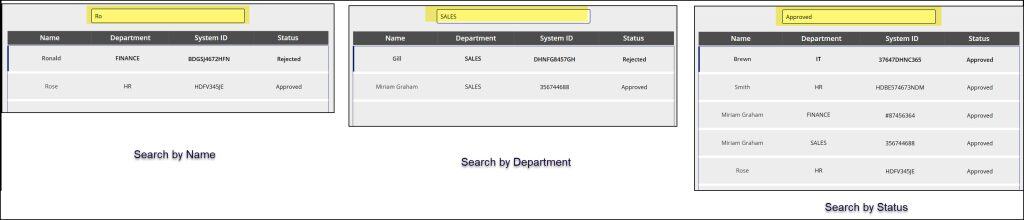
Here, within the single search box, I wanted to search by name or system ID.
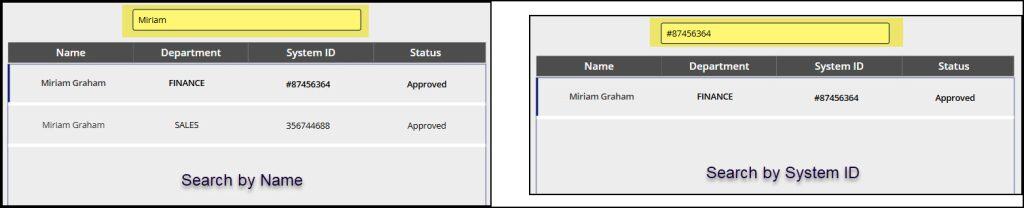
Whenever I search for a particular name or computer ID, the gallery filters accordingly.
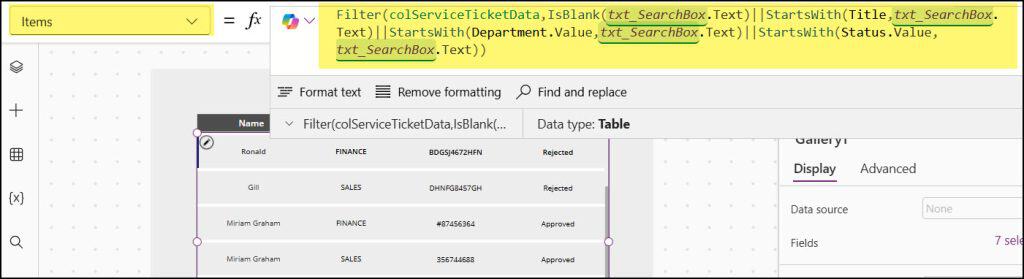
To achieve it, apply the code below to the gallery’s Items property:
Next, we’ll look at how to search and sort the gallery in Power Apps at the same time.
Example – 1:
In Power Apps, sorting a gallery means the items appear in alphabetical order (either ascending or descending). When you combine search and sort, the gallery keeps the same order even after the user types something in the search box.
For example, if the gallery is sorted alphabetically and the user searches for “R” or “Ro”, all items starting with “R” will still appear in alphabetical order.
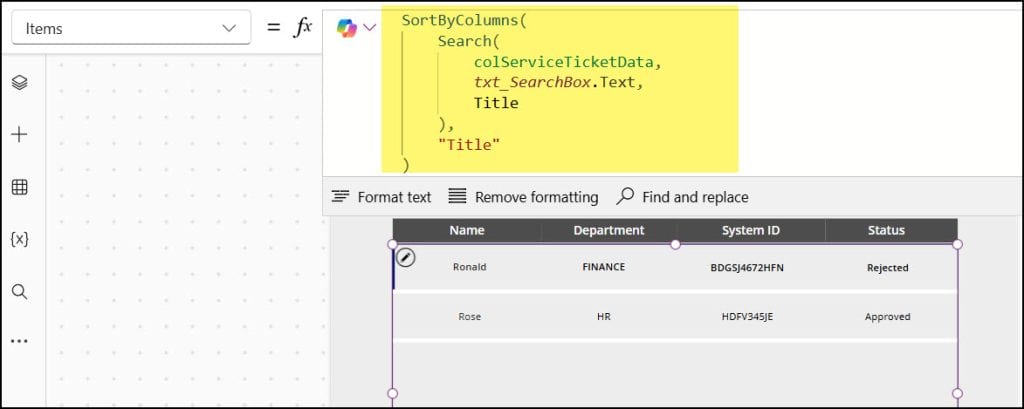
To achieve this, apply the formula below to the gallery’s Items property:
SortByColumns(
    Search(
        colServiceTicketData,
        txt_SearchBox.Text,
        Title
    ),
    "Title"
)
Refer to the image below:
Example – 2:
In this example, the gallery is sorted by customer name. When the user taps the sort icon, the gallery items appear in ascending order. If they tap the icon again, the items switch to descending order.
Moreover, when you search for the product in the text box, you can also view it in ascending or descending order as per your choice.
To work around this, first, we need to create a context variable on the Sort icon’s OnSelect property as:
txtEnterProduct = Text input control name where the user will enter the product title
“Title“, “Customer Name” = Both columns are SharePoint single-line text fields
NOTE:
Here, you can also see a delegation warning in the gallery because the SharePoint list has a large amount of data. To avoid this issue, we can use a Power Apps collection.
For this scenario, I will take a SharePoint list named TSInfo Attachments. This list has the following columns:
Column
Data type
ID
Number
Title
Single line of text
Attachment Types
Choice
Attachment Costs
Currency
Book Author
Person
IsReceieved
Yes/no
In Power Apps, I have a Dropdown and a Text Input control. The dropdown lets the user choose an attachment type, and the text box allows them to search by attachment cost.
We can use these controls in two ways:
When the user selects an attachment type from the dropdown, the gallery will show only the records that match that type.
If the user wants to filter by both attachment type and attachment cost, the gallery can handle that as well.
Refer to the screenshot below.
To achieve this, select the gallery control and set the code below on its Items property:
Save and preview the app. When you select an attachment type, the gallery displays all records related to the dropdown selection.
Also, if you enter the cost, then the gallery will filter again and show the appropriate result.
Search Power Apps Gallery by ID
In the SharePoint list shown below (Products), you can see several items with unique IDs such as 1, 2, 3, and so on. The ID column is a default number column that SharePoint creates automatically for every list.
I want to display SharePoint records in a gallery based on their unique ID. When the search box is empty, the gallery shows all items. But if the user types a specific ID, the gallery filters and shows only the matching record.
Now let’s look at how I achieved this in the app.
NOTE:
One important thing to remember is that you cannot use the SharePoint ID column directly inside the Power Apps Search function.
There are two reasons for this:
The Search function only works with text fields, but the SharePoint ID column is a number field.
TextInput.Text is treated as text, not a number.
To fix this, we need to create a text version of the ID. So we add a new text column that stores the ID as text, and then we search on that column instead. For this, we use AddColumns() together with the Search function.
Select the gallery and set the Items property to the formula below:
“newID” = Specify the new column name where the ID will be stored
Text(ID) = PowerApps Text function helps to convert the ID to Text format.
txtSearchID = Specify the text input control name where you can search the ID, along with the Product title and Customer name
“Title“, “CustomerName” = SharePoint Text fields
Refer to the screenshot below.
Now save and preview the app. When you search by item ID, title, or customer name, the gallery will show the matching records.
However, using this formula may show a delegation warning. If your SharePoint list has fewer than 2,000 items, you can avoid the issue by increasing the data row limit from 500 to 2000 in Power Apps settings.
If your SharePoint list has more than 2,000 items, it’s better to load the data into a Power Apps collection and then filter the gallery using that collection.
To do this, create a collection in the app’s OnStart property like this:
Next, I want to explain an issue I faced while using the above formulas. When I searched for a single SharePoint item ID, the gallery returned multiple items instead of just one.
For example, if I searched for ID 5, the gallery showed items with IDs 5 and 15. This happened because the search matched any value that contained the number 5 (e.g., 5, 15, 25).
But this is incorrect; I only want the item with ID 5. To fix this, I used the Power Apps StartsWith function to properly filter the gallery.
So first, we need to convert the ID to Text format, and then use a combination of Filter and OR functions to achieve this. Set the code below on the gallery’s Items property as:
Similarly, to overcome the Power Apps Delegation issues, use the collection instead of the SharePoint list as follows: (apply the below formula on the gallery’s Items property)
colProductDetails = Collection name that I have created in the App’s OnStart property
Now save and preview the app. Search your item ID in the search box and get the appropriate result in the gallery control.
I hope this article helped you understand how to search in a Power Apps gallery, whether it has a single column or multiple columns.
We walked through how to search and sort gallery items, search the Power Apps gallery by text input, and search the gallery items by ID. With these methods, your users can quickly find the information they need without scrolling through long lists.
Hey! I’m Bijay Kumar, founder of SPGuides.com and a Microsoft Business Applications MVP (Power Automate, Power Apps). I launched this site in 2020 because I truly enjoy working with SharePoint, Power Platform, and SharePoint Framework (SPFx), and wanted to share that passion through step-by-step tutorials, guides, and training videos. My mission is to help you learn these technologies so you can utilize SharePoint, enhance productivity, and potentially build business solutions along the way.
1 thought on “How to Search in a Power Apps Gallery [With Examples]”





Thank you!!