
If you’ve ever recorded a Teams meeting and then tried to share it with someone outside your organization, a client, a vendor, or a freelancer, you already know it’s not as straightforward as just copying a link.
External users don’t automatically get access to your recording, even if they were in the meeting. I’ve run into this more than once, and I know how frustrating it can be when someone says, “I never got the recording.”
In this tutorial, I’ll walk you through exactly how to share a Microsoft Teams recording with external users — step by step, with multiple methods so you can pick the one that works best for your situation.
Why External Users Can’t Access the Recording by Default
Before jumping into the steps, it helps to understand why this happens.
When you record a Teams meeting, the recording is saved either to:
- OneDrive — for regular (non-channel) meetings. It goes into the folder of the person who pressed the Record button.
- SharePoint — for channel meetings. It gets saved in the team’s SharePoint document library under a “Recordings” folder.
Both OneDrive and SharePoint follow your organization’s sharing policies. Since external users are outside your organization, they don’t automatically get permissions to view files stored in your company’s cloud. They might see the recording link in the chat, but clicking it usually gives them an “Access Denied” error.
Also, worth knowing: only the meeting organizer or the person who pressed Record can share the recording externally. If you’re neither, you’ll need to ask one of them to do it.
Give Access to Microsoft Teams Recording to External Users
Let’s discuss 5 methods for granting external users access to Teams recordings.
Method 1: Share Directly from OneDrive (Most Common)
This is the most straightforward method for regular (non-channel) meetings. Here’s how to do it.
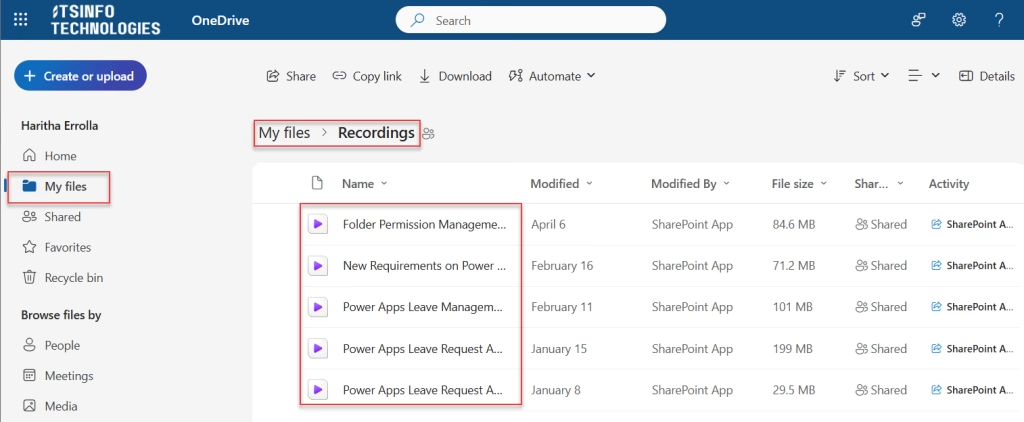
Step 1: Find the recording in OneDrive
- Go to onedrive.com and sign in with your Microsoft 365 account.
- Navigate to My Files > Recordings folder.
- Find the recording file — it’ll usually be named with the meeting title and date.
Step 2: Share with the external user
- Hover over the recording file and click the Share icon (or right-click > Share).
- A sharing dialog box will open.
- In the “To:” field, type the external user’s email address.
- Click the pencil/settings icon next to the recipient to adjust permissions:
- Select “Can view” if you only want them to watch, not download or edit.
- Uncheck “Allow editing” to keep the file safe.
- Optionally, add an expiry date so the link stops working after a certain date — useful for client recordings.
- Click Send.
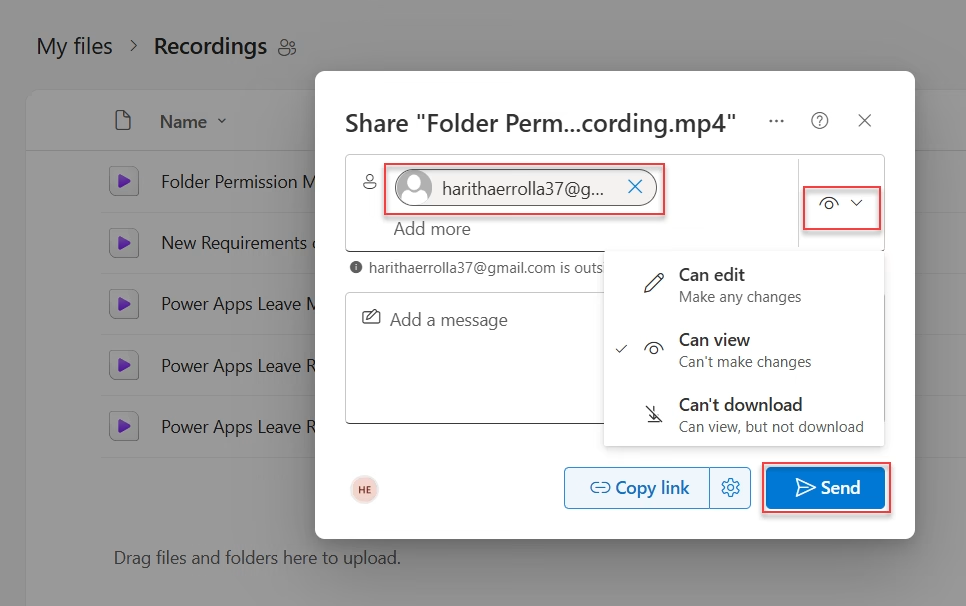
The external user will receive an email with a link to the recording. Depending on your organization’s settings, they may need to verify their identity (like entering a one-time code to their email) before they can watch it.
Method 2: Share with “Anyone with the Link”
If you need to share a recording quickly — say, to a large group of external attendees — generating a shareable link is the easiest option. However, this method is only available if your organization’s IT admin allows external sharing in OneDrive/SharePoint.
Step 1: Open sharing settings
- Go to OneDrive > Recordings, find the file, and click Share.
- At the top of the sharing dialog, click the link settings (usually shows something like “People in [Your Org] with the link”).
Step 2: Change the link type
- Select “Anyone with the link” — this lets anyone who has the link view the recording, no sign-in required.
- You can also:
- Set an expiration date — the link becomes inactive after that date.
- Set a password — the viewer needs to enter the password to access the recording.
- Block download — they can watch but can’t save a copy.
- Click Apply, then Copy Link.
- Send the link manually via email or message.
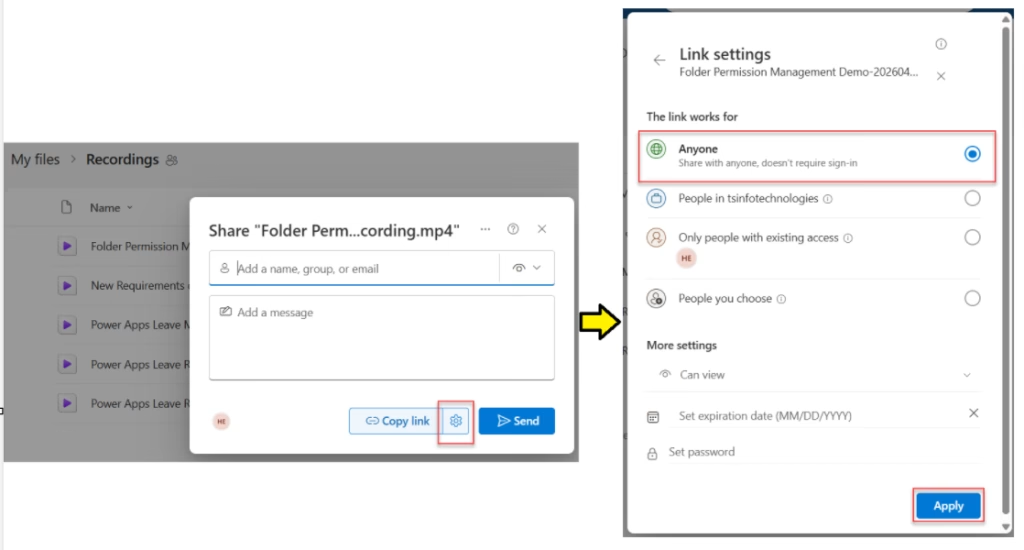
Note: The “Anyone with the link” option must be enabled by your IT admin. If you don’t see it, reach out to your admin and ask them to check the SharePoint/OneDrive external sharing settings in the admin center.
Method 3: Share a Channel Meeting Recording from SharePoint
Channel meeting recordings are stored in the team’s SharePoint site, not OneDrive. Here’s how to access and share them:
Way 1: Go to the SharePoint site
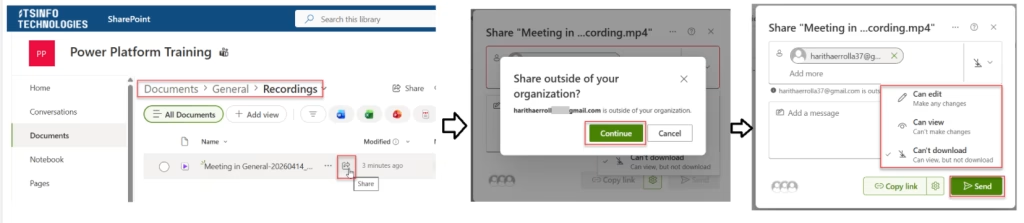
- Click on the Documents folder -> Click on the Channel [General].
- Look for the Recordings folder.
- Find the recording file.
- Click the Share icon -> In the sharing dialog, enter the external user’s email address. It will ask for confirmation; click the Continue button.
- Then choose the permissions and click on the Send button.
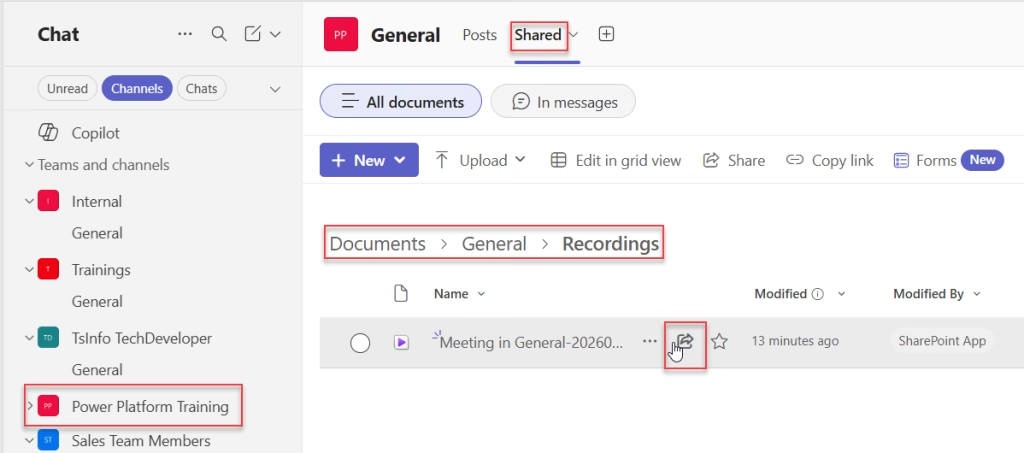
Way 2: Click on the Teams Icon Next to the SharePoint site name.
- It opens the Teams channel, as shown in the image below.
- Click on the Shared tab.
- Go to the General folder within the Documents. Then open the Records folder.
- You’ll find your recording files here. Click on the Share icon.
- In the sharing dialog, enter the external user’s email address or generate an “Anyone with the link” URL (if your SharePoint settings allow it).
- Set the permissions and click Send or Copy Link.
Important: For this to work, your SharePoint site must have external sharing enabled. This is controlled by your IT admin in the SharePoint Admin Center. If sharing with external users is blocked at the site level, you won’t be able to share it this way.
Method 4: Download and Share the File Directly
If your organization has strict sharing policies and the above methods don’t work, there’s always the manual fallback — download the recording and send it directly.
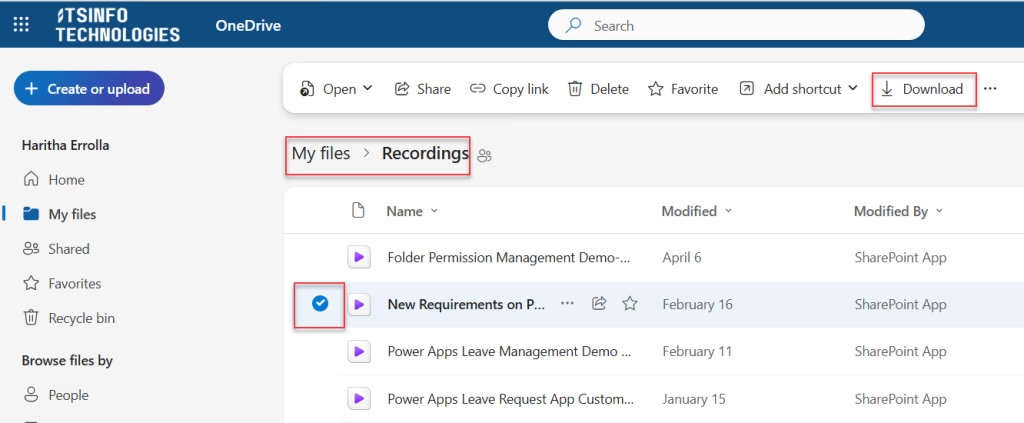
- Go to OneDrive or SharePoint, find the recording.
- Click the three dots (…) > Download, or in the Command bar, the Download button is there, as shown in the image below.
- The file will download as an .mp4 to your computer.
- You can then share it via email attachment, WeTransfer, Google Drive, SharePoint with different permissions, or any other file sharing service.
This method bypasses all Teams/SharePoint permission restrictions. The downside is the file size — Teams recordings can be quite large (several hundred MB for a 1-hour meeting), so email might not be ideal. A cloud storage link works better.
Method 5: Using Meeting Options to Control Access (Teams Premium / Copilot License)
If you have a Teams Premium or Microsoft 365 Copilot license, there’s a built-in meeting option that lets you control who can access the recording before the meeting even starts.
Here’s how:
- Open the meeting in your Teams calendar and click Meeting options.
- Go to Recording & transcription in the left menu.
- Under “Who has access to the recording and transcript”, you’ll see three options:
- Everyone — all attendees can access
- Organizers and co-organizers only
- Specific people — you pick who gets access
This setting controls access within Teams, but it doesn’t directly add external users. To give externals access, you’ll still need to share via OneDrive or SharePoint (Methods 1–4). Think of this setting as a way to lock down internal access before worrying about external sharing.
A Few Things to Keep in Mind
Before you go ahead and share recordings, here are some things worth double-checking:
- You must be the organizer or the recorder to share externally. If you’re neither, ask the person who recorded it.
- External sharing must be allowed by your IT admin. If you see no external sharing options, contact your admin and ask them to enable it in the Microsoft 365 Admin Center.
- Set an expiry date on shared links, especially for sensitive meetings. This is good practice.
- Block downloads if you don’t want external users saving a copy of the recording.
- Use “Specific people” sharing whenever possible rather than “Anyone with the link” — it’s far more secure.
- Guests vs. external users: A guest has been added to your Teams tenant and may have different access than a completely external user. If someone was only a meeting participant from outside your org, they’re external and won’t get automatic recording access.
Common Issues and Quick Fixes
“Access Denied” error for the external user
→ They received the link but don’t have permissions. Go back to OneDrive/SharePoint and share the file directly with their email.
The “Anyone with the link” option is grayed out
→ Your org’s external sharing policy doesn’t allow it. Contact your IT admin.
External user says they can’t sign in to view the recording
→ When sharing, look for a “No sign-in required” option in the link settings. This lets them view without a Microsoft account.
You can’t find the recording in OneDrive
→ Only the person who pressed Record will find it in their OneDrive. Check with that person.
The recording link in the chat shows “Access Denied”
→ This is the default behavior for external users. You need to explicitly share the file — the link in chat doesn’t grant access automatically.
Which Method Should You Use?
Here’s a quick cheat sheet:
- One or two specific people → Use Method 1 (share via OneDrive, enter their email)
- Large group of external attendees → Use Method 2 (Anyone with the link + expiry + password)
- Channel meeting recording → Use Method 4 (SharePoint sharing)
- Org has strict sharing restrictions → Use Method 5 (download and share manually)
- You want to control access before the meeting → Use Method 6 (Meeting Options, requires Teams Premium/Copilot)
That’s really all there is to it. Once you know where the recordings live (OneDrive for regular meetings, SharePoint for channel meetings) and understand that external users need explicit sharing, the whole thing becomes pretty manageable.
The most common mistake people make is assuming the chat link will work for everyone — it won’t. You need to go into OneDrive or SharePoint and share the file properly.
Also, you may like:
- Create an Announcement in Microsoft Teams
- Record Microsoft Teams Meeting
- 4 Tricky Ways to Change Password in Microsoft Teams
- Microsoft Teams Default Profile Picture: How to Change It
- Create a Group in Microsoft Teams

Hey! I’m Bijay Kumar, founder of SPGuides.com and a Microsoft Business Applications MVP (Power Automate, Power Apps). I launched this site in 2020 because I truly enjoy working with SharePoint, Power Platform, and SharePoint Framework (SPFx), and wanted to share that passion through step-by-step tutorials, guides, and training videos. My mission is to help you learn these technologies so you can utilize SharePoint, enhance productivity, and potentially build business solutions along the way.