
If you’ve been building Canvas Apps for a while, you’ve probably run into a situation where you need to update data in a SharePoint list or a collection. That’s when you start wondering: should I use Power Apps Update, UpdateIf, or Patch?
I get this question a lot. In this tutorial, I’m going to break down Update and UpdateIf—what they do, how they work, where they differ, and when to use each. I’ll also throw in real examples so you can follow along and plug them into your own apps right away.
Let’s get into it.
Power Apps Update Function
To replace an entire record in the data source, we can use the Power Apps Update function. It will replace an entire record in your data source with a brand-new one you provide.
Here’s the key thing to remember: if you don’t include a field in the new record, that field gets set to blank. It won’t keep the old value. It just wipes it clean.
Syntax:
Update(DataSource, OldRecord, NewRecord [, RemoveFlags.All])
- DataSource — the table or SharePoint list you’re working with
- OldRecord — the record you want to replace (usually found using
First(Filter(...))orLookUp) - NewRecord — the full record you’re replacing it with
- RemoveFlags.All — optional; only relevant for collections with duplicate records
Power Apps Update Function Example
Let’s say I have a Collection or table called Employees with these columns: ID, Name, Department, Salary.
I want to update the entire record for an employee named “Ravi”:
Update(
    Employees,
    First(Filter(Employees, Name = "Ravi")),
    {
        ID: 1,
        Name: "Ravi",
        Department: "Finance",
        Salary: 75000
    }
)
So, I entered this formula on the Power Apps button’s OnSelect property. After clicking the button, the entire record from the collection got updated.
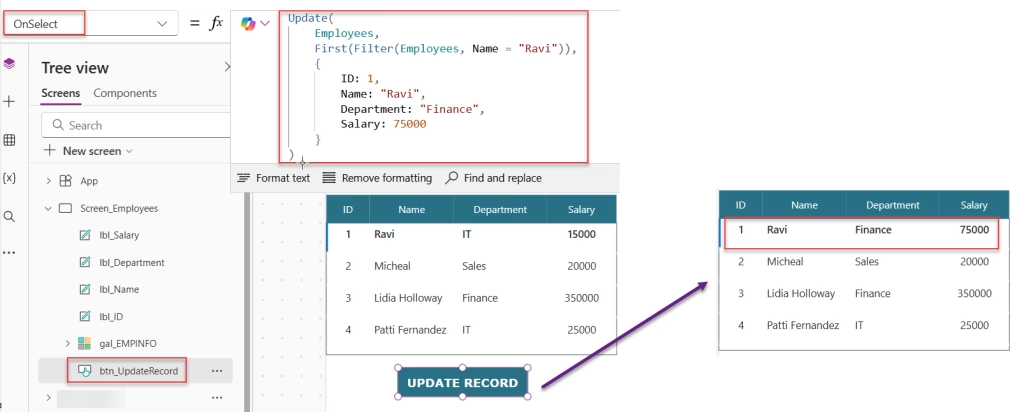
This replaces Ravi’s entire row. Notice I included all four fields. If I had left out Salary, it would become blank in the list. That’s not a bug — that’s just how Update works. It doesn’t merge; it replaces.
When would you use this? When you want to fully overwrite a record, and you have all the values ready, like resetting a form or restoring a record to a default state.
Note: Avoid using Update() directly on connected data sources like SharePoint lists or Dataverse tables. These sources contain server-managed columns (like ID, Modified, Created By) that are auto-generated — you can neither omit them nor include them in the record. This causes a runtime error either way, making Update() practically unusable with such sources. Instead, use Patch() for connected data sources, and reserve Update() for local collections created with ClearCollect().
Power Apps UpdateIf Function
Power Apps UpdateIf() is what you want when you need to update one or more specific fields across records that match a condition — without touching the rest of the data.
Unlike Update, UpdateIf is surgical. It says: “Find all records where this condition is true, and change only these fields.”
Syntax:
UpdateIf(DataSource, Condition1, ChangeRecord1 [, Condition2, ChangeRecord2, ...])
- DataSource — the table, collection, or SharePoint list
- Condition — any formula that returns true or false (you can use column names directly here)
- ChangeRecord — the fields you want to update, written in curly braces
The best part? You can chain multiple condition-change pairs in a single UpdateIf call. More on that in a bit.
Power Apps UpdateIf Function Examples
Let’s look at some examples of the Power Apps Update and UpdateIf functions.
Example 1: Update One Field Based on One Condition in Power Apps
I have a SharePoint list called Tasks with columns: Title, AssignedTo, Status, Priority.
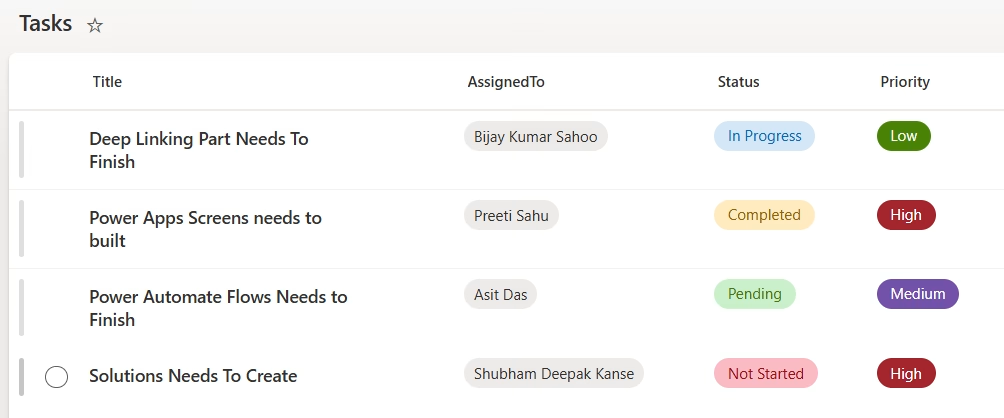
I want to mark all tasks with status “Pending” as “In Progress”:
UpdateIf(Tasks, Status.Value = "Pending", {Status: {Value:"In Progress"}})
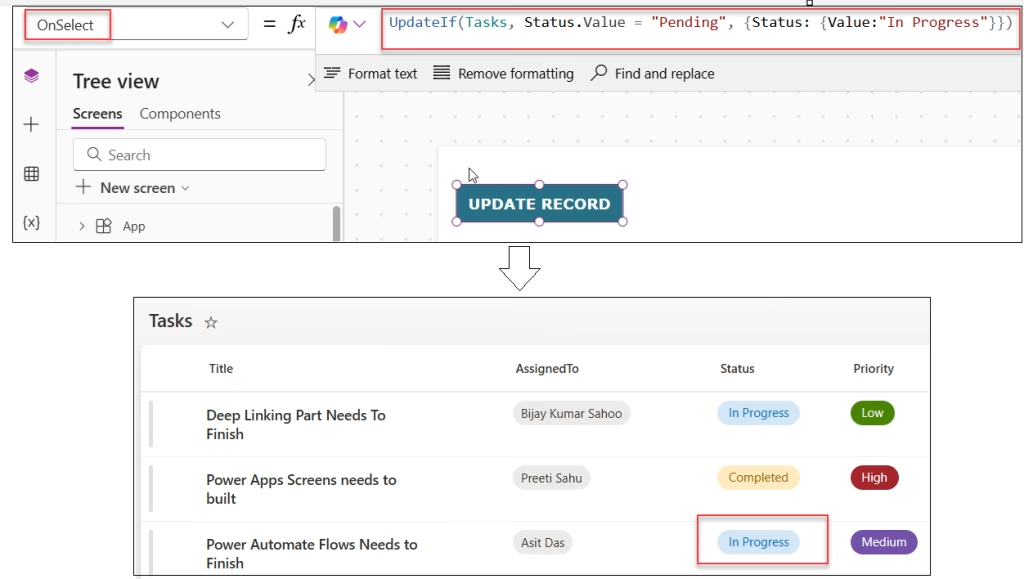
Clean and simple. Only the Status field changes. Title, AssignedTo, and Priority stay exactly as they were.
Example 2: Update Multiple Fields at Once in Power Apps
Now, let’s say I want to update both the Status and Priority for tasks assigned to “Asit Das“:
UpdateIf(
    Tasks,
    AssignedTo.DisplayName = "Asit Das",
    {
        Status: {Value: "In Progress"},
        Priority: {Value: "High"}
    }
)
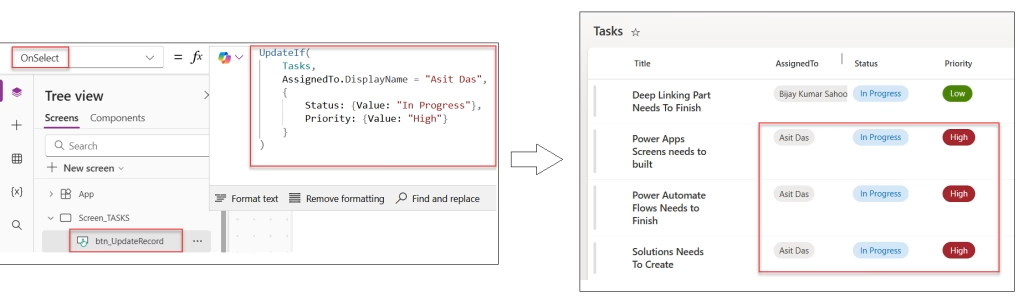
Two fields updated in one shot. This is way more efficient than running two separate update calls.
Example 3: Update Items Using Power Apps AND Conditions
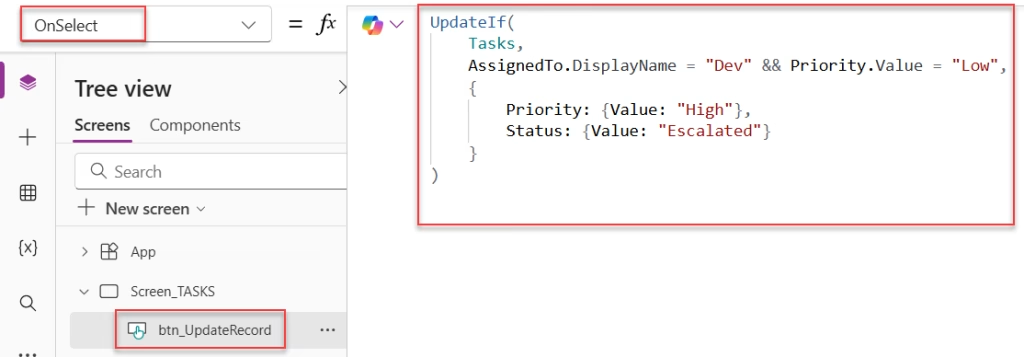
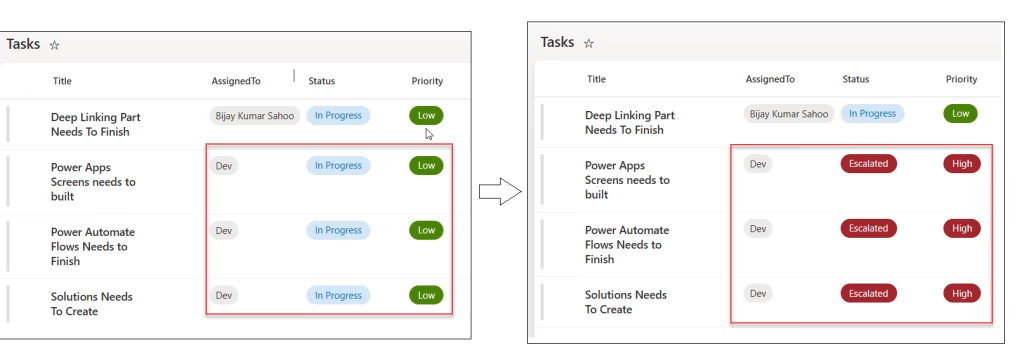
What if I only want to update records where AssignedTo is “Dev” AND Priority is currently “Low”?
UpdateIf(
    Tasks,
    AssignedTo.DisplayName = "Dev" && Priority.Value = "Low",
    {
        Priority: {Value: "High"},
        Status: {Value: "Escalated"}
    }
)
Use && for AND logic and || for OR logic — same as you’d use in a Filter formula.
Example 4: Power Apps Update Based on a Math Expression
You can also use math in your change record. Say I have an Inventory list with a StockCount column, and I want to reduce the stock by 5 for all items with more than 50 units:
UpdateIf(
    Inventory,
    StockCount > 50,
    {StockCount: StockCount - 5}
)
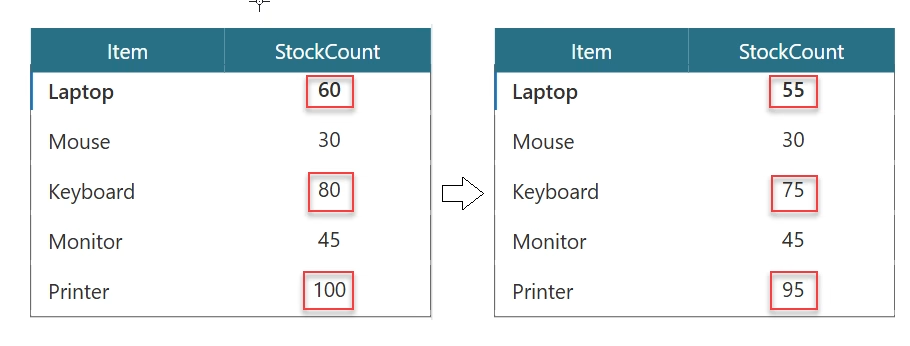
Notice how I’m using StockCount on the right side too. When you write the change record inline with curly braces, you can reference the current value of the field being modified. This is really powerful for things like counters and running totals.
Example 5: Update Power Apps Gallery Selected Item Using UpdateIf()
Here’s a very practical scenario. You have a gallery showing items from a SharePoint list. The user selects an item and clicks a button to mark it as “Completed”:
UpdateIf(
    'Tasks',
    ID = Gallery1.Selected.ID,
    {Status: "Completed"}
)
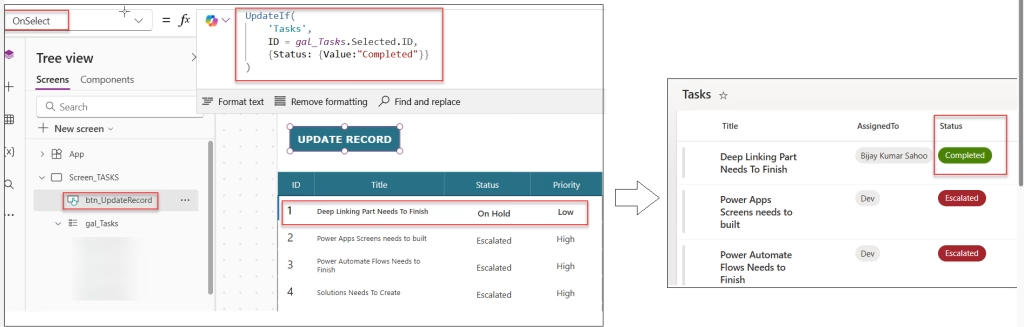
This updates only the selected item. You’re matching by ID, so you know exactly which record gets changed.
Example 6: Set a Field to True for All Records in Power Apps
Sometimes you want to update every record in a list — for example, resetting a flag. You can pass true as the condition:
UpdateIf(Tasks, true, {IsArchived: false})
This sets IsArchived to false for every row. Be careful with this one — there’s no undo.
Power Apps Update vs. UpdateIf – Key Differences
Here’s a quick side-by-side so you don’t mix them up:
| Scenario | Update | UpdateIf |
|---|---|---|
| What it does | Replaces the entire record | Updates specific fields only |
| Missing fields | Set to blank | Left unchanged |
| Target records | One specific record | One or many, based on a condition |
| Syntax style | Needs the old record object | Uses a condition formula |
| Good for | Full record replacement | Partial updates, bulk updates |
| Collections | Supports RemoveFlags.All | Works with collections too |
Power Apps Update and UpdateIf vs. Patch — What’s the Difference?
I can’t write about Update and UpdateIf without mentioning Patch, because people always ask.
- Patch is the most flexible of the three. It can create OR update a single record, and it only changes the fields you specify (like
UpdateIf). It’s also the most delegation-friendly for single-record operations. - Update replaces a whole record. Use it when you want to overwrite completely.
- UpdateIf is the bulk-update specialist. Use it when you need to change many records at once based on a condition.
If you’re updating a single record in a SharePoint list — like when a user submits a form — Patch is usually the better choice. It’s faster and plays nicer with large datasets. But if you’re updating 20 records in one go? UpdateIf is your friend.
Power Apps Delegation Warning – UpdateIf With SharePoint
This is important, and many tutorials skip it.
Power Apps UpdateIf is not fully delegable with most data sources, including SharePoint. What that means is: Power Apps will only pull up to 500 (or 2000 if you’ve changed the row limit setting) records from your list, and then apply the update to those. If your list has 5,000 records and you run an UpdateIf, it might miss records beyond that limit.
Here’s what to keep in mind:
- If your SharePoint list has fewer than 500–2000 items, you’re generally fine.
- If your list is large, consider using Power Automate to handle bulk updates on the server side instead.
- Always check for the yellow delegation warning triangle in your formula bar — it’s Power Apps telling you it can’t guarantee the full dataset is being processed.
Power Apps Update() With Collections
Both functions work beautifully with Power Apps Collections (in-memory tables you create with Collect or ClearCollect). This is actually where I’d suggest practicing first before connecting to a live SharePoint list.
Create a test collection:
ClearCollect(
    colStudents,
    {ID: 1, Name: "Arjun", Score: 80},
    {ID: 2, Name: "Priya", Score: 65},
    {ID: 3, Name: "Kiran", Score: 90}
)
Now update Priya’s score:
UpdateIf(colStudents, Name = "Priya", {Score: 75})
No SharePoint list, no delegation worries. Perfect for testing your logic before wiring it up to real data.
Common Mistakes to Avoid
A few things I’ve seen trip people up:
- Using Update when you should use UpdateIf — if you forget to include all fields in your
Updatecall, fields you left out become blank. Always double-check your new record includes everything. - Forgetting delegation limits —
UpdateIfOn a large SharePoint list, the update won’t update all records if they exceed the row limit. Don’t assume it worked fully without verifying. - Using Update on SharePoint directly —
Updateworks well with collections, but with SharePoint,Patchis often more reliable and practical for replacing a single record. - Not using
First(Filter(...))properly with Update — theOldRecordThe parameter needs to be a record, not a table.First(Filter(...))gives you the first matched record, which is what Update expects.
Conclusion
I hope you found this article helpful. In this guide, I explained both Update and UpdateIf functions in Power Apps. I also shared simple examples, advanced use cases, and how to use conditions like AND. You also saw how to update single fields, multiple fields, and even records from a SharePoint list.
Also, you may like:
- Power Apps Refresh Function
- Power Apps Weekday Function
- Create Tabs in Power Apps
- Get Current Screen Name in Power Apps

Hey! I’m Bijay Kumar, founder of SPGuides.com and a Microsoft Business Applications MVP (Power Automate, Power Apps). I launched this site in 2020 because I truly enjoy working with SharePoint, Power Platform, and SharePoint Framework (SPFx), and wanted to share that passion through step-by-step tutorials, guides, and training videos. My mission is to help you learn these technologies so you can utilize SharePoint, enhance productivity, and potentially build business solutions along the way.