
I am currently working on a small but useful product for creating SharePoint sites using Power Apps and Power Automate. I designed a Power Apps screen that allows people to enter required details, such as the site name, owner, visitor, and storage.
After users submit the data, I created a Power Automate flow that uses the REST API to create the site. The site was created successfully. But I noticed one issue: if someone enters a site name that already exists, the flow still runs successfully, which is not correct. To prevent this, I need to check whether the site already exists.
To do this, SharePoint provides an action called Get lists that returns lists only if the site exists. Using this, we can check whether the SharePoint site is already available.
In this tutorial, I will show you how to check if a SharePoint site already exists in Power Automate.
Check if SharePoint Site Already Exists in Power Automate
Before I explain the steps, let me share the test cases we need to check:
Note:
The Get lists action in Power Automate has only one parameter, which is the Site Address
Test Case 1:
If the site does not exist and we enter that site address, the action will fail. The output statusCode will be 404, which means the site was not found.
Test Case 2:
If the site exists and we have access to it, the action will run successfully. The output statusCode will be 200, which means the site is available.
Test Case 3:
If the site exists but we do not have permission to access it, the action will fail. In this case, the output statusCode will be 403, which means access is forbidden.
Now, let’s create the flow and test all these test cases.
- Create a new Instant Cloud Flow and choose Manually trigger a flow as the trigger. Then, expand the trigger action and add a Text input field where users can enter the SharePoint Site URL.

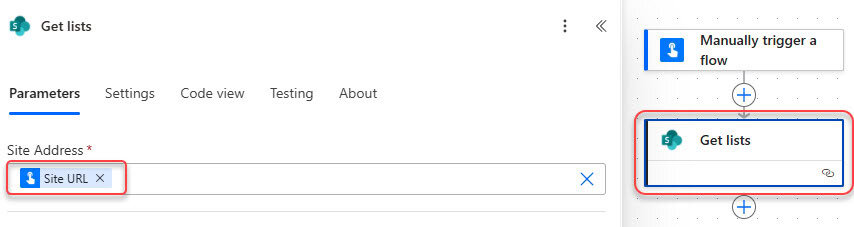
- Add a Get lists action to check the site, and use the dynamic content from the trigger body to provide the Site URL.
- To check the different types of cases, I am adding a Switch action where, in the ‘On’ parameter, add the following expression:
outputs('Get_lists')?['statusCode']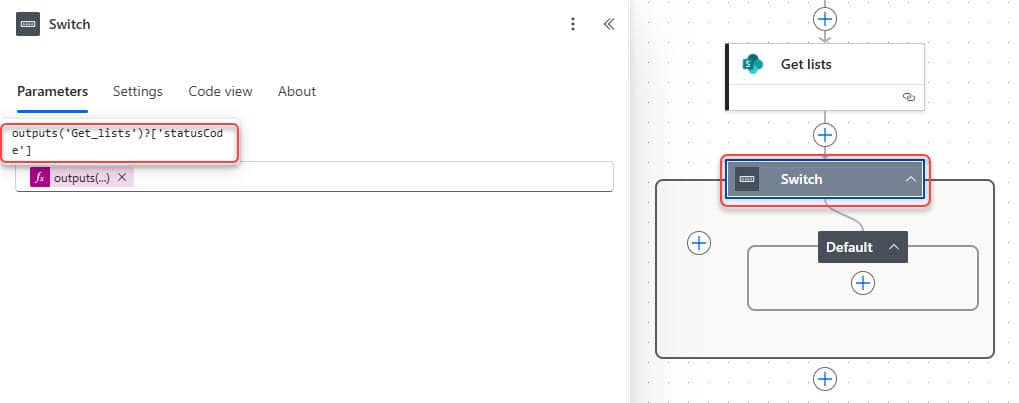
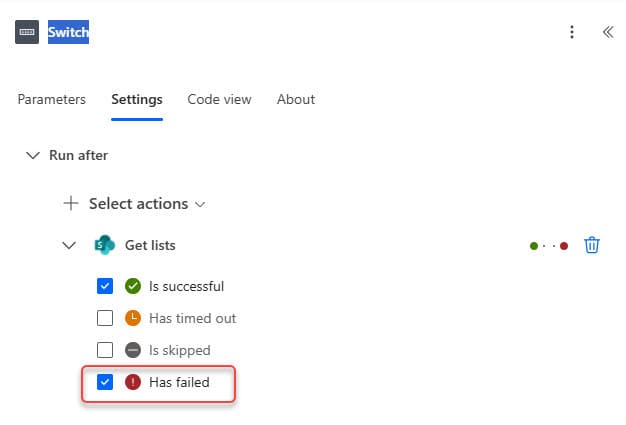
- Then select the Switch, click the settings tab under ‘Run after’, expand ‘Get lists’, and check ‘Has failed’.
- Now add Case 1, and in the ‘Equals’ field, enter the value 404. Inside this case, add a Compose action and write something like:
The site does not exist.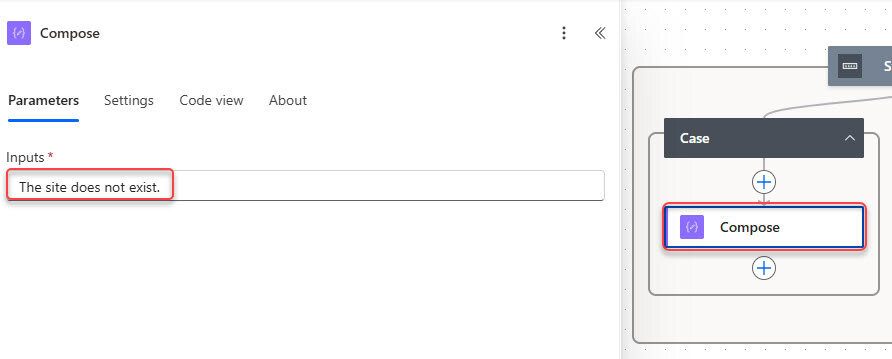
- Then add Case 2, which will run when the statusCode is 200. This means the site exists and you have access to it. Inside this case, add a Compose action and write:
The site exists and you have access.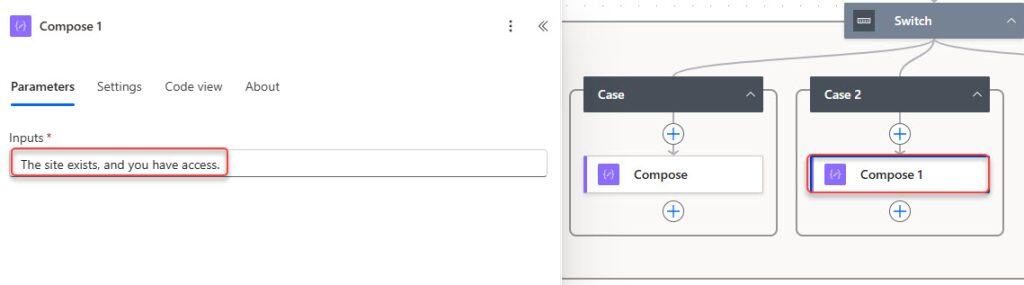
- In the same way, add another case and provide 403 in the ‘Equals’ field. Inside that case, add a Compose action and give the text below:
The site exists, but you do not have access.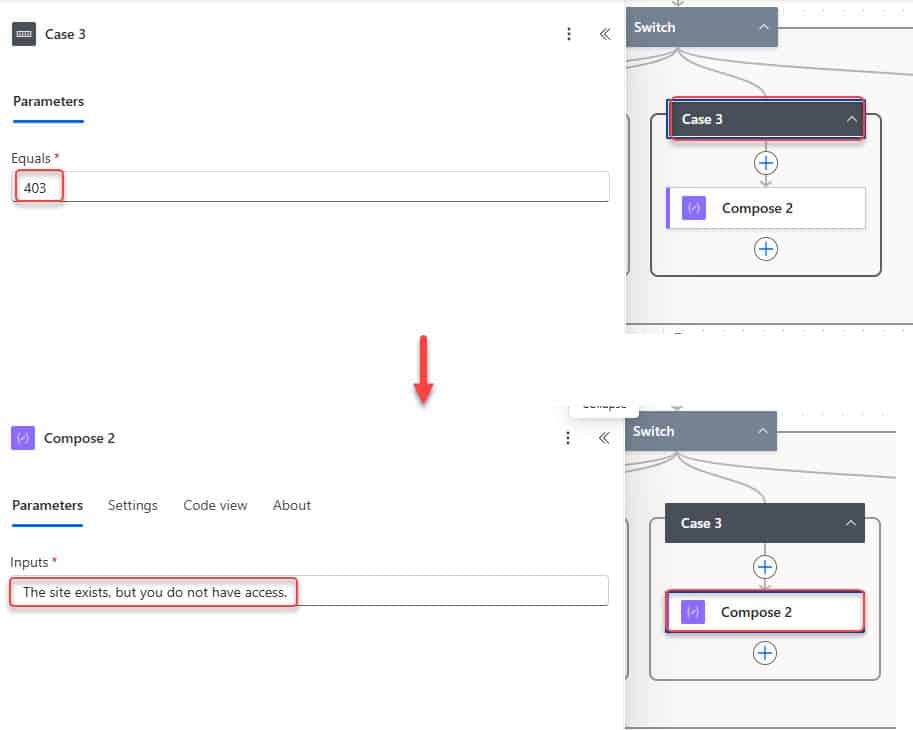
Now our flow is set, we will test the 3 test cases.
Test the Flow to Check if the SharePoint Site Already Exists in Power Automate
Test Case 1: Site does not exist
For this tase case i am using URL: https://<tenant-name>.sharepoint.com/sites/PowerAutomateTutorial10
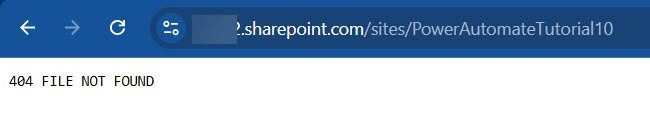
Now go to the flow and run it by clicking manual. Then, provide the above url and click Run flow.

After the flow runs successfully, select the compose action that runs. Then you can see the compose action show “The site does not exist”.
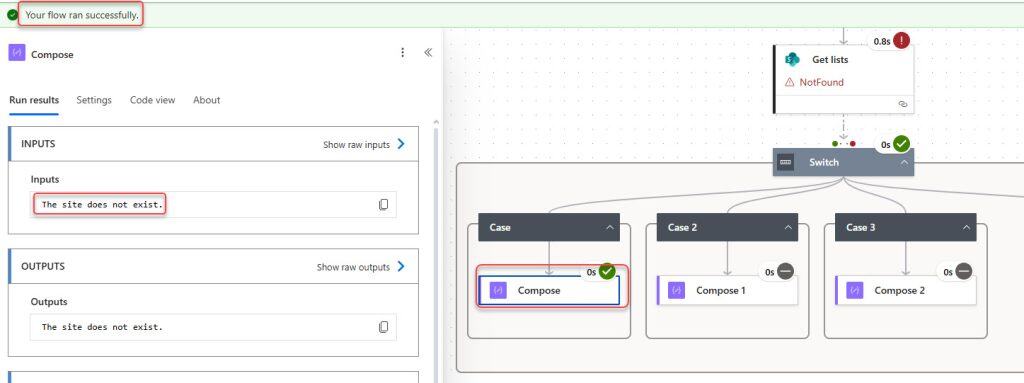
Test Case 2: Site exists, and you have access
For this test case, I am using the URL: https://<tenant-name>.sharepoint.com/sites/PowerAutomateTutorial
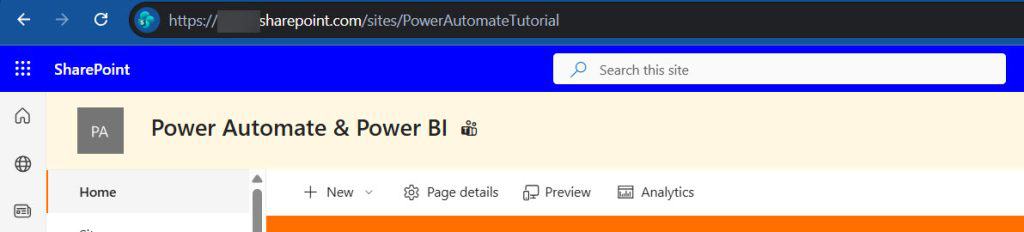
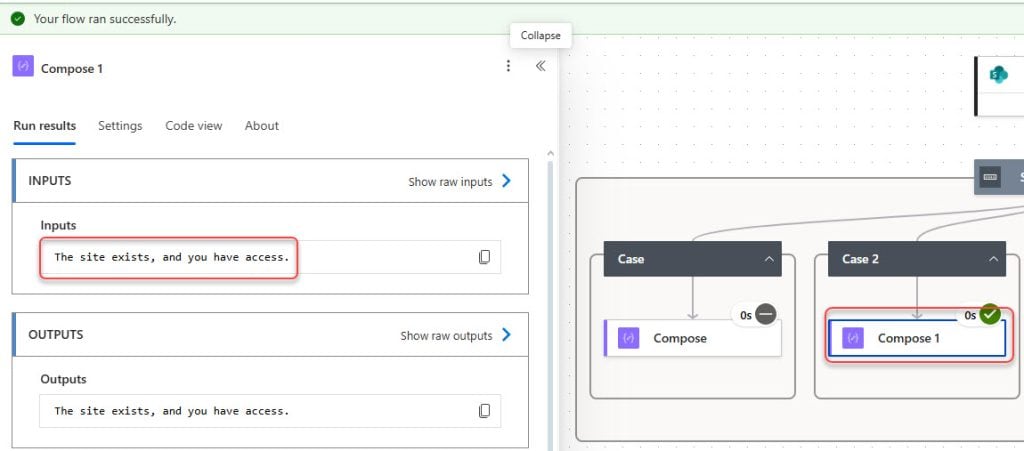
Now go to the flow and run it by clicking Run manually. Then enter the above URL and click Run flow.
After the flow finishes, open the run history and select the Compose action that executed. You will see the message: The site exists, and you have access.
Test Case 3: Site exists, but you do not have access
For this test case, I am using the URL:
https://<tenant-name>.sharepoint.com/sites/SalesDept

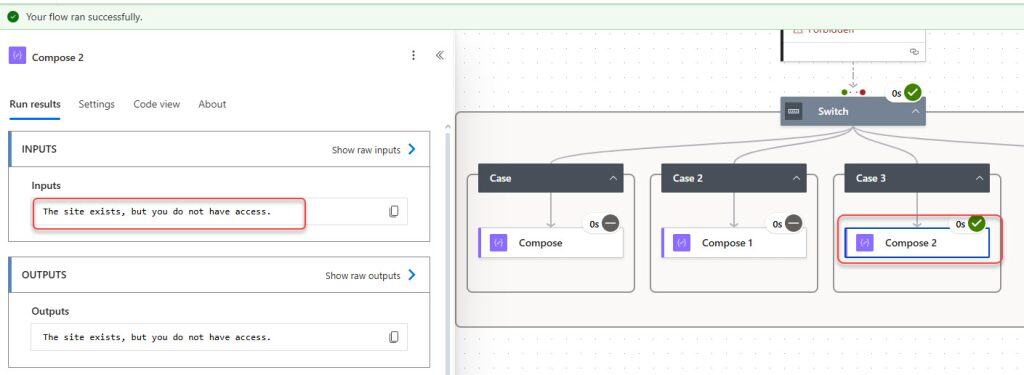
Now go to the flow and run it by clicking Run manually. Then enter the above URL and click Run flow.
After the flow finishes, open the run history and select the Compose action that executed. You will see the message: The site exists, but you do not have access.
In this tutorial, we learned how to check whether a SharePoint site already exists before creating it in Power Automate. By using the Get lists action and checking the status codes (404, 200, and 403), we can easily identify whether a site does not exist, whether it exists and we have access, or whether it exists but we do not have permission.
You may also like:
- Create Custom Responses in Power Automate Approvals
- Remove User From SharePoint Group Using Power Automate
- Send Approvals in Microsoft Teams Using Power Automate
- Send Approval to SharePoint Group Members Using Power Automate
- Create an Approval Workflow in Power Automate Using Microsoft Forms

Hey! I’m Bijay Kumar, founder of SPGuides.com and a Microsoft Business Applications MVP (Power Automate, Power Apps). I launched this site in 2020 because I truly enjoy working with SharePoint, Power Platform, and SharePoint Framework (SPFx), and wanted to share that passion through step-by-step tutorials, guides, and training videos. My mission is to help you learn these technologies so you can utilize SharePoint, enhance productivity, and potentially build business solutions along the way.

