
In my previous post, I mentioned that I am working on a product that creates SharePoint sites using Power Apps and Power Automate. When the site is created, I am adding the current user as an Owner of that site.
But after the site is created, I need a way to remove that user from the SharePoint group, as they do not need access to the site.
In this blog post, I will show you how to remove user from a SharePoint group using Power Automate.
Remove User From SharePoint Group Using Power Automate
For this example, I am using the DMS SharePoint site and want to remove the user “Miriam Graham” from the Owners group.
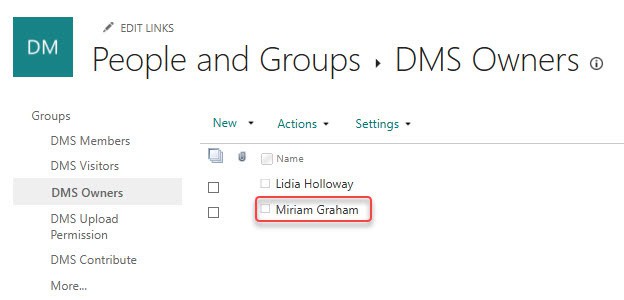
Before I explain the steps, I want to show you how to get the Group ID. We will use this Group ID in the Power Automate flow to remove the user from the SharePoint group.
Get SharePoint Group ID using Power Automate
Now follow the steps below:
- Open Power Automate and create an Instant Cloud Flow. Choose “Manually trigger a flow” as the trigger.
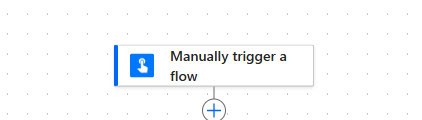
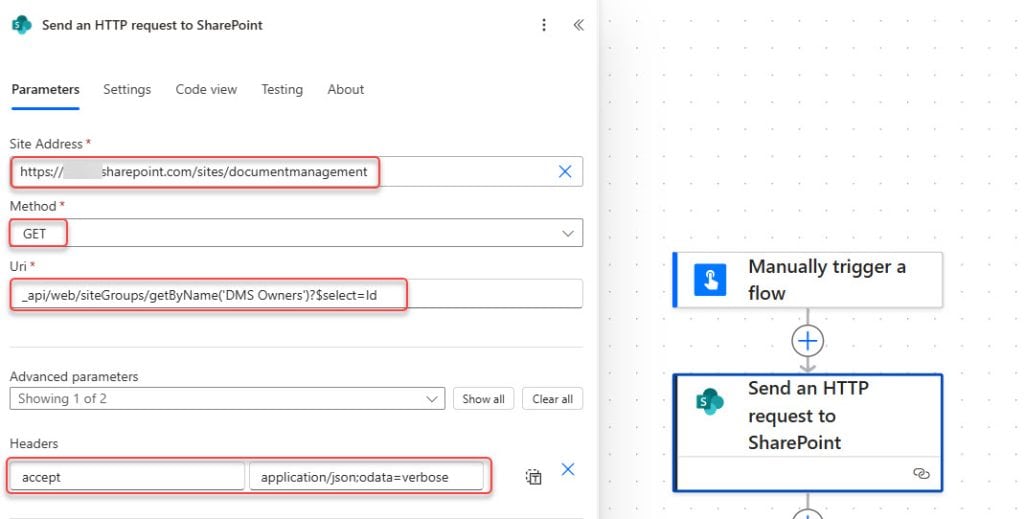
- Next, add a “Send an HTTP request to SharePoint” action to get the Group ID, and provide the parameters shown below:
- Site Address: Select your site address
- Method: Get
- Uri: _api/web/siteGroups/getByName(‘<groupName>’)?$select=Id
- Headers:
{
  "accept": "application/json;odata=verbose"
}
When you run the flow, you will see the Group ID.
Note:
Make sure you have permission for that site to check the Group ID. Otherwise, the flow will return an “unauthorized” error.
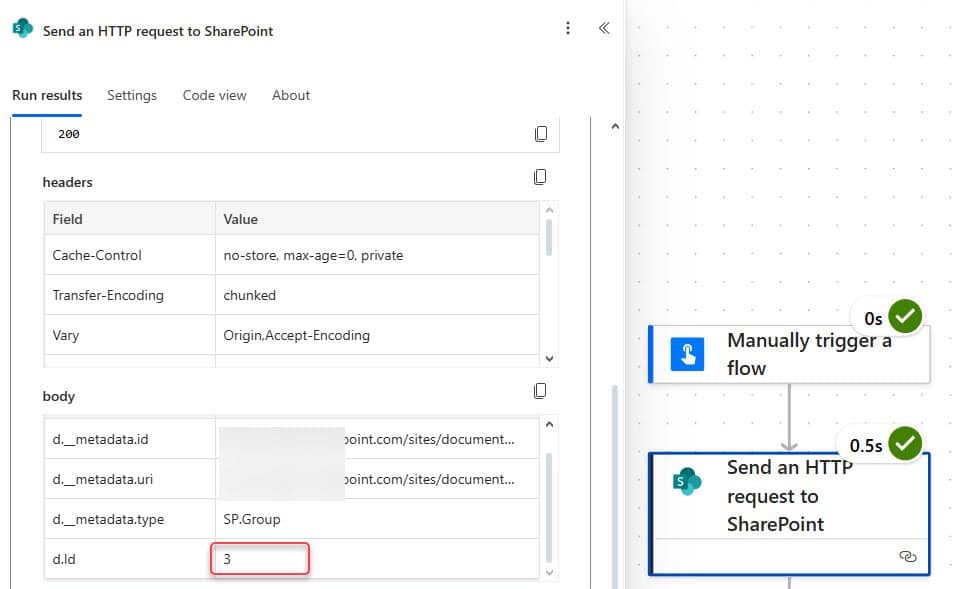
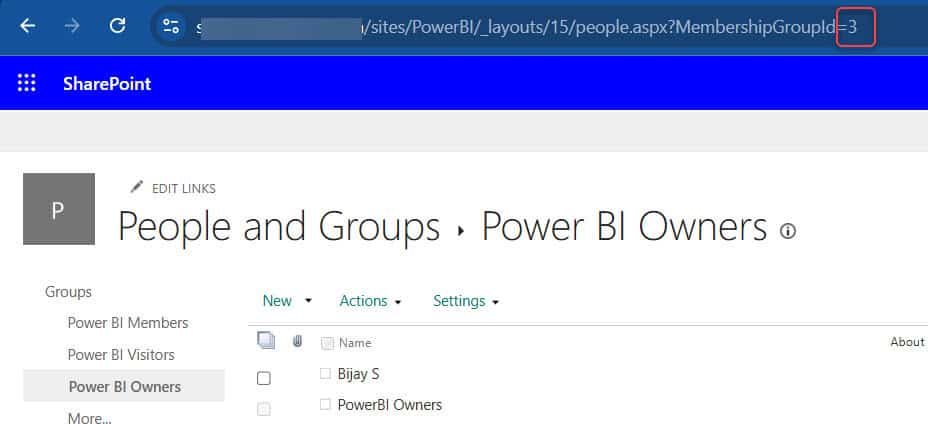
This is how you can get the Group ID dynamically in Power Automate. But if you want to get it manually, go to the SharePoint group, and you can see the Group ID in the URL.
Remove User From SharePoint Group
Now I will show how to remove a user from a SharePoint group using Power Automate.
Follow the steps below:
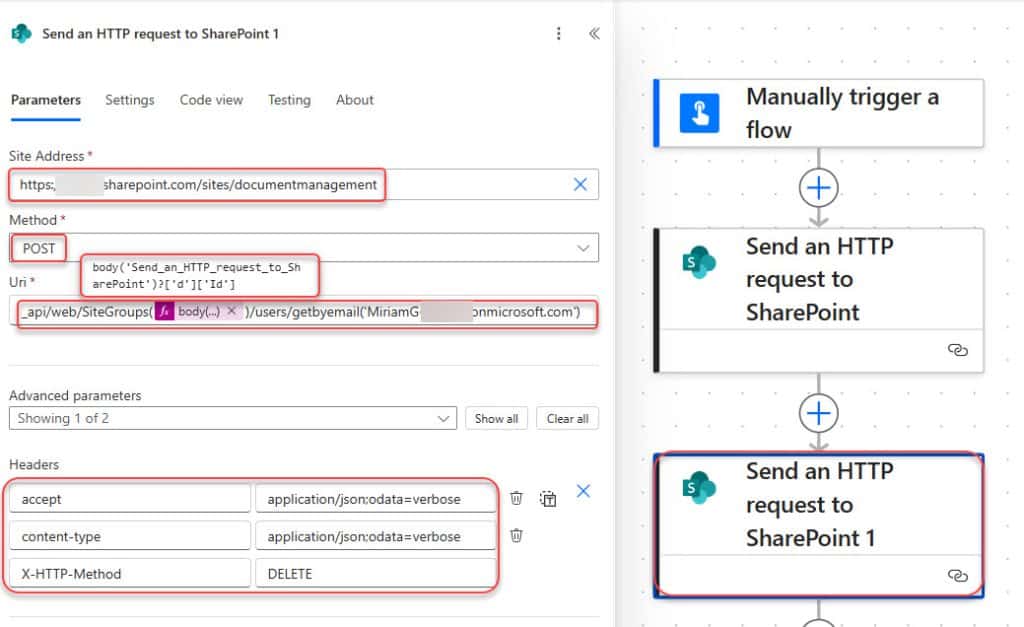
- In the above flow, add another “Send an HTTP request to SharePoint” action to remove the user, and provide the parameters shown below:
- Site Address: Select your site address
- Method: Get
- Uri: _api/web/sitegroups/GetById(<group-id>)/users/getbyemail(‘<user-email>’)
- Headers:
{
  "accept": "application/json;odata=verbose",
  "content-type": "application/json;odata=verbose",
  "X-HTTP-Method": "DELETE"
}
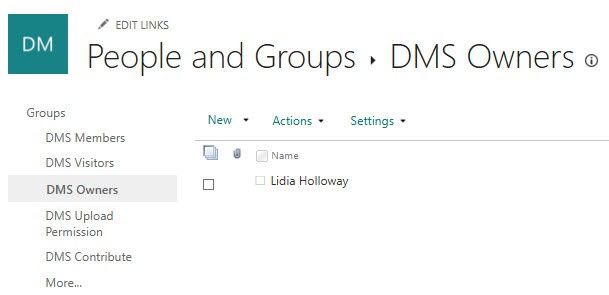
Now save the flow and run it manually. After the flow runs successfully, you will see that the member is removed from the SharePoint group.
If you face an error like “unauthorized,” it means you do not have permission to remove the user from the group.
In this post, we learned how to remove a user from a SharePoint group using Power Automate. First, we saw how to get the Group ID, and then we used that Group ID in another HTTP request to remove the user from the group.
If you face any errors or know any other way to do this, feel free to share it in the comments.
You may also like:
- Power Automate save email attachment to SharePoint
- Get Tenant Name in Power Automate
- Delete all files in a SharePoint folder using Power Automate
- Copy List Items To Another List In SharePoint Using Power Automate

Hey! I’m Bijay Kumar, founder of SPGuides.com and a Microsoft Business Applications MVP (Power Automate, Power Apps). I launched this site in 2020 because I truly enjoy working with SharePoint, Power Platform, and SharePoint Framework (SPFx), and wanted to share that passion through step-by-step tutorials, guides, and training videos. My mission is to help you learn these technologies so you can utilize SharePoint, enhance productivity, and potentially build business solutions along the way.

