
A new teammate opens Power Apps, clicks New table, and gets a yellow banner instead of a table designer. The buttons are there, but they’re grayed out.
In this tutorial, we’ll fix one or more commands are unavailable due to your current privileges for this environment the way we handle it for our own team: find the missing security role, assign the smallest role that works, and confirm the user can build again.
Quick answer: The message means the user’s security role in that Dataverse environment doesn’t include the privilege for the command. An admin opens the Power Platform admin center, goes to Manage > Environments > your environment > Users, selects the user, chooses Manage security roles, adds System Customizer (for tables) or Environment Maker (for apps and flows), and selects Save.

What You Need Before You Start
- An account with the System Administrator role in the environment, or a tenant admin role plus System Administrator there. You can’t assign a role with more privileges than you have.
- The user’s name or email, and the environment name where the banner shows.
- A Dataverse database in that environment. Our guide on what Microsoft Dataverse is explains environments and tables.
In our “Power Platform” developer environment, the test user had only the Approvals User role, so we signed in as that user to see what happens. The Tables list showed “We couldn’t load your data” instead of any tables.
When the user selected Start with a blank table, Power Apps didn’t show the yellow banner. It opened a “Create in your environment?” dialog that said: “You don’t have permission to create here.” Same root cause, different symptom: the role has no Dataverse privileges at all.

Whichever one you see, the yellow banner or this dialog, the fix below is the same: give the user the right security role in that environment.
Step 1: Open the Environment in the Power Platform Admin Center
Sign in to admin.powerplatform.microsoft.com, select Manage in the left rail, then Environments.
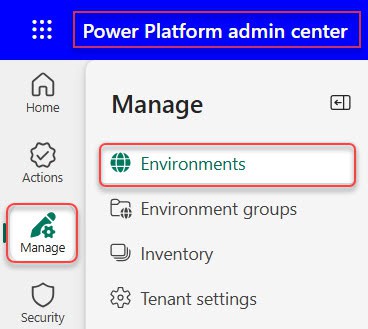
Select the environment name. The environment page shows a Details card and an Access card with Security roles, Teams, Users, S2S apps and Business units. Not sure which environment you’re in? Our post on finding the Power Apps environment ID helps you match it.

Step 2: Open the Users List
Under Users on the Access card, select See all. The Users page lists everyone in the environment, enabled or disabled, with + Add user and Refresh on the command bar.

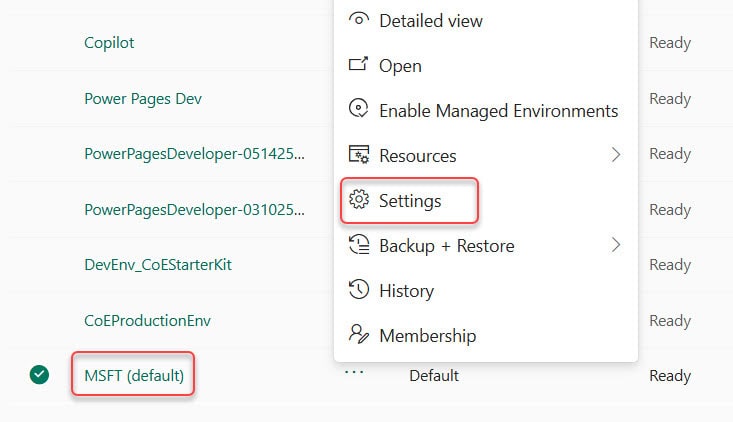
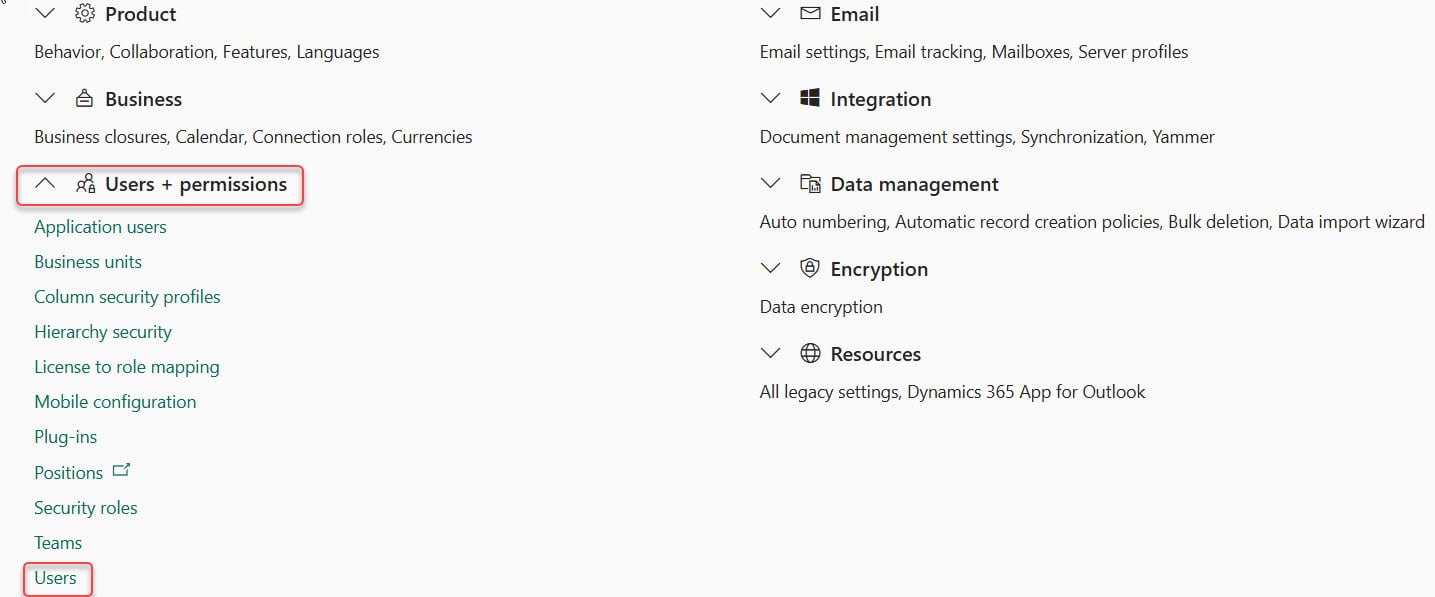
The older route still works too: select Settings on the command bar, expand Users + permissions, and select Users.
Step 3: Add the User If They Aren’t Listed
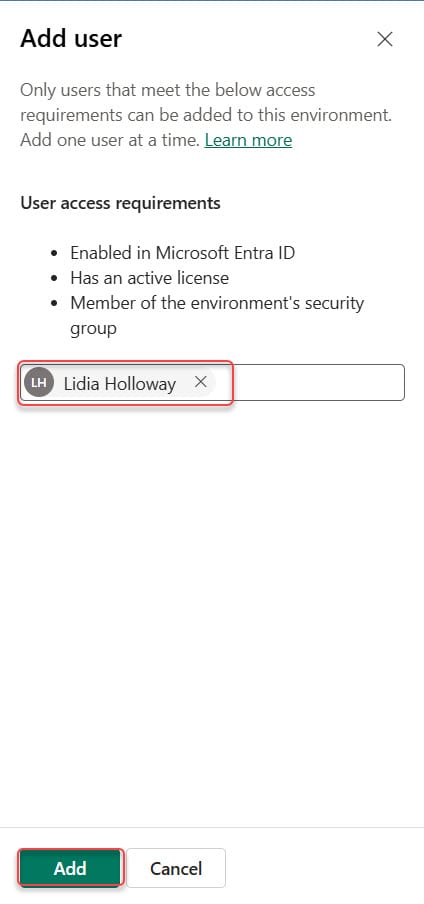
Dataverse adds users automatically, or just in time when they first open the environment URL. If the user is missing, select + Add user, pick them, and select Add.
The pane lists three requirements: the account is enabled in Microsoft Entra ID, it has an active license, and it’s a member of the environment’s security group if one is set. Adding a user gives environment access only, not data.
Step 4: Assign the Right Security Role
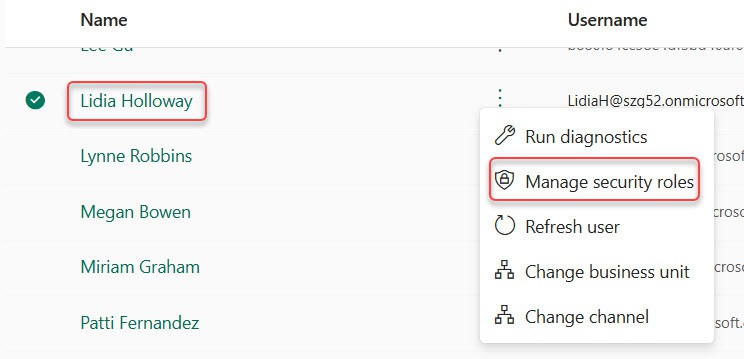
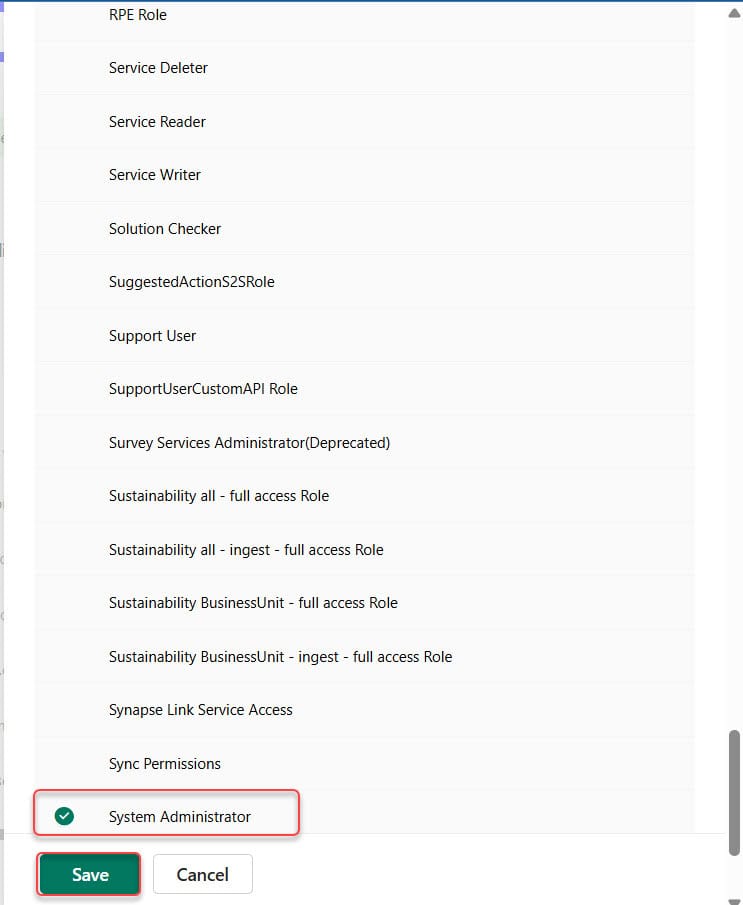
Select the user, then Manage security roles on the command bar or the row’s … menu. Check the role, confirm the business unit, and select Save. Roles add up, so you don’t need to remove existing ones.
Pick the smallest role that covers the job:
- System Customizer: create and edit Dataverse tables, columns and model-driven apps. This is what the New table command needs.
- Environment Maker: create canvas apps, flows, connections and dataflows. It has no privileges on table data, so it doesn’t fix the table case alone.
- Basic User: use apps and work with core records, no building.
- System Administrator: everything, including assigning roles. Keep it for admins.
After you save, the user signs out and back in, or refreshes the browser, and tries again. Then they can follow our steps to create a Dataverse table in Power Apps.
Which Role Fixes Which Command?
| What the user tries | Role to add | Notes |
|---|---|---|
| New table, columns, relationships | System Customizer | Environment Maker alone can’t create tables |
| Canvas app, cloud flow, connection | Environment Maker | No access to table data |
| Model-driven app or solution | System Customizer or Environment Maker | Learn lists both for solution actions |
| AI Builder, desktop flows | System Customizer | Not in Environment Maker |
| Assign roles, manage users | System Administrator | Admin only |
Common Mistakes to Avoid
- Giving everyone System Administrator. It hides the real problem and over-shares data.
- Expecting the Power Platform administrator role to be enough. Tenant admin roles don’t grant Dataverse data access; you still need System Administrator in that environment.
- Fixing the wrong environment. Check the environment picker in Power Apps before you change roles.
- Skipping Run diagnostics. On the Users page, select the user and choose Run diagnostics to see why access fails, such as license or security group issues.
Why Does This Happen in a Developer or Default Environment?
In the Default environment, Dataverse assigns Basic User and Environment Maker to every user automatically. That’s enough for apps and flows, but not for tables, so the banner still appears there.
Developer, Trial and Dataverse for Teams environments don’t use license-based role mapping, so a new user may land with no useful role at all. Once tables work, our Dataverse solution tutorial shows how to keep that work portable.
Next Steps
With the role in place, test the fix by building something small, like a Dataverse table from Excel, while signed in as the user, not as an admin.
We’d open these next if you’re setting up Dataverse for a team:
Frequently Asked Questions
What does one or more commands are unavailable due to your current privileges mean?
Your security role in that Dataverse environment doesn’t include the privilege for the command you clicked, such as creating a table. An admin needs to assign a role that does.
Is Environment Maker enough to create Dataverse tables?
No. Environment Maker creates apps, flows and connections but has no privileges on the environment’s data. Users who create or update tables need System Customizer as well.
Who can assign security roles in an environment?
A System Administrator in that environment, or a user with Read and Assign on the Security Role table. Nobody can assign a role with more privileges than their own.
Why is the user missing from the environment’s Users list?
The account might be disabled in Microsoft Entra ID, have no license, or not be in the environment’s security group. Fix that, then select + Add user.
Where does Microsoft document this error?
See the Common issues table in Role-based security roles for Dataverse on Microsoft Learn.

Hey! I’m Bijay Kumar, founder of SPGuides.com and a Microsoft Business Applications MVP (Power Automate, Power Apps). I launched this site in 2020 because I truly enjoy working with SharePoint, Power Platform, and SharePoint Framework (SPFx), and wanted to share that passion through step-by-step tutorials, guides, and training videos. My mission is to help you learn these technologies so you can utilize SharePoint, enhance productivity, and potentially build business solutions along the way.