
While working on a document management system for one of my clients, I received an email from their team early in the morning. They mentioned that when they tried to check site permissions, they encountered the error message:
You do not have permission to view the membership of the group.
This error typically occurs when a user attempts to open a SharePoint group (such as Members, Owners, or Visitors) from Site permissions but lacks sufficient access rights to view the group’s membership.
In this post, I will explain why this issue occurs and provide step-by-step instructions on how to resolve it.
Why “You do not have permission to view the membership of the group” Error Appears
This issue occurs because of restricted permissions on the SharePoint group. Even if a user has Edit or Contribute access to the site, they might not have permission to view or manage the group’s membership.
By default:
- Group Members can view group members.
- Group Owner can edit the membership of the group.
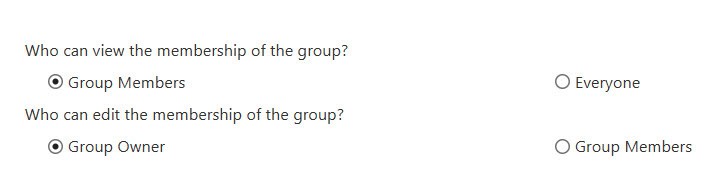
[FIX] You do not have permission to view the membership of the group in SharePoint
Now follow the steps below:
- Open the SharePoint site where the error occurred. Click on the Settings in the top right corner. Choose Site permissions.
- Scroll down and click on Advanced permission settings.
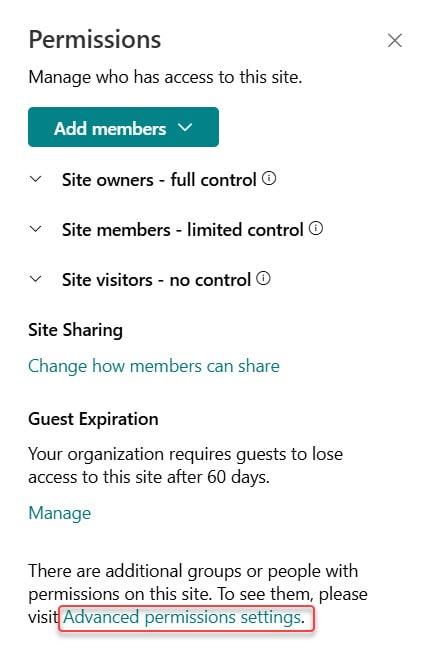
- You will see all SharePoint groups, like:
- Site Owners
- Site Members
- Site Visitors
- Click on the group where the issue occurs (for example, DMS Members).

- Once inside the group page, click Settings -> Group Settings. Under Group Settings, find the section: Who can view the membership of the group?
- Change the option from ‘Group Members’ to ‘Everyone’. Click OK to save.
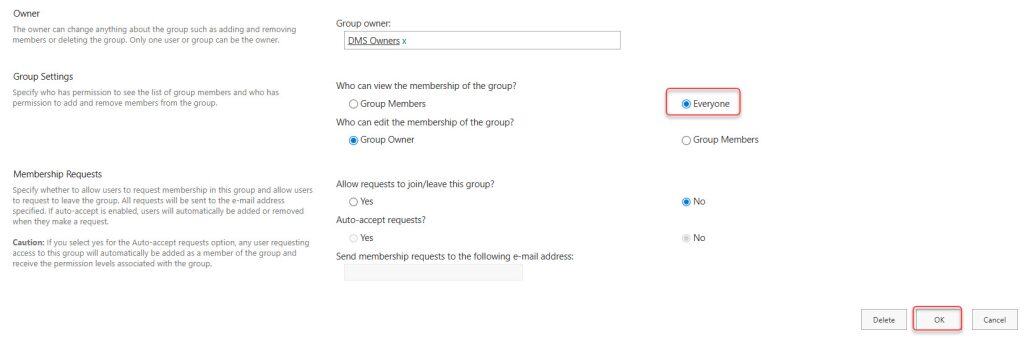
Now, ask the user to refresh the SharePoint site and return to Site permissions. The error message should no longer appear.
Sometimes You Can’t Remove or Edit Group Members
In some cases, you might find that you cannot remove or add members to the SharePoint group even if you have edit or contribute permissions. This happens because only group owners have permission to manage membership in the group.
To fix this:
- Navigate to the Advanced Permission Settings page.
- Select the group, then navigate to Settings > Group Settings.
- Under Group Settings, locate the section titled “Who can edit the membership of the group?“
- Change the option from ‘Group Owner’ to ‘Group Members‘.
- Click OK to save.
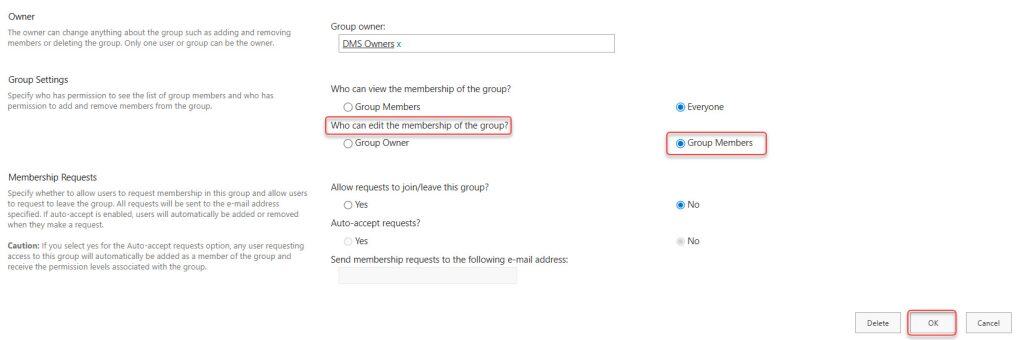
This way, you have now fixed both permission-related issues: users can view the group members, and authorized users can edit the membership when required.
Also, you may like the following tutorials:
- Delete SharePoint Site
- Get SharePoint Online Site ID
- Share SharePoint Site with External Users
- Create a Custom Site Template In SharePoint Online
- Invalid Connection. Please Choose a Connection Power Automate

Hey! I’m Bijay Kumar, founder of SPGuides.com and a Microsoft Business Applications MVP (Power Automate, Power Apps). I launched this site in 2020 because I truly enjoy working with SharePoint, Power Platform, and SharePoint Framework (SPFx), and wanted to share that passion through step-by-step tutorials, guides, and training videos. My mission is to help you learn these technologies so you can utilize SharePoint, enhance productivity, and potentially build business solutions along the way.