
While I was working on a Power Automate flow for our client that uploads policy documents from SharePoint to a Copilot Studio Agent’s Knowledge base, everything worked well until I uploaded a file that had spaces in the name, like:
Power Platform EBook.pdfAs soon as I did that, I received the following error in my flow:
Action 'Add_a_new_row' failed: Export key attribute {0} for component {1} must begin with a letter and only consist of alpha-numeric and _.{}! characters. Data[0] = "schemaname" Data[1] = "botcomponent"
This error occurred while trying to add a new row to the Copilot components table in Dataverse.
In this Power Automate error-solved tutorial, I will guide you through a simple solution to resolve this error.
Error: Action ‘Add_a_new_row’ failed: Export key attribute {0} for component {1} must begin with a letter
In the flow, I was using the following dynamic value to build the SchemaName field:
cr0e5_policyAssistantBot.file.@{triggerBody()?['{FilenameWithExtension}']}
The problem? If the file name contains spaces, such as Power Platform EBook.pdf, it causes an invalid SchemaName because Dataverse does not allow spaces in schema names.
Solved: Export key attribute for component must begin with a letter Power Automate
To fix the “Export key attribute” error in Power Automate, you have two simple solutions:
Solution 1: Use the replace() Function
If users are likely to upload files with spaces in their names, you can handle it inside the flow using the replace() function.
In the SchemaName field of the Add a new row action, use:
cr0e5_policyAssistantBot.file.@{replace(triggerBody()?['{FilenameWithExtension}'], ' ', '_')}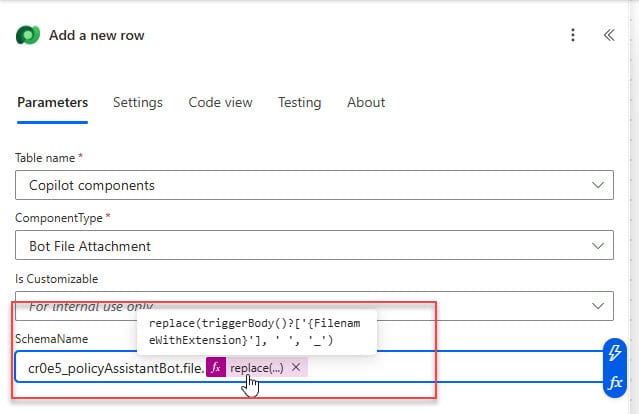
This will automatically replace all spaces with underscores (_) and ensure the SchemaName is valid.
Solution 2: Upload the File Without Spaces
If you want to keep your flow simple and avoid using expressions, make sure your file names do not contain spaces before uploading them to SharePoint.
For example, the file name below is not allowed.
Power Platform EBook.pdf
HR Policy 2024 Final.pdf
Remote Work Guide.pdf
Instead of that, you can use the following type of name:
Power_Platform_EBook.pdf
HR_Policy_2024_Final.pdf
Remote-Work-Guide.pdf
Using underscores (_) or hyphens (-) Instead of spaces, keep the file names valid for Dataverse and avoid errors during flow execution.
You can choose the method that best suits your needs. If you’re building for end users who may not follow naming conventions, opt for Solution 1 (replace).
You may also like:
- Power Automate Trigger Conditions
- Use Parallel Branch in Power Automate
- Check If The Person Field is Empty in Power Automate
- Append Multiple Values to An Array in Power Automate

Hey! I’m Bijay Kumar, founder of SPGuides.com and a Microsoft Business Applications MVP (Power Automate, Power Apps). I launched this site in 2020 because I truly enjoy working with SharePoint, Power Platform, and SharePoint Framework (SPFx), and wanted to share that passion through step-by-step tutorials, guides, and training videos. My mission is to help you learn these technologies so you can utilize SharePoint, enhance productivity, and potentially build business solutions along the way.

