Imagine you are building an app that needs to display a quick summary of information, such as a list of employees, documents, or products. Instead of placing many separate controls on the screen, you can use Cards to keep everything clean and organized.
Power Apps recently released a new modern control called Card that helps users display all the information (like name and description) in a single place.
In this tutorial, I will explain how to use a Power Apps Modern Card control with a responsive layout. We will also discuss how to build a modern card representation using a document library and a SharePoint list, with examples.
Power Apps Modern Cards allow makers to display important details in one place, such as a name, a short description, or an image. You can display the card horizontally or vertically, depending on your screen design. Since cards automatically adjust their layout based on what you configure, you don’t have to worry about alignment or responsiveness.
You can refer to the image below to see how the Power Apps Modern Card control looks like:
IMPORTANT:
1. Modern Control Settings: To view the Modern card, first you need to enable one feature settings i.e. Modern controls and themes.
2. Authoring version: You can see the modern card (preview) option if you have this Authoring version: 3.26012.6 or more than this like 3.26012.11
If you don’t have this version, then the card option won’t visible. You can change the app authoring version by clicking on the Edit button.
Power Apps Modern Card Properties
These are some key properties below:
Property
Description
Direction
There are two types of directions: Vertical: Horizontal:
Title
The main header title text appears at the top of the card.
Subtitle
Extra text shown below or next to the title in the header.
Description
Description text is displayed below the header of the card.
Image
Main preview image for the card.
ImagePlacement
Defines the image’s position. Before Header: After Header:
HeaderImage
Small avatar or icon displayed in the header with the title and subtitle.
Border radius
Defines the corner roundness of the card container.
DropShadow
Defines the shadow style applied to the card.
OnSelect
Action triggered when the user selects the card.
Display SharePoint Library Documents Using Power Apps Modern Card Control
Let’s see how to display all SharePoint files in the Power Apps Modern Card Control, step by step.
I have a SharePoint Document library called Project Documents that contains files like PDFs and Excel files. Now I would like to show all these files in Power Apps using the modern card control.
In Power Apps, we will create a Blank canvas app with a responsive layout.
The blank canvas app is now ready to use. As we are making the app responsive, insert a new Header and footer screen (New screen -> Header and footer) as shown below.
Once the screen is added, remove the footer section that we don’t want.
On the header section of the screen, add a Modern Header control (with header title).
Since we want to display all the SharePoint files, we will first add a Gallery control, then add a modern card to it.
Inside the Main container, insert a Vertical gallery control (+ Insert -> Vertical gallery).
Choose the gallery Layout as Blank.
Next, set these gallery properties below:
Align in container: Select Custom
Flexible height: On
Add the SharePoint library to the app. (+ Add data -> Search SharePoint -> Add a SharePoint connection -> Select SharePoint site and Document library).
Once the SharePoint datasource has been added, select the gallery and add the same SharePoint datasource.
Then, edit the gallery and add a Card (Preview) control.
As I am trying to make this app responsive, I dragged the gallery card to the top left corner, as shown below.
Now we need to change these card properties below (as I want to make the app as responsive):
Here, I wanted to display the file creator’s display name along with the created date.
To display the thumbnail image of the file, set the code below on the Card’s Image property:
ThisItem.Thumbnail.Large
Here, in the card header, I want to display an image based on the file type. So, I have written the power FX logic that reads the file extension and, based on it, displays the SVG image.
Copy the code below on the Card’s HeaderImage property:
Additionally, since the modern card is clickable, we can click it to open the file and view the details. To do so, we need to write the formula on its OnSelect property:
Launch(ThisItem.'Link to item')
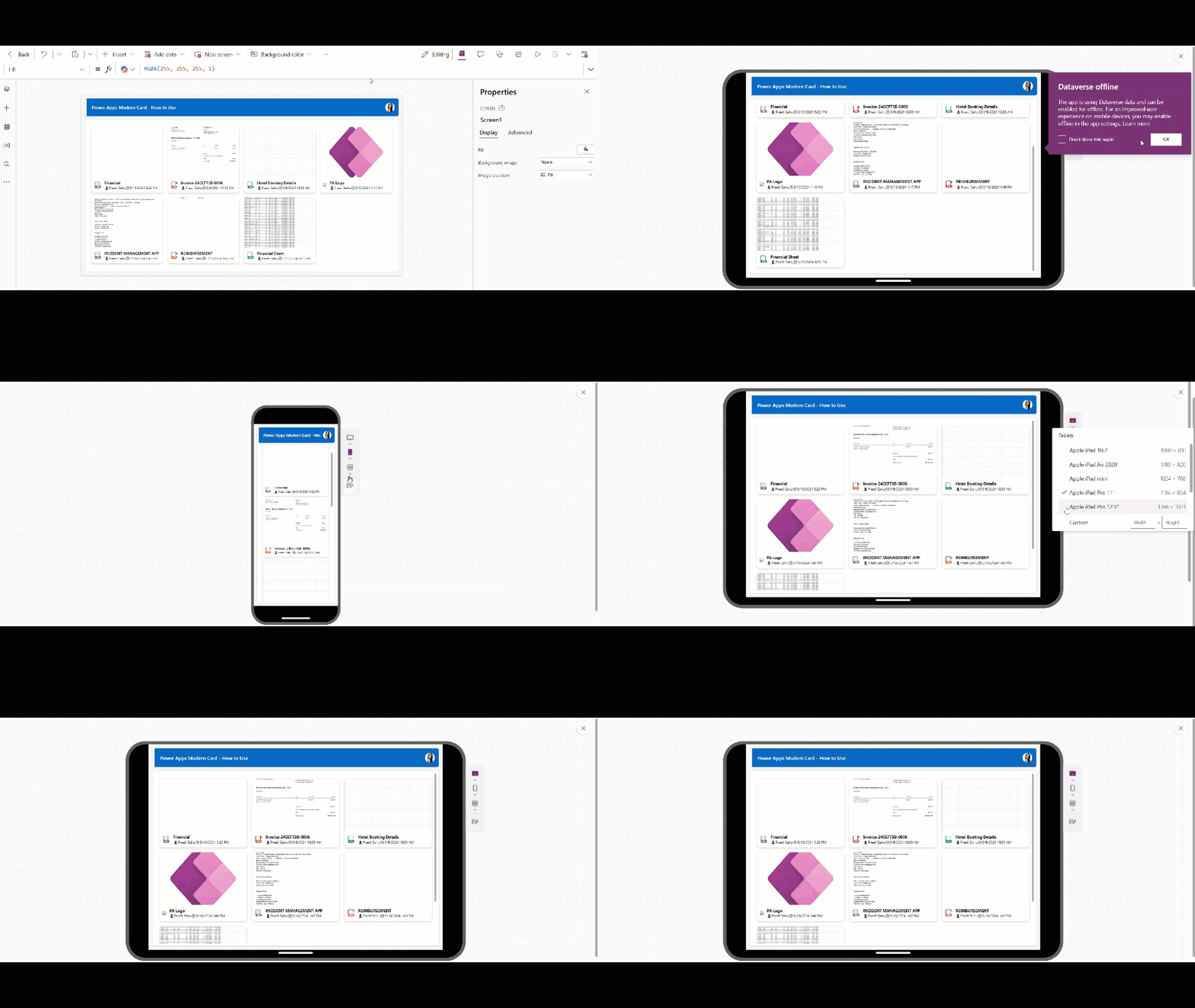
Finally, save, publish, and preview the app. You can use the app however you want, like on a tablet or in mobile layout, in a responsive manner, as shown in the GIF below.
This way, we can show all the files from the SharePoint library to Power Apps using the Modern card control.
Display SharePoint List Data Using Power Apps Modern Card Control
Let’s discuss how to display SharePoint list information in a Power Apps modern card using a responsive layout.
I have a SharePoint list (Car Rental Services) below with an image column (Image datatype):
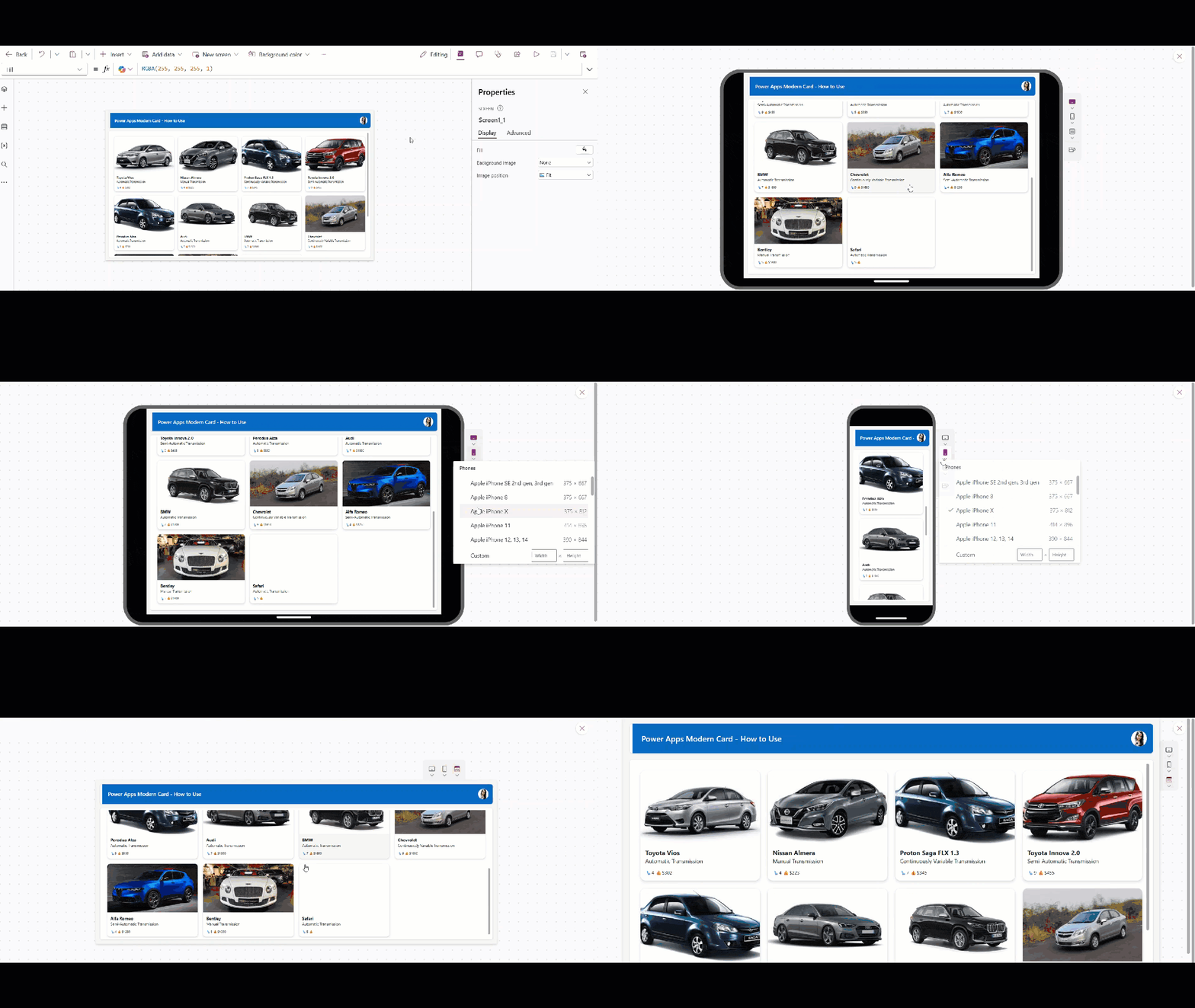
Now I would like to show all these car images from the SharePoint list to Power Apps using the Modern card control. To display all the images, we can use the Power Apps gallery and add a modern card (as described in the steps above).
You can follow the same process above until the SharePoint Datasource connection. Here, I will connect the SharePoint list to the gallery.
Connect the SharePoint list datasource to the gallery.
Here, I am concatenating the seat type and the Daily price that comes from the list.
To view the Car images (SharePoint image), set the Card’s Image property as:
ThisItem.'Car Image'.Full
That’s it. Just save, publish, and preview the app. Refer to the GIF below for reference.
I hope this article has been helpful to learn about the Power Apps modern card control, its key properties, and how to use it in Power Apps.
Also, we saw how to display the SharePoint library files in a Power Apps modern card with a responsive layout, step by step. Additionally, we learnt how to show SharePoint list data (with images) in a Power Apps modern card with a few examples.
Moreover, you may like some more Power Apps tutorials:
Hey! I’m Bijay Kumar, founder of SPGuides.com and a Microsoft Business Applications MVP (Power Automate, Power Apps). I launched this site in 2020 because I truly enjoy working with SharePoint, Power Platform, and SharePoint Framework (SPFx), and wanted to share that passion through step-by-step tutorials, guides, and training videos. My mission is to help you learn these technologies so you can utilize SharePoint, enhance productivity, and potentially build business solutions along the way.
⏰ LIMITED-TIME OFFER
Join the SharePoint & Power Platform Developer Live Training
📅 Live training starts October 5, 2026
✓SharePoint Development
✓Power Apps & Power Automate
✓Copilot Studio
🎁
FREE 1-Year Access to SPGuides.Academy
Enroll now and get access to all 9 academy courses at no extra cost.
Secure your seat before the batch fills up.
Get the live training plus the complete SPGuides.Academy learning library.