
When building SPFx web parts, the property pane is the primary way to let users configure how the web part behaves without touching any code. In one of our SharePoint Online projects, we needed to show list or library data directly on a modern page and still allow site owners to choose which list and how many items to display.
The best approach was to use SPFx custom property pane controls so users could pick a list or library, and then the web part would automatically render its data using PnP React controls.
In this step-by-step tutorial, you will learn how the default SPFx property pane works, how values flow from the pane into the web part, and then how to add PnP custom controls such as PropertyFieldListPicker to the property pane. Finally, you will see how to use the selected list ID in a React component to fetch list items via SPHttpClient and display them using the PnP ListView control.
Recently, one of my colleagues was working on a SharePoint site customization using SPFx. In this customization, we needed to add an SPFx web part to the SharePoint site page so people on the site can quickly see the latest details of a specific SharePoint list/library on the page itself, without navigating to each list in the site. We also needed to allow users to specify how many records they want to see in this web part.
The user could then select any list or library, and the web part would automatically show the default view of the selected list. To achieve this, we used custom controls in the SPFx property pane and passed the selected list/library to the web part. In this tutorial, you will see how to use custom controls in the SPFx web part property pane with a working example that displays list views.
Download Complete Solution
You can download the complete SPFx solution, unzip it, run npm i, and test it without changing any code. This helps you quickly understand how the custom property pane controls and PnP React controls are wired together
Note: This example uses lists and libraries from the current SharePoint site context; it does not cover cross-site list selection.
Scenario used in this demo
In this demo scenario:
- An SPFx web part displays items from a SharePoint list or library on a modern SharePoint page.
- The editor can pick the target list/library in the property pane using a custom list picker control.
- The selected list’s data is fetched using SPHttpClient and rendered using the PnP ListView React control.
SPFx Web Part Property Pane Overview
In the image for the basic example, you can see that for this web part, the “Description” field is on the property pane. The text entered in that field is displayed in the web part.
We use the property pane to configure the web part by passing dynamic values from the pane to the web part. Before adding custom controls, let’s understand how the default property pane control works and how it passes its value to the web part.
Basically, we used this property pane to configure the webpart by passing the dynamic value to the webpart.
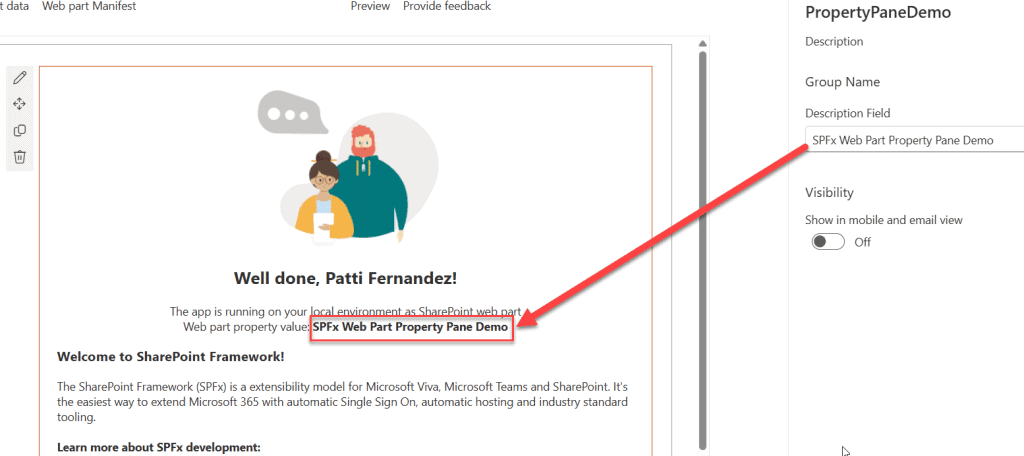
Before we start adding custom controls to the SPFx web part property pane, let’s first understand the default property pane control and how it passes its value to the web part. You should already know how to create an SPFx web part using the React framework.
Step 1: Check the manifest.json file
Once you have created the SPFx web part, open the manifest.json file.
The manifest.json file contains basic information about the web part such as:
- Web part ID, alias, and componentType.
- The preconfiguredEntries section, which has a properties object that holds the default values for the web part.
When you add new custom controls to the property pane, you can define their default values in the properties object inside preconfiguredEntries.
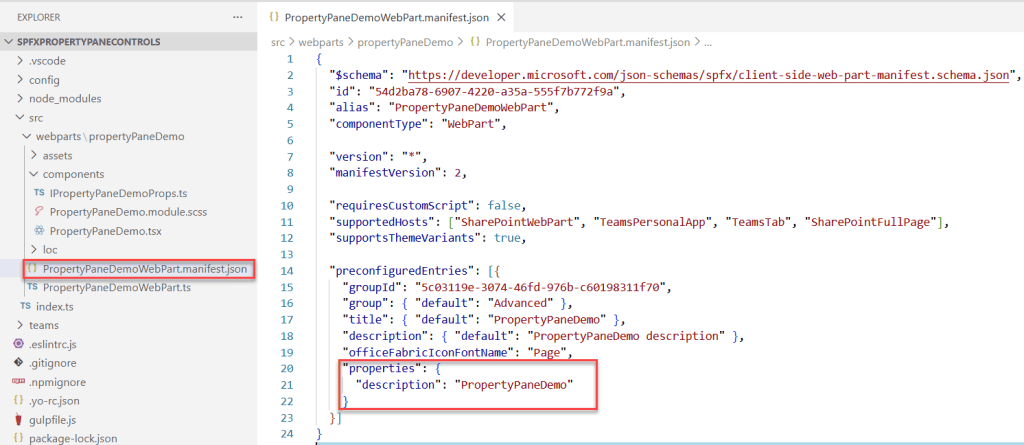
When we add new custom controls to the property pane, we can define their default values here.
Step 2: Understand default PropertyPaneTextField
Now open the main web part .ts file. At the end of the class, you will find the getPropertyPaneConfiguration() method; this is where you configure property pane fields.
By default, there is a PropertyPaneTextField for the description. To use this control, you import it as shown below:
import {
  type IPropertyPaneConfiguration,
  PropertyPaneTextField
} from '@microsoft/sp-property-pane';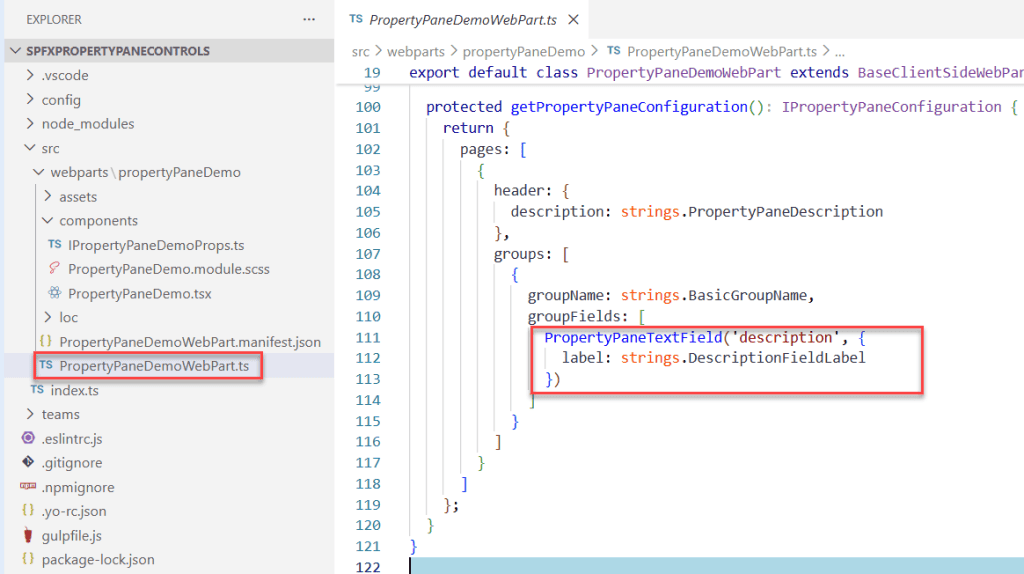
This code adds the description field to the web part property pane.
Step 3: Create props to pass values to React
To display the text entered in the description field in the property pane inside the web part, you need to create a prop and pass it to the React component. You will find the code below in the Props.ts file.
export interface IPropertyPaneDemoProps {
  description: string;
  isDarkTheme: boolean;
  environmentMessage: string;
  hasTeamsContext: boolean;
  userDisplayName: string;
}
Here, you define all the props that you want to send to the React component. For the description field in the property pane, you created a description prop in the IPropertyPaneDemoProps interface.
Step 4: Pass props from web part to React component
Now import the props into the main web part .ts file and pass them through the render() method to the React component.
In the render() method, you have something like:
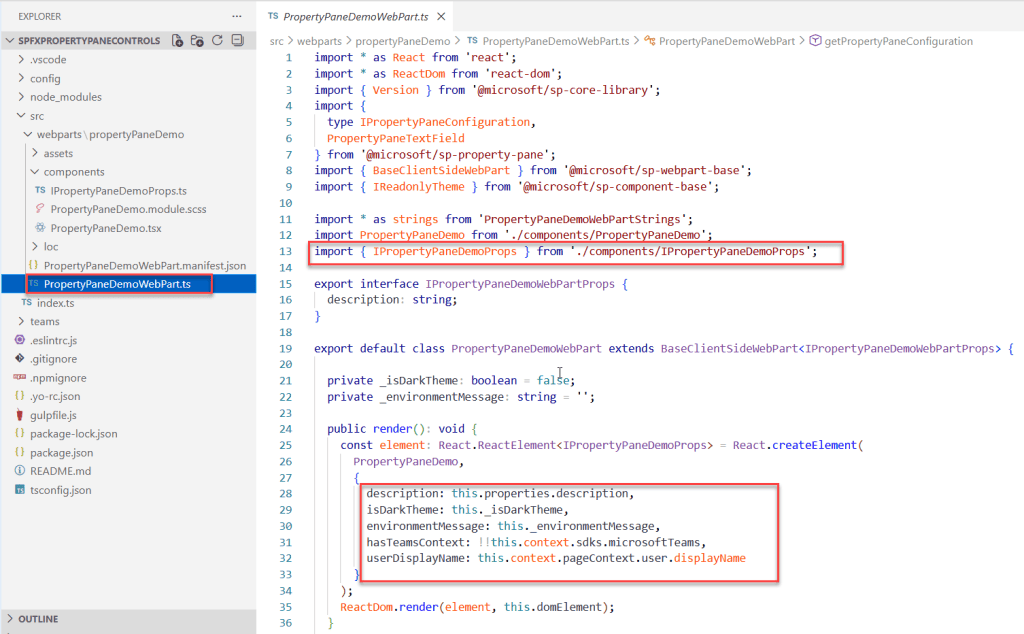
Here description: this.properties.description means:
- description = The prop defined in IPropertyPaneDemoProps.
- this.properties.description = The value of the “description” field from the property pane, stored in the web part’s properties object.
this refers to the current web part instance, and properties is the object that holds all values coming from the property pane.
Step 5: Use props in the React component
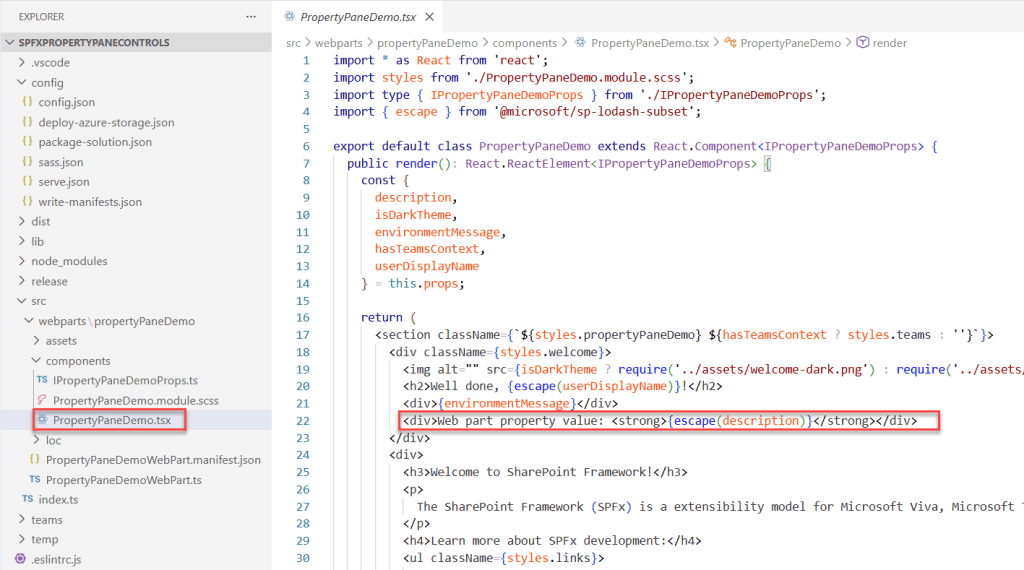
Open the .tsx file for the React component. This component uses IPropertyPaneDemoProps so it can receive the values coming from the property pane.
At the top of the render() method, the props are unpacked:
 const {
      description,
      isDarkTheme,
      environmentMessage,
      hasTeamsContext,
      userDisplayName
    } = this.props;
This lets the component use the values directly. Inside the JSX, the description is displayed exactly as typed in the property pane.
Now that you understand how default values are passed between the property pane and the web part, let’s see how to add a custom control to the property pane in SPFx.
Add Custom Controls to SPFx Web Part Property Pane
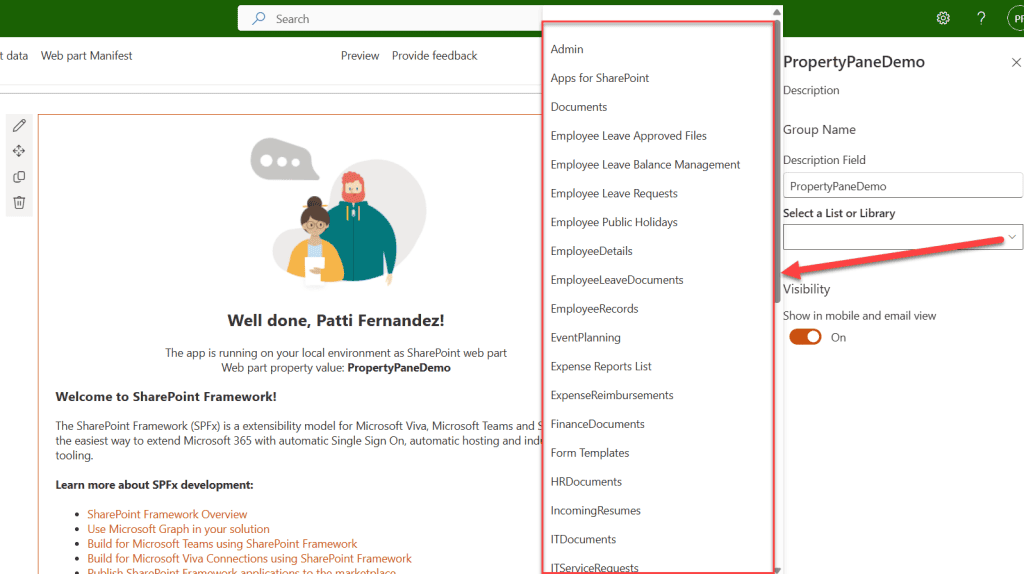
In the example below, you can see that I added the PropertyFieldListPicker control in the web part property pane, which auto-populates SharePoint lists and libraries in the current site. Once you select the list or library, the data is displayed in the web part.
Here, we use the PnP ListView control to display data for the fields Title, ID, Created, Modified, Created By, and Modified By. You can see the screenshot below:

Follow the steps below to achieve this!
Step 1: Install PnP Property Controls
Run the command below in the command prompt at the root of your SPFx solution
npm install @pnp/spfx-property-controls --save --save-exactThis installs the PnP Property Pane field controls used in the SPFx web part property pane.
Step 2: Install PnP React Controls
Next, run the command below to install PnP React controls for SPFx.
npm install @pnp/spfx-controls-react --save --save-exactThese controls provide the ListView React component that you will use to display list items in the web part.
Step 3: Update web part properties interface
Open the main web part .ts file and add a new property for the selected list ID.
export interface IPropertyPaneDemoWebPartProps {
  description: string;
  selectedListId: string;
}
This selectedListId property will store the GUID of the selected list or library from the property pane.
Step 4: Import PropertyFieldListPicker
Add the import for PropertyFieldListPicker in the same web part .ts file:
import { PropertyFieldListPicker, PropertyFieldListPickerOrderBy } from '@pnp/spfx-property-controls/lib/PropertyFieldListPicker';This allows you to use the PnP list picker control in the property pane.
Step 5: Configure PropertyFieldListPicker in getPropertyPaneConfiguration
Update the getPropertyPaneConfiguration() method with the following code.
protected getPropertyPaneConfiguration(): IPropertyPaneConfiguration {
    return {
      pages: [
        {
          header: {
            description: strings.PropertyPaneDescription
          },
          groups: [
            {
              groupName: strings.BasicGroupName,
              groupFields: [
                PropertyPaneTextField('description', {
                  label: strings.DescriptionFieldLabel
                }),
                PropertyFieldListPicker('selectedListId', {
                label: 'Select a List or Library',
                selectedList: this.properties.selectedListId,
                includeHidden: false,
                orderBy: PropertyFieldListPickerOrderBy.Title,
                disabled: false,
                properties: this.properties,
                onPropertyChange: this.onPropertyPaneFieldChanged.bind(this),
                context: this.context,
                key: 'listPickerFieldId'
              })
              ]
            }
          ]
        }
      ]
    };
  }
Here, we added the PropertyFieldListPicker control with the following key options:
- selectedListId = The property where the selected list’s ID (GUID) will be saved.
- label = The text shown above the control to describe its purpose.
- selectedList = Sets the currently selected list when the property pane loads.
- includeHidden = Specifies whether hidden SharePoint lists should be shown.
- orderBy = Defines how the list options should be sorted in the dropdown. Here, based on the title, it is ordered.
- disabled = Enables or disables the control.
- properties = Passes all web part properties so the control can update them
- onPropertyChange =Triggers whenever the user selects a new list.
- context = Provides the SharePoint context required to fetch lists.
- key = A unique identifier for this control inside the property pane.
Step 6: Update Props.ts with selectedListId and context
Update the Props.ts file as shown below:
import { WebPartContext } from "@microsoft/sp-webpart-base";
export interface IPropertyPaneDemoProps {
  description: string;
  selectedListId: string;
  isDarkTheme: boolean;
  environmentMessage: string;
  hasTeamsContext: boolean;
  userDisplayName: string;
 context: WebPartContext
}
Here, selectedListId is added to the existing props, and context is added so the React component can use the web part context to call SharePoint APIs.
Step 7: Pass selectedListId and context from web part to React
Open the main web part .ts file again and update the render() method:
public render(): void {
    const element: React.ReactElement<IPropertyPaneDemoProps> = React.createElement(
      PropertyPaneDemo,
      {
        description: this.properties.description,
        selectedListId: this.properties.selectedListId,
        isDarkTheme: this._isDarkTheme,
        environmentMessage: this._environmentMessage,
        hasTeamsContext: !!this.context.sdks.microsoftTeams,
        userDisplayName: this.context.pageContext.user.displayName,
        context: this.context
      }
    );
    ReactDom.render(element, this.domElement);
  }
Here, selectedListId: this.properties.selectedListId passes the selected list or library ID to the React component.
Step 8: Implement the React component with ListView
Update the .tsx React component file with the following code:
import * as React from "react";
import styles from "./PropertyPaneDemo.module.scss";
import type { IPropertyPaneDemoProps } from "./IPropertyPaneDemoProps";
import { escape } from "@microsoft/sp-lodash-subset";
import {
  ListView,
  IViewField,
  SelectionMode,
} from "@pnp/spfx-controls-react/lib/ListView";
export interface IPropertyPaneDemoState {
  items: any[];
}
import { SPHttpClient, SPHttpClientResponse } from "@microsoft/sp-http";

export default class PropertyPaneDemo extends React.Component<IPropertyPaneDemoProps,IPropertyPaneDemoState> {
  constructor(props: IPropertyPaneDemoProps) {
    super(props);
    this.state = {
      items: [],
    };
  }
  private _loadListItems(): void {
    if (!this.props.selectedListId) {
      this.setState({ items: [] });
      return;
    }

    const url = `${this.props.context.pageContext.web.absoluteUrl}/_api/web/lists(guid'${this.props.selectedListId}')/items?$select=*,Author/Title,Editor/Title&$expand=Author,Editor`;

    this.props.context.spHttpClient
      .get(url, SPHttpClient.configurations.v1)
      .then((response: SPHttpClientResponse) => response.json())
      .then((data) => {
        this.setState({ items: data.value });
      });
  }

  public componentDidMount(): void {
    this._loadListItems();
  }

  public componentDidUpdate(prevProps: IPropertyPaneDemoProps): void {
    if (prevProps.selectedListId !== this.props.selectedListId) {
      this._loadListItems();
    }
  }
  private viewFields: IViewField[] = [
    {
      name: "Title",
      displayName: "Title",
      isResizable: true,
      sorting: true,
    },
    {
      name: "Id",
      displayName: "ID",
      isResizable: true,
    },
    {
      name: "Created",
      displayName: "Created",
      isResizable: true,
      sorting: true,
    },
    {
      name: "Modified",
      displayName: "Modified",
      isResizable: true,
      sorting: true,
    },
    {
      name: "Author.Title",
      displayName: "Created By",
      isResizable: true,
    },
    {
      name: "Editor.Title",
      displayName: "Modified By",
      isResizable: true,
    },
  ];

  public render(): React.ReactElement<IPropertyPaneDemoProps> {
    const { description, isDarkTheme, hasTeamsContext, userDisplayName } =
      this.props;

    return (
      <section
        className={`${styles.propertyPaneDemo} ${
          hasTeamsContext ? styles.teams : ""
        }`}
      >
        <div className={styles.welcome}>
          <img
            alt=""
            src={
              isDarkTheme
                ? require("../assets/welcome-dark.png")
                : require("../assets/welcome-light.png")
            }
            className={styles.welcomeImage}
          />

          <h2>Hello, {escape(userDisplayName)}!</h2>

          <div>
            Description: <strong>{escape(description)}</strong>
          </div>
        </div>

        {/* List View Below */}
        <div style={{ marginTop: "20px" }}>
          <ListView
            items={this.state.items}
            viewFields={this.viewFields}
            compact={true}
            selectionMode={SelectionMode.none}
            showFilter={true}
          />
        </div>
      </section>
    );
  }
}
In this React component:
- ListView is imported from @pnp/spfx-controls-react/lib/ListView, and SPHttpClient from @microsoft/sp-http to fetch SharePoint list items.
- IPropertyPaneDemoState holds items, which stores the SharePoint list items.
- In the constructor(), the state is initialized with an empty array.
- _loadListItems() loads SharePoint list data using SPHttpClient and updates the items state.
- If selectedListId is empty, the items state is reset to an empty array.
- componentDidMount() calls _loadListItems() when the web part loads.
- componentDidUpdate() runs when props change and reloads items if the selected list has changed.
- viewFields defines the columns displayed in the ListView (Title, ID, Created, Modified, Created By, Modified By).
- In render(), the ListView is rendered with items, viewFields, compact mode, no selection, and a filter textbox.
Step 9: Test the SPFx web part
Run the gulp serve command. It will open the local or hosted SharePoint Workbench in the browser:
- Add the web part to the page.
- Open the property pane and select a list or library using the PropertyFieldListPicker control.
- The list items will be displayed in the SPFx web part using the PnP ListView control.

This way, we can easily add custom controls to the SPFx web part property pane.
Conclusion
This is how you can add custom controls to the SPFx web part property pane and use them to build powerful, configurable web parts. In this tutorial, you saw an overview of the property pane, how default controls work, and a complete example using PnP Property Pane controls and PnP React controls to retrieve lists and libraries from the current SharePoint site and dynamically display the selected list/library’s data in the web part.
Download the solution, unzip it, run npm i, and test it once; there is no need to update any code. Do let me know in the comments if you face any issues.
Also, you may like the following SPFx tutorials:
- Add Multiple WebParts To Single SPFx Solution
- SPFx CRUD Operations using No JavaScript Framework
- Send Email in SPFx using Microsoft Graph API and PnP JS
- Configure SharePoint Framework Web Part Icon
- Create Folders and Subfolders in SharePoint document library using SPFx

Hey! I’m Bijay Kumar, founder of SPGuides.com and a Microsoft Business Applications MVP (Power Automate, Power Apps). I launched this site in 2020 because I truly enjoy working with SharePoint, Power Platform, and SharePoint Framework (SPFx), and wanted to share that passion through step-by-step tutorials, guides, and training videos. My mission is to help you learn these technologies so you can utilize SharePoint, enhance productivity, and potentially build business solutions along the way.

