
If you use Microsoft Teams for more than one job, organization, or personal project, you already know the pain — logging out, logging back in, entering passwords, and losing track of which account you’re on. It’s genuinely frustrating. The good news is that there are real solutions, and this guide covers them all.
I’ll walk you through every method — from the built-in desktop approach to browser workarounds — so you can pick what works best for your setup.
Why You Might Need Multiple Accounts in Teams
Before jumping in, let me quickly cover the common scenarios where this matters:
- You work at two different companies, and both use Teams
- You have a work account and a personal Microsoft account
- You’re a freelancer or consultant managing multiple clients
- You’re a student with a school account and a work account on the side
Each situation is slightly different, and the method you use will depend on whether your accounts are work/school accounts or personal ones.
What Microsoft Teams Actually Supports (And What It Doesn’t)
Here’s the honest picture: Microsoft Teams does not let you be fully active in two work or school accounts at the same time within a single app window. You can add multiple accounts and switch between them quickly, but you can’t run both in the same window.
That said, the “New Teams” app (version 2.1+ on Windows, 2.0.22+ on macOS) does support adding multiple accounts natively and switching between them with a single click. Notifications, however, only come through for your currently active account.
If you need both accounts truly side by side, I’ll cover a browser-based workaround that gets you pretty close.
Add Multiple Accounts On Microsoft Teams
Here I will show you how to add multiple accounts to Microsoft Teams.
Method 1: Add Multiple Accounts in Teams Desktop App (The Easy Way)
This is the cleanest method if you’re on the New Teams app on Windows. It takes about two minutes.
Step 1: Open Microsoft Teams
Launch Teams and make sure you’re on the updated “New Teams” version. If you’re still on the classic version, look for a toggle in the top-left corner labeled Try the new Teams and turn it on. This is important — the classic version doesn’t support multi-account as smoothly.
Step 2: Click Your Profile Picture
In the top-right corner of the Teams window, you’ll see a circular icon — either your photo or your initials. Click it. A dropdown menu will appear.
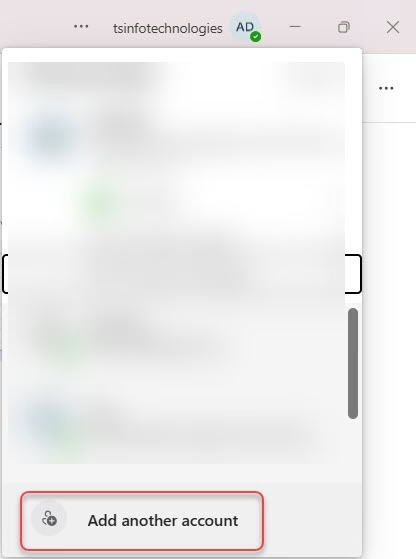
Step 3: Select “Add Another Account”
In that dropdown, click Add another account. Teams will then show you a list of accounts you’ve recently signed in with.
- If your second account appears in the list, click it.
- If it hasn’t appeared yet, click Create, or use another account and sign in manually with your email and password.
Step 4: Sign In to Your Second Account
Enter the credentials for your second account — this could be a work email, school account, or personal Microsoft account. Teams will verify the sign-in (sometimes sending a verification code to your email — just paste it in when prompted).
Once done, your second account is linked.
Step 5: Switch Between Accounts
To switch, just click your profile picture again. You’ll now see both accounts listed at the top of the dropdown. Click the one you want to switch to. It takes a second or two, and you’re in.
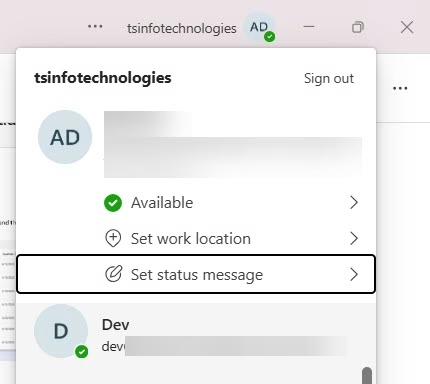
That’s it. You can repeat this process to add more accounts — just go back to your profile picture and hit “Add another account” again.
Method 2: Add Multiple Accounts on the Microsoft Teams Mobile App
If you’re on your phone — Android or iPhone — this is even more straightforward.
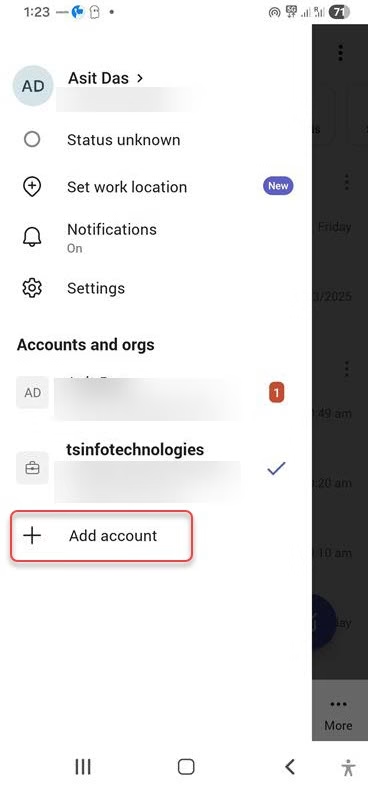
On Android:
- Open the Teams app on your phone
- Tap your profile picture in the top-left corner
- Tap the down arrow next to your account name
- Tap Add account
- Sign in with your second account’s credentials
On iPhone (iOS):
The steps are almost identical:
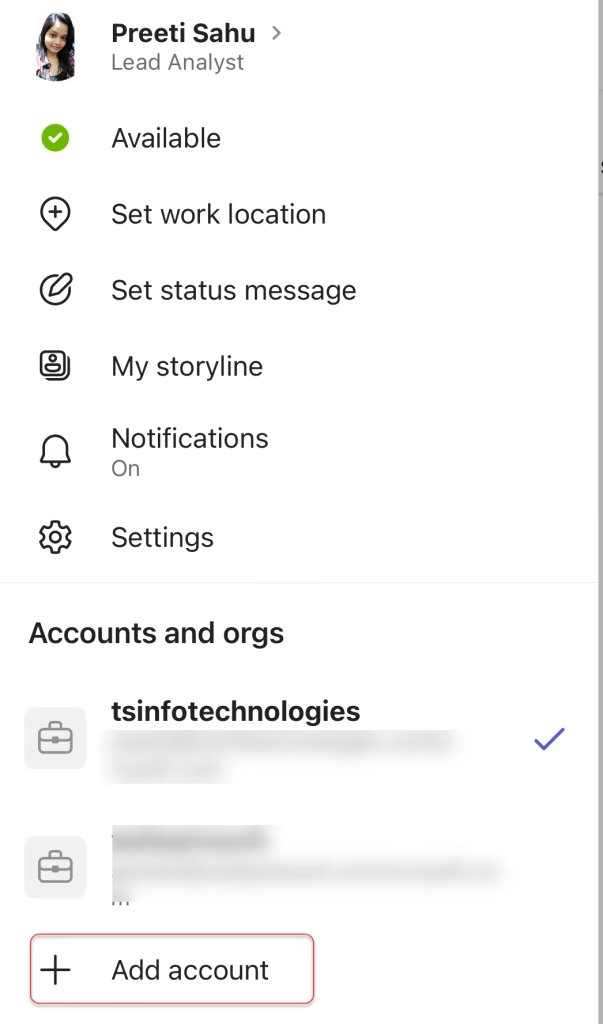
- Open Teams and tap your profile picture (top-left)
- Tap the current account name to expand the account list
- Tap Add account
- Enter your credentials and sign in
Once added, switching on mobile is super fast — just tap your profile photo and choose the account you want. The mobile app is actually more flexible than the desktop for multi-account use.
Common Issues and Fixes
I don’t see the Add another account option
This usually means you’re on the old version of Teams. Look for the toggle in the top-left corner to switch to “New Teams.” Once you update, the option should appear.
My organization doesn’t allow adding personal accounts
Some IT policies (especially through Microsoft Intune) block personal account logins in the corporate Teams app. In that case, use the browser workaround instead — it bypasses app-level restrictions.
I added the account but I’m not getting notifications from it
Teams only pushes notifications from your active account. To get alerts from both, use the browser + desktop combo (Method 4) or check each account regularly throughout the day.
My Mac isn’t showing the option to add accounts
On macOS, you need Teams version 2.0.22 or higher. Go to the top-left menu → Help → Check for updates, install any available updates, and the option should unlock.
Quick Recap: Which Method Should You Use?
| Your Situation | Best Method |
|---|---|
| One work + one personal account | Desktop app (Method 1) |
| Two work/school accounts, need to switch | Desktop app (Method 1) |
| Quick mobile access to both accounts | Mobile app (Method 2) |
A Few Things Worth Knowing
Notifications only work for the account you’re currently using. So if you switch to another account in the desktop app, the first one won’t send you alerts until you switch back. Just keep that in mind if you’re waiting for something important.
Each account is completely separate. Your chats, channels, files, and settings stay within that account only. Nothing overlaps, so as long as you double-check which account you’re in, you won’t accidentally send messages from the wrong one.
Also, adding multiple accounts doesn’t mix your data. Microsoft keeps everything separate, so your personal and work accounts stay fully isolated with no privacy concerns.
To make things smoother, you can use the desktop app for one account and a browser or mobile app for another. Since notifications only work for the active account, switching regularly helps you stay on top of everything.
Overall, Teams does have a few limitations, but with the right setup, managing multiple accounts becomes much easier.
You may also like:
- Enable GIFs in Microsoft Teams
- Give Access to Microsoft Teams Recording to External Users
- Change Password in Microsoft Teams
- Print Microsoft Teams Chat
- How to Zoom In on Microsoft Teams
- Disable Notifications During a Meeting in Microsoft Teams

Hey! I’m Bijay Kumar, founder of SPGuides.com and a Microsoft Business Applications MVP (Power Automate, Power Apps). I launched this site in 2020 because I truly enjoy working with SharePoint, Power Platform, and SharePoint Framework (SPFx), and wanted to share that passion through step-by-step tutorials, guides, and training videos. My mission is to help you learn these technologies so you can utilize SharePoint, enhance productivity, and potentially build business solutions along the way.