
If you’ve ever needed a hard copy of a Teams conversation — maybe for a meeting recap, a legal record, or just to share with someone who doesn’t use Teams — you’ve probably noticed something frustrating: there’s no big, obvious “Print Chat” button anywhere.
That’s not a bug. Microsoft Teams simply wasn’t designed with printing in mind. But don’t worry — there are several ways to get it done, and I’ll walk you through all of them. Some take 30 seconds; others give you more control over what gets exported. Pick whichever one fits your situation.
Let’s get into it.
Why Would You Need to Print a Teams Chat?
Before jumping into the how, let’s quickly cover the why — because it helps you choose the right method.
- Documentation: You want a paper trail of project decisions made over chat.
- Legal or compliance reasons: Your company’s legal team needs a record of a conversation.
- Offline reference: You want to hand-print instructions to someone who doesn’t have Teams access.
- Meeting summaries: You want to save a recap of what was discussed during or after a call.
- Personal records: You want to keep a record of an important one-on-one conversation.
Now that we’ve covered that, here are the four methods I use most.
Print Microsoft Teams Chat
I will show four different ways to print Microsoft Teams Chat.
Method 1: Copy and Paste into Word or Notepad (Quickest for Short Chats)
This is the fastest method if you only need a portion of a chat — say, a few messages or a small back-and-forth thread.
Here’s how to do it:
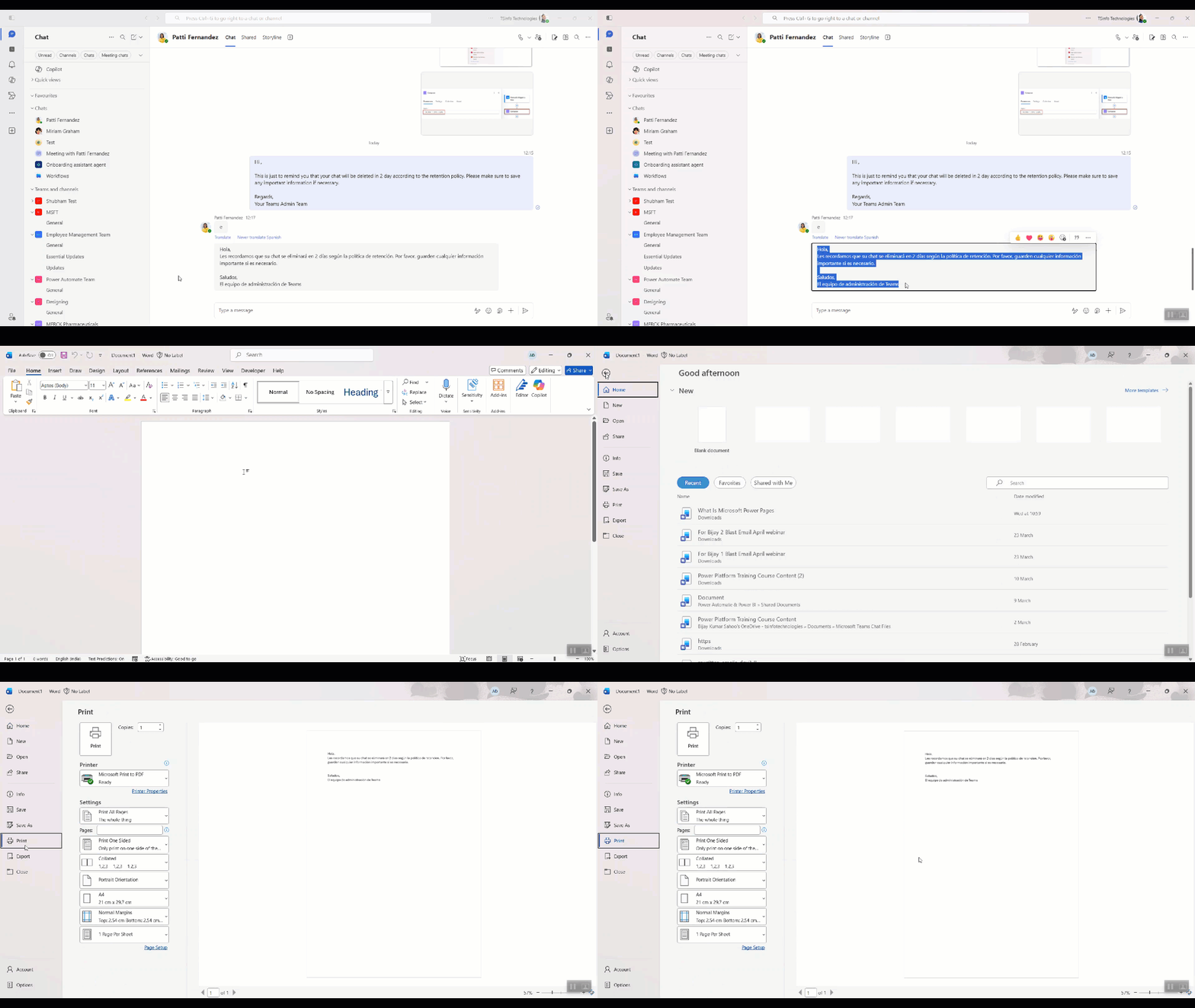
- Open Microsoft Teams and go to the chat you want to print.
- Click and drag your mouse to highlight the messages you want to capture.
- Right-click and select Copy, or press Ctrl + C (Windows) or Cmd + C (Mac).
- Open Microsoft Word, Notepad, or Google Docs.
- Paste the text using Ctrl + V (Windows) or Cmd + V (Mac).
- Clean it up if needed — fix spacing, remove any formatting clutter.
- Go to File > Print, choose your printer, and hit Print.
Quick tips:
- Timestamps and sender names usually copy over too, which is helpful for documentation.
- If you paste into Word, you can quickly format the text with headers, page numbers, or a title before printing.
- This method won’t work well for long conversations — the scrolling and selecting gets tedious.
Method 2: Print via the Browser (Best for Longer Chats)
This is the method I’d recommend if you need to capture a longer conversation and want it to look clean. It works because the browser’s print function grabs everything visible on screen — layouts, timestamps, and all.
Here’s how to do it:
- Open your browser and go to teams.microsoft.com. Log in with your work or school account.
- Click on Chat in the left sidebar and open the conversation you want to print.
- Scroll up in the chat to load the older messages you want to include. This is important — the browser only captures what’s loaded on the screen.
- Once everything you need is visible, press Ctrl + P (Windows) or Cmd + P (Mac) to open the print dialog.
- In the print preview, choose your printer or select Save as PDF if you want a digital copy.
- Adjust settings like margins, orientation (portrait/landscape), and pages if needed.
- Click Print or Save.

Quick tips:
- Use Save as PDF if you want to email the conversation or store it digitally rather than printing on paper.
- The browser print preview will show you exactly what will be printed, so review it before committing.
- If the chat is very long, break it into sections — scroll, capture, and print in batches.
Method 3: Export Your Chat History via Microsoft’s Export Page (For Personal Accounts)
If you’re using a personal Microsoft Teams account (the free version), Microsoft gives you an official way to export your data — including chat history. This is the cleanest method for a complete, structured export.
Here’s how to do it:
- Open your browser and go to microsoft.com/en-us/download or search for “Microsoft Teams export data.”
- Navigate to the Microsoft account privacy dashboard — you can find it at account.microsoft.com/privacy.
- Look for the Download your data or Export option.
- Select Chat history (and optionally Media if you want images and files too).
- Click Submit and wait for Microsoft to prepare your export.
- Once ready, download the file. Your chat history will usually come as a structured data file (JSON or HTML format).
- Open the HTML file in a browser, then print using Ctrl + P.
Quick tips:
- This method takes a bit of time — Microsoft needs to prepare the export, which can take a few minutes to a few hours, depending on your data size.
- The exported HTML file is the easiest to print since it opens in a browser like a normal webpage.
- If you’re on a work or school account, your IT admin may need to handle bulk exports through the Microsoft 365 Compliance Center instead.
Method 4: Take Screenshots (Best for Quick, Visual Records)
Okay, this isn’t the most elegant method, but sometimes it’s the fastest — especially if you only need a couple of messages and don’t care about perfect formatting.
Here’s how to do it:
- Open the Teams chat on your desktop or mobile.
- Scroll to the messages you want to capture.
- Take a screenshot:
- Windows: Press PrtScn or Windows + Shift + S for a cropped snip.
- Mac: Press Shift + Command + 4 to capture a selected area.
- Mobile: Use your phone’s screenshot shortcut (usually Power + Volume Down).
- Paste or save the screenshot into a Word document, Google Doc, or image editor.
- Print the document or image normally.
Quick tips:
- For a long conversation, take multiple overlapping screenshots so nothing falls between the cracks.
- The Windows Snipping To