
You sent a Teams message. Ten minutes later, it shows “Seen.” Now you’re sitting there wondering why they haven’t replied yet. Sound familiar?
That little “Seen” icon in Microsoft Teams is called a read receipt. It tells the sender that you’ve read their message. It’s a useful feature for some people — but for others, it’s a source of unnecessary pressure. If you’d rather read messages on your own time without the sender knowing exactly when you did it, turning off read receipts is the way to go.
In this tutorial, I’ll walk you through exactly how to disable read receipts in Microsoft Teams — on desktop, mobile, and even at the admin level if you manage a team. I’ll also explain what read receipts actually do (and don’t do), so you know exactly what you’re changing.
What Are Read Receipts in Teams?
When read receipts are turned on, the person who sent you a message can see a small “Seen” indicator once you’ve opened and read it. Think of it like the blue ticks in WhatsApp — it tells the sender their message didn’t just disappear into a void.
This works in both one-on-one chats and group chats.
Here’s something worth knowing, though: a message only triggers a read receipt if you’re actively in the chat window when you read it. If you glance at it through a banner notification or hover over someone’s profile, it won’t mark the message as seen. So read receipts are a bit more nuanced than most people think.
By default, read receipts are turned on for everyone. And here’s the important part — your IT admin may or may not allow you to turn this off. If you follow the steps below and can’t find the toggle, that’s why.
Why Would You Want to Turn Off Read Receipts?
Honestly, there are plenty of valid reasons:
- You want to read a message at your own pace without the sender expecting an immediate reply
- You’re in a deep focus session and don’t want to signal that you’re “available”
- You find the “Seen” pressure distracting or stressful
- You want to review a message carefully before crafting a thoughtful response
- You simply value your privacy and don’t want your reading habits tracked
None of these reasons is bad. It’s your communication style, and Teams gives you the control — as long as your admin allows it.
Turn Off Read Receipts in Microsoft Teams
Here, I will show you 5 methods to turn off read receipts in Microsoft Teams.
Method 1: Turn Off Read Receipts on Teams Desktop (Windows & Mac)
This is the most common scenario — you’re using the full Teams desktop app on your computer. Here’s how to do it:
- Open Microsoft Teams and make sure you’re signed into the correct account.
- Click the three-dot menu (…) icon — also called “Settings and more” — located next to your profile picture in the top-right corner.
- Click Settings from the dropdown menu.
- In the Settings panel, look for Chats and channels in the left-hand menu (in older versions of Teams, this may appear under Privacy or General — depends on your Teams version).
- Find the Read receipts toggle and switch it off.
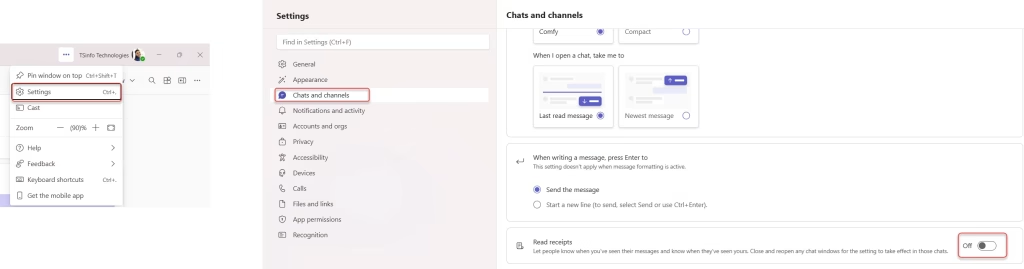
That’s it. Once you turn this off, your name will no longer appear under “Seen by” when someone else checks their message, and you won’t see read receipts from others either.
Quick note: The settings navigation in Teams has changed slightly across updates. If you don’t see “Chats and channels,” check under Privacy or General — the toggle will be there somewhere.
Method 2: Turn Off Read Receipts on the Teams Mobile App (iOS & Android)
If you’re mostly on your phone, the steps are just a little different. Here’s how to do it:
- Open the Microsoft Teams app on your phone.
- Tap your profile picture in the top-left corner of the screen.
- Tap Settings.
- Tap Chats and channels.
- Find the Read receipts option and toggle it off.
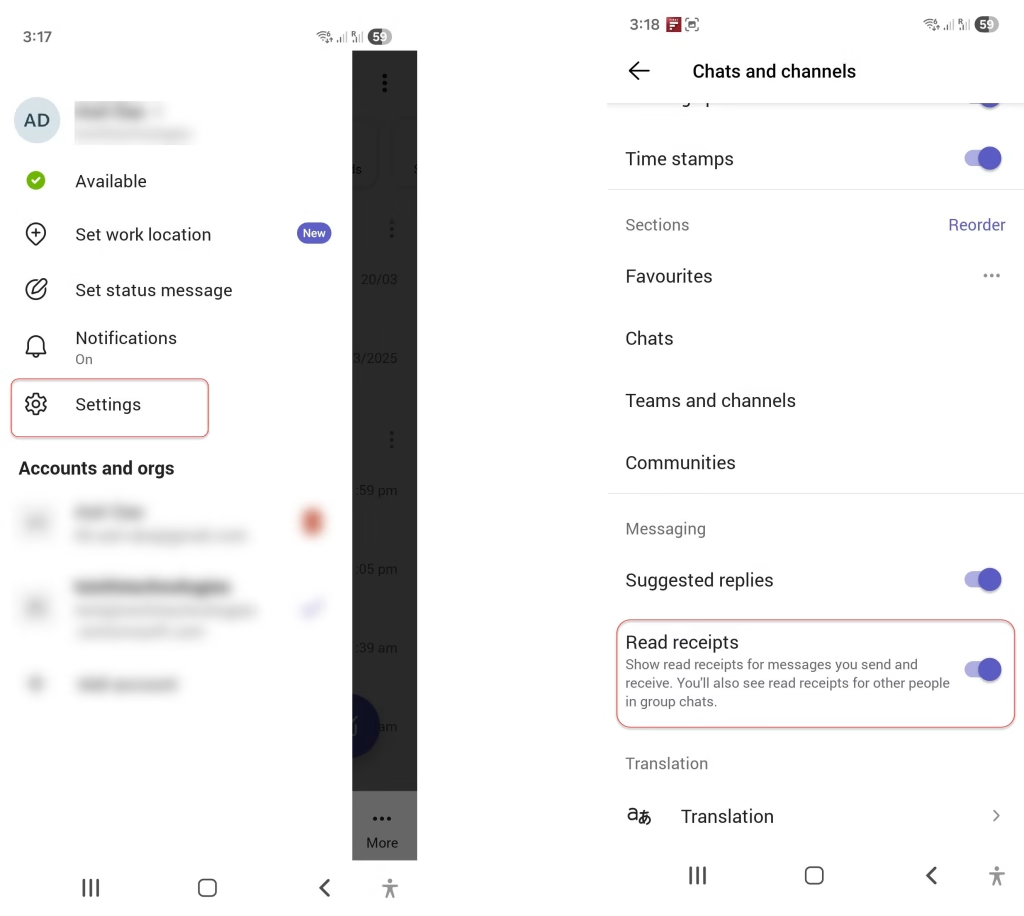
Done. This disables read receipts for your account on that device. If you use Teams across multiple devices or organizations, note that you may need to update this setting separately for each organization’s accounts.
Method 3: Turn Off Read Receipts in Microsoft Teams Free
If you’re using the free version of Teams (not the paid Microsoft 365 version), the steps are slightly different:
- Open Microsoft Teams Free and click or tap Settings and more near your profile picture.
- Select Settings.
- Go to Messaging.
- Toggle Read receipts off.
The free version of Teams is popular for small teams and personal use, and the privacy settings here work the same way — once it’s off, neither you nor the people you chat with will see read receipts.
Method 4: Admin-Level Read Receipt Control (For IT Admins)
If you’re an IT admin or manage Teams for your organization, you have more control over this. You can set read receipt policies for the entire organization or assign custom policies to specific users.
Here’s how to do it:
- Go to the Microsoft Teams Admin Center at admin.teams.microsoft.com.
- In the left menu, expand Messaging and click on Messaging policies.
- You’ll see the Global (Org-wide default) policy. Click on it to edit it.
- Find the Read receipts setting and choose one of these options:
- User controlled — each user can decide for themselves whether to use read receipts
- Turned on for everyone — read receipts are always on, no one can disable them
- Turned off for everyone — read receipts are always off, no one can enable them
- Click Save.
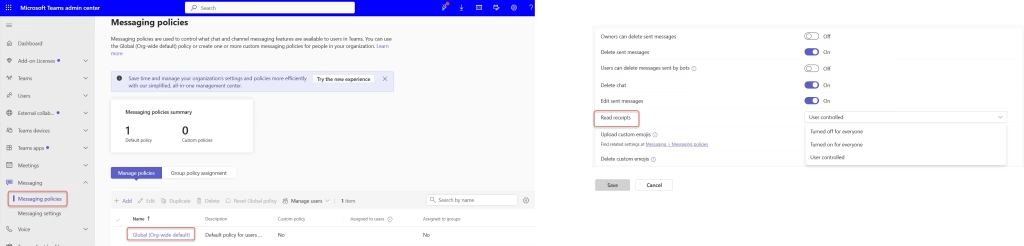
If you want to create a custom policy for a specific group of people (for example, the leadership team keeps read receipts on, but the rest of the org doesn’t), you can create a new policy and assign it to specific users.
This is the most powerful option — and it’s why some users find they can’t toggle the setting themselves. If an admin has set read receipts to “Turned on for everyone,” the toggle in your personal settings simply won’t appear.
Method 5: Turn Off Read Receipts Using PowerShell
If you’re an admin who prefers PowerShell (or needs to manage this at scale across multiple policies), you can handle this through the Teams PowerShell module.
First, make sure you’re connected to the Teams admin center via PowerShell. Then use these commands:
To list all current messaging policies and check the read receipts setting:
Get-CsTeamsMessagingPolicy
To turn off read receipts for a specific policy:
Set-CsTeamsMessagingPolicy -Identity "PolicyName" -ReadReceiptsEnabledType "UserPreference"
Replace "PolicyName" with the actual name of the policy you want to modify. And replace "UserPreference" with the value that matches what you want:
UserPreference— lets users control it themselvesAlwaysEnabled— turns it on for everyone, no user controlAlwaysDisabled— turns it off for everyone, no user control
For example, if you want to completely disable read receipts organization-wide:
Set-CsTeamsMessagingPolicy -Identity Global -ReadReceiptsEnabledType AlwaysDisabled
This is the fastest route when you need to make bulk changes or manage multiple messaging policies.
What Happens After You Turn Off Read Receipts?
Here’s a practical breakdown of what changes (and what doesn’t):
- What changes: Other people won’t see “Seen by [your name]” when you read their messages. You also won’t see whether others have read your messages.
- What doesn’t change: The “sent” confirmation still appears. Messages are still delivered. Your notifications still work exactly the same.
- One important thing: Read receipts are mutual. If you turn them off, you lose visibility both ways. You won’t be able to see when others have read your messages, and they won’t see when you’ve read theirs. It’s not a one-way setting.
So if you’re someone who likes to track whether your important message was actually read, think about this trade-off before disabling it.
A Few Things People Often Ask
Can I turn off read receipts for just one specific chat?
No — right now, Teams doesn’t let you control read receipts on a per-conversation basis. It’s an all-or-nothing setting. Either it’s on for everything, or it’s off for everything.
What if the toggle is grayed out or missing?
That means your IT admin has locked the setting. You’ll need to reach out to your admin and ask them to either enable user control or change the org-wide policy.
Do read receipts work in Teams channels?
Read receipts in Teams are primarily designed for chat messages (one-on-one and group chats). They don’t function the same way in Teams channels, where messages are more like posts.
What about group chats — does turning off affect everyone?
Only your receipts are affected. If someone else in the group has read receipts turned on and you’ve read the message, whether they see your “Seen” confirmation depends on both your settings and the admin policy in place.
Can You See Who Read Your Message in a Group Chat?
Yes — but only if read receipts are turned on for everyone involved. In a group chat with up to 20 people, you can click on any message and select More options > Read by to see a list of people who have read it.
Tips to Keep in Mind
- Teams updates frequently, so the exact label of the setting (like “Chats and channels” vs. “Privacy”) may vary slightly depending on your version. If you can’t find it, just search “read receipts” inside the Teams settings search bar.
- If you switch between multiple organizations in Teams, remember that the read receipt setting may need to be updated separately for each org account.
- As an admin, review your messaging policies periodically — especially after a major Teams update — to make sure the settings are still what you intended.
In Microsoft Teams, read receipts are one of those small features that can quietly affect how you communicate every day. Some people like the transparency, while others just want a bit more breathing room — and both are completely valid.
The good thing is, Teams gives you that flexibility. If you prefer to read messages without feeling rushed to reply, turning off read receipts can make your workflow feel a lot more relaxed. And if you’re managing a team, you can also set what works best for everyone.
Also, you may like:
- 15 Best Practices For Microsoft Teams
- Add Multiple Accounts On Microsoft Teams
- 3 Best Ways to Turn On Translate in Microsoft Teams Meeting
- Add Someone to Microsoft Teams Outside Your Organization

Hey! I’m Bijay Kumar, founder of SPGuides.com and a Microsoft Business Applications MVP (Power Automate, Power Apps). I launched this site in 2020 because I truly enjoy working with SharePoint, Power Platform, and SharePoint Framework (SPFx), and wanted to share that passion through step-by-step tutorials, guides, and training videos. My mission is to help you learn these technologies so you can utilize SharePoint, enhance productivity, and potentially build business solutions along the way.