
If you’ve ever been in a Microsoft Teams meeting squinting at a tiny spreadsheet on a shared screen, or struggling to read chat messages because the text feels too small, you’re not alone. This is one of the most common Teams frustrations, and the fix is simpler than you think.
In this tutorial, I’ll walk you through every way to zoom in on Microsoft Teams — whether you’re in a meeting, reading a chat, or just want the whole Teams interface to feel bigger. I’ll cover keyboard shortcuts, mouse tricks, app settings, and a couple of bonus methods most people don’t know about.
Let’s get into it.
Why You’d Want to Zoom In on Teams
Before jumping into the steps, it helps to understand that zooming in on Teams isn’t just one thing. There are actually three different scenarios:
- Zooming in on the Teams app itself — making the entire interface bigger (chat, sidebar, menus)
- Zooming in during a meeting — enlarging shared screens or presentations while you’re in a call
- Zooming in on a PowerPoint presentation — magnifying slides shared via PowerPoint Live
Each scenario has its own method. I’ll cover all three.
Zoom In on Microsoft Teams
Let’s learn how to Zoom In on Microsoft Teams with 5 different methods.
Method 1: Zoom In on the Teams App (Chat, Channels, Sidebar)
This is the most basic zoom — it resizes everything inside the Teams app window. Useful if the text in your chats or channels looks too small.
Using Keyboard Shortcuts (Fastest Way)
This works on both Windows and Mac, and it’s honestly the quickest method.
On Windows:
- Zoom in: Ctrl + = (or Ctrl + scroll wheel up)
- Zoom out: Ctrl + –
- Reset to default: Ctrl + 0
On Mac:
- Zoom in: Command + = (or Command + scroll wheel up)
- Zoom out: Command + –
- Reset: Command + 0
Just open Teams, click anywhere on the main window, and press the shortcut. You’ll see the whole interface scale up instantly. Press Ctrl + 0 (Windows) or Command + 0 (Mac) any time you want to get back to the default 100% view.
Using the Three-Dot Menu (No Shortcut Needed)
If you’d rather use a menu instead of keyboard shortcuts:
- Open Microsoft Teams
- Click the three dots (…) in the top-right corner of the app
- Look for the Zoom option — it’ll show the current zoom level (usually 100% by default)
- Click the + button to zoom in, or – to zoom out

This method is handy if you’re not comfortable with shortcuts or if you want to see the exact percentage you’re at.
Method 2: Zoom In During a Teams Meeting (Shared Content)
This is the one that trips most people up. When someone shares their screen in a meeting, the regular Ctrl + = shortcut doesn’t work the same way. Teams uses different shortcuts specifically for zooming into shared content.
Keyboard Shortcuts for Meeting Zoom
On Windows:
- Zoom into shared content: Alt + Shift + +
- Zoom out from shared content: Alt + Shift + –
- Reset zoom: Alt + Shift + 0
On Mac:
- Zoom into shared content: Option + Shift + +
- Zoom out: Option + Shift + –
- Reset: Option + Shift + 0
Panning Around After You Zoom In
Once you’ve zoomed in on a shared screen, you might need to move around to see different parts of it. Teams lets you pan (scroll around) the zoomed view using these shortcuts:
On Windows:
- Pan up: Alt + Shift + Up Arrow
- Pan down: Alt + Shift + Down Arrow
- Pan left: Alt + Shift + Left Arrow
- Pan right: Alt + Shift + Right Arrow
On Mac: Replace Alt + Shift with Option + Shift and use the same arrow keys.
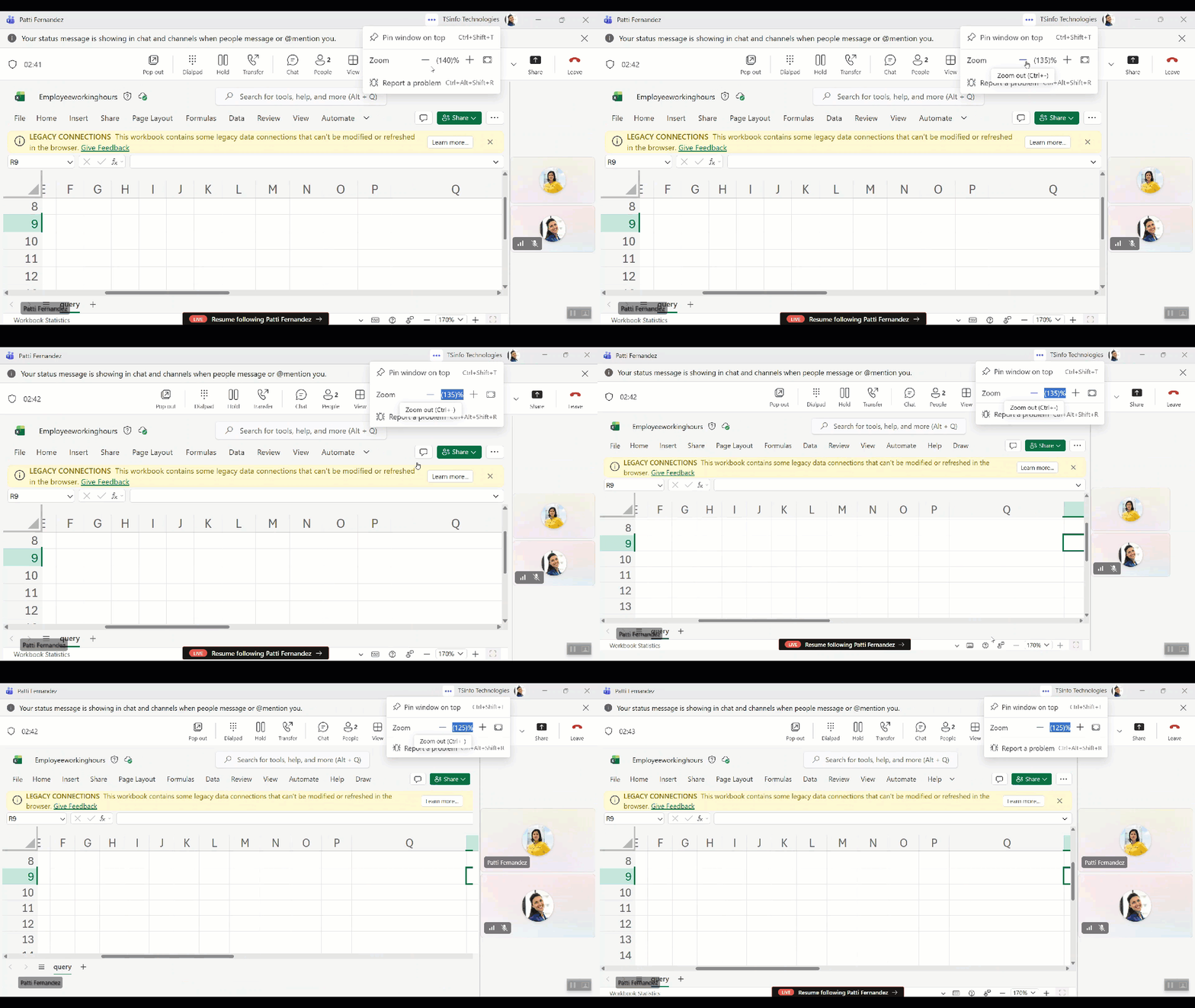
This is really useful when someone shares a large spreadsheet or document and you need to zoom in on a specific section without asking the presenter to scroll for you.
Using Ctrl + Scroll During a Meeting
You can also hold Ctrl and scroll your mouse wheel up to zoom into the content area during a meeting. Scroll down to zoom back out. This is less precise than the keyboard shortcuts, but it works well for quick, on-the-fly adjustments.
Method 3: Zoom In on a PowerPoint Live Presentation in Microsoft Teams
If a presenter is sharing their slides using PowerPoint Live (not just screen sharing, but the actual PowerPoint Live feature inside Teams), you get a special magnify option that’s even better.
Here’s how to use it:
- While the PowerPoint Live presentation is active, look at the bottom-left corner of your screen
- Click the Change view that appears there
- Select “Magnify slide only for me”

This privately zooms you into the slide. The presenter and everyone else in the meeting still see the normal view — only you see the magnified version. You won’t disrupt anyone.
Once you’re done zooming in, you’ll also see a “Sync to presenter” button that snaps you back to following the presenter’s current slide.
This feature works on both the Teams desktop app and on Teams in the browser.
Method 4: Use Windows Magnifier as a Backup
Sometimes you might be on the Teams web version, or the built-in Zoom just isn’t enough. In those cases, Windows has a built-in Magnifier tool that works across your whole screen — including inside Teams meetings.
To turn it on quickly:
- Press Windows key + = (plus sign) to open Magnifier
- Use Windows key + + to zoom in further
- Use Windows key + – to zoom out
- Press Windows key + Esc to close the Magnifier
The Magnifier is especially useful when someone is sharing a screen and you absolutely cannot read what’s on it. It works on top of any application, including Teams.
Mac users can use the built-in Zoom accessibility feature: go to System Settings → Accessibility → Zoom and turn it on.
Method 5: Adjust the Teams App Window Size
There’s one more thing worth knowing. The newer Teams desktop app lets you resize the app window itself and also adjust the left and right panes independently. Sometimes just making the Teams window larger — or going full-screen — solves the problem without needing any zoom at all.
To go full screen in Teams:
- Press F11 (Windows) or Control + Command + F (Mac)
- Or click the full-screen icon in the top-right corner of the meeting window
Quick Reference: All Zoom Shortcuts in One Place
Here’s a summary of every shortcut covered in this tutorial:
| What You Want to Do | Windows Shortcut | Mac Shortcut |
|---|---|---|
| Zoom in on Teams app | Ctrl + = | Command + = |
| Zoom out on Teams app | Ctrl + – | Command + – |
| Reset Teams app zoom | Ctrl + 0 | Command + 0 |
| Zoom in on shared meeting content | Alt + Shift + + | Option + Shift + + |
| Zoom out from shared content | Alt + Shift + – | Option + Shift + – |
| Reset meeting zoom | Alt + Shift + 0 | Option + Shift + 0 |
| Pan shared content (any direction) | Alt + Shift + Arrow keys | Option + Shift + Arrow keys |
| Windows Magnifier | Win + = | N/A (use Accessibility Zoom) |
A Few Things to Keep in Mind
- The Ctrl + = shortcut for the app UI and the Alt + Shift + + shortcut for meetings are two completely separate things. A lot of people try the wrong one and think Zoom isn’t working.
- Zooming in on a shared screen during a meeting is only for you — it doesn’t affect what anyone else sees.
- If you’re on the Teams web version in a browser, the browser’s own zoom (Ctrl + = in Chrome or Edge) will zoom the entire Teams interface. It works, but it can make buttons and menus look a bit off. The desktop app’s built-in zoom is cleaner.
- The PowerPoint Live magnify feature only works when the presenter uses the “Present in Teams” option inside PowerPoint — not when they just share their screen.
Wrapping Up
Zooming in on Microsoft Teams isn’t complicated once you know which scenario you’re dealing with. If the interface looks small, use Ctrl + =. If you’re in a meeting and the shared screen is hard to read, use Alt + Shift + +. And if someone’s presenting a PowerPoint via PowerPoint Live, use the “Magnify slide only for me” option for the best experience.
The shortcuts feel a little awkward at first, but after a few meetings, they become second nature.
You may also like the following tutorials:
- Create a Private Channel in Teams
- Download Attendance List From Microsoft Teams After a Meeting
- Microsoft Teams Language Settings
- Add External User to Teams
- Create a Group in Teams

Hey! I’m Bijay Kumar, founder of SPGuides.com and a Microsoft Business Applications MVP (Power Automate, Power Apps). I launched this site in 2020 because I truly enjoy working with SharePoint, Power Platform, and SharePoint Framework (SPFx), and wanted to share that passion through step-by-step tutorials, guides, and training videos. My mission is to help you learn these technologies so you can utilize SharePoint, enhance productivity, and potentially build business solutions along the way.

