
I needed a simple way to check the weather for various locations (across different countries and states) without having to switch between websites or apps. I built a Power Apps Weather App that displays current weather and forecasts in one place.
In this Power Apps tutorial, I will show you how to create a Power Apps weather app, connect the MSN Weather connector to the app, and its uses in the canvas app.
Also, we will discuss what Power Apps Weather is, the definition of Current Weather, and the Weather Forecast.
Power Apps Weather
Power Apps Weather is also called Power Apps MSN Weather. When building a weather app in Power Apps, you need to connect the MSN Weather connector to your app.
The Power Apps MSN Weather connector enables you to access the latest weather information, including temperature, humidity, and precipitation, for a specific location.
Create a Power Apps Weather App
- The screenshot below shows the Power Apps Weather app I created. To see the current weather, users enter a location in the text box and tap the Search icon.
- The app then displays details such as Temperature, Pressure, Dew Point, Humidity, and Last Update for that location. Users can choose between Imperial (Fahrenheit) and Metric (Celsius) units to view the temperature.

Connect Power Apps MSN Weather
- To connect the MSN Weather in the app, go to the Data tab (from the left navigation pane) -> +Add data -> Search MSN Weather in the search box as shown below.
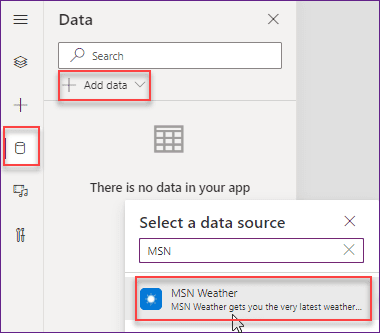
- Click on the MSN Weather connector and then tap the Connect button. Once you click on it, the weather connector will connect to the app. Without the MSN Weather connector, it is not possible to display the latest weather details in the app.

- As you can see, I have used these controls below:
| Title | Control | Description |
|---|---|---|
| WEATHER FORECAST | Label | Used for the App Title purpose |
| AUSTRALIA | Text input | The user can enter the location |
| Search icon | Icon | Help you search for the weather of a specified location. |
| Imperial, Metric | Radio button | The user can select according to their needs. |
| Image | Image | The user can display the weather pictures |
| Temperature | Label | View the current weather temperature of the specific location. |
| MOSTLY CLOUDY | Label | The weather that you feel can be viewed in this label control. |
| Weather Pressure | Label | Specifies the weather pressure of the specific location. |
| Dew Point | Label | Shows the dew point of a specific place |
| Humidity | View the current humidity of the particular place | |
| Last Update | Label | Can view the last weather update |
Refer to the image below:

- At first, select the Search icon and apply the below code on its OnSelect property as:
OnSelect = UpdateContext(
    {
        WeatherForecast: MSNWeather.CurrentWeather(
            txtSearchLocation.Text,
            rdUnits.Selected.Value
        )
    }
)
Where,
- WeatherForecast = Context variable name
- txtSearchLocation = Text input control name where a user can enter the location
- rdUnits = Radio control name

2. The second thing is about the Radio button control. Select the control and set its Items property as:
Items = ["Imperial", "Metric"]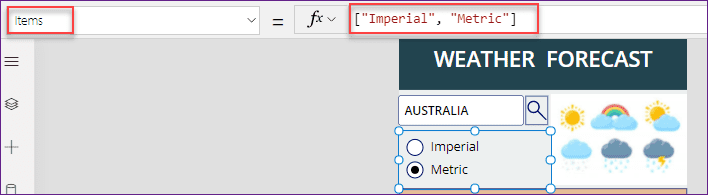
3. Now, we will discuss all the latest Weather forecasts, including temperature, Pressure, Dew point, and more. Follow the below codes to get the details:
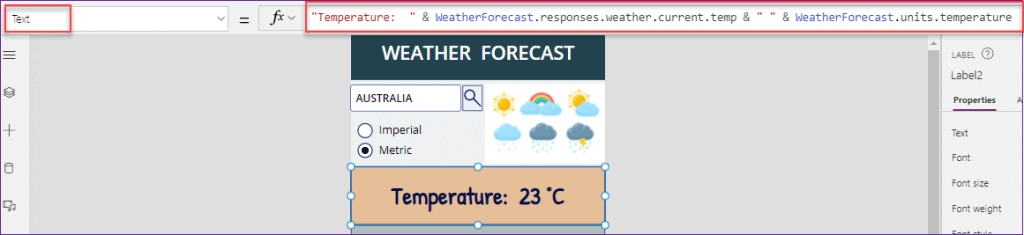
Temperature:
To get the latest temperature of the specific location, you can set the below code to the Label’s Text property as:
Text = "Temperature: " & WeatherForecast.responses.weather.current.temp & " " & WeatherForecast.units.temperatureWhere,
WeatherForecast = Specified context Variable name
Conditions:
To get the current weather condition of the specific location, you can set the below code to the Label’s Text property as:
Text = Upper(WeatherForecast.responses.weather.current.cap)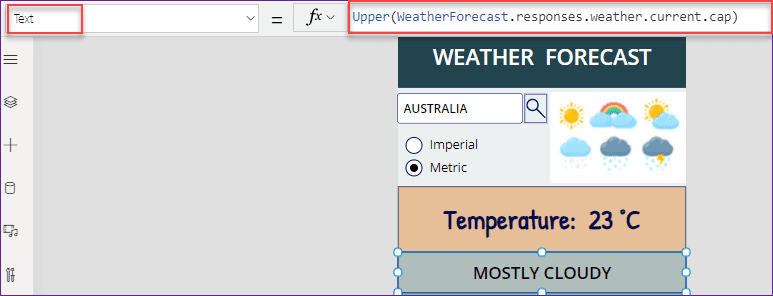
Pressure:
To get the current weather pressure of the particular location, you can set the below code to the Label’s Text property as:
Text = "Weather Pressure: " & WeatherForecast.responses.weather.current.baro & " " & WeatherForecast.units.pressure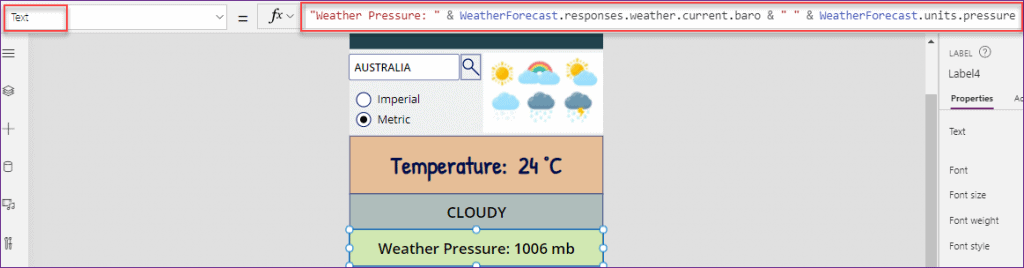
Dew Point:
To get the weather dew point of the specific location, you can set the below code to the Label’s Text property as:
Text = "Dew Point: " & WeatherForecast.responses.weather.current.dewPt & " o"
Humidity:
To get the weather humidity of the particular location, you can set the below code to the Label’s Text property as:
Text = "Humidity: " & WeatherForecast.responses.weather.current.rh & " %"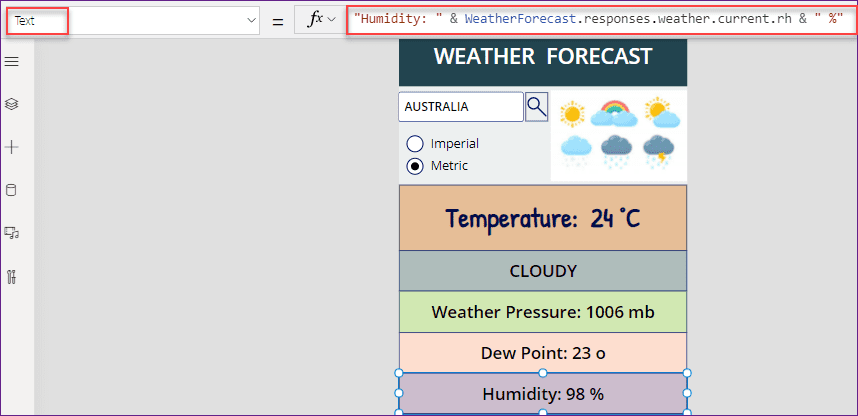
Last Update:
To get the Last weather update of the specific location, you can set the below code to the Label’s Text property as:
Text = "Last Update: " & WeatherForecast.responses.weather.current.created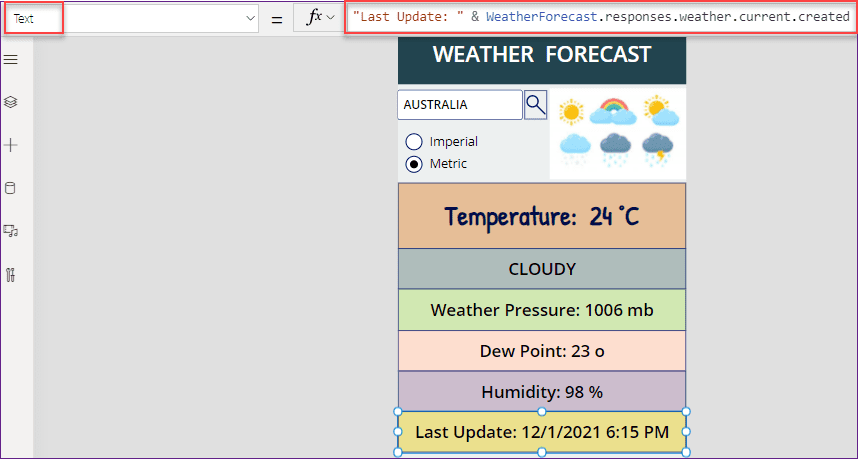
You can get even more detailed weather information using the code explained below, including the UV Index, Visibility, Wind Direction, Latitude, Longitude, and more.
Show Current and Tomorrow’s Temperature in Power Apps Page
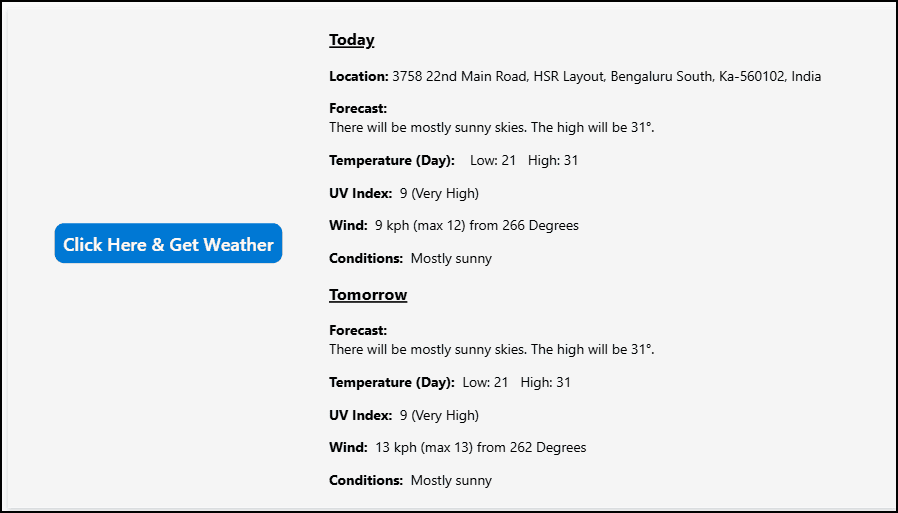
I want to display the current as well as tomorrow’s weather conditions on a page in my app, starting with something simple, such as the current location, forecast, temperature, and UV index, among others.
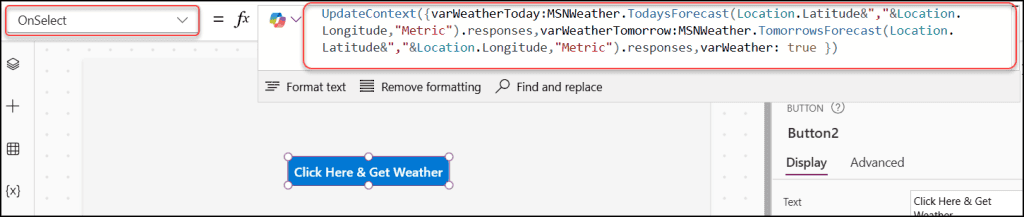
Here, in the image below, I have a Power Apps Button and an HTML text input control. Whenever a user taps on the button, the current and tomorrow’s weather forecast will display on the screen.
- To workaround this, select the button (Click Here & Get Weather) and set its OnSelect property:
OnSelect = UpdateContext(
    {
        varWeatherToday: MSNWeather.TodaysForecast(
            Location.Latitude & "," & Location.Longitude,
            "Metric"
        ).responses,
        varWeatherTomorrow: MSNWeather.TomorrowsForecast(
            Location.Latitude & "," & Location.Longitude,
            "Metric"
        ).responses,
        varWeather: true
    }
)
Where,
- varWeatherToday, varWeatherTomorrow, varWeather = Variable names
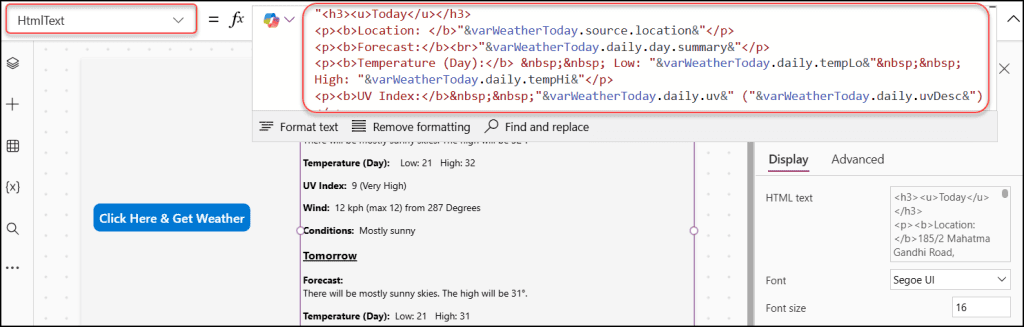
- Add an HTML Text input control and apply the code below to its HtmlText property:
HtmlText = "<h3><u>Today</u></h3>
<p><b>Location: </b>" & varWeatherToday.source.location & "</p>
<p><b>Forecast:</b><br>" & varWeatherToday.daily.day.summary & "</p>
<p><b>Temperature (Day):</b> Low: " & varWeatherToday.daily.tempLo & " High: " & varWeatherToday.daily.tempHi & "</p>
<p><b>UV Index:</b> " & varWeatherToday.daily.uv & " (" & varWeatherToday.daily.uvDesc & ")</p>
<p><b>Wind:</b> " & varWeatherToday.daily.day.windSpd & " kph (max " & varWeatherToday.daily.windMax & ") from " & varWeatherToday.daily.day.windDir & " Degrees</p>
<p><b>Conditions:</b> " & varWeatherToday.daily.day.cap & "</p>
<h3><u>Tomorrow</u></h3>
<p><b>Forecast:</b><br>" & varWeatherTomorrow.daily.day.summary & "</p>
<p><b>Temperature (Day):</b> Low: " & varWeatherTomorrow.daily.tempLo & " High: " & varWeatherTomorrow.daily.tempHi & "</p>
<p><b>UV Index:</b> " & varWeatherTomorrow.daily.uv & " (" & varWeatherTomorrow.daily.uvDesc & ")</p>
<p><b>Wind:</b> " & varWeatherTomorrow.daily.day.windSpd & " kph (max " & varWeatherTomorrow.daily.windMax & ") from " & varWeatherTomorrow.daily.day.windDir & " Degrees</p>
<p><b>Conditions:</b> " & varWeatherTomorrow.daily.day.cap & "</p>"The above code returns the current and tomorrow’s weather forecasts, including location, temperature, wind, and other relevant details.
CurrentWeather Vs WeatherForecast
- To get the current weather of a specific location, we will use the path as responses.weather.current
- To get the forecast for the current day of a particular location, we will use the path as responses.daily.day
You can find all the current weather details and the weather forecast using the tables below.
Table 1: (CurrentWeather)
| Name | Path | Type | Description |
| Pressure | responses.weather.current.baro | float | It defines the atmospheric pressure. |
| Conditions | responses.weather.current.cap | string | It specifies a caption of weather conditions such as rainy, sunny, etc. |
| Dewpoint | responses.weather.current.dewPt | float | It defines the temperature at which dew forms. |
| Apparent Temperature | responses.weather.current.feels | float | It represents the apparent temperature or feels-like temperature. |
| Humidity | responses.weather.current.rh | float | It defines the relative humidity percentage. |
| METAR weather conditions | responses.weather.current.wx | string | It specifies the METAR code of weather conditions. |
| METAR Sky Conditions | responses.weather.current.sky | string | It specifies the METAR code of sky conditions. |
| Temperature | responses.weather.current.temp | float | It defines the current temperature. |
| UV Index | responses.weather.current.uv | float | It defines the numerical UV index. |
| UV Index Description | responses.weather.current.uvDesc | string | A description of the meaning of the UV index. |
| Visibility Distance | responses.weather.current.vis | float | It specifies the visibility distance. |
| Wind Direction | responses.weather.current.windDir | integer | It defines the wind direction in degrees clockwise from north. |
| Wind Speed | responses.weather.current.windSpd | float | It defines the wind speed. |
| Wind Gust Speed | responses.weather.current.windGust | float | It defines the wind gust speed. |
| Last Updated | responses.weather.current.created | date-time | It specifies the datetime at which the provider created the current condition. |
| Latitude | responses.source.coordinates.lat | float | It specifies the latitude of the location. |
| Longitude | responses.source.coordinates.lon | float | It specifies the longitude of the location. |
| Location | responses.source.location | string | It defines the location for which the provider created the current condition. |
| Pressure Units | units.pressure | string | It represents the units used for pressure measurements. |
| Temperature Units | units.temperature | string | It represents the units used for temperature measurements. |
| Speed Units | units.speed | string | It represents the units used for speed measurements. |
| Distance Units | units.distance | string | It represents the units used for distance measurements. |
Table 2: (WeatherForecast)
| Name | Path | Type | Description |
| Conditions | responses.daily.day.cap | String | It specifies the weather conditions like rainy, sunny, etc. |
| Rain Chance | responses.daily.day.precip | float | It defines the chance of precipitation (%). |
| METAR Weather Conditions | responses.daily.day.wx | string | It defines the METAR code of weather conditions. |
| METAR Sky Conditions | responses.daily.day.sky | string | It specifies the METAR code of sky conditions. |
| Wind Direction | responses.daily.day.windDir | integer | It represents the wind direction in degrees clockwise from north. |
| Wind Speed | responses.daily.day.windSpd | float | It describes the wind speed. |
| Summary | responses.daily.day.summary | string | It specifies the text summary of the forecast. |
| Conditions | responses.daily.night.cap | string | It specifies the weather conditions such as rainy, sunny, etc. |
| Rain Chance | responses.daily.night.precip | float | It specifies the chance of precipitation (%). |
| METAR Weather Conditions | responses.daily.night.wx | string | It defines the METAR code of weather conditions. |
| METAR Sky Conditions | responses.daily.night.sky | string | It defines the METAR code of sky conditions. |
| Wind Direction | responses.daily.night.windDir | integer | It specifies the wind direction in degrees clockwise from north. |
| Wind Speed | responses.daily.night.windSpd | float | It defines the wind speed. |
| Summary | responses.daily.night.summary | string | It specifies a text summary of the forecast. |
| Conditions | responses.daily.pvdrCap | string | It specifies the weather conditions such as rainy, sunny, etc. |
| Date | responses.daily.valid | date-time | It defines the datetime at which the forecast is valid. |
| Rain Chance | responses.daily.precip | float | It specifies the chance of precipitation (%). |
| Max Wind Speed | responses.daily.windMax | float | It defines the peak wind speed for the day. |
| Max Wind Direction | responses.daily.windMaxDir | integer | It defines the direction of the peak wind for the day. |
| Humidity High | responses.daily.rhHi | float | It represents the high relative humidity point for the day. |
| Humidity Low | responses.daily.rhLo | float | It specifies the low relative humidity point for the day. |
| Temperature High | responses.daily.tempHi | float | It defines the high temperature. |
| Temperature Low | responses.daily.tempLo | float | It defines the low temperature. |
| UV Index | responses.daily.uv | float | It defines the numerical UV index. |
| UV Index Description | responses.daily.uvDesc | string | It defines the description of the meaning of the UV index. |
| Forecast Date | responses.daily.created | date-time | It defines the DateTime at which the daily forecast was derived. |
| Sunrise Time | responses.almanac.sunrise | date-time | It represents the time of sunrise on the day of this forecast. |
| Sunset Time | responses.almanac.sunset | date-time | It represents the time of sunset on the day of this forecast. |
| Moonrise Time | responses.almanac.moonrise | date-time | It defines the time of moonrise on the day of this forecast. |
| Moonset Time | responses.almanac.moonset | date-time | It defines the time of moonset on the day of this forecast. |
| Moon Phase | responses.almanac.moonPhase | string | It specifies the phase of the moon on the day of this forecast. |
| Moon Phase Code | responses.almanac.moonPhaseCode | string | It defines the code representing the phase of the moon. |
| Latitude | responses.source.coordinates.lat | float | It describes the latitude of the location. |
| Longitude | responses.source.coordinates.lon | float | It describes the longitude of the location. |
| Location | responses.source.location | string | It defines the location for which the provider created the forecast. |
| Pressure Units | units.pressure | string | it defines the units used for pressure measurements. |
| Temperature Units | units.temperature | string | It defines the units used for temperature measurements. |
| Speed Units | units.speed | string | It defines the units used for speed measurements. |
| Distance Units | units.distance | string | It defines the units used for distance measurements. |
Also, you may like the following Power Apps articles:
- Power Apps Auto Populate Country Code And Phone Number
- Power Apps Horizontal Navigation Menu Component With Submenu
- Add a Multistep Form in Power Pages
- Get Choice Column Value From Dataverse Using Power Automate
- Create A Form In Power Pages
- Create an Agent Flow With Natural Language
- You don’t have permission to view this data error in Power Apps
In this Power Apps tutorial, we explored what Power Apps Weather is, including definitions of current weather and forecasts. We also learned how to create a Power Apps Weather app, connect it to the MSN Weather service, and use it to display weather information for today and tomorrow.

Hey! I’m Bijay Kumar, founder of SPGuides.com and a Microsoft Business Applications MVP (Power Automate, Power Apps). I launched this site in 2020 because I truly enjoy working with SharePoint, Power Platform, and SharePoint Framework (SPFx), and wanted to share that passion through step-by-step tutorials, guides, and training videos. My mission is to help you learn these technologies so you can utilize SharePoint, enhance productivity, and potentially build business solutions along the way.


Thank you for the detailed information! Very useful