
Yesterday, a Power Apps client asked me if it’s possible to get the details of the last item they submitted in Power Apps using a SharePoint list. The answer is yes!
Power Apps has a handy function, LastSubmit(), that lets you quickly retrieve the last item submitted during the current session.
In this article, I will explain the Power Apps LastSubmit() function and how to use the LastSubmit function in a Power Apps Canvas app. Also, we will discuss some more topics below:
- Get the last submitted ID in Power Apps
- Patch the last submitted item in Power Apps
- How to overcome – Power Apps LastSubmit() function returns empty result
Power Apps LastSubmit()
The LastSubmit() function in Power Apps helps you get the details of the last item you sent or saved in a form. For example, if you fill out a form and submit it, LastSubmit() lets you easily access the information from that last submission. It’s useful when you want to show a confirmation, display the saved data, or use it for other actions in your app.
The LastSubmit() is a property of the Edit Form in Power Apps. It doesn’t directly interact with the data source, so it isn’t affected if multiple users submit forms simultaneously.
Three key points to know:
- It only works with the Edit Form control.
- If your data source creates or calculates fields automatically (such as a unique ID), LastSubmit will retain that new value after the form is successfully submitted.
- You can use this value in the form’s OnSuccess formula, which confirms the last submitted record’s details are saved in the form’s properties.
How to Use LastSubmit() in Power Apps
Here, by taking two different examples, we will learn how to utilize the Power Apps LastSubmit function.
Example – 1: [Display Power Apps Last Submitted Item Name]
The screenshot below represents a SharePoint List named “Customer Care Report Details,” where user-submitted records will be saved.
This list has columns below:
| Column | Datatype |
|---|---|
| Title | Single line of text |
| Customer Care Report For | Single line of text |
| Plot Number | Number |
| Bell Reference Number | Number |
| Customer Name | Single line of text |
| Manager | Person |

Let’s follow the steps:
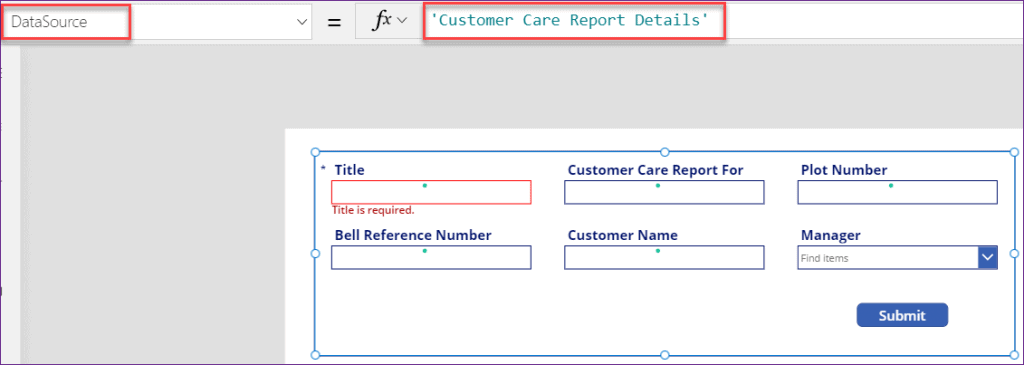
- The screenshot below shows a Power Apps Edit form used to submit a new item or record to the specific SharePoint list mentioned above. The Edit form’s data source is the SharePoint list named “Customer Care Report Details.”
- To do this, add a Label that shows the last submitted item in Power Apps. Select the Label control and set its Text property to the following formula:
Text = "The last record that you submitted is: " & Form1.LastSubmit.'Customer Name'Where,
- Form1 = Power Apps Edit Form name
- Customer Name = This is one of the column names from the specified SharePoint list. This helps to get the last customer name that you have submitted currently

- Now, save and preview the app by pressing F5. Enter the field values and click the Submit button. After clicking, you’ll see the last customer name appear in the label control, as shown in the screenshot below.

Additionally, you can see that the submitted item has been saved in the specified SharePoint list, as shown below.

Example – 2: [Retrieve Last Submitted Item Details in Power Apps]
In this example, we’ll learn how to get the details of the last submitted item using the Power Apps LastSubmit function.
The last submitted item will be shown on a Power Apps Display Form, with the data coming from a SharePoint list.
- To set this up, add a Display Form to your app and use the following formula for its Item property:
Item = Form1.LastSubmitWhere,
Form1 = Power Apps Edit Form name
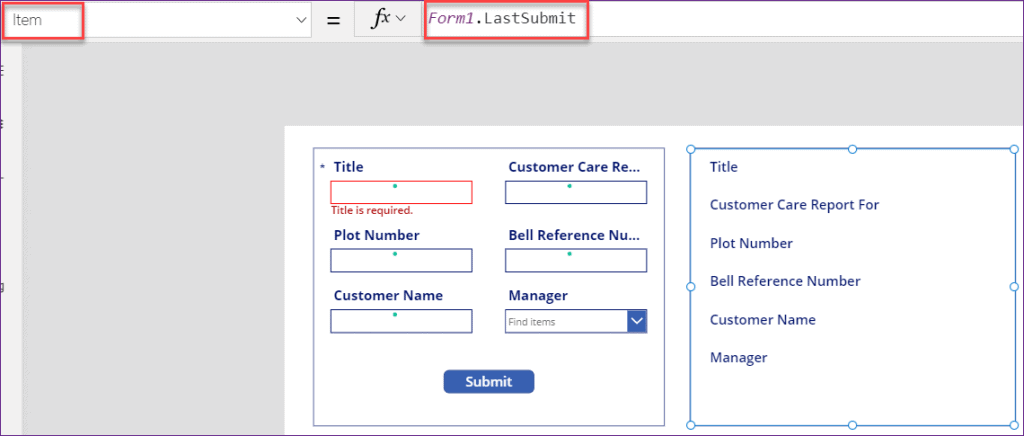
- Save and Preview (F5) the app. Enter the field values in the edit form and click on the submit button. You can view the details of the last submitted item in the display form, as shown in the screenshot below.

Get Last Submit ID in Power Apps
To retrieve the ID of the last submitted form in your app, use the EditForm.LastSubmit. You can access this value in the form’s OnSuccess property.
When you open a new form, the Edit Form resets and the EditForm property is set.LastSubmit.ID will be empty.
- To show the last item ID, add a Label and set its Text property to this formula:
Text = "The last record that you submitted is: " & Form1.LastSubmit.IDWhere,
Form1 = Power Apps Edit Form Name

- Save and Preview (F5) the app. Enter the field values and click on the Submit button. Now you can see the last submitted ID will be visible in the Label control as shown below.

- Similarly, you can also try the following formula to get the last submitted form data (a record) within your app, i.e., [As I have applied this formula on Label’s Text property]
Text = Last('Customer Care Report Details').IDWhere,
‘Customer Care Report Details’ = SharePoint List name

Patch Last Submit Item in Power Apps
In this example, I’m using a Power Apps Edit form to submit an item to a SharePoint list. At the same time, I want to update a field in the last submitted item using the Patch function. Both actions will happen when I click the same button.
Many new users wonder if it’s possible to use Submit and Patch together on one button. The answer is yes! You can run multiple actions by separating them with a semicolon (;).
- Here’s how you can set the button’s OnSelect property to submit the form and update a field at the same time:
OnSelect = SubmitForm(Form1);
Patch(
    'Customer Care Report Details',
    Form1.LastSubmit,
    {'Customer Care Report For': "Airtel"}
)
Where,
- Form1 = Edit form name
- ‘Customer Care Report Details’ = SharePoint list name
- ‘Customer Care Report For’ = SharePoint Column name where I will update the new value of the last submitted item
- “Airtel” = This is the string that I have specified to update
The above code submits the item to the SharePoint list and updates the field of the last submitted item with the value “Airtel“.

- Now, save and Preview (F5) the app. Enter the record and click on the Submit button. As you can see, I have specified “Vodafone” in the “Customer Care Report For” field.
However, once you click the submit button, the field value will be updated to Airtel (as specified in the above formula) in the SharePoint list.

- Go to the SharePoint list, i.e., Customer Care Report Details. You can see the new Item has been created and the value has been updated with Airtel as shown in the screenshot below.

The next time you add a new record, the “Customer Care Report For” column value will be updated by default to “Airtel”, even if you do not enter a value for this field for any user.
Power Apps LastSubmit() Not Working
Sometimes, when you use the Power Apps LastSubmit function to get the ID of the last submitted item (using EditForm.LastSubmit.ID), it might return an empty result. This can make you think the function isn’t working right.
To resolve this issue, here’s a simple explanation of why it occurs and how to rectify it.
When you want to get the ID of the last submitted form, try saving the last submitted item in a collection inside your app. Then, you can use that collection to access the EditForm.LastSubmit value without any issues.
Let’s overlook the example below:
- Select the PowerApps Edit form and apply this below formula on its OnSuccess property as:
OnSuccess = ClearCollect(LastSubmittedItem,Form1.LastSubmit)Where,
- ClearCollect = This is used to clear all the records from the Powerapps Collections and add a new record or collection into it.
- LastSubmittedItem = You need to specify a Power Apps Collection name
- Form1.LastSubmit = This will help you to retrieve the last submitted item from the edit form.

- Now you need to reference the ID value of the last submitted form within your app using the following formula: (To test this, I have taken a Power Apps Gallery Control and applied the below formula on its Items Property)
Items = LastSubmittedItem.IDRefer to the screenshot below.
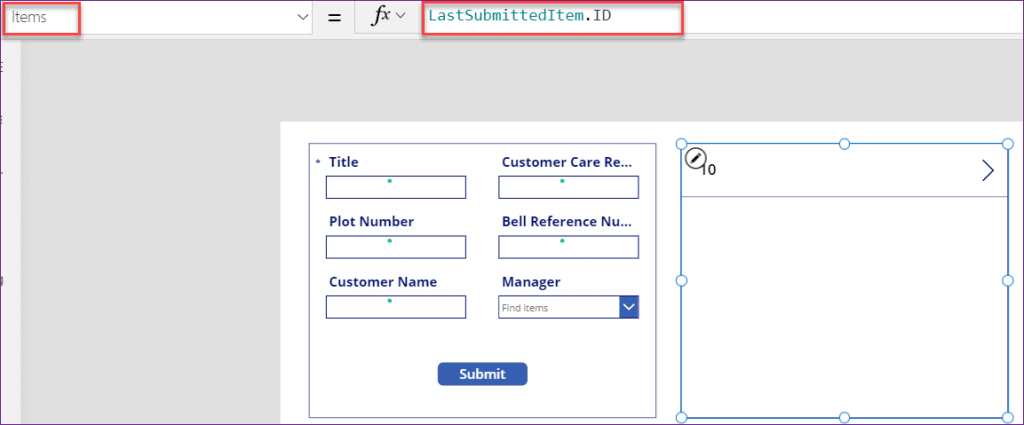
- Save and Preview (F5) the app. Enter the fields in the edit form and click on the Submit button. Once you submit the item, the Gallery control will display the last submitted item ID as shown in the screenshot below.

Also, you may like some more Power Apps tutorials:
- Download Power Apps Expense Claim Requests App
- Calculate Percentage in Power Apps
- Build a Calculator in Power Apps
- Create Power Apps Weather App
- Create a Horizontal Scrollable Gallery in Power Apps
In this blog, we explored the LastSubmit function in Power Apps and how it helps you get details like the last submitted ID. We also saw how to use Patch to update the last submitted item. If you ever face the issue where LastSubmit() returns an empty result, I shared a simple way to fix it by storing the last submitted item in a collection.
I hope this article found helpful whenever you are working with Power Apps LastSubmit function!

Hey! I’m Bijay Kumar, founder of SPGuides.com and a Microsoft Business Applications MVP (Power Automate, Power Apps). I launched this site in 2020 because I truly enjoy working with SharePoint, Power Platform, and SharePoint Framework (SPFx), and wanted to share that passion through step-by-step tutorials, guides, and training videos. My mission is to help you learn these technologies so you can utilize SharePoint, enhance productivity, and potentially build business solutions along the way.


Great job! Very helpful
hi, when I create a collection using the lastsubmit it is empty,
for instance
Collect(Pass, {PassID: Form1.lastsubmit.id, Name: “”, Description: “”})
this is returns other values except the id.
i don’t want to create the ID as a standalone collection. I want the values all together but the last submit is always empty.
Please I’ll be really grateful if you could tell me how to make the lastsubmit id show in a collection with other columns.
I also noticed that it’s not just the lastsubmit id, any other value from the last submit doesn’t show up in the collection. it’s always blank.