
If you want to become a SharePoint Framework (SPFx) developer, then you should start by building your first SharePoint client-side web part. This complete tutorial will help you with this. I will explain, step by step, how to develop a SPFx client-side web part, including testing it in the workbench, packaging it, and finally deploying it to the App Catalog site.
By this time, I am assuming you have already set up the SharePoint Framework development environment.
Build a SharePoint Framework Client-Side Web Part
You can build the SPFx web parts using React, No Framework, or even minimal JavaScript frameworks, depending on your project needs. Follow the steps below to create a new SharePoint framework client-side web part.
- Open the Command Prompt; you can also use the Node.js Command Prompt.
- First, create a folder and navigate to it using the command below.
md SPFXClientWebPartExample

cd SPFXClientWebPartExample
- Now run the command below.
yo @microsoft/sharepointThe above command will help us create the SharePoint client-side solution project structure. It will then ask us the following questions and provide answers like those below.
- What is your solution name? Press Enter to use the default name or type to change the solution name.
- Which type of client-side component to create? It provides the following options: choose WebPart.
- WebPart
- Extension
- Library
- Adaptive Card Extension
- Add new Web part to solution spfx-client-web-part-example.
- What is your Web part name? By default, it displays “HelloWorld”; I changed it to “ClientWebPartExample” here.
- Which template would you like to use? It provides the following options: choose No framework
- Minimal
- No framework
- React

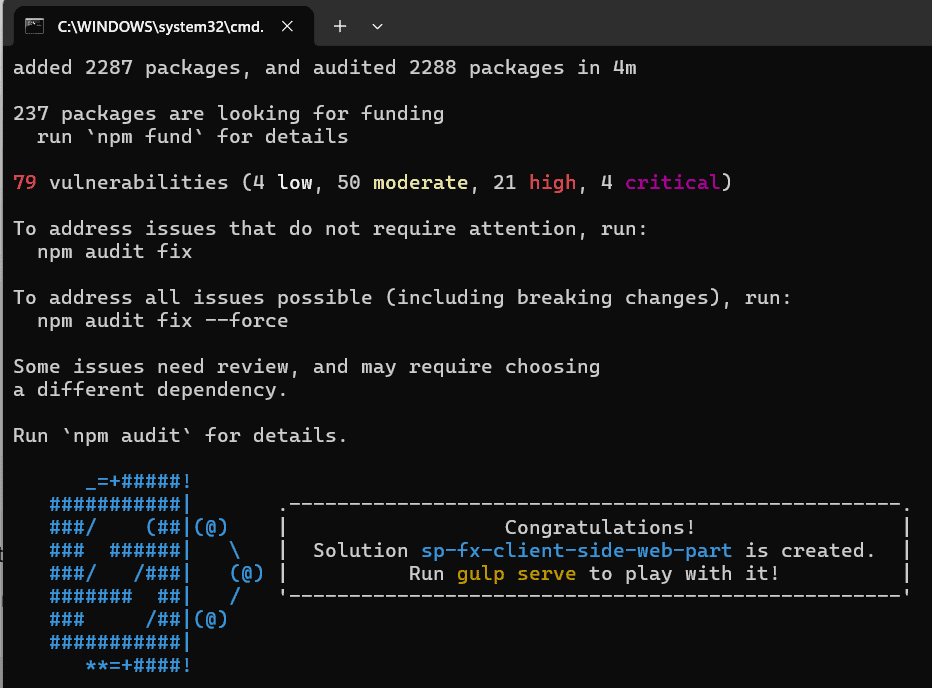
- It will take some time to create the sharepoint framework client web part. Then, you can see the success message after creating the project, as shown below.
- If this is the first time you are developing the client-side web part in SPFx, then run the command below once.
gulp trust-dev-cert- Once the SPFx client web part is created successfully, use the following command to open the SharePoint project using Visual Studio Code.
code . (Code space dot)Now the SPFx client-side web part folder structure will look like this!

Let’s understand the SPFx client web part folder structure in the section below.
Check out PnP React Pagination Control in SharePoint Framework (SPFx) Web Part
SharePoint Framework Web Part Folder Structure
Let me help you understand the SPFx client-side web part folder structure.
The src folder is the most important folder. Within it, you can see our web part (.ts) file, which is selected below. Here, we can add or modify code.

Below is the code in our web part render method, which you can modify.
  public render(): void {
    this.domElement.innerHTML = `
    <section class="${styles.clientWebPartExample} ${!!this.context.sdks.microsoftTeams ? styles.teams : ''}">
      <div class="${styles.welcome}">
        <img alt="" src="${this._isDarkTheme ? require('./assets/welcome-dark.png') : require('./assets/welcome-light.png')}" class="${styles.welcomeImage}" />
        <h2>Well done, ${escape(this.context.pageContext.user.displayName)}!</h2>
        <div>${this._environmentMessage}</div>
        <div>Web part property value: <strong>${escape(this.properties.description)}</strong></div>
      </div>
      <div>
        <h3>Welcome to SharePoint Framework!</h3>
        <p>
        The SharePoint Framework (SPFx) is a extensibility model for Microsoft Viva, Microsoft Teams and SharePoint. It's the easiest way to extend Microsoft 365 with automatic Single Sign On, automatic hosting and industry standard tooling.
        </p>
        <h4>Learn more about SPFx development:</h4>
          <ul class="${styles.links}">
            <li><a href="https://aka.ms/spfx" target="_blank">SharePoint Framework Overview</a></li>
            <li><a href="https://aka.ms/spfx-yeoman-graph" target="_blank">Use Microsoft Graph in your solution</a></li>
            <li><a href="https://aka.ms/spfx-yeoman-teams" target="_blank">Build for Microsoft Teams using SharePoint Framework</a></li>
            <li><a href="https://aka.ms/spfx-yeoman-viva" target="_blank">Build for Microsoft Viva Connections using SharePoint Framework</a></li>
            <li><a href="https://aka.ms/spfx-yeoman-store" target="_blank">Publish SharePoint Framework applications to the marketplace</a></li>
            <li><a href="https://aka.ms/spfx-yeoman-api" target="_blank">SharePoint Framework API reference</a></li>
            <li><a href="https://aka.ms/m365pnp" target="_blank">Microsoft 365 Developer Community</a></li>
          </ul>
      </div>
    </section>`;
  }
Let’s understand each file usage in this SPFX client-side web part folder structure.
| Folder / File | Usage |
|---|---|
| config | This folder contains configuration files, and we will modify a few files from this folder also. |
| dist | This contains the distributable files, and the typescript files, compiled into JavaScript files, will be in this folder. |
| lib | This folder contains compile-time files. |
| node_modules | The node_modules folder contains all the packages and dependencies that your SPFx project needs to run. These dependencies are listed in the package.json file and are installed using the npm install command. |
| src | This is where you write your actual solution code, including components, web parts, and custom logic. |
| temp | This folder contains temporary files used by the SPFx development environment. |
| .eslintrc.js | The ESLint configuration file supports disabling or configuring a rule for an entire project. |
| .gitignore | This file instructs Git to ignore certain files. |
| .npmignore | This file instructs npm to ignore certain files. |
| .yo-rc.json | This json file contains information on the Yeoman generator used in this project. |
| gulpfile.js | This is a gulp configuration file. This file executes the gulp command in this folder. |
| package-lock.json | It ensures consistency, stability, and reproducibility in your project’s dependency management. |
| package.json | This file is used by npm, and it defines the dependencies and their versions. |
| README.md | This is the web part documentation file. |
| tsconcfig.json | This file contains TypeScript compilation options. |
Check out SPFx Fluent UI React Control: ChoiceGroup and Checkbox
Preview SPFx Client Web Part Locally in SharePoint
Before deploying our SPFx web part, we will test it in our local workbench to ensure everything works as expected. We can test the web part using the SharePoint workbench or directly on a SharePoint site page.
First, let’s see how to test it using the SharePoint workbench.
Load SPFx Web Part in the SharePoint Workbench
To load the web part in a SharePoint workbench, we need to provide our SharePoint site URL in the serve.json file in the config folder. This allows the local server to automatically open the SharePoint workbench url with the web part loaded.
- As in the image below, add your SharePoint site URL to the “initialPage” parameter in the serve.json file.
https://szg52.sharepoint.com/sites/SPFXDevelopment/_layouts/workbench.aspx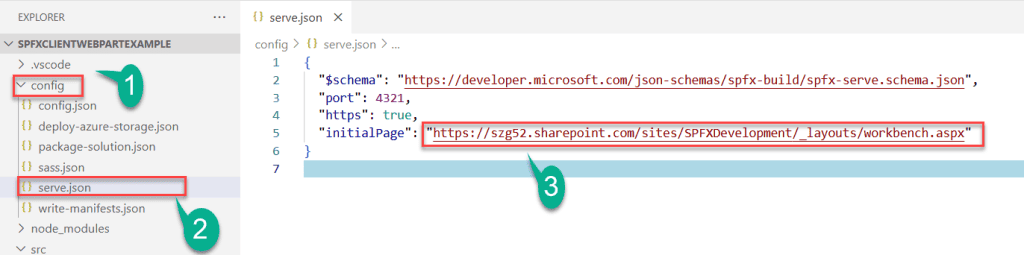
- Run the following command from the same command prompt or in the Terminal pane of VS Code itself.
gulp serve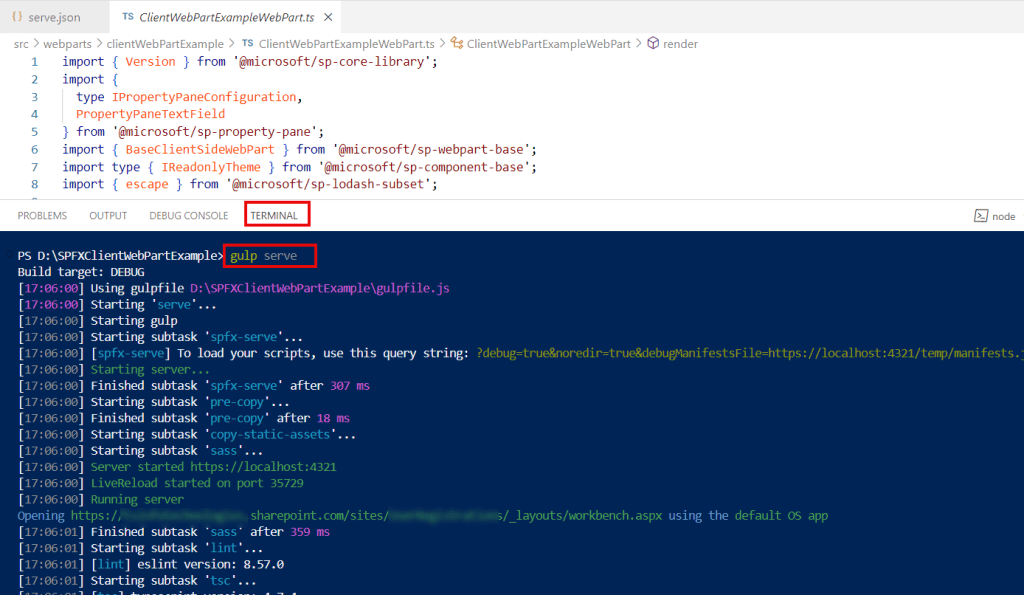
- This will open the SharePoint workbench, where you will be able to add the SPFx client-side web part, like below:
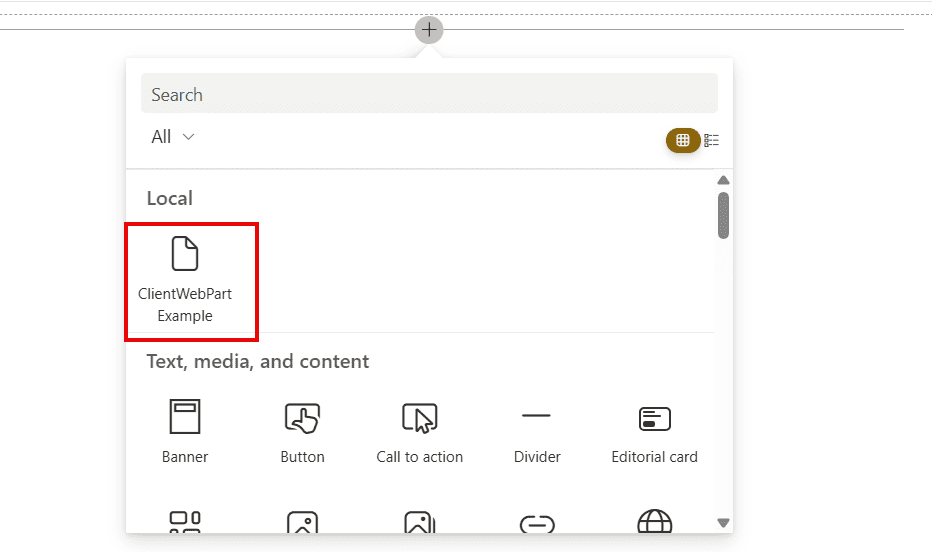
- Once you add it, you can see the web part will look like below:

- Any time you want to stop the local workbench, run the command below.
Ctrl + C and click EnterNow, let’s see how we can test our web part directly on any SharePoint site page in the section below.
Read SharePoint Framework (SPFx) Fluent UI Basic List Example
Run SPFx Web Part Directly on a SharePoint Page
The local workbench is for quick local testing, while the ?debug=true… method allows you to test your local code inside a real SharePoint page, which helps ensure the web part behaves correctly in the actual environment.
Follow the steps below to test the SPFx web part directly in the SharePoint site page.
- After running the gulp serve command in the TERMINAL pane. As you can see, I have marked the URL in the image below.
?debug=true&noredir=true&debugManifestsFile=https://localhost:4321/temp/
manifests.js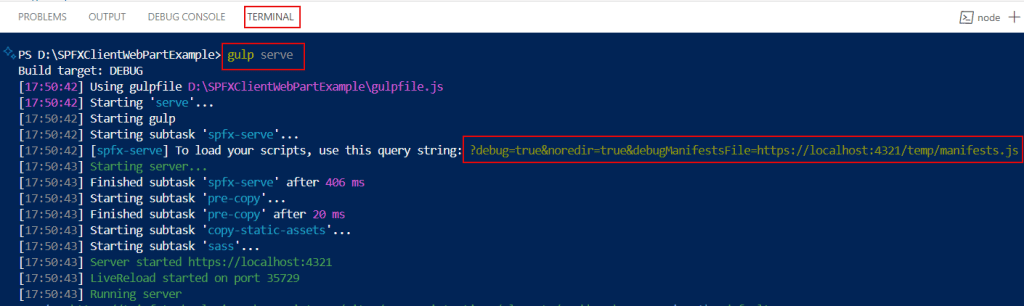
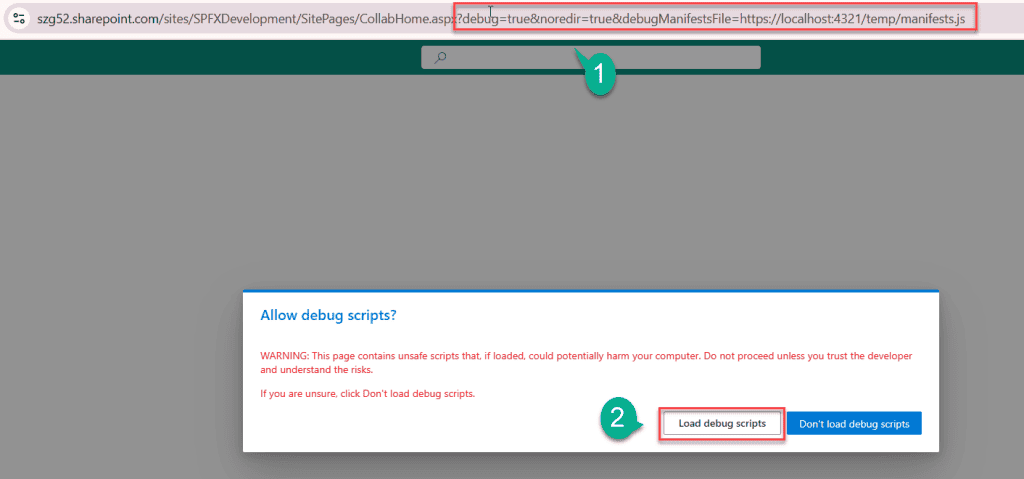
- Copy the debug query string shown in the above image and paste it at the end of any SharePoint site page URL, as shown in the image below. Then press Enter. You will see a pop-up window like the one below.
Choose Load debug scripts to test your SPFx web part on the actual SharePoint page.
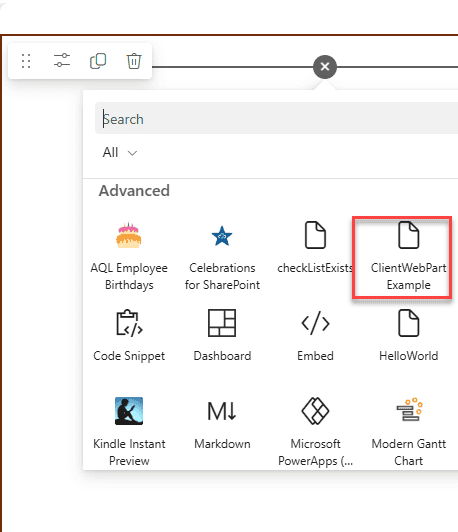
- Now, edit the SharePoint site page, click the + icon to add a web part, and under the Advanced section, you can see the web part.
- After clicking the web part, you can publish the page, and then the web part will be present on the site page, as shown below.
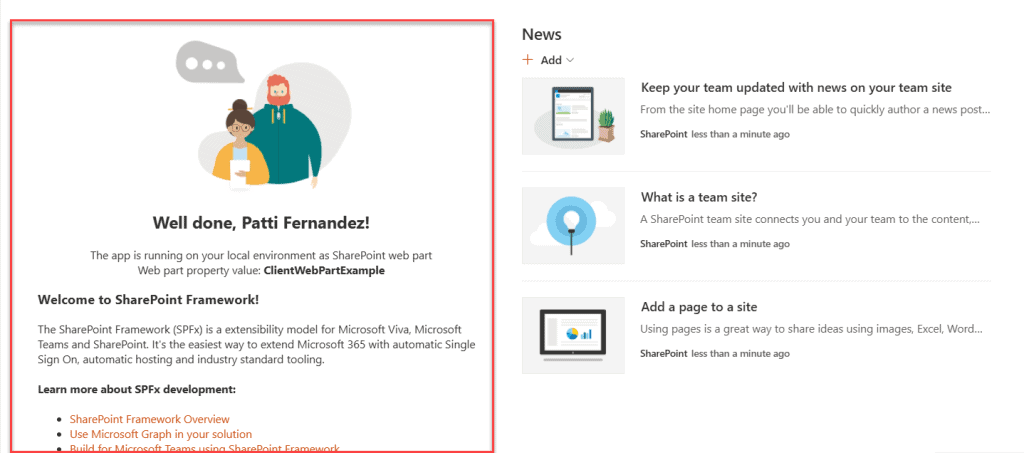
This way, you can easily test your SPFx web part without deploying. Let’s look at how to make it available in SharePoint Online.
Check out Fluent UI DocumentCard in SPFx Web Part
Package the SPFx Client Side Web Part
Packaging the SPFx solution bundles all the necessary files and configurations into a single .sppkg file. This file is needed to deploy the web part to the SharePoint App Catalog and make it available for use. Let’s see how to package our solution by following the steps below.
- In the command prompt or in the Visual Studio Code Terminal, run the following commands one by one.
gulp cleanThe above command will delete any previous temporary files created in earlier commands.
- Now, run the command below to bundle our client-side solution.
gulp bundle --ship
- Then, run the following command to package our client-side solution, which contains the web part.
gulp package-solution --ship
This will create the package file (.sppkg), which we need to deploy to the SharePoint Online app catalog site.
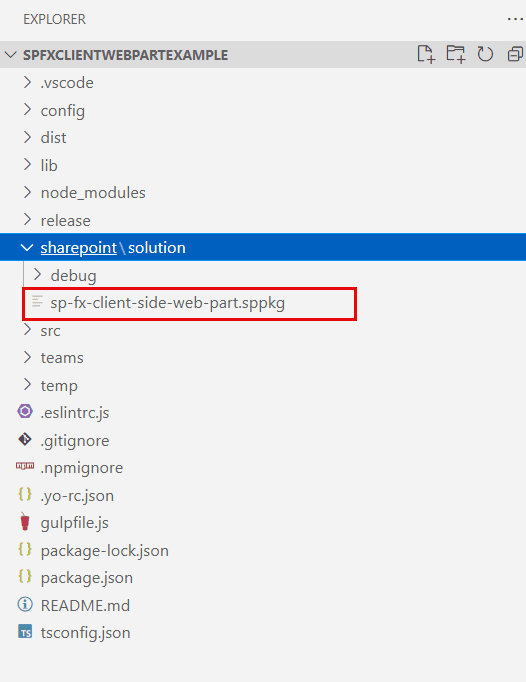
- The .sppkg file will be created in a subdirectory of the project folder, located at /sharepoint/solution. The package file looks like this:
Now, we need to upload the .sppkg file to the SharePoint App Catalog site. There are two types of app catalogs in SharePoint: the tenant app catalog and the site collection app catalog.
If you want your spfx solution to be available for all SharePoint sites, you can deploy it into the tenant app catalog. If you wish to do it only for a particular site, then deploy it in the site collection app catalog.
In the section below, I will explain how to create a SharePoint site collection app catalog and deploy our SPFx client-side solution into it.
Deploy SPFx Client Side Web Part into SharePoint Site Collection App Catalog
To add an SPFx client web part to your SharePoint site, first, we need to create an App Catalog for the site collection. You can do this using either SharePoint Online Management Shell or PnP PowerShell commands.
Follow the steps below to create a site collection app catalog using SharePoint Online Management Shell commands.
- Open the SharePoint Online Management Shell and run the following command to connect with SharePoint.
Connect-SPOServiceThen, it will ask you to provide a URL. Please enter your SharePoint admin center URL and press Enter. A login page will then open, where you can provide your credentials.
https://szg52-admin.sharepoint.com- After connecting, run the following command to add the app catalog to the SharePoint site.
Add-SPOSiteCollectionAppCatalog -Site "https://szg52.sharepoint.com/sites/SPFXDevelopment"
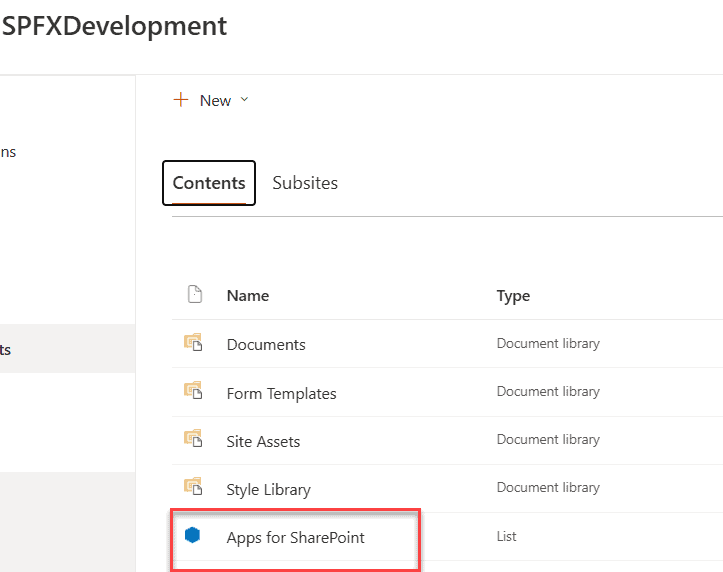
Once the above command is run, refresh the SharePoint site once, under Site Contents, Apps for SharePoint will be added, as shown in the image below.
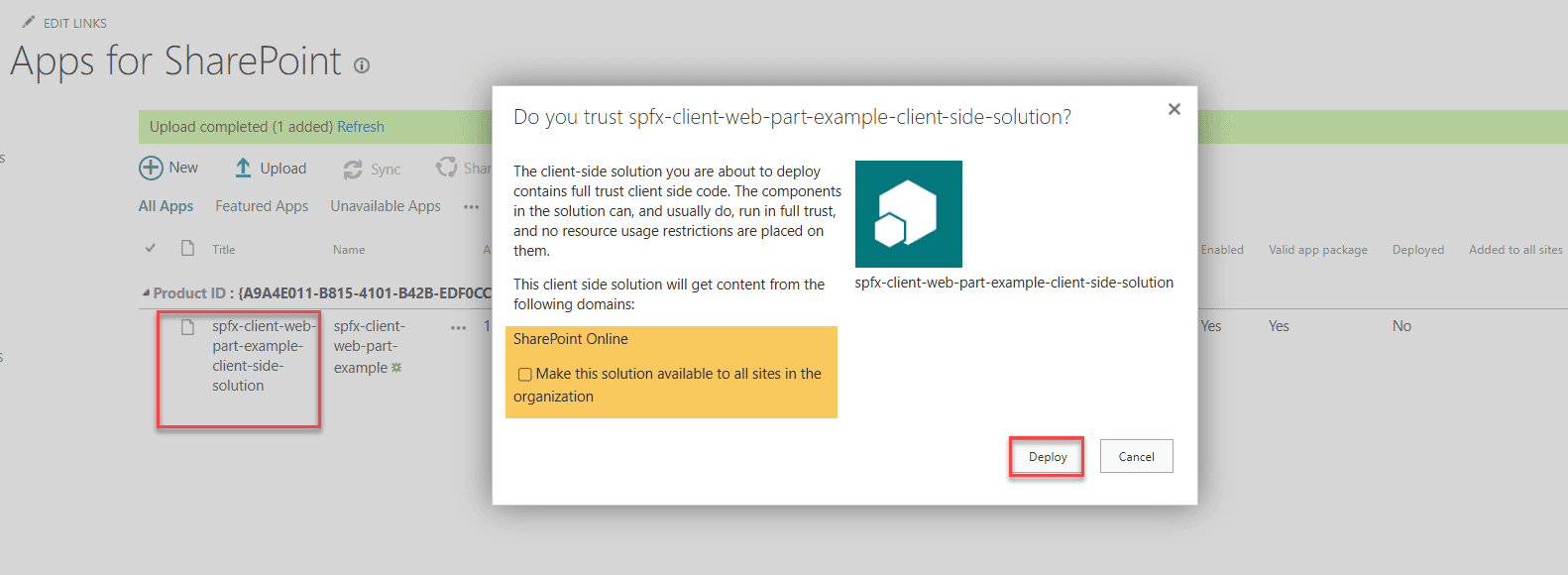
- Now, open the Apps for SharePoint and upload the .sppkg file. A pop-up window will then display to deploy that solution. Select the check mark if you want to make the solution available to all sites; otherwise, leave it unchecked. Then click on Deploy.
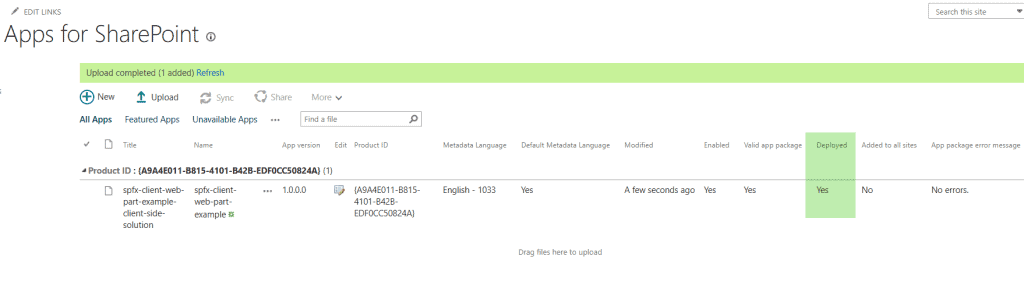
- The SPFx client web part is deployed successfully in the site collection app catalog.
In the next step, we see how to add our newly deployed web part to the SharePoint Online site page.
- Open the SharePoint Online modern page, edit the SharePoint page, and then click on the + icon to add a web part to the page. There, you can see our spfx client-side web part will be available.
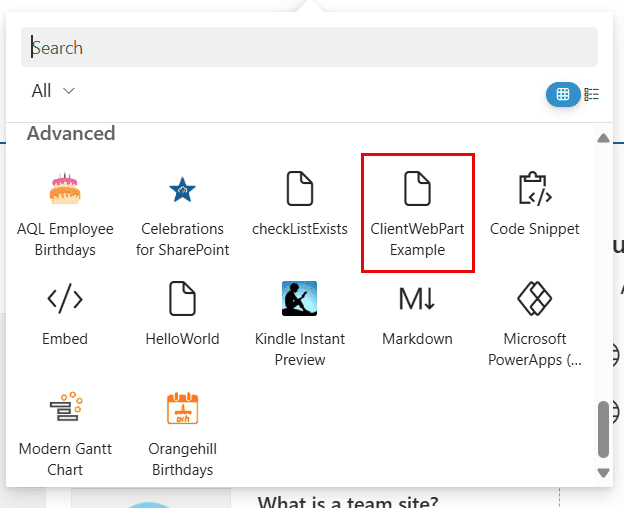
- Click on the web part to add it to the SharePoint Online modern page.

Here, I explained how to create an SPFx client web part step by step. I also showed the solution folder structure and shared two ways to test the web part without deploying it.
After that, we have seen how to deploy the SPFx client-side web part and add it to a modern SharePoint page. If you are new to SPFx, I hope this article helps you better understand the entire process. Follow the steps to create an SPFx web part, and do let me know in the comments below if you get stuck with any step.
Also, look at some other related blog posts SPFx:
- Create and Deploy SharePoint Framework (SPFx) extension field customizer
- SharePoint Framework (SPFx) Extensions Application Customizer Example
- Fluent UI React ComboBox Control in SPFx

Hey! I’m Bijay Kumar, founder of SPGuides.com and a Microsoft Business Applications MVP (Power Automate, Power Apps). I launched this site in 2020 because I truly enjoy working with SharePoint, Power Platform, and SharePoint Framework (SPFx), and wanted to share that passion through step-by-step tutorials, guides, and training videos. My mission is to help you learn these technologies so you can utilize SharePoint, enhance productivity, and potentially build business solutions along the way.


Hi, thanks for your article.
I need your urgently help.
Please contact me.
Thank you
Austin Lorans