
SharePoint Framework (SPFx) Fluent UI Basic List Example

In this article, we will learn how to use the Fluent UI basic list control in the SPFx webpart. Using this control, we can display up to 5,000 SharePoint list items with the selection feature, apply filters, and display data in various layouts, including a grid and the default layout.

Fluent UI React Basic List Control In SPFx Webpart

Before we start with an example of using the Fluent UI List control in SPFx webpart, we first look at the required imports and the basic syntax of the List component. We’ll also understand what each property does.

import { List } from '@fluentui/react/lib/List';

<List
  className={classNames.listGridExample}
  items={items}
  getItemCountForPage={getItemCountForPage}
  getPageHeight={getPageHeight}
  renderedWindowsAhead={4}
  onRenderCell={onRenderCell}
/>
  • Here, we are importing List control from the @fluentui/react/lib/List library.
  • className = It applies custom styling to the List using a SCSS class.
  • items = The data source for the List, an array of objects that you want to display.
  • getItemCountForPage = It defines how many items should be rendered per page, used for performance.
  • getPageHeight = It specifies the height of each page, so the List can calculate scrolling behavior.
  • renderedWindowsAhead = It determines how many additional “windows” pages should be pre-rendered for smoother scrolling.
  • onRenderCell – A callback function that defines how each individual item should appear in the List.

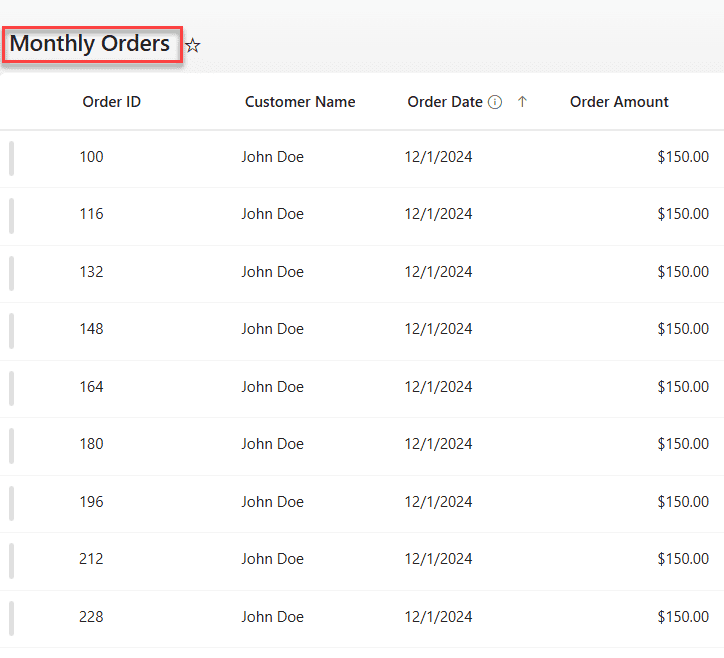
Now, let’s see how to use this control to display SharePoint list items dynamically. In the example below, you can see that I have retrieved 5,000 items from my SharePoint list and displayed them in the Fluent UI basic list control.

Additionally, I have added a text input control at the top of that to filter the items based on order ID or Customer Name. At the bottom, you can see the count of items present in the list control. This basic list control won’t contain columns by default, so I added the column names before the item.

SPFx Fluent UI Basic List Example

We can get up to 5000 SharePoint list items per query using PnPJS in the SPFx webpart. If you want to retrieve items beyond that, you need to use pagination.

Below is the SharePoint list named “MonthlyOrders” containing the items more than 5k.
fluent ui react basic list control in SPFx

This SharePoint list contains the following fields:

Column NameData Type
Order IDSingle line of text
Customer NameSingle line of text
Order DateDate and Time
Order AmountCurrency

Follow the steps below to achieve this!

  1. Open Node.js command prompt in administrator mode. You can also use the Windows Command Prompt or PowerShell Command Prompt. Run the below command:
md FluentUIBasicList

cd FluentUIBasicList
  1. Then, in the same directory, run the following command.
yo @microsoft/sharepoint

Now, it will ask you a few details, like below:

  • What is your solution name? fluent-ui-basic-list
  • Which type of client-side component to create? WebPart
  • Add new Web part to solution fluent-ui-basic-list.
  • What is your Web part name? FluentUIBasicListDemo
  • Which template would you like to use? React
fluent ui react basic list control
  1. It will then take some time to create the solution. Once it is created, follow the steps below to install and set up the PnP JS and the Fluent UI React controls.
npm install @pnp/sp --save
  1. Also, run the below command to install Fluent UI into the solution.
npm install @fluentui/react
  1. To import the PnP JS library into the solution, add the following statements in the “FluentUiBasicListDemo.ts” file.
import { spfi, SPFx } from "@pnp/sp";
import { SPFI } from "@pnp/sp";
import "@pnp/sp/webs";
import "@pnp/sp/lists";
import "@pnp/sp/items";
import "@pnp/sp/fields";
  1. PnP needs to be initialized with the SharePoint context to connect properly to the SharePoint site. So, update your onInit() as below.
protected onInit(): Promise<void> {
    return this._getEnvironmentMessage().then(message => {
      this._environmentMessage = message;
      this._sp = spfi().using(SPFx(this.context));
    });
  }
  1. To hold the instance of the SPFI, create a private variable within the export default class in the “FluentUiBasicListDemo.ts” file.
  private _sp: SPFI
  1. Also, update the render() function within the “FluentUiBasicListDemo.ts” file, which will take this._sp as a prop.
 public render(): void {
    const element: React.ReactElement<IFluentUiBasicListDemoProps> = React.createElement(
      FluentUiBasicListDemo,
      {
        description: this.properties.description,
        isDarkTheme: this._isDarkTheme,
        environmentMessage: this._environmentMessage,
        hasTeamsContext: !!this.context.sdks.microsoftTeams,
        userDisplayName: this.context.pageContext.user.displayName,
        sp:this._sp,
        context:this.context,
      }
    );

    ReactDom.render(element, this.domElement);
  }
  1. We also need to include the sp as a prop in the Props.ts file.
import { WebPartContext } from "@microsoft/sp-webpart-base";
import { SPFI } from "@pnp/sp";
export interface IFluentUiBasicListDemoProps {
  description: string;
  isDarkTheme: boolean;
  environmentMessage: string;
  hasTeamsContext: boolean;
  userDisplayName: string;
  sp:SPFI;
  context: WebPartContext
}
  1. Now, open the “FluentUiBasicListDemo.tsx” and update its code with the one below.
import * as React from 'react';
import styles from './FluentUiBasicListDemo.module.scss';
import type { IFluentUiBasicListDemoProps } from './IFluentUiBasicListDemoProps';
import { Spinner } from '@fluentui/react/lib/Spinner';
import { List } from '@fluentui/react/lib/List';
import { TextField } from '@fluentui/react/lib/TextField';

interface IListItem {
  OrderID: string;
  CustomerName: string;
  OrderDate: string;
  OrderAmount: number;
}

interface IFluentUiBasicListDemoState {
  items: IListItem[];
  filteredItems: IListItem[];
  loading: boolean;
  filterText: string;
}

export default class FluentUiBasicListDemo extends React.Component<IFluentUiBasicListDemoProps, IFluentUiBasicListDemoState> {

  constructor(props: IFluentUiBasicListDemoProps) {
    super(props);
    this.state = {
      items: [],
      filteredItems: [],
      loading: true,
      filterText: ''
    };
  }

  public async componentDidMount(): Promise<void> {
    await this._loadItems();
  }

  private async _loadItems(): Promise<void> {
  try {
    const items: IListItem[] = await this.props.sp.web.lists
      .getByTitle("MonthlyOrders")
      .items
      .select("OrderID,CustomerName,OrderDate,OrderAmount")
      .top(5000)();

    this.setState({ items, filteredItems: items, loading: false });
  } catch (err) {
    console.error("Error fetching MonthlyOrders: ", err);
    this.setState({ loading: false });
  }
}

  private _onFilterChanged = (event: React.FormEvent<HTMLInputElement | HTMLTextAreaElement>, text?: string): void => {
  const filterText = text || '';
  const { items } = this.state;
  const lowerText = filterText.toLowerCase();

  const filtered = filterText
    ? items.filter(i =>
        (i.OrderID && i.OrderID.toString().toLowerCase().indexOf(lowerText) !== -1) ||
        (i.CustomerName && i.CustomerName.toLowerCase().indexOf(lowerText) !== -1)
      )
    : items;

  this.setState({ filterText, filteredItems: filtered });
};

private _onRenderCell = (item?: IListItem, index?: number): JSX.Element => {
    if (!item) return <></>;

    return (
      <div className={styles.listItem}>
        <div className={styles.cell}><strong>Order ID:</strong> {item.OrderID}</div>
        <div className={styles.cell}><strong>Customer:</strong> {item.CustomerName}</div>
        <div className={styles.cell}><strong>Date:</strong> {item.OrderDate}</div>
        <div className={styles.cell}><strong>Amount:</strong> ${item.OrderAmount}</div>
      </div>
    );
  };

  public render(): React.ReactElement<IFluentUiBasicListDemoProps> {
    const { filteredItems, loading, filterText } = this.state;
    if (loading) return <Spinner label="Loading Monthly Orders..." />;

    return (
      <section className={styles.fluentUiBasicListDemo}>
        <div className={styles.container}>
          <h3>Monthly Orders</h3>

          <TextField
            label="Filter by Order ID or Customer Name"
            value={filterText}
            onChange={this._onFilterChanged}
          />

          <div className={styles.listContainer}>
            <List
              items={filteredItems}
              onRenderCell={this._onRenderCell}
            />
          </div>

          <div className={styles.count}>Showing {filteredItems.length} orders</div>
        </div>
      </section>
    );
  }
}

Here:

  • Initially, we imported the Fluent UI components: List, Spinner, and TextField.
  • IListItem = An interface that defines data structures for list items and component state to ensure type safety. This ensures each order item has consistent fields like Order ID, Customer Name, Date, and Amount.
  • IFluentUiBasicListDemoState = It contains the following state items:
    • items = To store list items.
    • filteredItems = To store the filtered list items.
    • loading = To track loading items.
    • filterText = It keeps the text we enter in the filter text input.
  • componentDidMount = This is a React lifecycle method, and it will be triggered when the webpart is loaded. In this method, we call the _loadItems() method, which fetches the list items.
  • _loadItems() = This method fetches 5,000 list items using the PnP JS library APIs, and then stores those records into the items state.
  • _onFilterChanged = This method will be triggered when the filter text is entered in the text input control. It will then fetch the items from the list that match the filtered text and store them in the filteredItems state.
  • _onRenderCell = This method defines how each list item appears inside the Fluent UI List:
    • Order ID
    • Customer Name
    • Order Date
    • Order Amount
  • Uses simple <div> elements styled via a module.scss
  • render() = If loading is true, shows a Spinner labeled “Loading Monthly Orders…” Otherwise:
    • It displays a header, Monthly Orders
    • Shows a TextField for filtering
    • Renders the Fluent UI List control with filtered items
    • Displays a total count of visible records.
  1. Then, update your .scss file with the styles below.
@import '~@fluentui/react/dist/sass/References.scss';

.fluentUiBasicListDemo {
  padding: 20px;
  background-color: #fff;
  border-radius: 8px;
  box-shadow: 0 1px 4px rgba(0, 0, 0, 0.1);

  .container {
    display: flex;
    flex-direction: column;
    gap: 15px;
  }

  .listContainer {
    height: 400px; /* scrollable region */
    overflow-y: auto;
    border: 1px solid #ddd;
    padding: 10px;
  }

  .listItem {
    display: flex;
    justify-content: space-between;
    padding: 8px 12px;
    border-bottom: 1px solid #eee;
    font-size: 14px;
  }

  .listItem:hover {
    background-color: #f3f2f1;
  }

  .cell {
    flex: 1;
  }

  .count {
    font-size: 12px;
    color: rgba(18, 17, 17, 0.889);
  }
}

That’s it, this way, we can easily display the SharePoint list items into the Fluent UI React basic list control in the SPFx webpart.

Check out Create SPFx Dynamic Accordion Webpart Using PnP Controls React

SPFx Fluent UI List Demo: Displaying Items in a Card-Style Layout

In this section, we’ll see how to display the SharePoint list items in the Fluent UI React list control in a card style. You can easily find the complete details of each record at a glance. Additionally, I have included filtering functionality, allowing you to easily find items based on multiple field values, as shown below.

fluent ui list control example

For this example, I took another SharePoint list named “SiteInspections.”

fluent ui basic list control example in spfx

This SharePoint list contains the following fields:

Column NameData Type
TitleDefault field
Inspector NamePerson or Group
Inspection DateDate and Time
AddressSingle line of text
CitySingle line of text
RegionChoice
StatusChoice

I created another SPFx webpart for this example, so you can follow the above section for creating the webpart and setting up the PnPJS library init. After finishing that, update your .tsx file with the code below.

import * as React from 'react';
import styles from './BasicListControl.module.scss';
import type { IBasicListControlProps } from './IBasicListControlProps';
import { Spinner } from '@fluentui/react/lib/Spinner';
import { List } from '@fluentui/react/lib/List';
import { TextField } from '@fluentui/react/lib/TextField';
import { Image, ImageFit } from '@fluentui/react/lib/Image';

interface ISiteInspectionItem {
  Title: string;
  InspectorName?: { Title?: string; EMail?: string };
  InspectionDate?: string;
  Address?: string;
  City?: string;
  Region?: string;
  Status?: string;
}

interface IBasicListControlState {
  items: ISiteInspectionItem[];
  filteredItems: ISiteInspectionItem[];
  loading: boolean;
  filterText: string;
}

export default class BasicListControl extends React.Component<IBasicListControlProps, IBasicListControlState> {

  constructor(props: IBasicListControlProps) {
    super(props);
    this.state = {
      items: [],
      filteredItems: [],
      loading: true,
      filterText: ''
    };
  }

  public async componentDidMount(): Promise<void> {
    await this._loadItems();
  }

  private async _loadItems(): Promise<void> {
    try {
      const items: ISiteInspectionItem[] = await this.props.sp.web.lists
        .getByTitle("SiteInspections")
        .items
        .select(
          "Title",
          "InspectorName/Title",
          "InspectorName/EMail",
          "InspectionDate",
          "Address",
          "City",
          "Region",
          "Status"
        )
        .expand("InspectorName")
        .top(5000)();

      console.log("Fetched Site Inspections:", items);
      this.setState({ items, filteredItems: items, loading: false });
    } catch (err) {
      console.error("Error fetching SiteInspection list: ", err);
      this.setState({ loading: false });
    }
  }

  private _onFilterChanged = (event: React.FormEvent<HTMLInputElement | HTMLTextAreaElement>, text?: string): void => {
    const filterText = text || '';
    const { items } = this.state;
    const lowerText = filterText.toLowerCase();

    const filtered = filterText
      ? items.filter(i =>
          (i.Title && i.Title.toLowerCase().indexOf(lowerText) !== -1) ||
          (i.City && i.City.toLowerCase().indexOf(lowerText) !== -1) ||
          (i.Region && i.Region.toLowerCase().indexOf(lowerText) !== -1)
        )
      : items;

    this.setState({ filterText, filteredItems: filtered });
  };

  private _onRenderCell = (item?: ISiteInspectionItem, index?: number): JSX.Element => {
    if (!item) return <></>;

    
    const baseSiteUrl = this.props.sp.web.toUrl().split("/sites/")[0]; 
    const siteRelative = this.props.sp.web.toUrl().replace(baseSiteUrl, "");

    const photoUrl = item.InspectorName?.EMail
      ? `${siteRelative}/_layouts/15/userphoto.aspx?size=M&accountname=${encodeURIComponent(item.InspectorName.EMail)}`
      : "https://static2.sharepointonline.com/files/fabric/office-ui-fabric-react-assets/persona-male.png";

    return (
      <div className={styles.listItem}>
        <div className={styles.imageContainer}>
          <Image
            src={photoUrl}
            imageFit={ImageFit.cover}
            width={64}
            height={64}
            alt={item.Title}
          />
        </div>
        <div className={styles.details}>
          <div className={styles.title}>{item.Title}</div>
          <div className={styles.meta}>
            <span><strong>Inspector:</strong> {item.InspectorName?.Title || "N/A"}</span><br />
            <span><strong>Date:</strong> {item.InspectionDate ? new Date(item.InspectionDate).toLocaleDateString() : "N/A"}</span><br />
            <span><strong>Address:</strong> {item.Address || "N/A"}, {item.City || ""}</span><br />
            <span><strong>Region:</strong> {item.Region || "N/A"} | <strong>Status:</strong> {item.Status || "N/A"}</span>
          </div>
        </div>
      </div>
    );
  };

  public render(): React.ReactElement<IBasicListControlProps> {
    const { filteredItems, loading, filterText } = this.state;

    if (loading) return <Spinner label="Loading Site Inspections..." />;

    return (
      <section className={styles.basicListControl}>
        <div className={styles.container}>
          <h3>Site Inspections</h3>

          <TextField
            label="Filter by Title, City, or Region"
            value={filterText}
            onChange={this._onFilterChanged}
          />

          <div className={styles.listContainer}>
            <List items={filteredItems} onRenderCell={this._onRenderCell} />
          </div>

          <div className={styles.count}>Showing {filteredItems.length} items</div>
        </div>
      </section>
    );
  }
}

Here:

  • Initially, we imported the following Fluent UI React components:
    • List = to render list items efficiently.
    • Spinner = to show a loading indicator while data is being fetched.
    • TextField = for filtering list items by user input.
    • Image = to display the inspector’s profile photos.
  • constructor() = Here, we initialized the default state of the component.
    • items and filteredItems start as empty arrays.
    • loading is set to true so the spinner appears initially.
    • filterText starts empty.
  • componentDidMount() = This is a React lifecycle method, which runs automatically when the web part is loaded. It calls _loadItems() to retrieve list items from SharePoint as soon as the component is loaded.
  • _loadItems() = Fetches data from the “SiteInspections” SharePoint list using the PnP JS library.
    • Retrieves up to 5,000 items using .top(5000).
    • Uses .select() to choose required fields and .expand(“InspectorName”) to include inspector details like name and email.
    • On success, it updates the items and filteredItems states, and sets loading to false.
    • On error, it logs the issue and still stops loading to prevent the spinner from hanging.
  • _onFilterChanged() = Triggered whenever the user types in the filter TextField. Then it converts the entered text to lowercase and filters items whose:
    • Title,
    • City, or
    • Region
    • contains that text.
    • Updates filteredItems with the matching results and updates the filterText state.
  • _onRenderCell() = Defines how each site inspection record is displayed inside the Fluent UI List. For each item, it shows:
    • Inspector’s profile photo.
    • Title, Inspector Name, Inspection Date, Address, City, Region, and Status.
    • The photo URL is dynamically built using the SharePoint userphoto.aspx endpoint.
    • If no email is available, a default sample image is shown.
  • render() = If loading is true, it shows a Spinner labeled “Loading Site Inspections…”. Otherwise, displays:
    • A heading “Site Inspections”.
    • A TextField for typing a filter keyword.
    • A Fluent UI List displaying all filtered items via _onRenderCell.
    • A count footer showing the number of currently visible items.

For adding styles to that webpart, please update your .scss file with the below styles.

@import '~@fluentui/react/dist/sass/References.scss';

.basicListControl {
  padding: 20px;
  background: #fff;
  border-radius: 8px;
  box-shadow: 0 1px 4px rgba(0, 0, 0, 0.1);

  .container {
  padding: 20px;
}

.listContainer {
  border: 1px solid #ddd;
  padding: 10px;
  border-radius: 6px;
  max-height: 600px;
  overflow-y: auto;
}

.listItem {
  display: flex;
  align-items: flex-start;
  border-bottom: 1px solid #481c1cff;
  padding: 10px 0;
}

.imageContainer {
  margin-right: 15px;
}

.details {
  flex: 1;
}

.title {
  font-size: 16px;
  font-weight: 600;
  margin-bottom: 4px;
}

.meta {
  font-size: 13px;
  color: #444;
}

.count {
  margin-top: 10px;
  font-size: 12px;
  color: #666;
}

}

This way, we can easily display the SharePoint list items in a card layout in the Fluent UI React Basic list control.

I hope you found this article helpful!, Here, I explain how to use Fluent UI React Basic list control in SPFx webpart, and display the SharePoint list items dynamically into this control using Pnp JS library. Follow this article if you’re also looking to use the basic list control in SPFx solutions.

Also, you may like:

1 thought on “SharePoint Framework (SPFx) Fluent UI Basic List Example”

  1. When running the flunt list code getting below error :

    Error – [tsc] src/webparts/fluentUiBasicList/components/FluentUiBasicList.tsx(60,15): error TS7006: Parameter ‘props’ implicitly has an ‘any’ type.
    [09:51:22] Error – [tsc] src/webparts/fluentUiBasicList/components/FluentUiBasicList.tsx(73,156): error TS2339: Property ‘get’ does not exist on type ‘IItems’.
    [09:51:22] Error – [tsc] src/webparts/fluentUiBasicList/components/FluentUiBasicList.tsx(77,26): error TS7006: Parameter ‘item’ implicitly has an ‘any’ type.
    [09:51:22] Error – [tsc] src/webparts/fluentUiBasicList/components/FluentUiBasicList.tsx(101,28): error TS7006: Parameter ‘date’ implicitly has an ‘any’ type.

    unable to find what is causing the errror where as the steps followed as per given above

Leave a Comment

Power Apps functions free pdf

30 Power Apps Functions

This free guide walks you through the 30 most-used Power Apps functions with real business examples, exact syntax, and results you can see.

Live Webinar

Quiz App Using SharePoint Framework (SPFx)

Learn to built a complete Quiz Management solution that enables admins to create and manage quizzes, categories, questions, and settings with an easy automated setup process in SharePoint. It also includes an interactive quiz experience for users and a powerful dashboard to track participation, analyze results, and view detailed performance reports with charts and answer insights.

📅 2nd June 2026 – 10:00 AM EST | 7:30 PM IST

Download User registration canvas app

DOWNLOAD USER REGISTRATION POWER APPS CANVAS APP

Download a fully functional Power Apps Canvas App (with Power Automate): User Registration App