
If you use Microsoft Teams for all your online meetings, you already know the frustration of creating a new calendar event in Outlook and then having to manually add the Teams link every single time. It gets old fast.
The good news? You can set Microsoft Teams as your default meeting provider in Outlook so that every new meeting you create automatically comes with a Teams link — no extra clicks needed.
In this tutorial, I’ll walk you through how to do this across different versions of Outlook: Classic Outlook (desktop), New Outlook, Outlook on the Web, and Outlook for Mac.
Why Set Teams as Default?
Before jumping into the steps, let me quickly explain why this matters beyond saving a click or two:
- Consistency — Everyone on your team gets a Teams link without you having to think about it.
- Less manual work — No more forgetting to attach the meeting link before hitting Send.
- Better attendee experience — Your invites always look complete and professional.
- Works across time zones — Whether you’re inviting someone internal or external, the link is always there.
If your organization is fully remote or hybrid and uses Teams as its primary communication tool, making it the default just makes sense.
Before You Start: Check These Two Things
No matter which method you use, make sure:
- Microsoft Teams is installed on your computer. The Teams add-in for Outlook only shows up if Teams is already installed and active.
- You’re signed in to both Outlook and Teams with the same Microsoft 365 work or school account. If the accounts don’t match, Teams won’t appear as a meeting provider option.
If Teams is missing from Outlook entirely, I’ll cover that fix at the end of this tutorial.
Set Microsoft Teams as the Default Meeting in Outlook
Now I will show you how to set Microsoft Teams as the default meeting in Outlook.
Method 1: Classic Outlook for Windows (Outlook 2016, 2019, 2021, and Microsoft 365)
This is the most common version that most people are using at work. Here’s how to set Teams as the default:
- Open Microsoft Outlook.
- Click File in the top-left corner.
- Click Options in the left sidebar. This opens the Outlook Options dialog.
- In the left panel of the dialog, click Calendar.
- Scroll down to the Calendar options section.
- Check the box that says “Add online meeting to all meetings”.
- Click the Meeting Providers… button (you’ll see this right below or next to that checkbox).
- In the Online Meeting dialog that opens:
- Make sure the “Add online meeting” checkbox is ticked.
- Under the list of providers, select Microsoft Teams.
- Click OK, then OK again to close out.
That’s it. From now on, every new meeting you create in Outlook will automatically include a Microsoft Teams link. You don’t need to touch anything else when creating the invite.
Quick tip: If you see multiple accounts in the dropdown inside that Online Meeting dialog, make sure you pick the right one. If you use a personal account alongside your work account, Teams will only work as the default for your work (Microsoft 365) account.
Method 2: New Outlook for Windows
Microsoft has been rolling out the New Outlook as the updated version for Windows users. The interface looks different, and so do the steps.
- Open the New Outlook app.
- Click the Settings gear icon in the upper-right corner.
- In the Settings panel, go to Calendar.
- Click on Events and invitations.
- Under the Events you create section, toggle on “Add online meeting to all meetings”.
- In the “Choose a meeting provider” dropdown, select Microsoft Teams.
- Click Save.
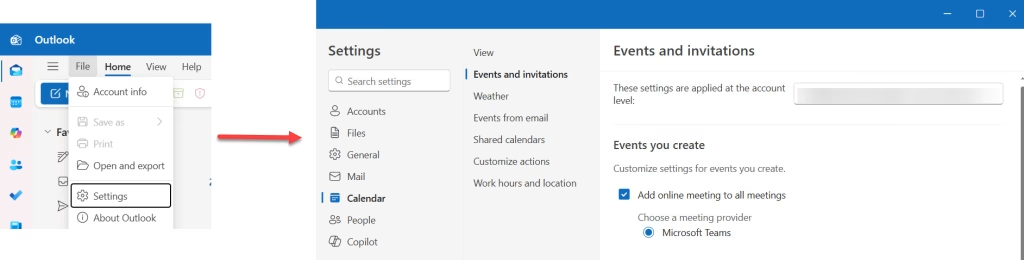
Done. The new Outlook saves this at the account level, so if you have more than one account set up, look for the “These settings are applied at the account level” dropdown near the top of that section and make sure you’ve selected the right account before saving.
Method 3: Outlook on the Web (OWA)
If you use Outlook through your browser (the web version), the steps are almost identical to New Outlook.
- Go to outlook.office.com and sign in.
- Click the gear icon (Settings) in the upper-right corner.
- Select Calendar from the left menu.
- Click Events and invitations.
- Check the “Add online meeting to all meetings” box.
- Under “Choose a meeting provider”, pick Microsoft Teams.
- Hit Save.
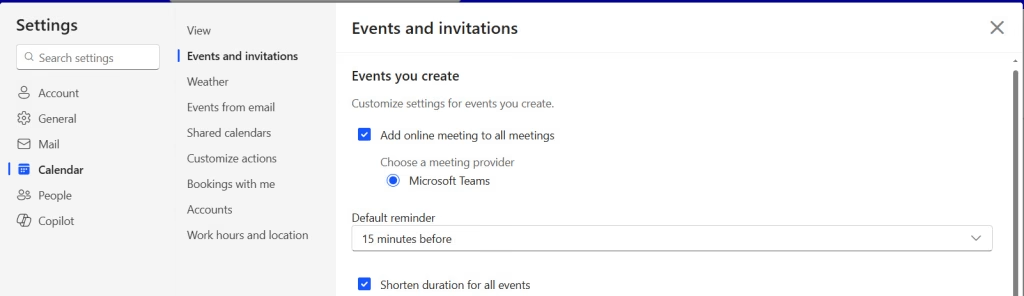
This change only affects meetings you create through the web browser. If you also use the desktop app, you’ll need to set it there separately.
Method 4: Outlook for Mac
If you’re on a Mac, the process is slightly different but still straightforward.
- Open Microsoft Outlook on your Mac.
- Click Outlook in the top menu bar (next to the Apple icon).
- Select Preferences.
- Click Calendar.
- Look for “Add online meeting to all meetings” and check that box.
- Click Configure Providers next to it.
- In the provider list, select Microsoft Teams as your default.
- Close the preferences window.
Your Mac will now automatically add a Teams meeting link to every new event you schedule from Outlook.
Method 5: Admin-Level Default Setting (For IT Admins)
If you’re an IT admin and you want to set Microsoft Teams as the default meeting provider for everyone in your organization — not just yourself — you can do it from the Microsoft 365 admin center or using PowerShell.
From the Teams Admin Center:
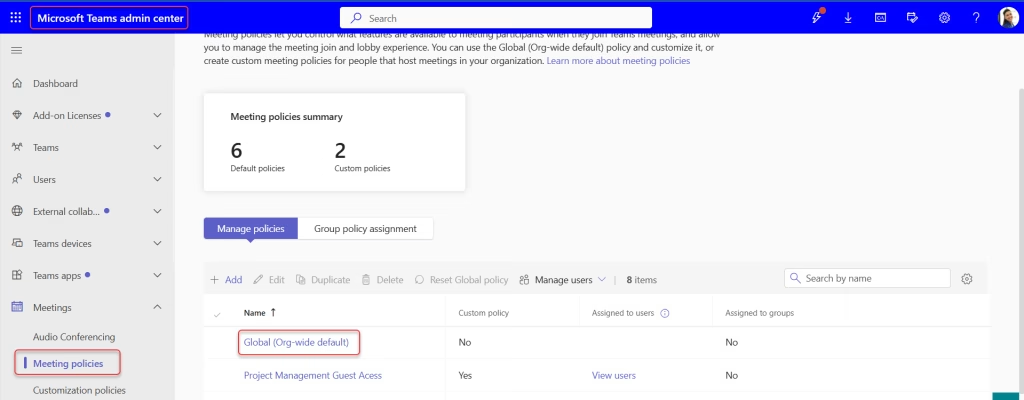
- Go to admin.teams.microsoft.com.
- In the left menu, click Meetings > Meeting policies.
- Click on the policy that applies to your users (usually “Global (Org-wide default)”).
- Review and configure the online meeting settings as needed.
Using PowerShell (Exchange Online):
If you want to set the default meeting provider using PowerShell, you can use this command:
Set-MailboxCalendarConfiguration -Identity user@yourdomain.com -DefaultOnlineMeetingProvider TeamsForBusinessReplace user@yourdomain.com with the actual user’s email. The value TeamsForBusiness is the official parameter value for Microsoft Teams in this cmdlet.
To apply it to all users in bulk:
Get-Mailbox -ResultSize Unlimited | Set-MailboxCalendarConfiguration -DefaultOnlineMeetingProvider TeamsForBusinessThis is the most efficient way if you’re managing a large organization and don’t want each user to change it manually.
Switching Default from Zoom or Webex to Teams
If your organization previously used Zoom or Webex and you want to switch the default over to Teams, just follow Method 1 (or the method for your version of Outlook) and in the provider list, deselect Zoom or Webex and select Microsoft Teams instead. Outlook will follow your new preference going forward. Old meetings already created won’t be affected — only new ones.
Turning It Off — How to Stop Outlook from Auto-Adding Teams
If for any reason you want to stop Outlook from automatically adding Teams links to every meeting (maybe some meetings are in-person), here’s how to turn it off:
Classic Outlook:
- Go to File > Options > Calendar.
- Click Meeting Providers…
- Uncheck “Add online meeting to all meetings”.
- Click OK twice.
New Outlook / Web:
- Go to Settings > Calendar > Events and invitations.
- Toggle off “Add online meeting to all meetings”.
- Save.
Final Thoughts
Setting Microsoft Teams as your default meeting provider in Outlook is one of those small changes that saves you a surprising amount of time over a week. Once it’s set up, you stop thinking about it — and that’s exactly how it should be.
The steps vary slightly depending on which version of Outlook you’re using, but the core idea is the same: open the online meeting settings, check the box to add the meeting to all events, and select Microsoft Teams as your provider.
You may also like:
- Enable GIFs in Microsoft Teams
- Reschedule or Cancel a Teams Meeting in Microsoft Teams
- Print Microsoft Teams Chat
- How to Zoom In on Microsoft Teams
- Disable Notifications During a Meeting in Microsoft Teams

Hey! I’m Bijay Kumar, founder of SPGuides.com and a Microsoft Business Applications MVP (Power Automate, Power Apps). I launched this site in 2020 because I truly enjoy working with SharePoint, Power Platform, and SharePoint Framework (SPFx), and wanted to share that passion through step-by-step tutorials, guides, and training videos. My mission is to help you learn these technologies so you can utilize SharePoint, enhance productivity, and potentially build business solutions along the way.

