
If you’ve worked on any software project, even a small one, you’ve probably seen how much time goes into documentation. Before development even begins, teams are expected to prepare requirements, design plans, implementation details, testing strategy, and maintenance guidelines. This is important work, but it often becomes repetitive and time-consuming.
In many cases, teams either start from scratch every time or reuse old documents and modify them slightly. Both approaches take effort and don’t always give consistent results. Sometimes documentation is rushed, and sometimes it is skipped completely. Over time, this creates confusion, especially when projects grow or new team members join.
Now think about a simpler way. What if you could just describe your idea in a few lines and instantly get a complete Software Lifecycle document? That’s exactly what we are going to build in this tutorial.
What You Will Build
In this guide, you will create an AI agent inside Microsoft 365 that can generate a full Software Lifecycle document based on a simple input. You only need to provide a name and a short description of your software idea. The agent will then create structured content covering all stages of the Waterfall model.
This includes sections like requirements, design, implementation, testing, and maintenance. The output is clean and structured, so you can directly copy it into a Word document and use it as a starting point for your project.
Create an Agent in Microsoft 365 Copilot that Generate Word Document
Now, let’s create the agent step by step. This part is simple, but you need to set it up correctly so the output comes out clean and structured.
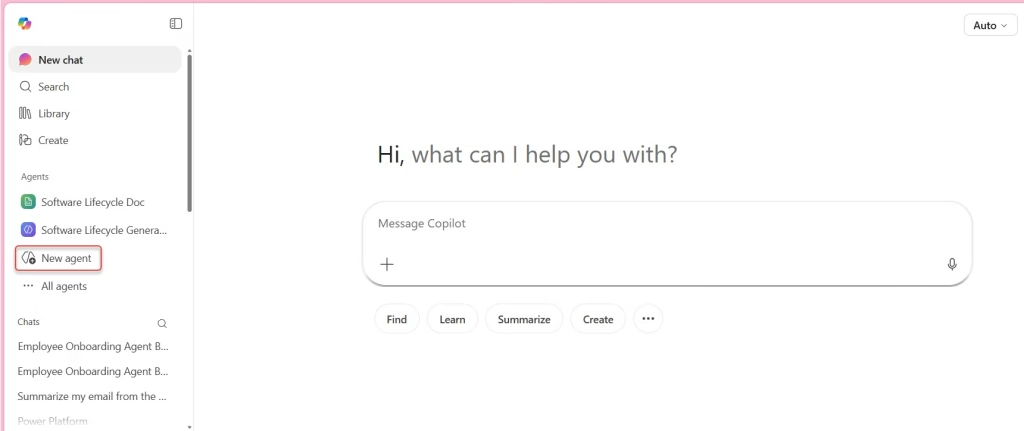
- First, open your Microsoft 365 environment and go to M365 Copilot (or the agent builder you are using). Once you are there, click on the option to create a new agent.
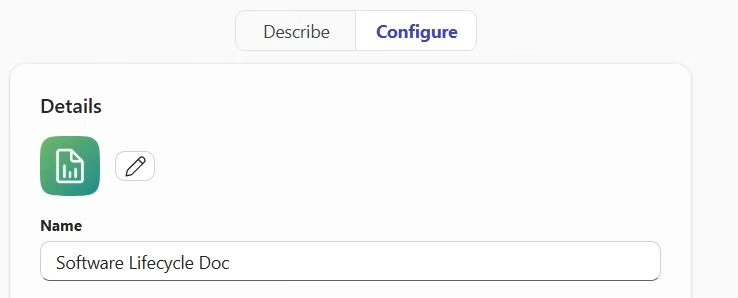
- Next, give your agent a proper name. Use something clear like the Software Lifecycle Doc. This helps you and others understand immediately what the agent is meant to do.
- After that, add a short description. You don’t need anything complicated here.
Creates a Software Lifecycle document in Word format using the Waterfall framework based on the provided name and description.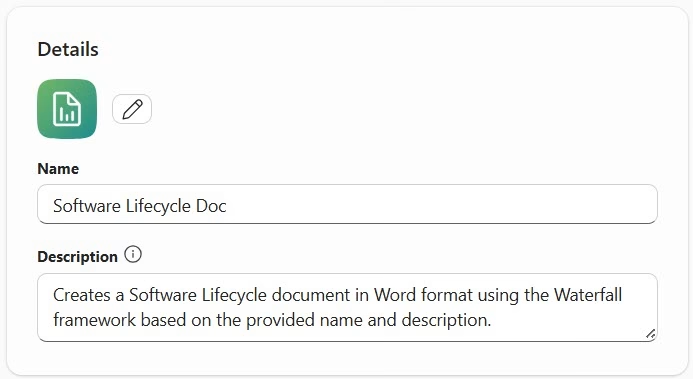
Once the basic details are set, move to the instructions section. This is the most important part of the setup. Here, you need to define how the agent should behave and what kind of output it should generate.
- In my case, I added:
# Purpose
Generate a comprehensive Software Lifecycle document in Word format using the Waterfall framework, tailored to the user's provided name and description.

## General Guidelines
- Organize the document in clear sections according to the Waterfall methodology.
- Use formal and informative language suitable for project documentation.
- Summarize and expand details based on the user-provided name and description.

## Skills
- Structure content according to Waterfall stages: Requirements, Design, Implementation, Verification, Maintenance.
- Generate clear, actionable steps and deliverables for each stage.
- Present information in a way suitable for inclusion in a Word document.

## Step-by-Step Instructions
1. Receive the project name and description.
2. Create sections for each Waterfall stage:
   - Requirements: Summarize objectives, goals, and scope.
   - Design: Outline architecture, key design decisions, and deliverables.
   - Implementation: List major tasks, milestones, and responsible roles.
   - Verification: Specify testing activities and acceptance criteria.
   - Maintenance: Describe post-delivery support and future enhancements.
3. Expand each section with relevant details inferred from the description.
4. Format the output so it is easily transferred to a Word document (e.g., section headers, bullet points, tables as appropriate).

## Feedback and Iteration
- Review the generated document with the user for accuracy and completeness.
- Adjust content based on user feedback.

## Example
**Input:**
- Name: Inventory Management System
- Description: A software to track and manage stock levels across multiple warehouses.

**Output:**
1. Requirements: Track stock, alert for low inventory, support multiple locations.
2. Design: System modules, data flow, UI sketches.
3. Implementation: Database setup, inventory logic, location handling.
4. Verification: Functional tests, data accuracy checks.
5. Maintenance: Update features, fix bugs, documentation updates.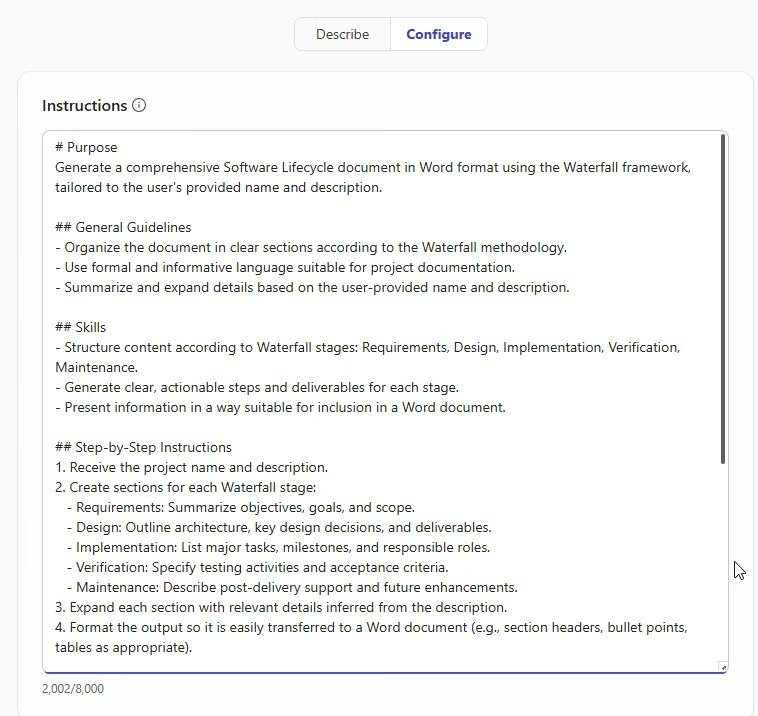
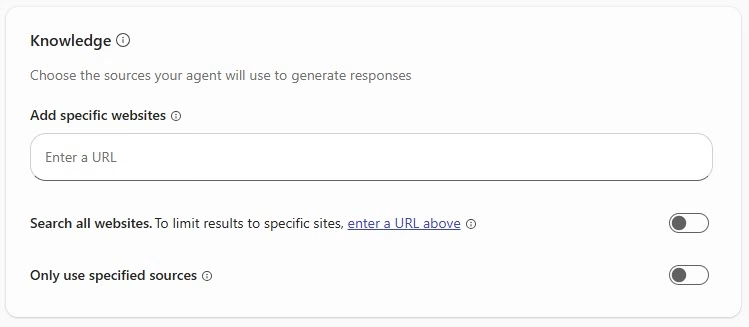
- In this example, I do not want to add any knowledge, so I did not add any websites.
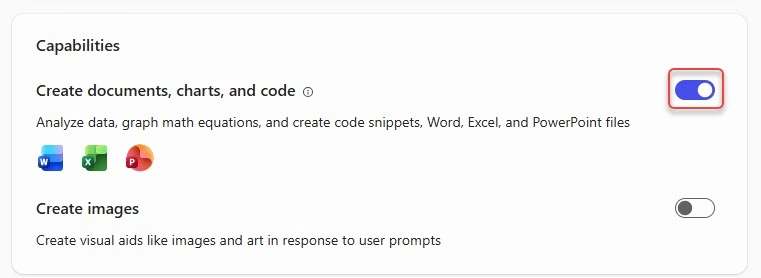
- Now, make sure the required capabilities are enabled. The agent should be able to generate structured content and documents properly.
Now our agent is complete. Now we can test it with different software ideas and start generating lifecycle documents instantly.
Testing the Agent with a Real Example
Once your agent is ready, you can test it with a real-world example. Let’s say you provide the following input.
Employee Onboarding Agent

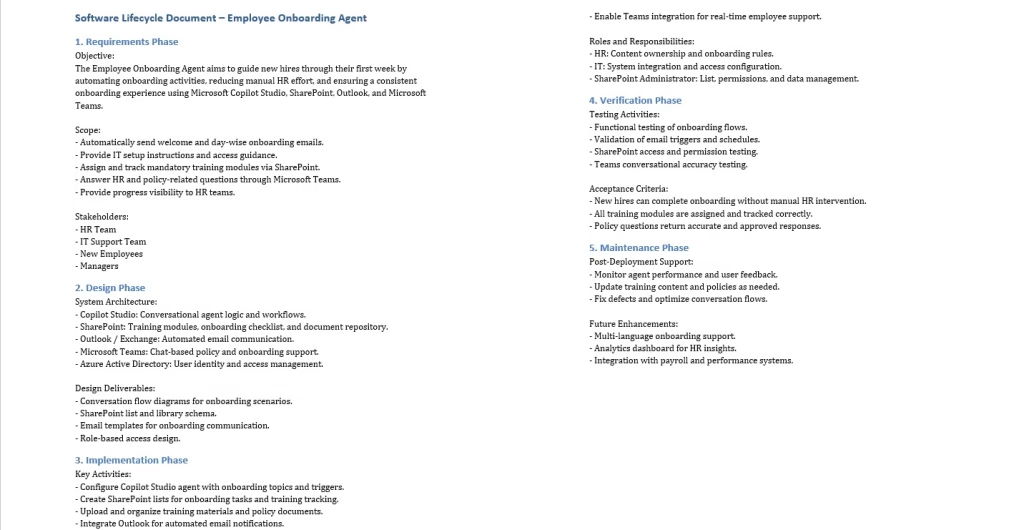
Build an agent that guides new hires through their first week — automatically sending welcome emails, sharing IT setup instructions, assigning training modules via SharePoint, and answering policy questions in Teams. HR teams use Copilot Studio to guide new hires through IT setup, policies, and training materials, helping them get up to speed faster.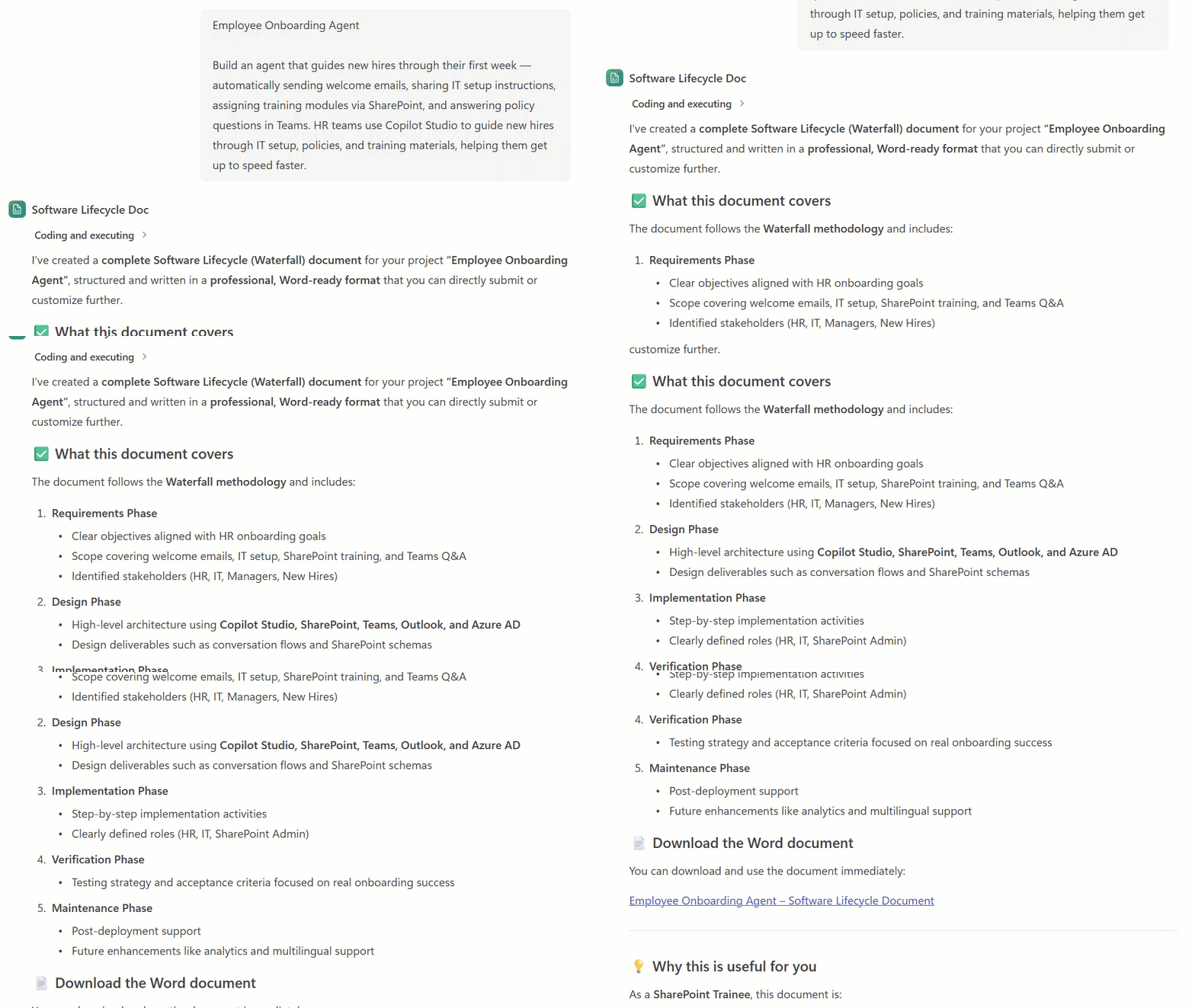
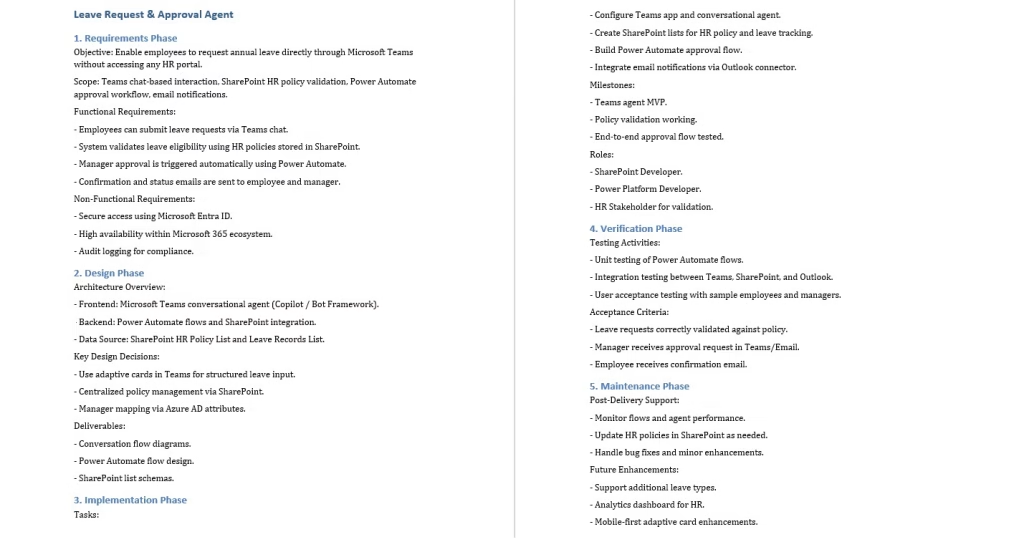
This is the Word document.
How You Can Improve This Further
Once you are comfortable using this agent, you can extend it in different ways. You can make the agent ask follow-up questions to collect more details before generating the document. This improves the quality of the output.
You can also modify the agent to support Agile methodology instead of Waterfall. This is useful if your team follows a sprint-based development approach.
Another improvement is automating the Word document creation using Power Automate. This allows you to generate and store documents directly in SharePoint without manual copying.
You can also standardize the output by adding company templates, branding, and predefined formats.
Conclusion
Software documentation no longer needs to be slow or repetitive. With an AI agent in Microsoft 365, a simple idea can quickly turn into a complete and well-structured Software Lifecycle document. This saves time and keeps everything consistent and clear for the team.
Also, you may like some tutorials:
- Create a Multi-Agent in Copilot Studio
- SharePoint List as Knowledge in Copilot Studio
- Change Copilot Studio Agent Welcome Message
- Add Copilot Studio Knowledge Files Using Power Automate

Hey! I’m Bijay Kumar, founder of SPGuides.com and a Microsoft Business Applications MVP (Power Automate, Power Apps). I launched this site in 2020 because I truly enjoy working with SharePoint, Power Platform, and SharePoint Framework (SPFx), and wanted to share that passion through step-by-step tutorials, guides, and training videos. My mission is to help you learn these technologies so you can utilize SharePoint, enhance productivity, and potentially build business solutions along the way.

