
Let’s be honest — plans change. A client pushes back, your calendar fills up, or the topic just isn’t ready to discuss yet. Whatever the reason, you need to reschedule or cancel a Teams meeting, and you want to do it quickly without confusing your attendees.
The good news? Microsoft Teams makes this pretty straightforward once you know where to look. In this tutorial, I’ll walk you through every method — from the quick drag-and-drop trick to handling recurring meetings — so you’re covered no matter what situation you’re in.
What You Need to Know First
Before we jump in, here’s one important thing to keep in mind: only the meeting organizer can reschedule or cancel a meeting. If you were just invited to a meeting and you need it changed, you’ll have to reach out to whoever set it up.
Also, when you reschedule or cancel a meeting in Teams, all attendees automatically get a notification. You don’t need to send a separate email. Teams takes care of that for you.
How to Reschedule a Teams Meeting
There are a few different ways to do this, depending on how fast you want to move and how many changes you need to make.
Method 1: The Quick Drag-and-Drop (Fastest Way)
This is hands down the quickest method if you just need to shift a meeting to a nearby time slot on the same day or within the same week.
Here’s how to do it:
- Open Microsoft Teams and click on Calendar in the left sidebar.
- Find the meeting you want to reschedule.
- Click and hold the meeting, then drag it to the new time slot on your calendar.
- Drop it in place.
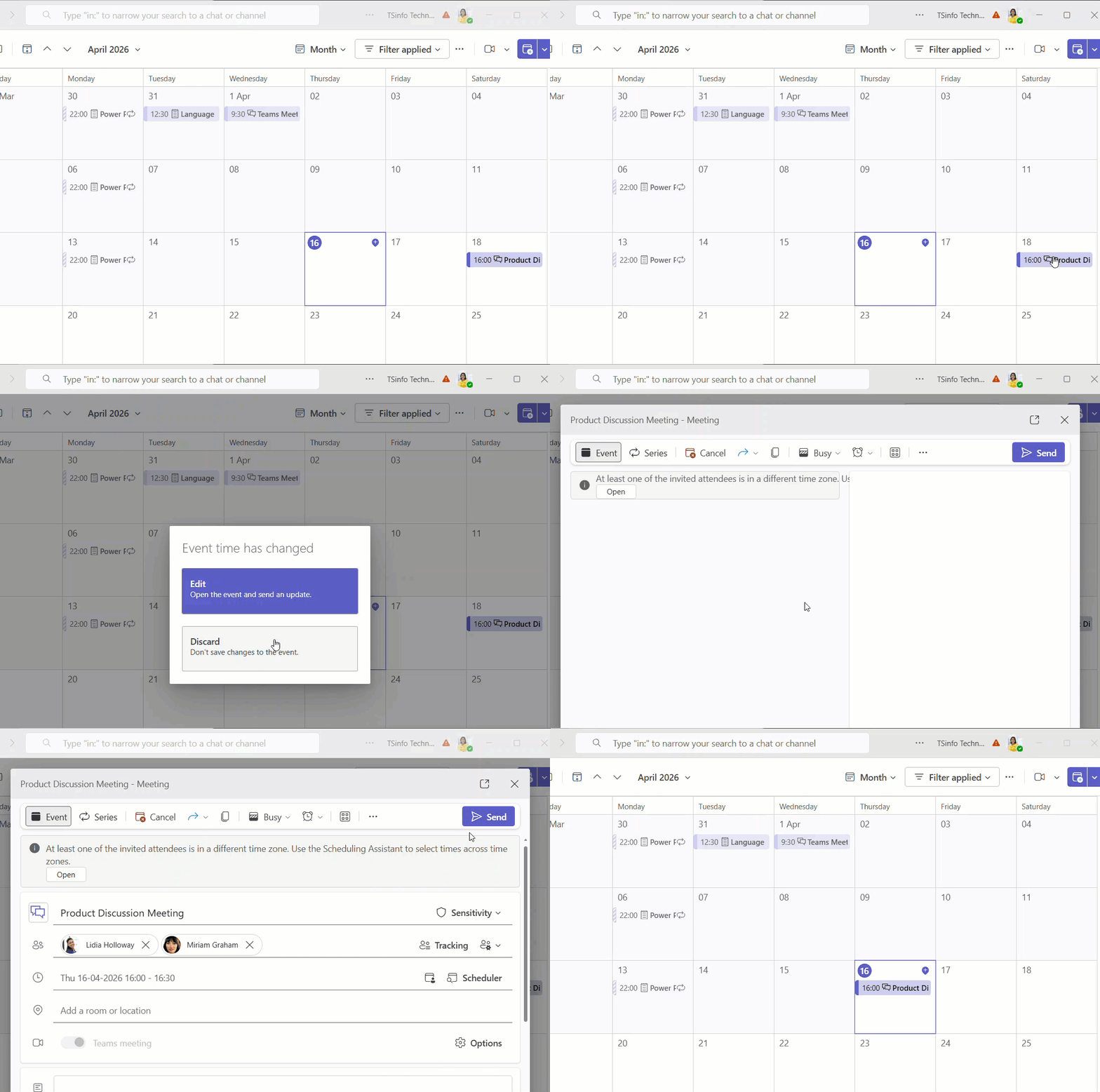
The moment you drop it, Teams will show you a pop-up telling you whether your attendees are available at the new time. That’s a genuinely useful feature — you can check availability without opening the Scheduling Assistant separately.
- If everything looks good, click Send.
That’s it. All attendees get notified automatically with the new time.
Example: Say you have a 2 PM project sync on Wednesday and you need to push it to 4 PM the same day. Just drag it down on the calendar view and drop it at the 4 PM slot. Done in under 10 seconds.
One limitation here: Drag-and-drop only works within the same week view. If you need to move a meeting to a different week, use the method below.
Method 2: Edit the Meeting Details (Most Control)
This is the method to use when you need to change the date, time, add or remove attendees, or update the meeting description all at once.
- Go to Calendar in Teams.
- Click on the meeting you want to change — this opens a summary panel on the right side.
- Click Edit (pencil icon).
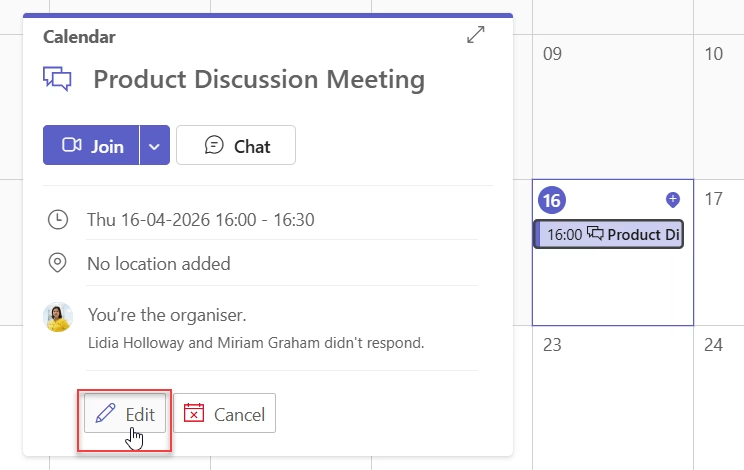
- The meeting editor will open. From here, you can:
- Change the date and time
- Update the title or agenda
- Add or remove attendees
- Change the meeting duration
- Update any notes in the description field
- Once you’ve made your changes, click Send Update.
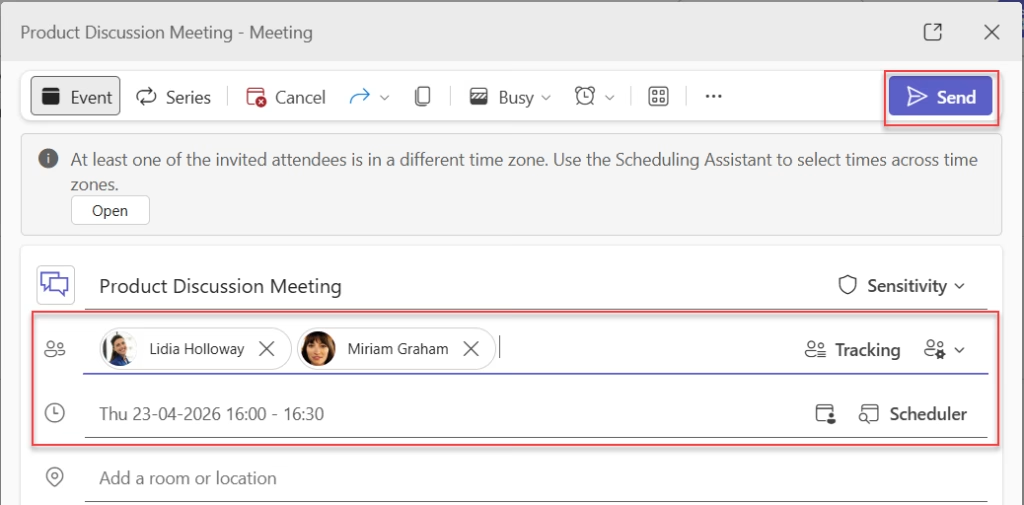
All attendees will receive an updated calendar invite with the new details.
Tip: Before you finalize the new time, use the Scheduling Assistant tab inside the meeting editor. It shows everyone’s free/busy status in a grid so you can pick a slot that works for the whole group.
Method 3: Reschedule via Outlook (Best for Different Weeks)
If you need to move a meeting to a completely different week, Teams’ drag-and-drop doesn’t help much. The easiest workaround is to use Outlook — either the desktop app or Outlook on the web.
- Open Outlook or go to outlook.office.com.
- Click on Calendar in the left menu.
- Find the meeting you want to move.
- Drag and drop it to the new date and time in the Outlook calendar view.
- When prompted, choose whether to send an update to attendees.
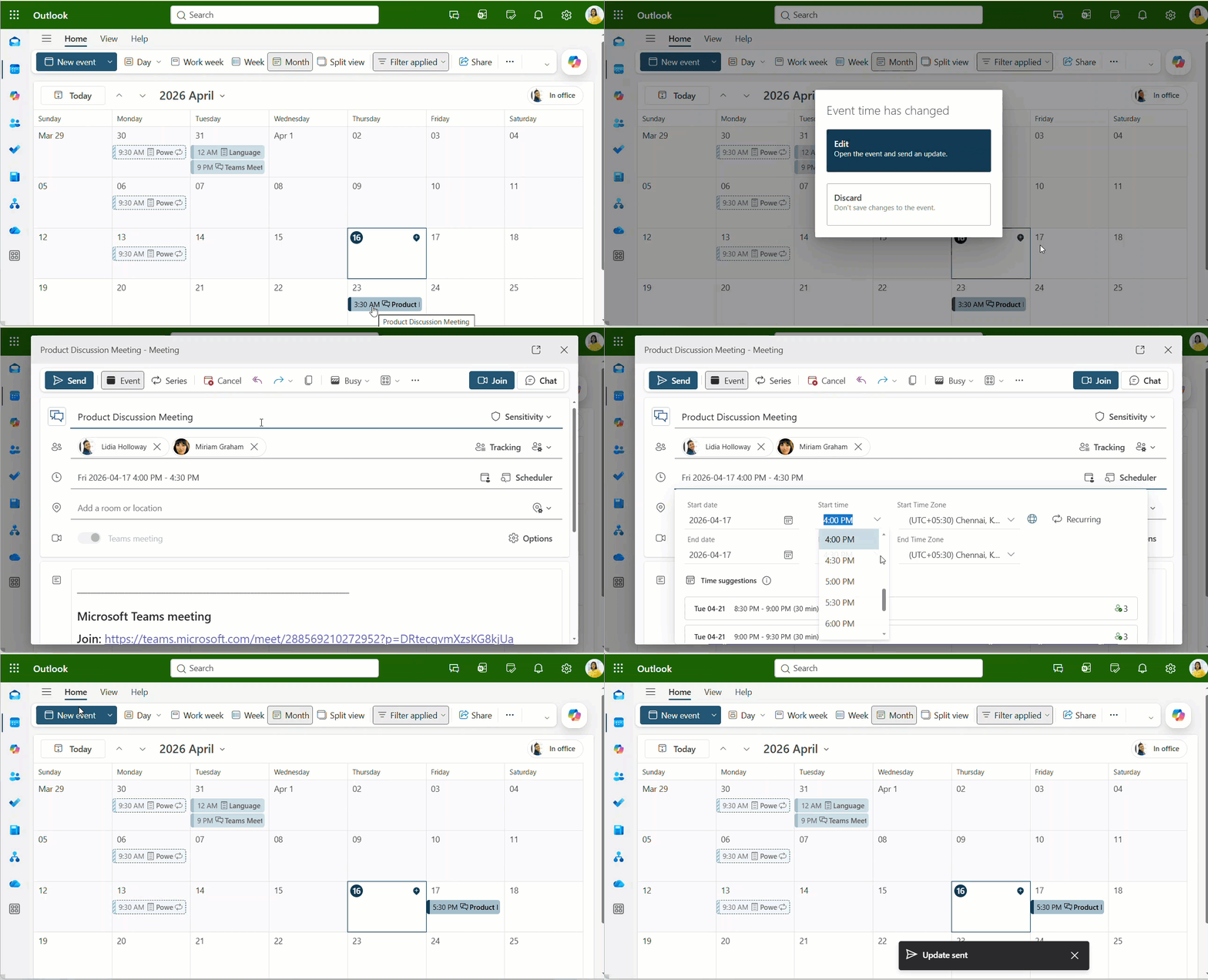
Once you make the change in Outlook, it syncs back to Teams automatically. If Teams doesn’t refresh immediately, just click away from the calendar view and click back — it’ll update.
Reschedule a Recurring Meeting in Teams
Recurring meetings need a bit more thought. When you go to edit one, Teams will ask you a question: Do you want to change just this one occurrence or the entire series?
Here’s how to handle both scenarios.
Changing Just One Occurrence
Let’s say you have a weekly Monday standup and you need to skip one week because of a public holiday, but you want to hold it on Tuesday instead.
- Go to Calendar and find that specific Monday occurrence.
- Click on it, then click Edit.
- Teams will ask: Edit this event or all future events? Choose This event (or “Just this one”).
- Change the date and time.
- Click Send Update.
Only that one instance gets rescheduled. Your regular weekly meeting stays untouched.
Changing the Entire Series
If the whole recurring schedule needs to shift — say you’re moving a bi-weekly meeting from Fridays to Thursdays going forward:
- Open any occurrence of the recurring meeting.
- Click Edit.
- When prompted, choose All events (or “This and all future events,” depending on your Teams version).
- Make your changes to the date, time, or recurrence pattern.
- Click Send Update.
Everyone gets a fresh invite reflecting the updated schedule.
Important: Channel meetings (meetings tied to a Teams channel) have some restrictions on editing individual occurrences. If you run into trouble, the most reliable fix is to make the change through Outlook on the web instead.
How to Cancel a Teams Meeting
Canceling a Teams meeting is even simpler. Again, only the organizer can do this.
Method 1: Cancel from the Teams Calendar
- Open Teams and click on Calendar.
- Find the meeting you want to cancel.
- Click on it to open the details panel.
- Click Edit.
- In the top menu, look for the Cancel Meeting button and click it.
- A message box will appear — you can type a short note explaining why the meeting is cancelled. Something like “This meeting has been cancelled. We’ll reschedule next week.” goes a long way.
- Click Send Cancellation.
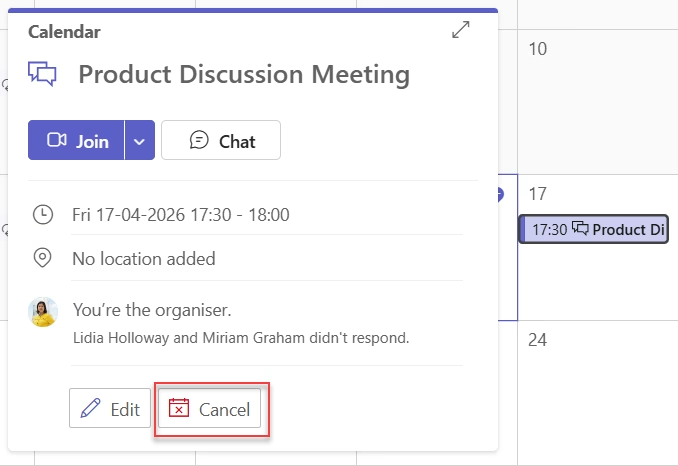
All attendees receive a cancellation notice, and the meeting is automatically removed from their calendars.
Method 2: Cancel a Recurring Meeting
When you cancel a recurring meeting, Teams gives you two choices:
- Cancel this occurrence — removes just this one meeting from everyone’s calendars
- Cancel the series — removes the entire recurring meeting for all future dates
Here’s how:
- Open the recurring meeting from your Calendar.
- Click Edit.
- Click Cancel Meeting.
- Choose whether you want to cancel just this occurrence or the entire series.
- Add an optional message, then click Send Cancellation.
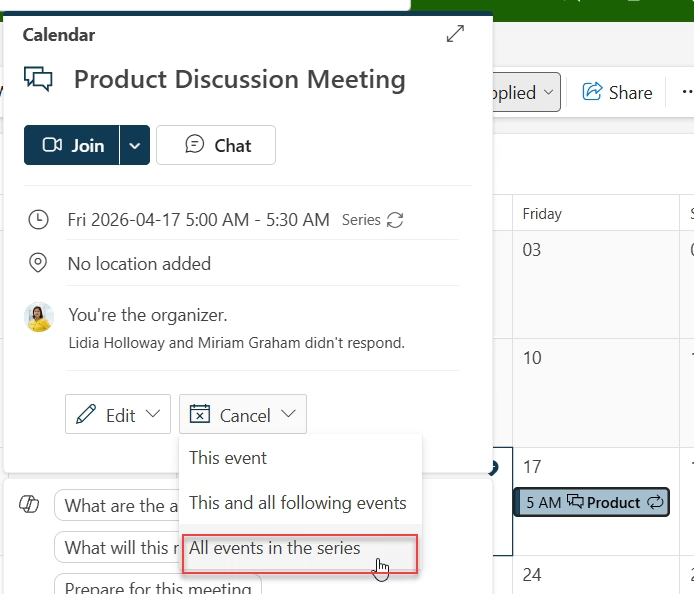
Example: You have a monthly team check-in, but December’s session isn’t needed because everyone’s on holiday. Cancel just that one occurrence, and your January meeting stays scheduled as normal.
What If You See a “Delete” Button Instead of “Cancel”?
If you notice a Delete button instead of a Cancel Meeting button, it usually means no external attendees were invited — it might be a meeting you set up just for yourself, like a personal reminder or a quick internal block. Clicking Delete just removes it from your calendar without sending any notifications.
Cancel a Teams Meeting on Mobile
If you’re away from your desk, you can cancel or reschedule from the Teams mobile app too.
- Open the Teams app on your phone.
- Tap the Calendar icon at the bottom.
- Tap on the meeting you want to change.
- Tap Edit or Cancel, depending on what you need.
- If it’s recurring, choose whether to update just this occurrence or the whole series.
- Add a message for your attendees.
- Tap Send.
It works exactly like the desktop version — just on a smaller screen.
A Few Things to Keep in Mind
- You must be the organizer to reschedule or cancel. If you’re an attendee, you can only decline — not cancel.
- Always add a message when cancelling. Even one sentence helps attendees understand what’s happening and whether to expect a rescheduled meeting.
- Check the Scheduling Assistant before confirming a new time. It saves the back-and-forth of finding a slot that works for everyone.
- Recurring channel meetings can be tricky to edit from Teams directly. When in doubt, use Outlook on the web — it’s more reliable for those cases.
- If someone wasn’t invited to the meeting originally and you need to add them before rescheduling, open the meeting editor, add their name in the attendees field, then send the update. They’ll get the full invite.
Conclusion
I hope you found this article helpful. In this guide, I explained how to reschedule or cancel a meeting in Microsoft Teams. I also showed different methods, such as drag-and-drop, edit options, and Outlook. These steps are simple and easy to follow.
If you need to reschedule a meeting, choose the method that best suits your situation. Be careful when updating recurring meetings. Also, inform your attendees clearly about any changes. This will help avoid confusion and keep everyone updated.
Also, you may like:
- 6 Various Ways to Start an Instant Message in Microsoft Teams
- Microsoft Teams Auto Mute When Joining a Meeting
- Whiteboard in Microsoft Teams On Laptop
- Create an Announcement in Microsoft Teams
- Send a Microsoft Teams Invite [5 Best Methods]
- 4 Tricky Ways to Change Password in Microsoft Teams

Hey! I’m Bijay Kumar, founder of SPGuides.com and a Microsoft Business Applications MVP (Power Automate, Power Apps). I launched this site in 2020 because I truly enjoy working with SharePoint, Power Platform, and SharePoint Framework (SPFx), and wanted to share that passion through step-by-step tutorials, guides, and training videos. My mission is to help you learn these technologies so you can utilize SharePoint, enhance productivity, and potentially build business solutions along the way.

