
When I was working on an IT Help Desk solution using Power Apps and Power Automate, I needed to get ticket data using Power Automate and send it to Power Apps.
Everything was working fine at first. But the problem started when I tried to get data from a multi-select Person column called Assigned To.
I used $expand in the REST API to get details like:
- Id
- Display Name
At first, it worked correctly. But when the list had more records and the flow started loading the second page using _next, the flow kept running and did not finish properly.
Then I removed $expand from the API. After removing it, the flow worked correctly and loaded all pages without any issues.
But now there was a new problem. Instead of user details, I was only getting AssignedToId.
First, I thought I could use the Office 365 Users connector to get the user name. But it did not work because this ID is not the Azure AD user ID.
After checking carefully, I found that this ID comes from the User Information List, which is a default, hidden list in SharePoint.
So instead of trying to get the user details in Power Automate, I sent the AssignedToId to Power Apps. Then, in Power Apps, I connected to the User Information List and used that ID to retrieve the correct user details, such as Display Name and Email.
In this tutorial, I will show you step-by-step how to connect to the User Information List in Power Apps and use AssignedToId to retrieve the correct user details, such as Display Name and Email.
Connect the Default User Information List in Power Apps
Now I will show you how to connect to the default SharePoint list called User Information Line and retrieve user information.
Now follow the steps below:
- Open Power Apps Studio and go to the canvas app where you want to retrieve the user details.
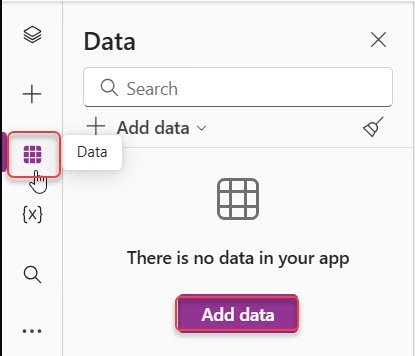
- Click Data from the left side panel. Click Add data.
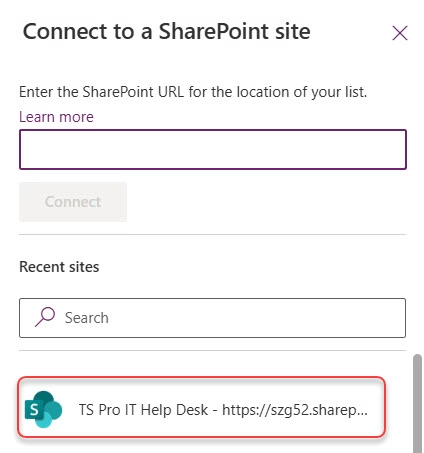
- Search for SharePoint. Select the SharePoint site where your list is located.
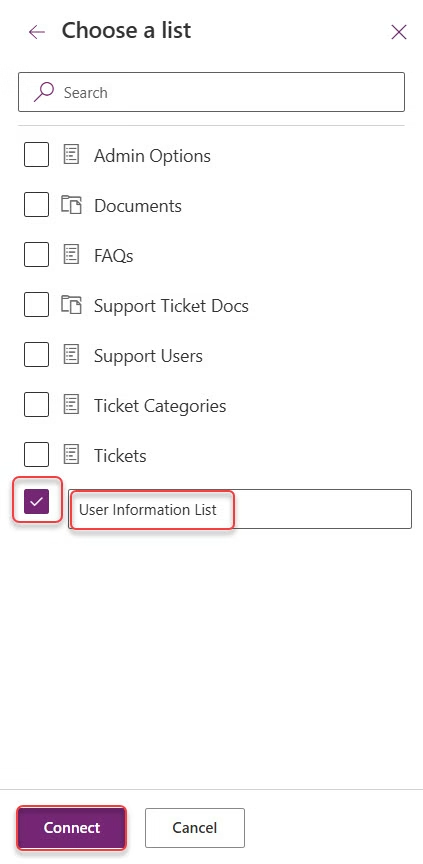
- Normally, the User Information List will not appear in the list selection. So we need to enter the name manually. Click Enter custom table name. Type the following name:
User Information List- Click Connect.
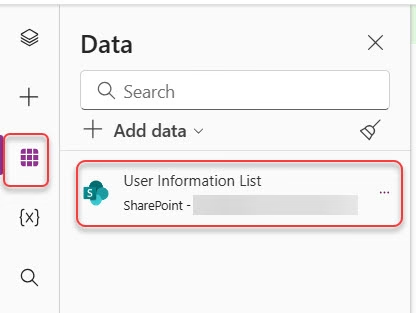
- Now you can see that the User Information List will be added as a data source in Power Apps.
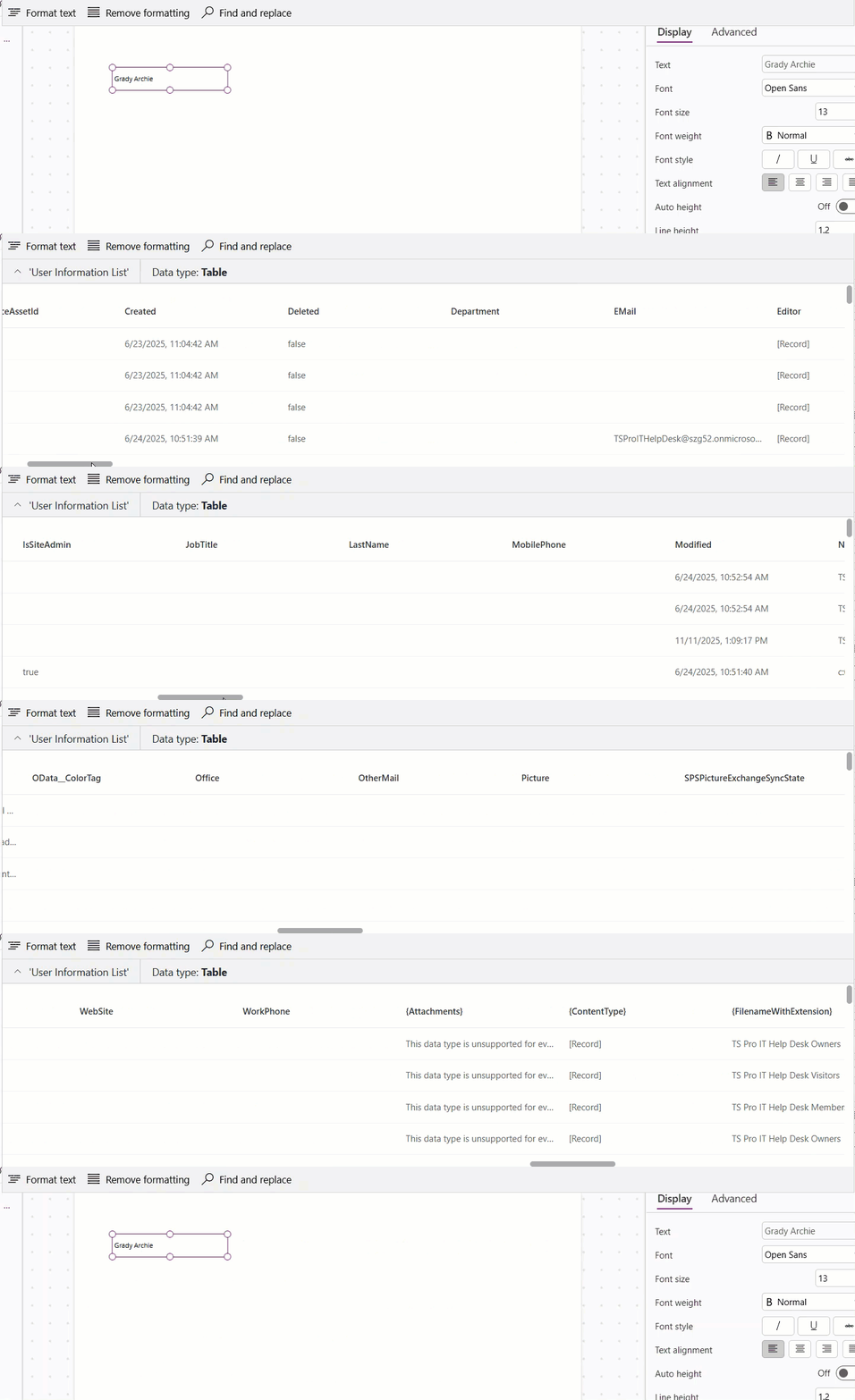
- After connecting the list, you will see several columns, such as:
- ID – Unique ID of the user in SharePoint
- Title – Display Name of the user
- EMail – User email address
- Now we can use the LookUp function to retrieve the user details from the User Information List. Add a Text Label to the screen and enter the following formula in the Formula Bar.
LookUp(
    'User Information List',
    ID = 15
).'Name (Title)'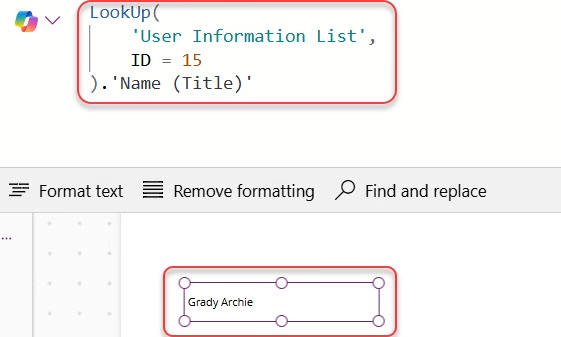
This formula searches the User Information List and returns the user name that matches the 15.
- To get the email address, we can use this formula:
LookUp(
    'User Information List',
    ID = 15
).EMail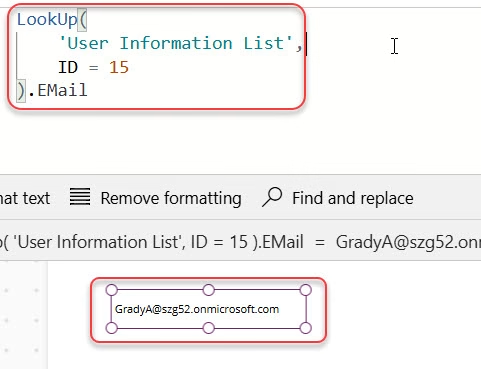
This will return the email address of the user whose ID is 15.
This way, we can connect the Default User Information List in Power Apps and retrieve user details such as Display Name and Email using AssignedToId.
Also, you may like some more Power Apps tutorials:
- Confirm() Function in Power Apps
- Set Combo Box Value On Button Click in Power Apps
- Set Default Value in Power Apps Modern Radio Button
- Set a Power Apps Dropdown Default Value from a SharePoint List

Hey! I’m Bijay Kumar, founder of SPGuides.com and a Microsoft Business Applications MVP (Power Automate, Power Apps). I launched this site in 2020 because I truly enjoy working with SharePoint, Power Platform, and SharePoint Framework (SPFx), and wanted to share that passion through step-by-step tutorials, guides, and training videos. My mission is to help you learn these technologies so you can utilize SharePoint, enhance productivity, and potentially build business solutions along the way.

